
How to use POWR on Shopify
POWR offers 60+ no-code apps designed to extend your Shopify store with features like forms, popups, galleries, social feeds, countdowns, and more. Whether you're looking to capture leads, display reviews, add a contact form, or showcase your Instagram feed, there's a POWR app for it. Here's everything you need to know to get started.
Getting POWR on your Shopify store
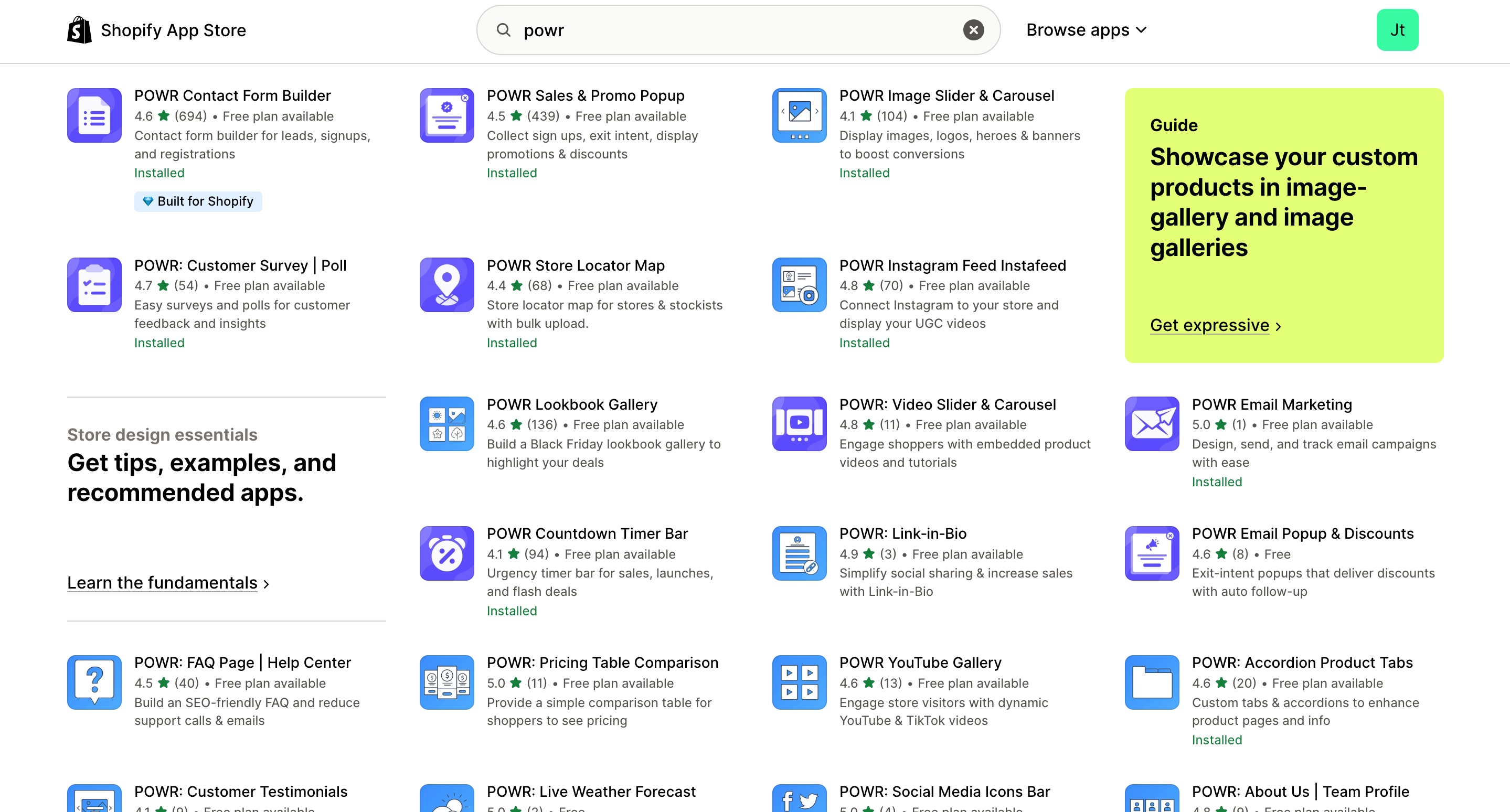
The easiest way to add POWR to your Shopify store is through the Shopify App Store:
Open the Shopify App Store and search for the POWR app you want (e.g., POWR Form Builder, POWR Popup, POWR Social Feed)
Click Add app and approve the installation
Once installed, you'll be redirected to the POWR editor to start customizing
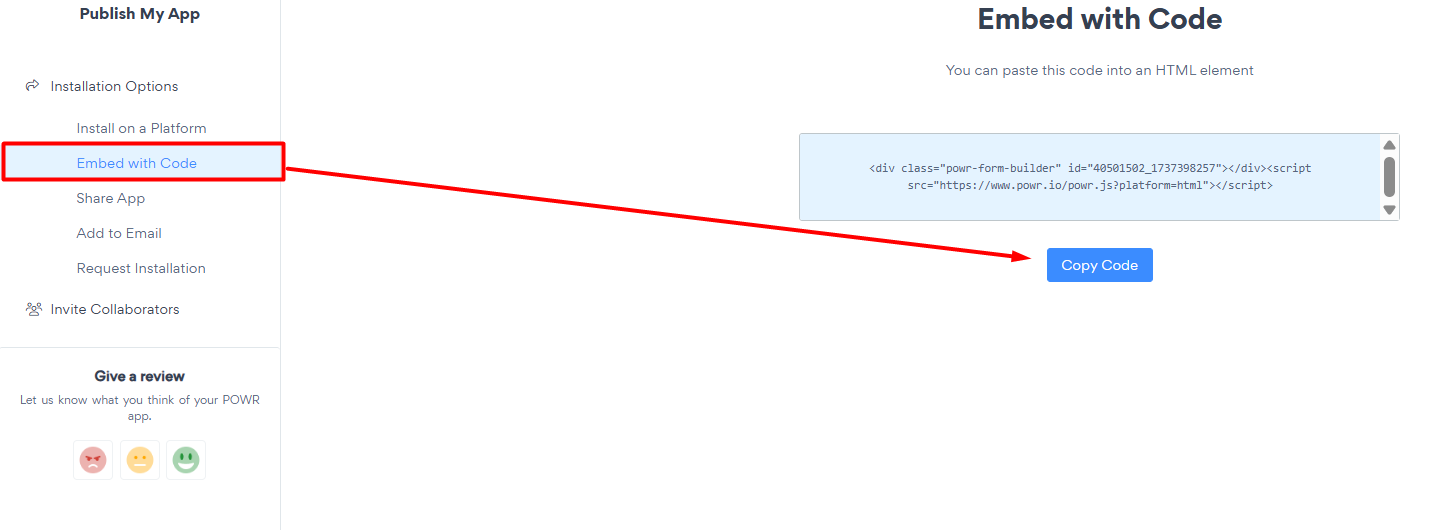
Alternatively, you can install any POWR app directly from powr.io and embed it on your Shopify store using our HTML embed code.
Setting up your first POWR app
Once installed, the setup process is simple:
Open the app editor from your Shopify Apps dashboard or your POWR account
Customize the app with your content, design, and settings
Click Publish to save your changes
Add the app to your Shopify page using either the native Shopify integration or custom embed code
For most POWR apps on Shopify, installation to a specific page happens through Shopify's theme editor or by adding our app block within a product page or custom page.
Learn more: How to Install POWR Apps on Shopify
Popular POWR apps for Shopify stores
Here are some of the most popular POWR apps used by Shopify merchants:
POWR Form Builder: build contact forms, order forms, surveys, and more
POWR Popup: capture emails and announce promotions with customizable popups
If you're using POWR Form Builder or Popup to collect emails, you can automatically sync new submissions to your Shopify customer database. That means every form submission or popup opt-in becomes a Shopify customer, ready to be targeted in your marketing campaigns.
Learn more: Sync Your POWR Form or Popup with Shopify Customers
Troubleshooting common issues
My POWR app still appears after uninstalling from Shopify
When you uninstall a POWR app from Shopify, our script may remain in your theme if you have other POWR apps installed. You'll need to manually remove the leftover HTML div from your theme code.
Learn more: Why Does My POWR App Still Appear After Uninstalling From Shopify?
My form isn't loading for some visitors
This is often caused by browser extensions, corporate firewalls, or cookie consent banners blocking third-party scripts. The form itself is working, but specific visitors' environments are blocking it from loading.
My subscription is managed through the Shopify App Store
Any POWR app subscription you purchased through Shopify is managed on Shopify's side, including billing, renewals, and cancellations. To cancel or change your plan, visit Shopify Admin > Apps > POWR [app name] > Plan details.
Managing your POWR account on Shopify
View and edit apps: access the editor from your POWR dashboard at powr.io or directly from the Shopify Apps section
Access past submissions: your submission history is stored in your POWR dashboard under the app's Responses tab
Manage billing: Shopify-installed apps are managed through Shopify. Direct POWR subscriptions are managed at powr.io/account
Access support: reach out to our team via help.powr.io or through the in-app chat
Need help?
If you need any help or have any questions about our apps, our support team is happy to help.
Contact our support team
When contacting us, you'll be prompted to authenticate your email by signing in, and a confirmation code will be emailed to you. This helps ensure our support team's reply will be delivered to you with no issue.
For more information about available features, visit our Pricing Page:
https://www.powr.io/pricing