
How to Install POWR apps on Shopify (Automatic and Manual methods)
POWR apps can be added to your Shopify store in just a few minutes. Depending on where you want the app to appear, you can install it in two ways:
Automatic Installation – Adds the app to common locations like your homepage, product pages, collections, cart and more.
Manual Installation with Custom Liquid – Allows you to place the app in a specific location inside your Shopify theme or page HTML editor.
This guide walks you through both options so you can choose the best method for your store.
In This Article
Install a POWR App from the Shopify App Store
Before installing the app on a page, you first need to add it to your Shopify store.
Go to the Shopify App Store and search for the POWR app you want (Form Builder, Popup, Image Slider, etc.).
Click Add App.
Approve the installation permissions.
You will be redirected to the POWR Editor, where you can choose a template or start from scratch.
Once you've customized your app, click Publish to install it on your store.
Method 1: Automatic Installation
Automatic installation is the easiest way to add a POWR app to your Shopify store. For more details, please refer to this article:
Automatic Installation of POWR Apps on Shopify
Method 2: Manual Installation with Custom Liquid
If you want to place the app in a specific location inside your Shopify theme or any other custom location of your store, use the manual installation by copying the embed code and install according to the steps below.
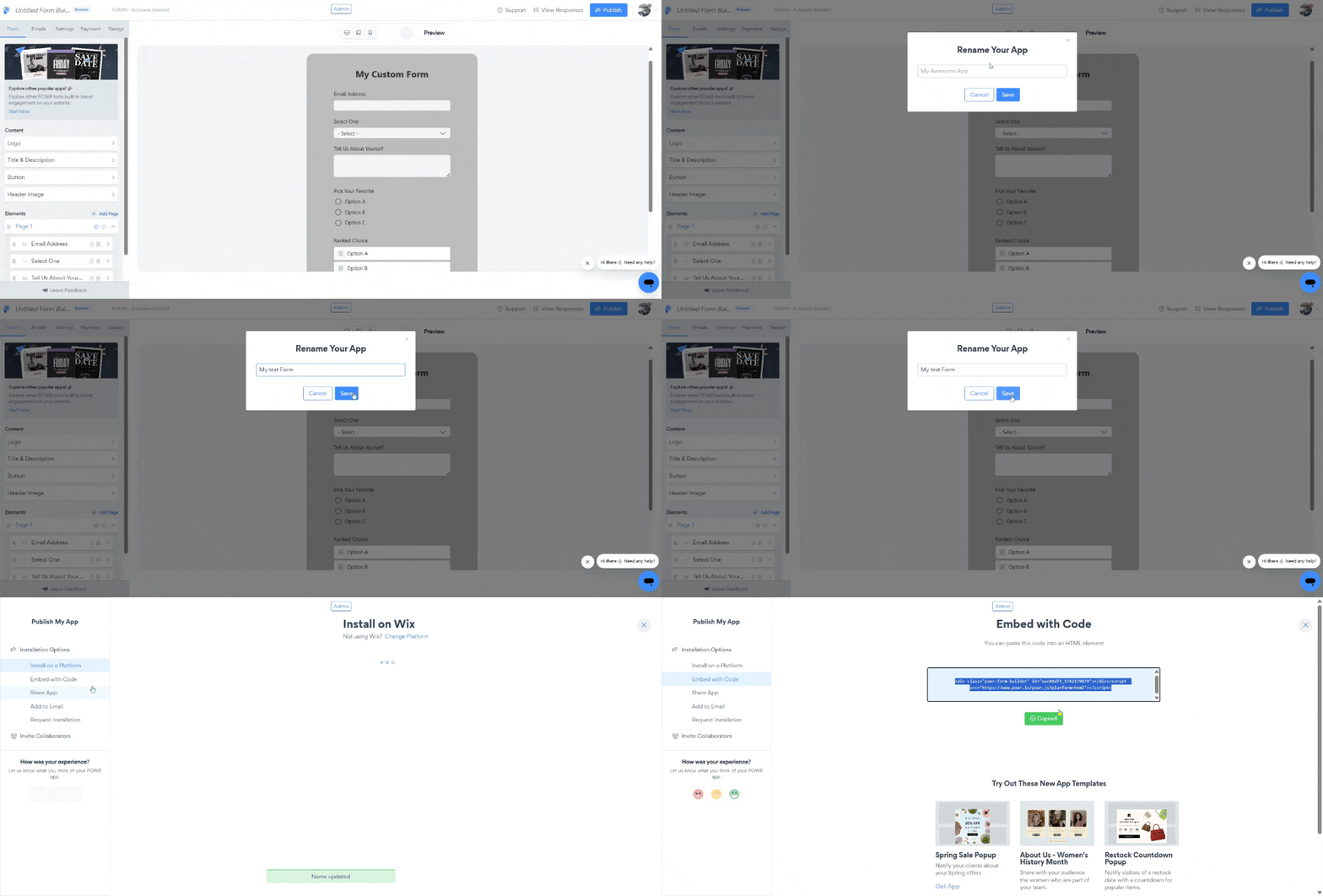
Step 1: Copy the Embed Code
Open your app in the POWR Editor.
Click Publish.
Select Install with Custom Liquid Code.
Copy the embed code provided.
Step 2: Install the embed code
Once copied, you have 2 possible ways to go about installing the app:
Option a): Install as a Section
If you want to install on page templates in order to cover multiple pages under the same template (product, collection, cart, blog and/or default pages)
Go to Shopify Admin → Online Store → Themes.
Click Customize.
Navigate to the page template where you want the app installed.
Click Add Section.
Select Custom Liquid/HTML.
Paste the POWR embed code in the box provided
Save
You can drag the section to adjust where the app appears.
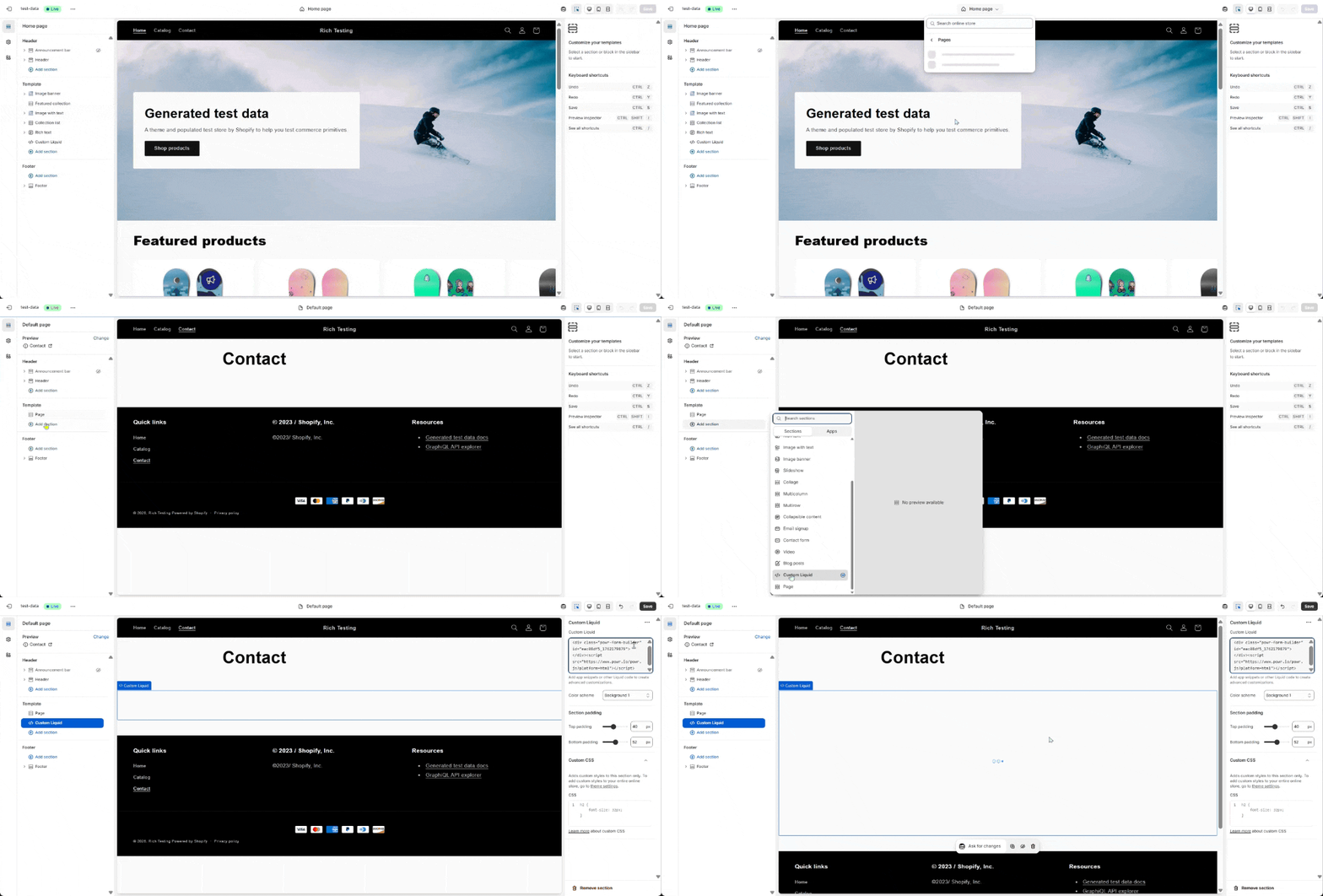
To delete the app installed as a section, simply remove the section and save!
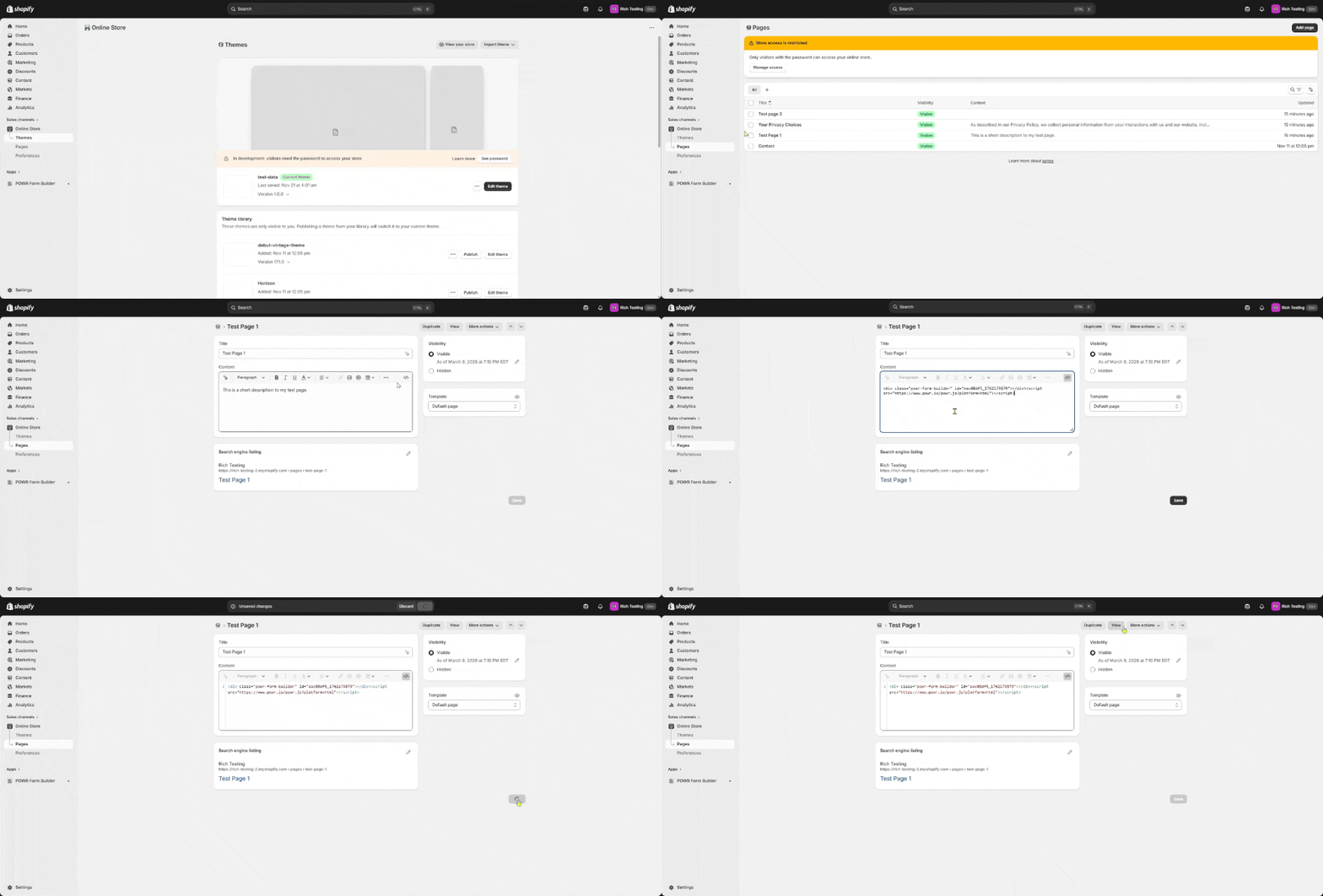
Option b): Install on a page editor
This option helps install on specic pages in area, one by one, for even more control when needed.
From your Shopify admin, go to the the product, collection, blog or default page of your choice.
Click the HTML </> icon at the top right of the page description box
Paste the embed code at the position of your choice in regards to the page content
Save.
Your POWR app will now appear in the location you selected.
There are also other ways to install, and our support team would be more than happy to assist according to your needs!
Need Help?
If you need any help or have any questions about our Form Builder, our support team is happy to help.
👉 Contact our support team
When contacting us, you'll be prompted to authenticate your email by signing in, and a confirmation code will be emailed to you. This helps ensure our support team's reply will be delivered to you with no issues.
For more information about available features, visit our Pricing Page:
https://www.powr.io/pricing