
App still appears after uninstalling from Shopify
If you've uninstalled a POWR app from your Shopify store but it still appears on your site, you're not alone, this is one of the most common questions we get after an uninstall. The good news: there's a simple reason behind it, and a straightforward fix.
Why does this happen?
A POWR app requires two things to display on your site:
The
powr.jsscript installed in your website's<head>sectionThe POWR HTML div that contains the details about your specific app instance
When you uninstall a POWR app from the Shopify Apps admin, Shopify only removes the connection between your store and our app on the Shopify side. The POWR HTML div stays in your theme code because it was placed there when the app was originally installed.
If you still have other POWR apps installed on your Shopify store (any POWR app), the powr.js script also remains loaded on your site. That script continues to render any POWR HTML divs it finds, including the one from the app you just uninstalled.
So even though Shopify no longer shows the app as installed, your site keeps displaying it because:
The HTML div is still in your theme code
The script is still being loaded by one of your other POWR apps
How to fully remove the app from your site
To completely remove the app's visible presence from your site, you'll need to manually remove the HTML div from your theme code. Here's how:
In your Shopify Admin, go to Online Store > Themes
Click Actions > Edit code on your active theme
Open the template or section where the POWR app was originally placed (often this is a page template,
theme.liquid, or a custom section)Find the POWR HTML div, which looks something like this:
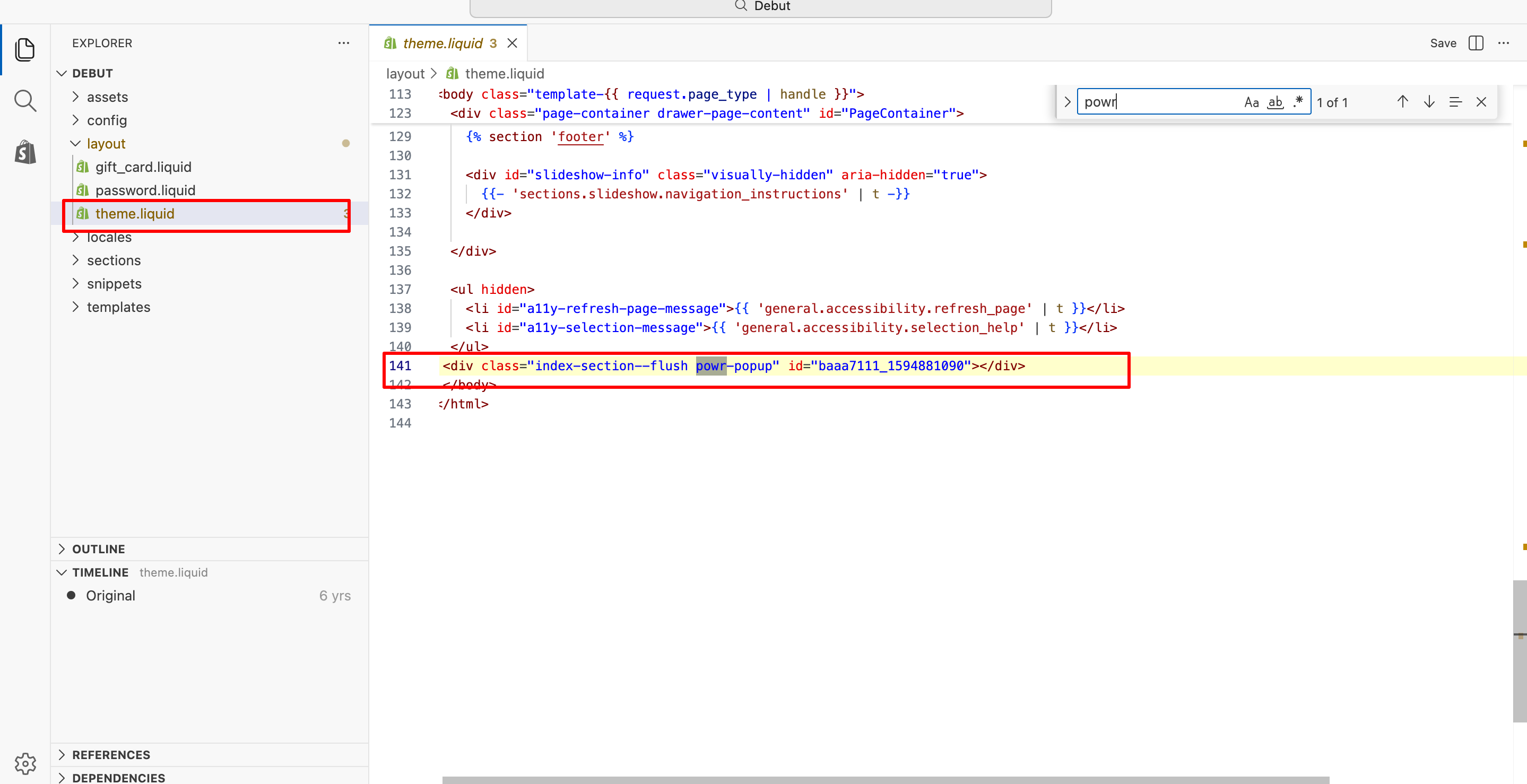
<div class="powr-[app-name]" id="[unique-id]"></div>
For example, a Popup app's div would look like <div class="powr-popup" id="abc123...">, a Form Builder would be <div class="powr-form-builder" id="xyz456...">, and so on
5. Delete that line from your theme code
6. Click Save
Once the div is removed, the app will no longer appear on your site.
What if I want to remove ALL POWR apps from my site?
If you've uninstalled every POWR app from Shopify and still see something lingering, make sure you also remove:
All POWR HTML divs from your theme code (follow the steps above for each remaining div)
The
powr.jsscript tag from your theme's<head>section if it was manually added. In most cases, uninstalling the last POWR app from Shopify automatically removes the script, but if you installed it manually at some point, it may still be there
The powr.js script tag looks like:
html
<script src="https://www.powr.io/powr.js?platform=shopify"></script>
Will I still be charged?
No. Once you've uninstalled the app from your Shopify Apps admin, billing stops immediately, regardless of whether the HTML div is still in your theme. The div remaining on your site is a visual/display issue, not a billing one.
Learn more: How to Uninstall POWR from Shopify
Need help?
If you need any help or have any questions about our apps, our support team is happy to help.
Contact our support team
When contacting us, you'll be prompted to authenticate your email by signing in, and a confirmation code will be emailed to you. This helps ensure our support team's reply will be delivered to you with no issue.
For more information about available features, visit our Pricing Page:
https://www.powr.io/pricing