How To Setup Stripe on POWR Payment Button
Connect a Stripe account to the POWR Payment Button
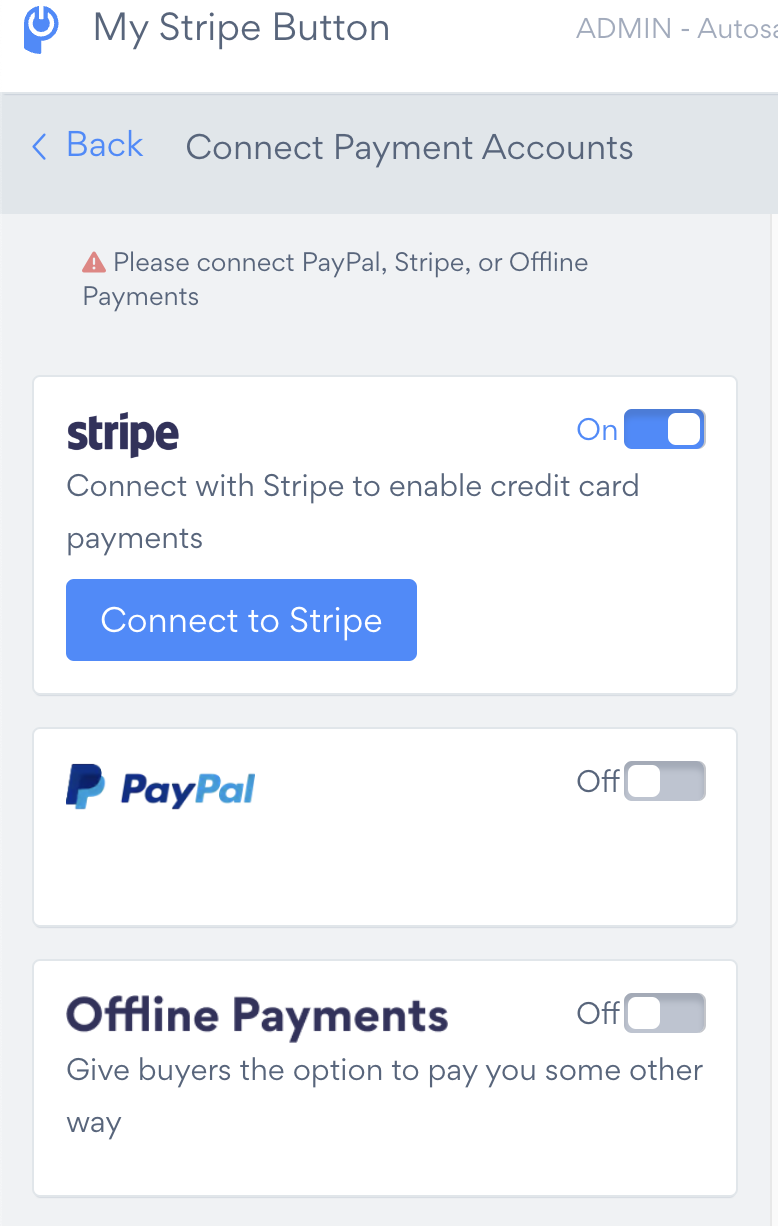
In the POWR Editor for the Stripe Button app, go to
Settings > Connect Payment Accounts > Connect to Stripe.
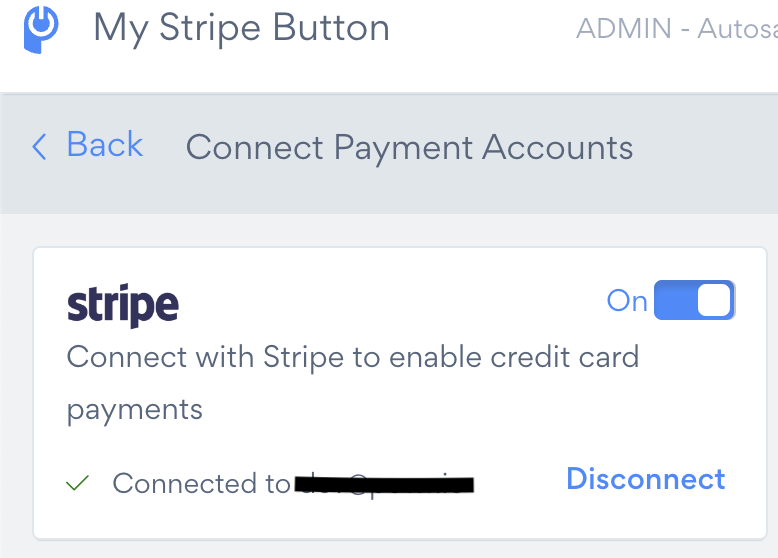
A new window will open to either log into your existing Stripe account or create a new one. Once completed, Stripe is now connected to your Payment Button.
Create a New Stripe Account
If you are creating a new Stripe account, make sure you have the following information:
- Bank account details (transit number, institution number, and account number)
- Social Insurance Number or Business Number (Tax ID) if you’re a corporation,
then follow these 4 steps:
- Click on Connect to Stripe in the POWR Editor.
- Fill in the required personal and business details, then click Continue.
- Link your bank account with Stripe, then click Authorize.
- Verify all information is correct, click Continue, then Agree & submit.
Your Stripe account is now connected to your Payment Button.
Enable One-Click Checkout with Link
To reduce cart abandonment with one-click checkout, follow these steps:
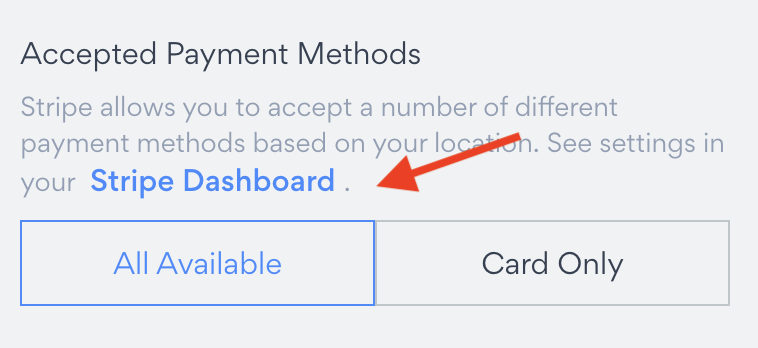
- In the POWR Editor, go to the Product tab, and scroll to Accepted Payment Methods
- Ensure All Available is highlighted in blue.
- Click Stripe Dashboard to navigate to your dashboard and modify what payment methods you want to accept(popular methods like Google Pay & Apple Pay are pre-selected).