How to Accept Payments Through Forms with PayPal, Stripe, or Offline Payment
Looking to collect payments, donations, or fees directly through a form? With POWR Form Builder, you can accept payments via PayPal, Stripe, or even Offline methods. This guide walks you through setting up your payment settings so you can get paid fast without needing a separate checkout page.
In This Article
Step 1: Enable Payment in Your POWR Form
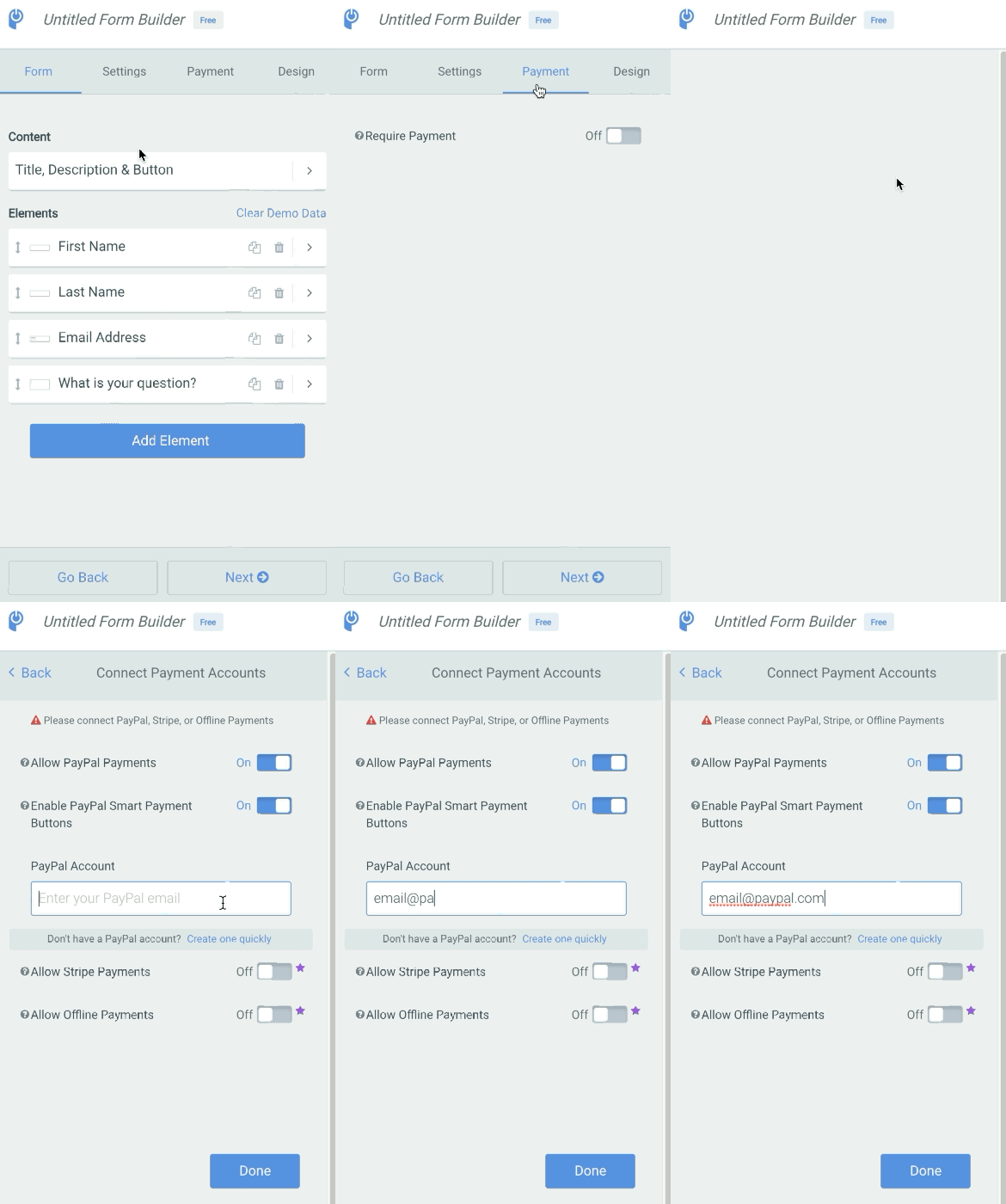
Open the POWR Form Builder in the editor.
Click the Payment tab in the left-side menu.
Toggle Accept Payments to ON.
Once enabled, additional payment settings will appear.
💡 You must be on a paid plan to activate payment features.
Step 2: Choose Your Payment Method
You can accept payments using:
PayPal (instant payments through PayPal account or guest checkout)
Stripe (accepts credit/debit cards directly)
Offline (cash, bank transfer, check, etc.)
You can choose one or multiple options.
To enable:
Click the Payment Method dropdown.
Select the option(s) you want to use.
Step 3: Connect to PayPal
Under Payment Method, select PayPal.
Enter your PayPal Email Address in the field provided.
🔐 Be sure to use a PayPal Business account if you want to allow guest checkout without requiring a PayPal login. Need help with that? How to Enable Guest Payment on PayPal
Step 4: Connect to Stripe
Select Stripe as your payment method.
Click the Connect Stripe button.
Log in to your Stripe account, or create one if you don’t have it yet.
Authorize access to connect POWR.
Step 5: Set Up Offline Payments
Want to allow customers to pay later via check, bank transfer, or cash?
Select Offline as your payment method.
A text field will appear—add your payment instructions (e.g., “Send checks to [your address]” or “We’ll contact you for payment”).
Offline payment selections are submitted just like paid entries, but no charge is processed automatically.
Step 6: Publish and Test Your Form
Once you've configured your payment settings:
Click Publish to save your form.
Test the form on your live site:
Submit a test entry using Stripe or PayPal (or offline option)
Verify that the payment goes through correctly
Make sure to double-check:
Payment confirmation emails
App integrations
Data collected in your POWR dashboard
❓FAQs
Can I use both PayPal and Stripe?
Yes. Users will be able to choose which payment method they prefer at checkout.
Can I offer offline payments only?
Yes. You can disable PayPal and Stripe, and use only offline instructions for manual payments.
Can I offer free and paid options?
Yes. Simply leave the price at $0 for free items and set prices for paid ones. Only forms with prices will trigger the payment screen.
Can I show or hide payment fields conditionally?
Yes. Use Conditional Logic to show payment fields based on user selections.
📚 Related Articles
- Troubleshooting Payments in POWR
- Payments are in my POWR Dashboard but not PayPal or Stripe
- Learn more about creating subscriptions
- Learn more about accepting donations
- How to Add Products and Prices in POWR Forms
💰 Check POWR Pricing Plans
Want to unlock payment collection, conditional logic, and advanced features?
👉 See Pricing Plans to choose the best option for your business.