
How do Conditional Logic elements work?
Note: This is an upgraded feature on POWR Form Builder.
With conditional logic, you can create rules that show certain elements based on the choices your visitor makes. Rules keep your forms short and smart.
Getting Started
Conditional logic is managed for any element by going to the Form section > Form Elements > Element in the POWR Editor.
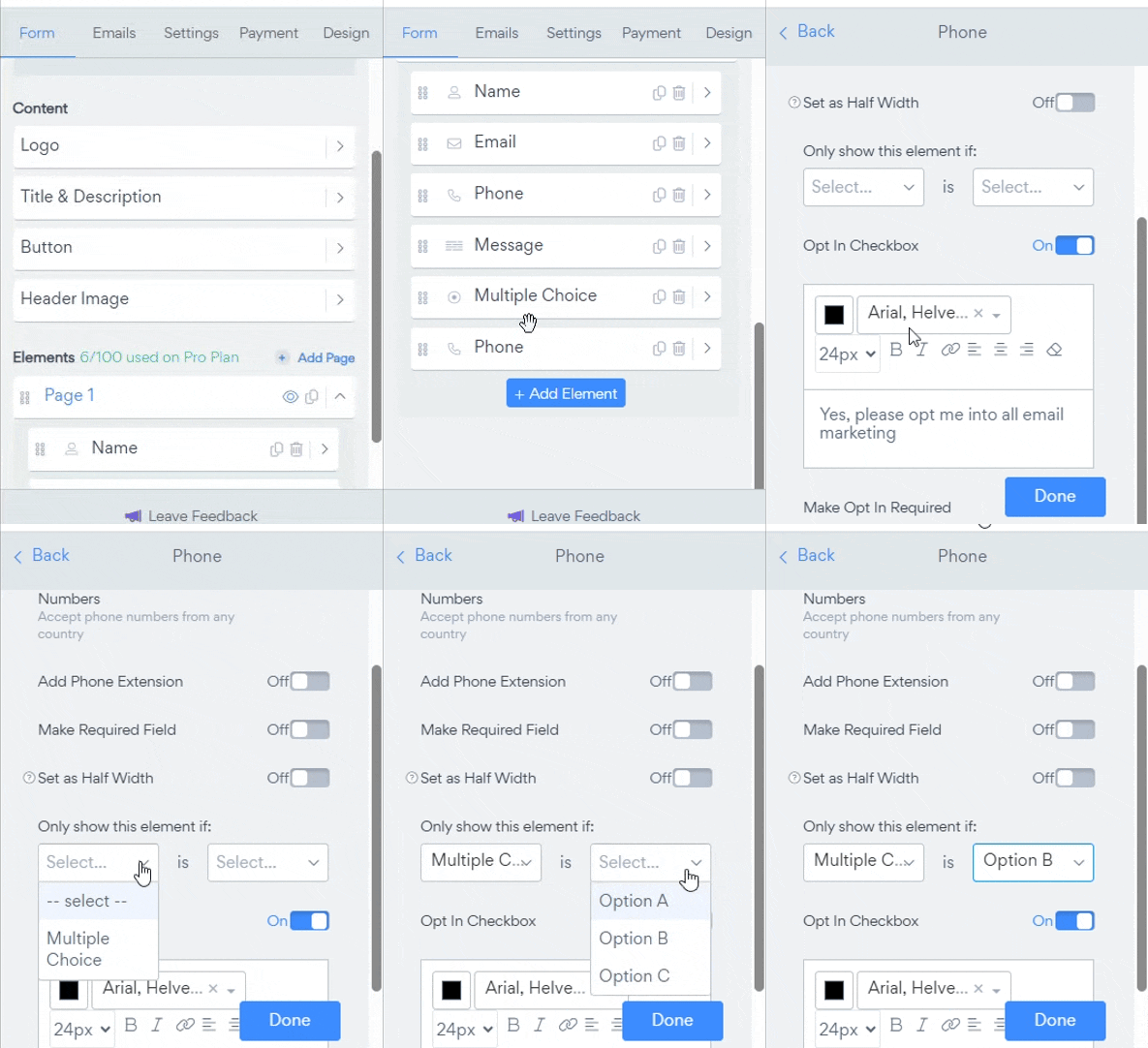
Rules - Rules can be based on any Multiple Choice, Dropdown, or Checkbox element, and can display any element in the form. Once you add a Multiple Choice, Dropdown, or Checkbox to your form, you create a rule for another Element in the form. Create the rule in the element that will be displayed based on the conditions.
Creating a Rule
Every rule is composed of a Question and an Answer.
Question - Questions determine which element will trigger an Action. Questions always refer to a different element in the form. For instance, if you are making a form to book appointments, you might have a Radio that asks, Do you want to book an appointment? If the visitor clicks Yes, a Date and Time element should appear.
Do you want to make an appointment?
Answer - Answers determine which selection will cause the element to show. The second dropdown will populate with the options available to users in the selected Question. In this case, the Answer would be...Yes
The conditional logic settings should be added to the Date and Time element, not the Radio element. The rule will use your visitor's answer from the Radio element to determine whether or not to show the Date and Time element.
Once this Rule is created, the Date and Time element will only appear on the form when the visitor answers Yes to the question Do you want to book an appointment?
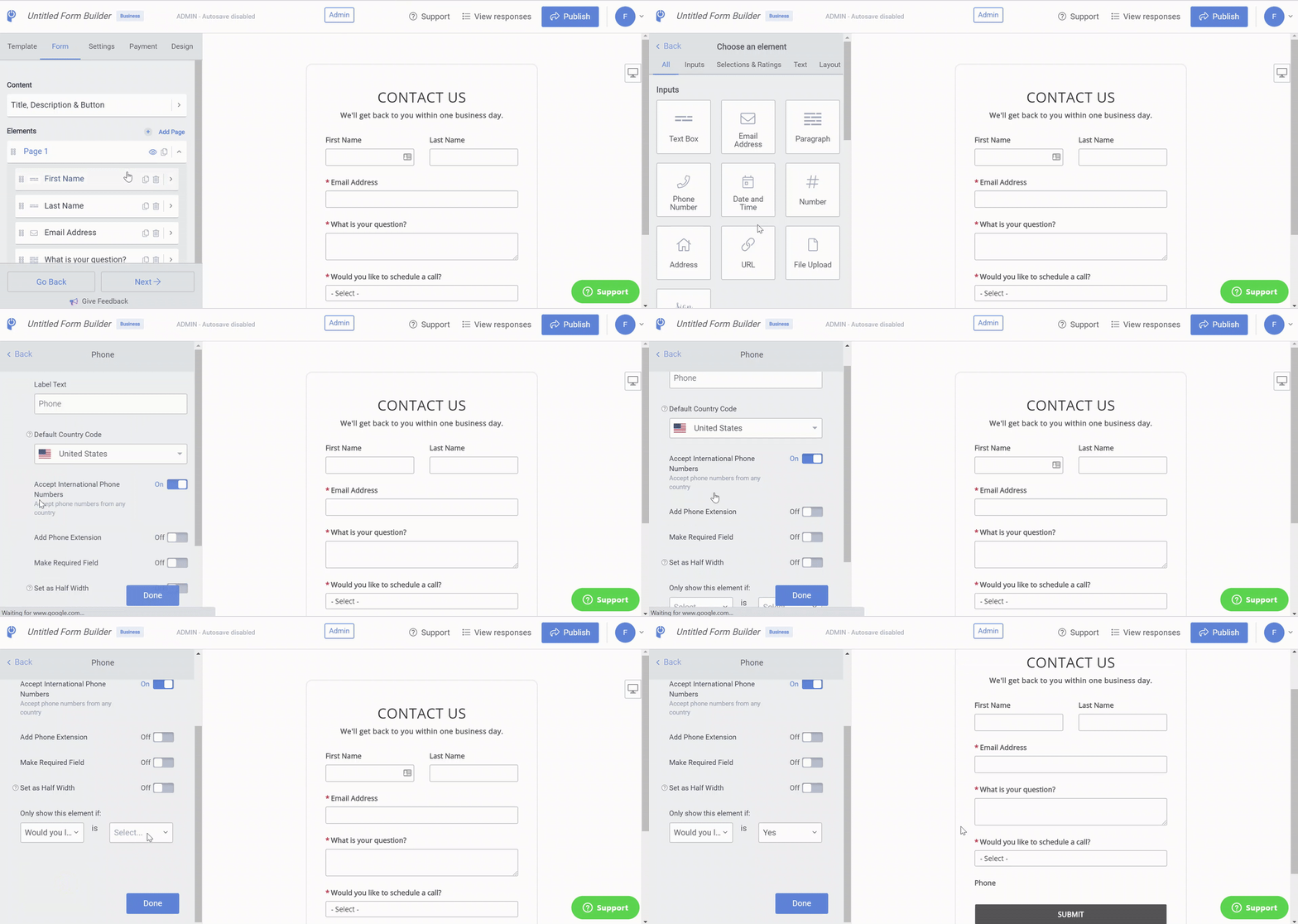
Note: Conditional logic cannot be tied to multiple checkbox elements since it allows to select multiple variants.
Need Help?
If you need any help or have any questions about our Form Builder, our support team is happy to help.
👉 Contact our support team
When contacting us, you'll be prompted to authenticate your email by signing in, and a confirmation code will be emailed to you. This helps ensure our support team's reply will be delivered to you with no issues.
For more information about available features, visit our Pricing Page:
https://www.powr.io/pricing