
How to create Multiple Choice questions in Forms
You can add multiple choice, multiple checkboxes, dropdown and multiple images elements to forms.
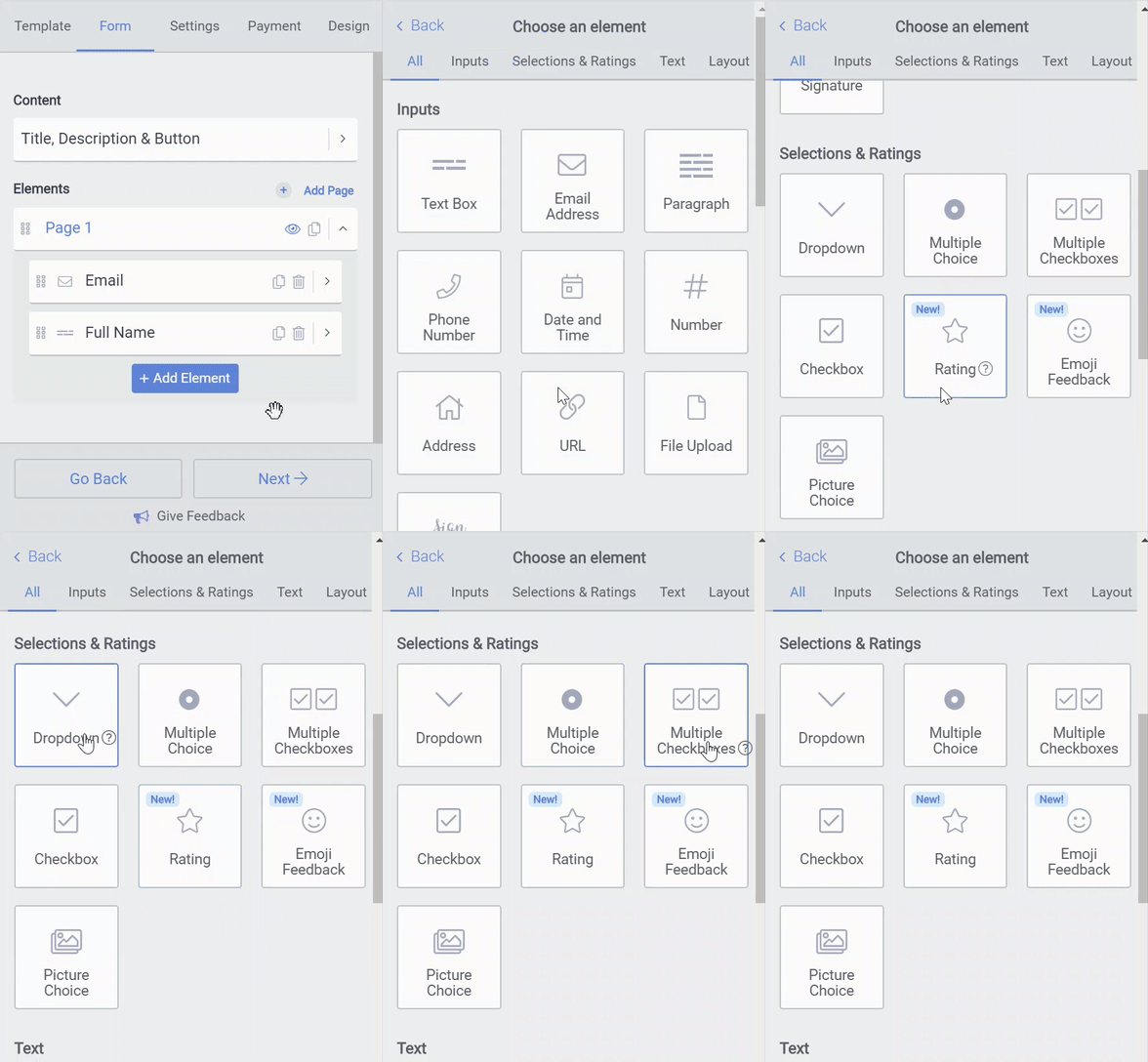
To start, add one of these elements to your form:
Open the POWR Editor (or App Settings in Wix)
Go to the Form section
Click a + Add Element
Add multiple choice, multiple checkboxes, dropdown and/or multiple images to your form
Read below for a description of each element.
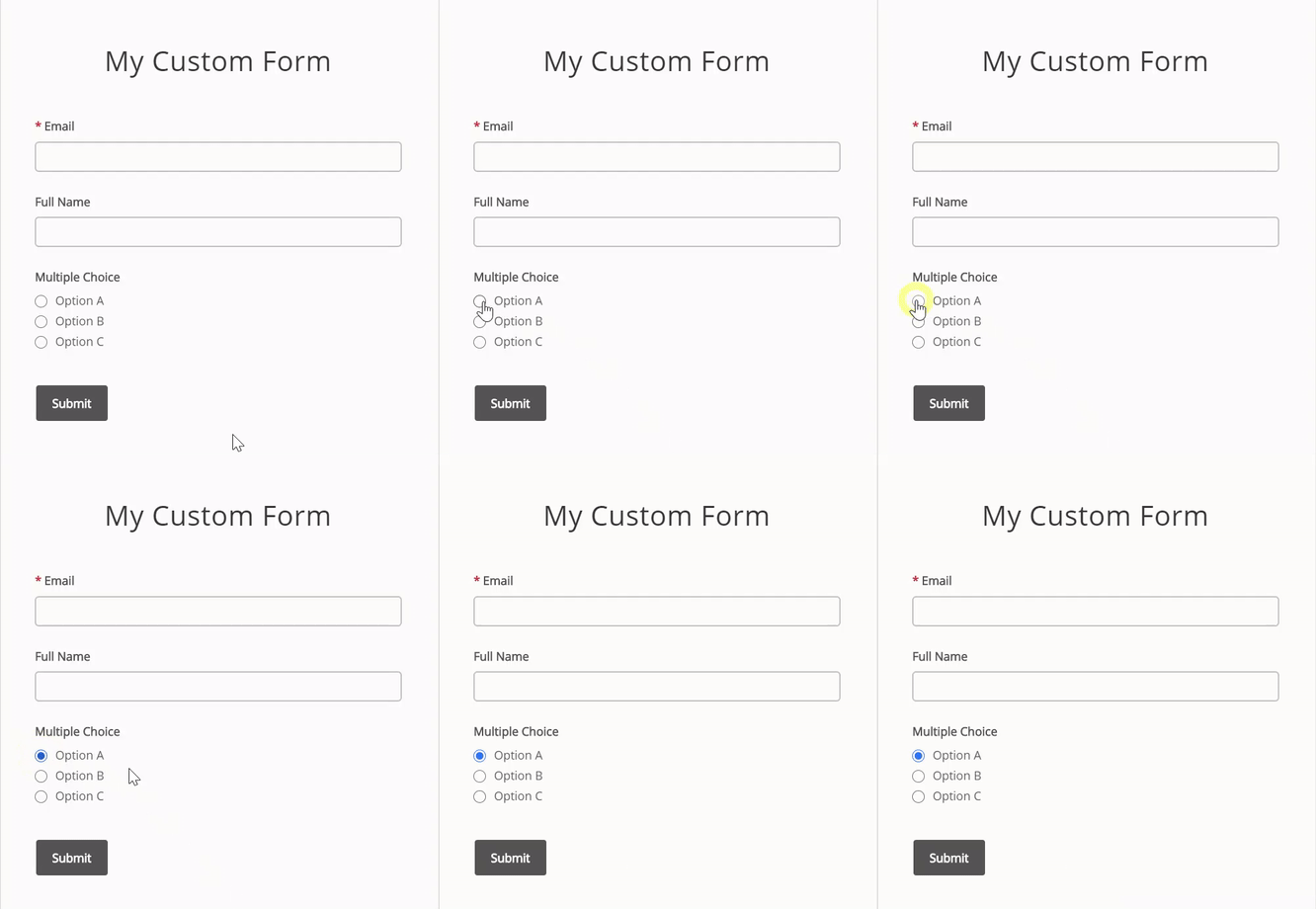
1. Multiple Choice
The multiple choice element lets visitors select one option from a list.
It's just like a multiple choice question on a test.
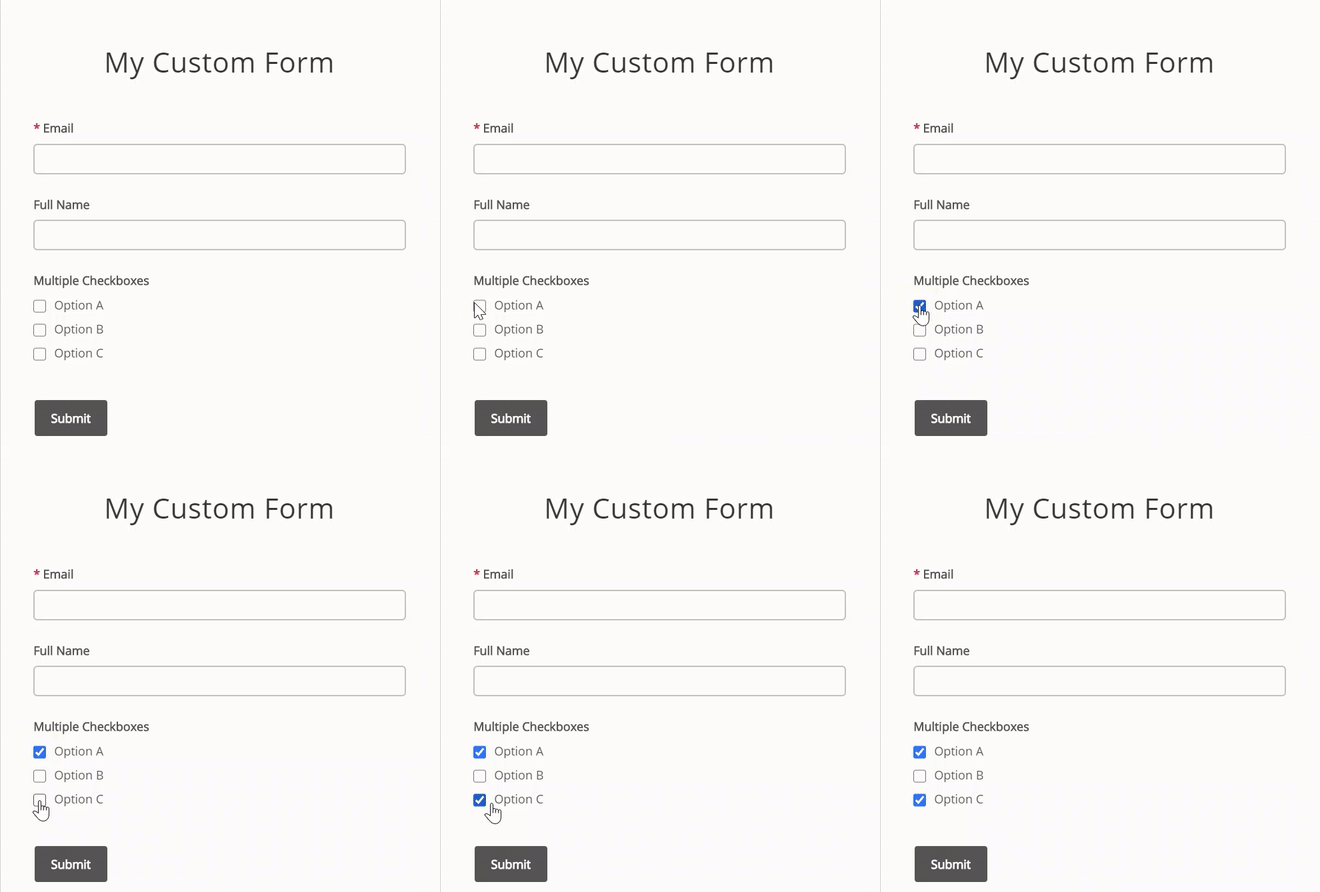
2. Multiple Checkbox
The multiple checkbox element lets visitors select one or more options for a list.
It's great for letting people choose all options that apply, not just one.
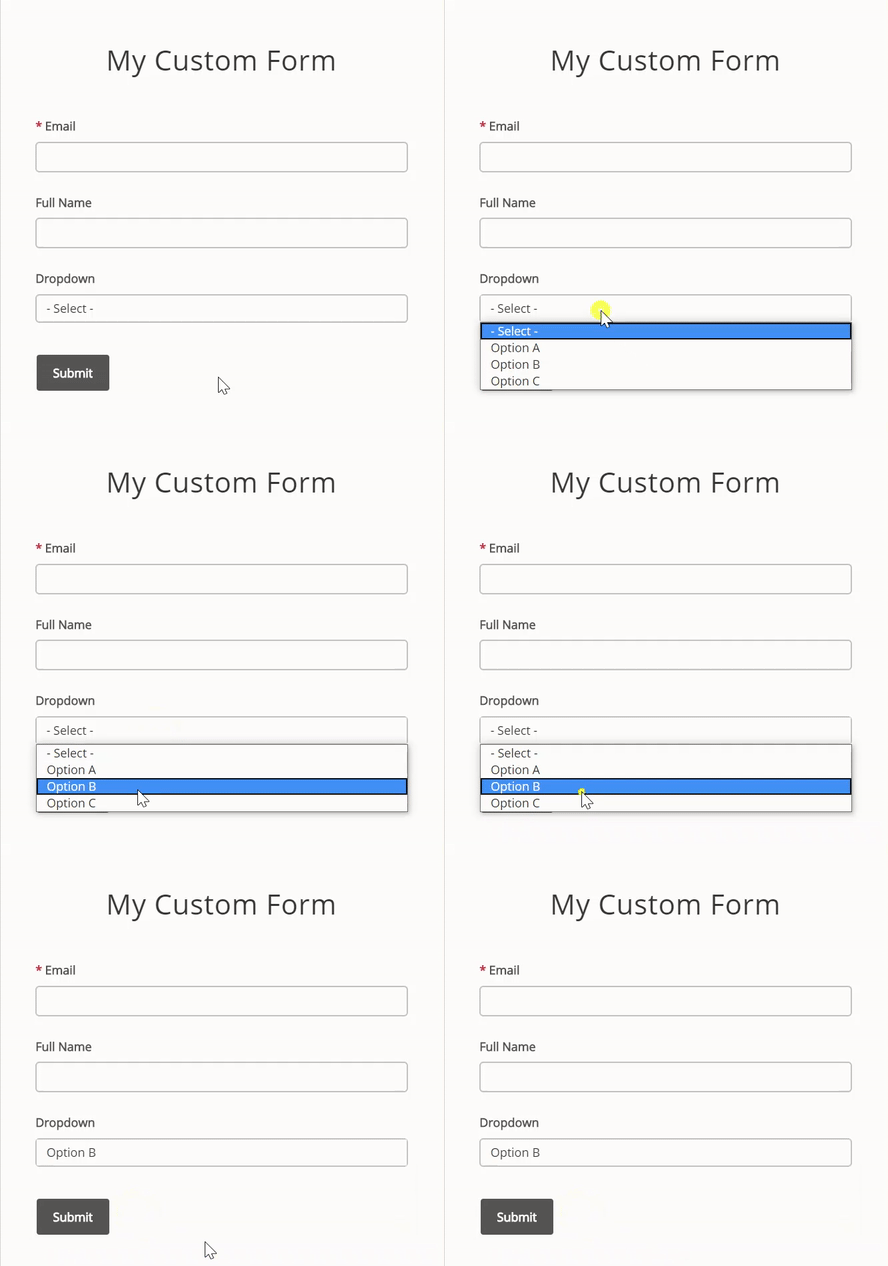
3. Dropdown
The dropdown element lets visitors select one option from a list in a dropdown menu.
It's just like the multiple choice element, but if you have many different options, the dropdown is more compact and takes up less space.
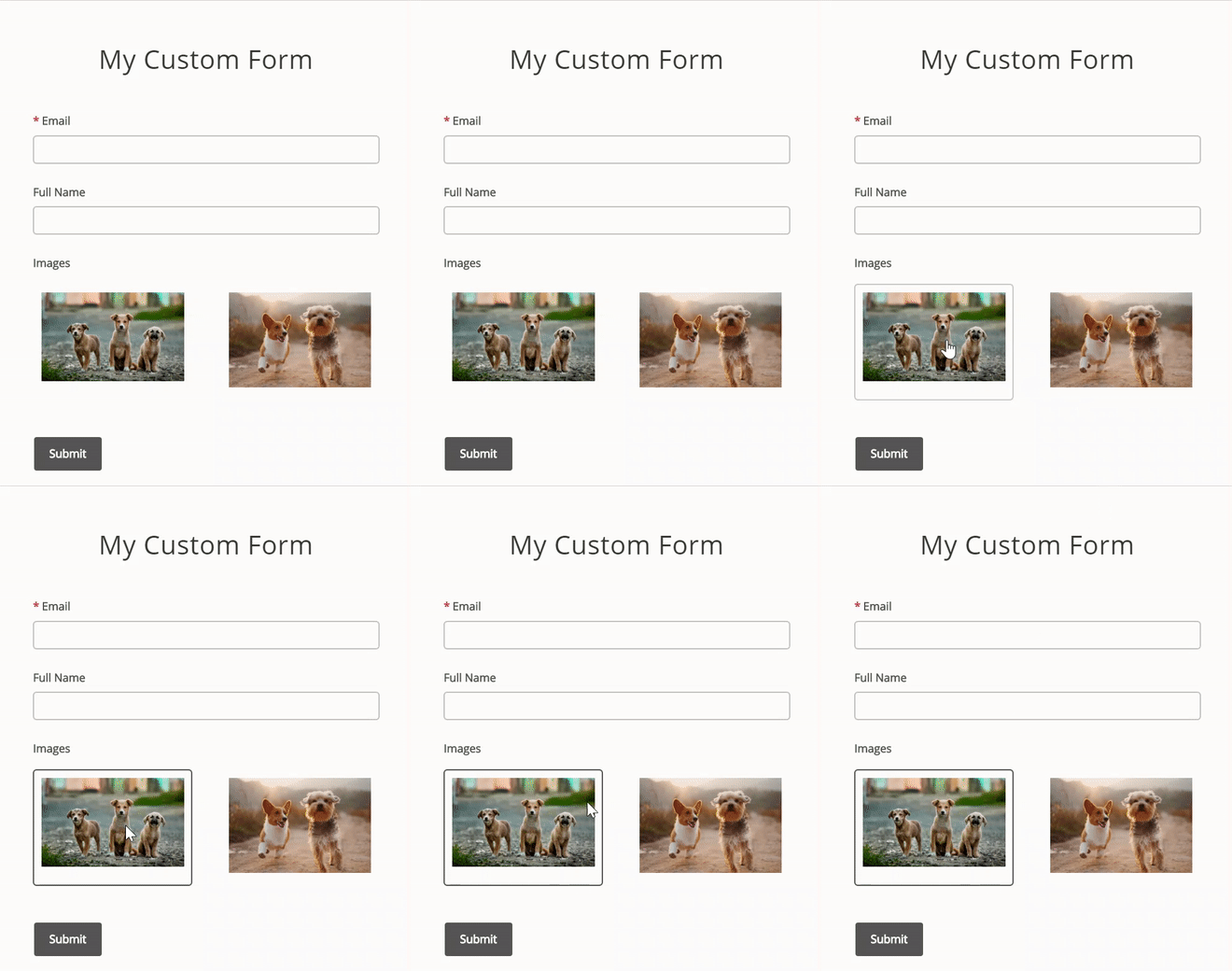
4. Image Choice
The picture choice element is similar to the multiple choice element.
The difference is that picture choice requires you to upload images for options.
Need Help?
If you need any help or have any questions about our Form Builder, our support team is happy to help.
👉 Contact our support team
When contacting us, you'll be prompted to authenticate your email by signing in, and a confirmation code will be emailed to you. This helps ensure our support team's reply will be delivered to you with no issues.
For more information about available features, visit our Pricing Page:
https://www.powr.io/pricing