
Setting up Stripe on POWR eCommerce
Authorizing Access
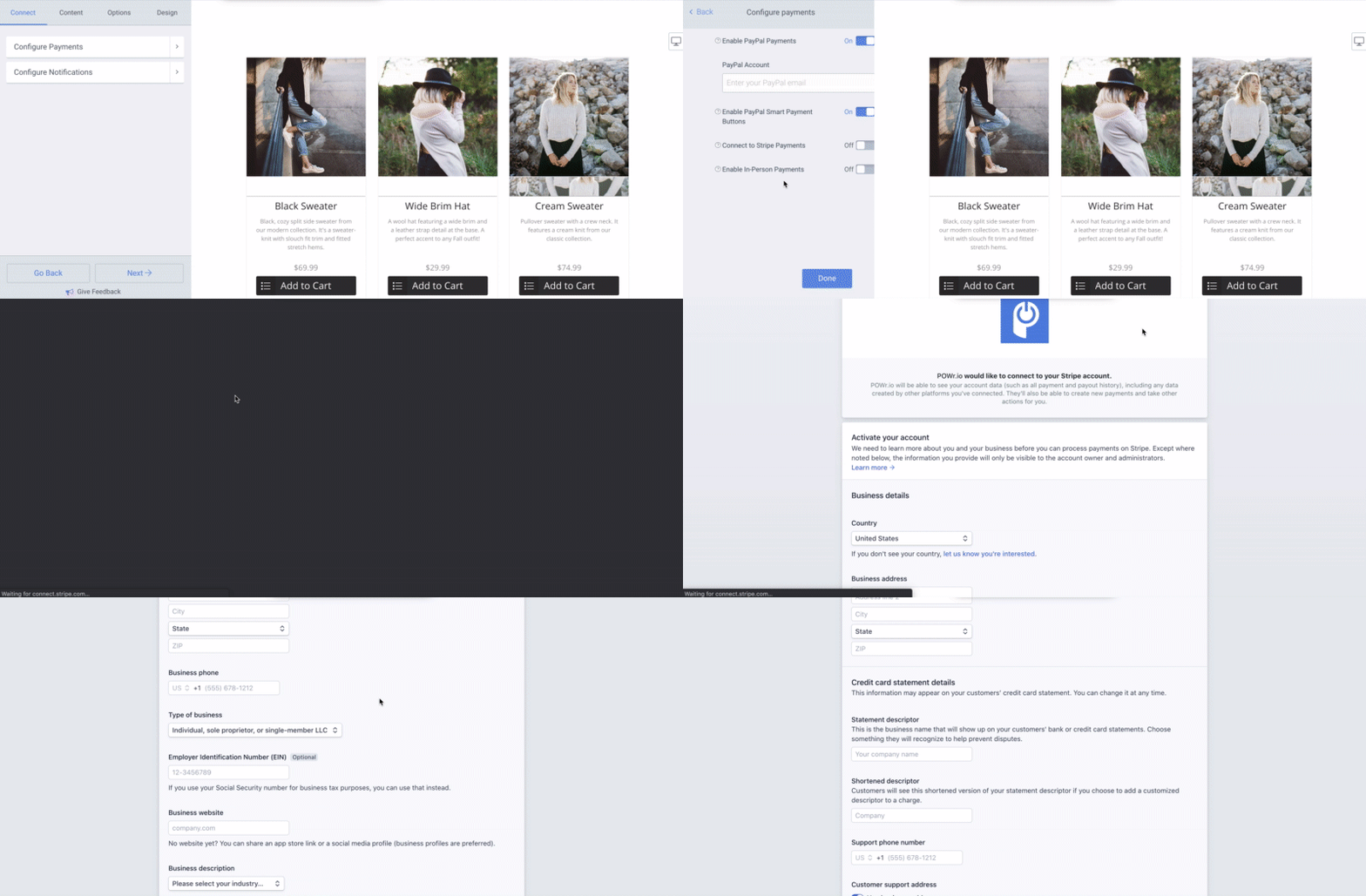
In the POWR Editor for the eCommerce app, toggle on Connect to Stripe Payments in the Connect section under Configure Payments.
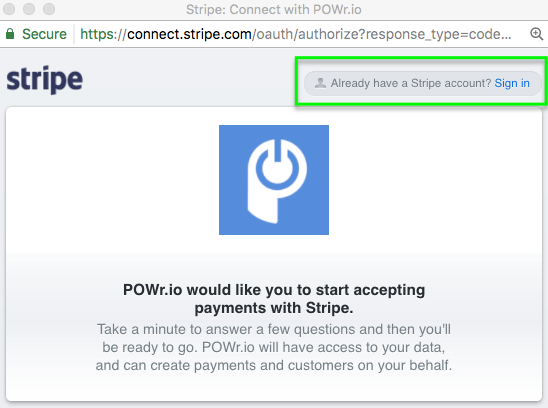
A popup window will open where you can register for a Stripe account. If you have an existing Stripe account, click Sign In to connect.
Note: If the window doesn’t appear, make sure to allow popups for that page in your browser.
Register for a Stripe Account
If you are creating a Stripe account, make sure you have the following information:
- Bank account details (transit number, institution number, and account number)
- Social Insurance Number, or Business Number (Tax ID) if you’re a corporation.
Fill in the required fields and click Authorize Access To This account. The pop up will close on it’s own when your account has been connected. Click through the editor to save your changes.
Enabling and Using Stripe
To enable Stripe on eCommerce, follow these steps:
- In the Connect section, open Configure Payments
- Toggle on the Connect to Stripe Payments option
- Click through the editor to save your changes
Your buyers will now have the ability to pay for their purchase without leaving your site!
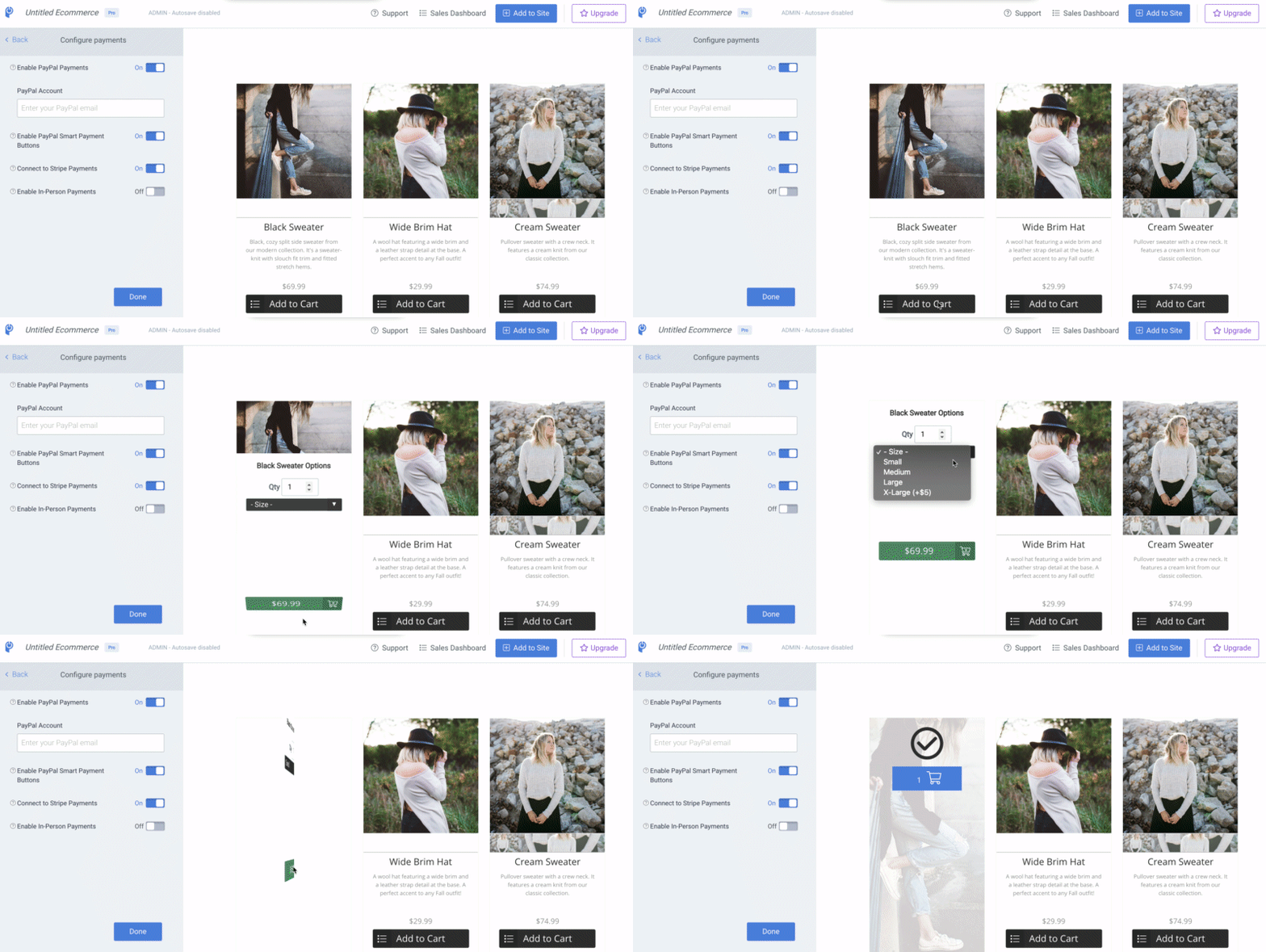
Features like discounts and subscription payments can still be set up in the POWR Editor. All payments (including subscriptions), refunds, disputes, and transfers must be managed on Stripe's website.
If you have any questions specific to your Stripe account, please get in touch with Stripe support. They have an excellent support center here and can be reached directly here.