
Want to reuse a POWR app across multiple sites or duplicate it with the same settings? You can easily copy an app from your POWR Dashboard and install it elsewhere, with all the design and settings preserved.
This is useful when you:
Need to duplicate a setup quickly without rebuilding it from scratch
Are creating variations of an app with small changes
How Copying a POWR App Works
When you copy an app from your dashboard, you’re duplicating the entire app configuration — including content, design, and settings.
⚠️ Note: The copied version is a separate app. Changes made to the original won’t affect the copy and vice versa. Once you've copied the app, it behaves like any newly created POWR app. You can install it just like you would any other
How to Copy a POWR App from Your Dashboard
Step-by-Step Instructions
1. Log in to your POWR Dashboard at dashboard.powr.io
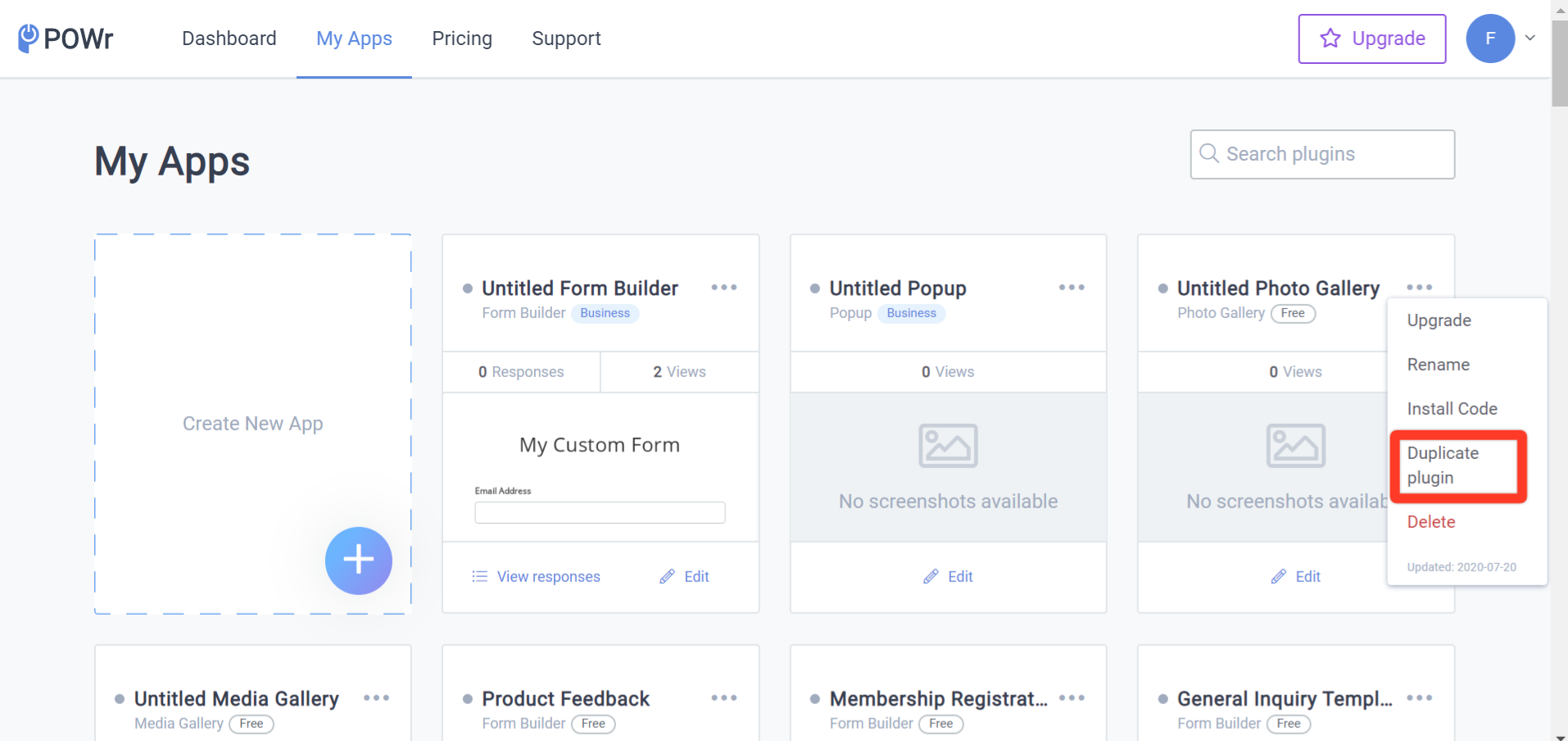
2. Click the three-dot menu (“⋯”) aside the app of your choice
3. Click “Duplicate Plugin”
4. POWR will instantly create a new version of your app titled “Copy of [Original App Name].” You can change it as needed.
FAQs
Q: If I copy an app, does it use the same billing plan?
A: Yes, as our pricing plans app based, creating the same app will create an upgarded app as well.
Q: Will analytics and form responses carry over to the copied app?
A: No. The copied app is treated as a brand-new app and has its own analytics, responses, and settings.
Q: Can I copy an app between platforms (e.g. from Wix to Shopify)?
A: Yes! Once copied, you can install it on any supported platform using the correct installation method for that platform.
Q: Can I use this functionality in WIX editor?
A: Yes! You need to expand your settings views to see the full functionality.
Conclusion
Copying a POWR app is a fast way to reuse your designs, settings, and layouts across multiple sites or projects.
Need help managing multiple apps? Contact POWR Support — we’re happy to help!
Comments
1 comment
so basically, which is the master form
syncing from wix (customized) to dashboard ? or other way around.
Please sign in to leave a comment.