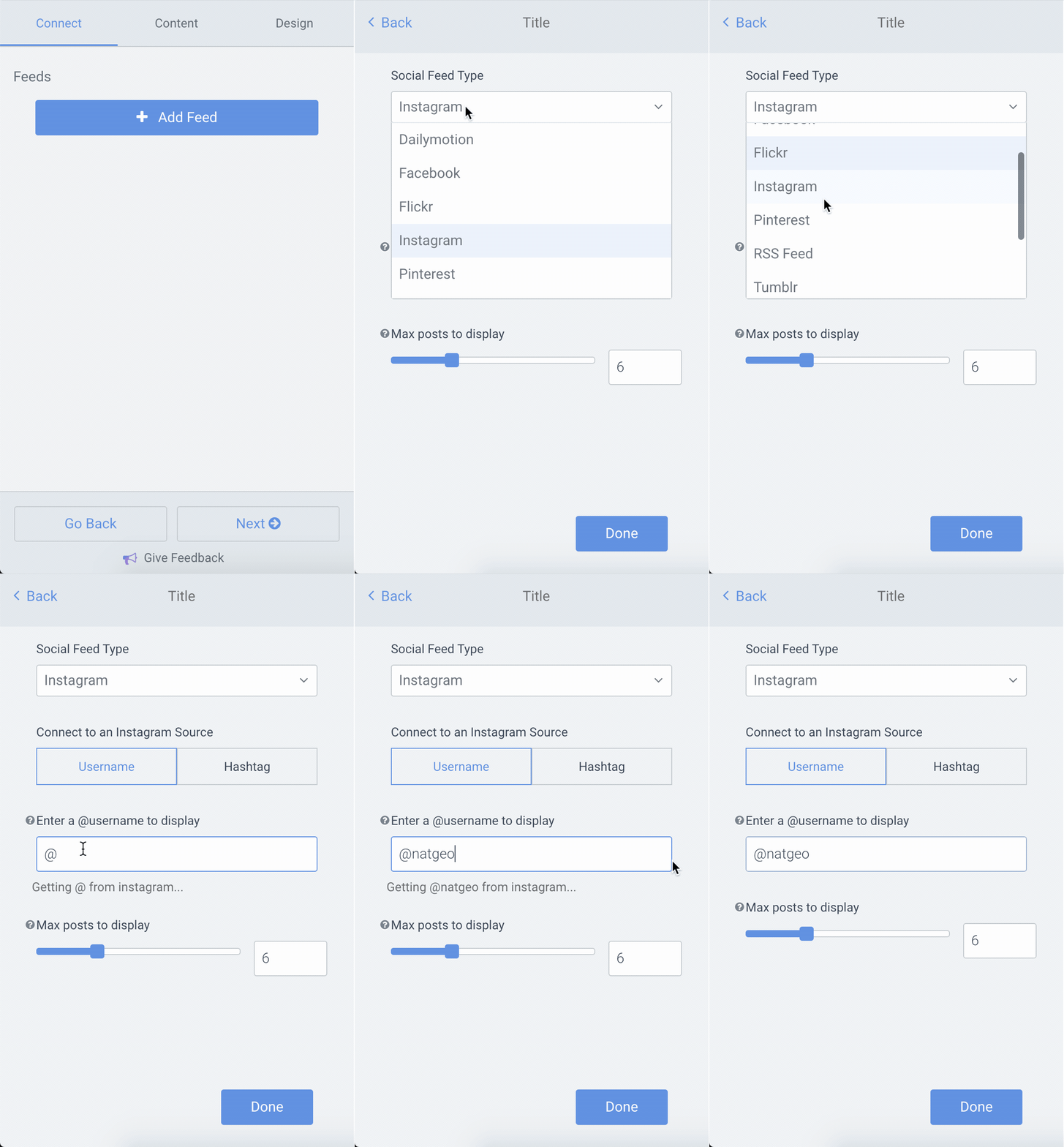
Intro to POWR Social Feed / Instagram Feed
POWR Social Feed is the easy way to automatically show posts from social media on your website. Combine posts from Facebook, Twitter, Instagram, Pinterest, YouTube, Vine, Vimeo, and more in a single gallery.
To create a new Social Feed, log in to your POWR.io account, click on Create New, and select Social Feed from the list.
Or just click here. A new page will appear where you can create your Social Feed app. The POWR Editor will appear on the left hand side of the screen. Here you will create and edit your app. Once it's ready, you can add it to your website or Facebook page, or share it over social media/email with a shareable link.
Connect a Feed
When you create a new Social Feed app, the first thing you'll need to do is connect it to a social media account, so it knows what feed to display. If no feeds are connected, you'll see a message covering your POWR Social Feed that says:
No feed connected. Connect a feed in the POWR Editor.
To connect a feed, open the POWR Editor and go to the Connect menu. You can connect to the following types of feeds:
- Facebook - any event or business page. You cannot connect to a personal Facebook profile.
- Twitter - any @handle or #hashtag.
- Instagram - any @user or #hashtag.
- Pinterest - any Pinterest board.
- YouTube - any user, channel, or playlist.
- Vimeo - any user or channel.
- Vine - any @user or #hashtag
- Flickr - any Flickr account.
- DailyMotion - any user.
- RSS - any RSS feed.
Important: Your account needs to be set to public, or else POWR won't be able to display your posts.
Common Questions
- How often will my Social Feed update new posts?
- Can I follow #hashtags with POWR Social Feed?
- Nothing is showing up in my Social Feed. What's wrong?
- How can I control the width of my Social Feed?
- Can I manually approve or reject posts?
- How can I display more Instagram posts in my feed?