
How to Install POWR Apps Using Theme App Extensions in Shopify
Shopify’s Theme App Extensions are a modern and flexible way to add apps to your store without touching your theme’s code directly. As of December 2023, Shopify introduced a new API for third-party apps — including POWR — which means there is now a new and improved way to install our apps on your store. Unlike traditional app installations that required editing Liquid files or pasting embed codes into your theme, Theme App Extensions allow you to add, position, and manage app blocks directly from the Shopify theme editor — making the process cleaner, safer, and much more beginner-friendly. If you’re looking to install a POWR app on your Shopify store using this method, you’re in the right place. In this article, we’ll walk you through exactly how to do it step by step so you can get your POWR app live on your store as quickly as possible.
Here are the step-by-step instructions for installing POWR apps using the Theme App Extension flow. Once set up, you'll be able to add your POWR apps to the following pages:
Homepage
Cart page
All blog posts
All collections
List of collections
All Blog Articles
All products
Steps to Install a POWR App with Theme App Extensions
1. Go to the Shopify App Market and select the POWR app you need.
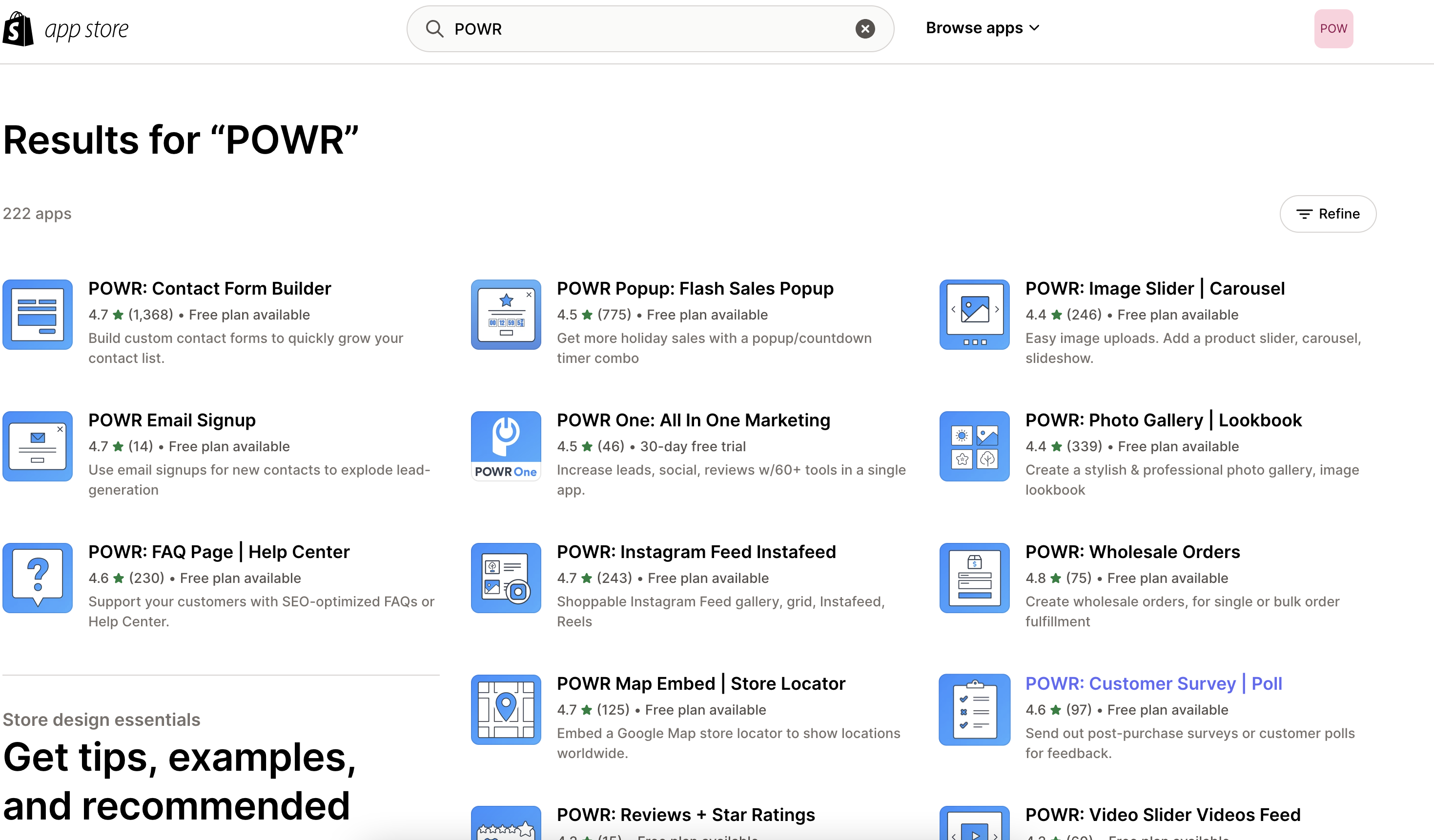
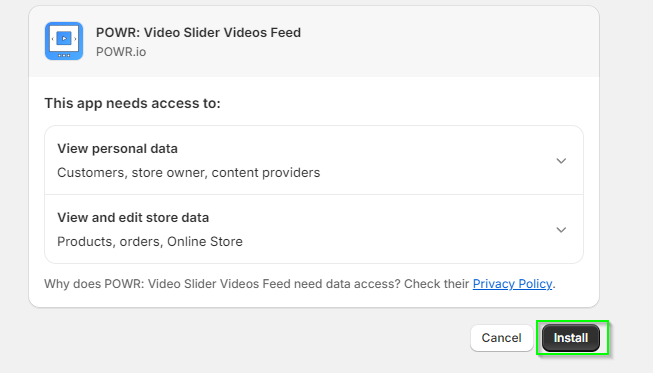
2. Click Install
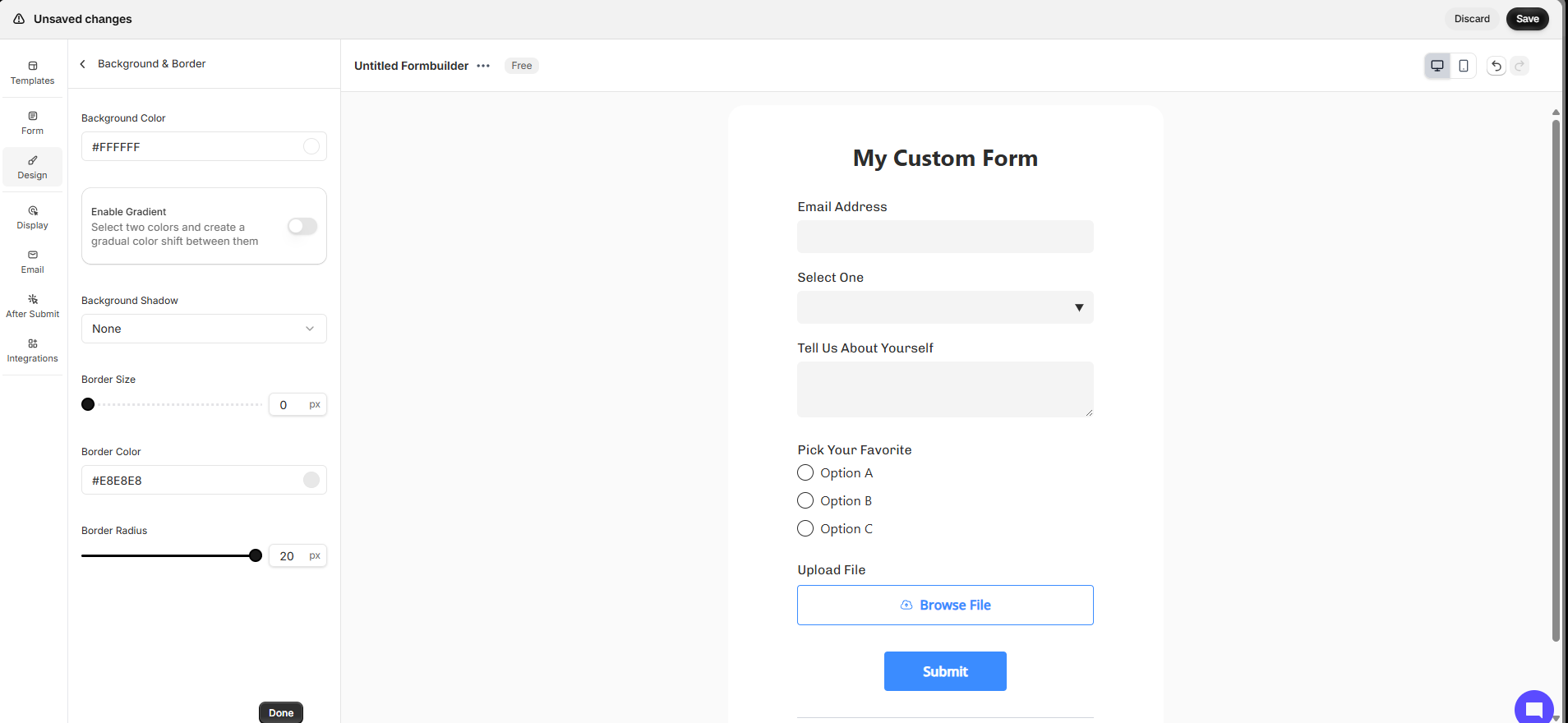
3. Customize Your App
Make adjustments to everything you need to fill your app with accurate information and ensure it matches your brand's feel and style.
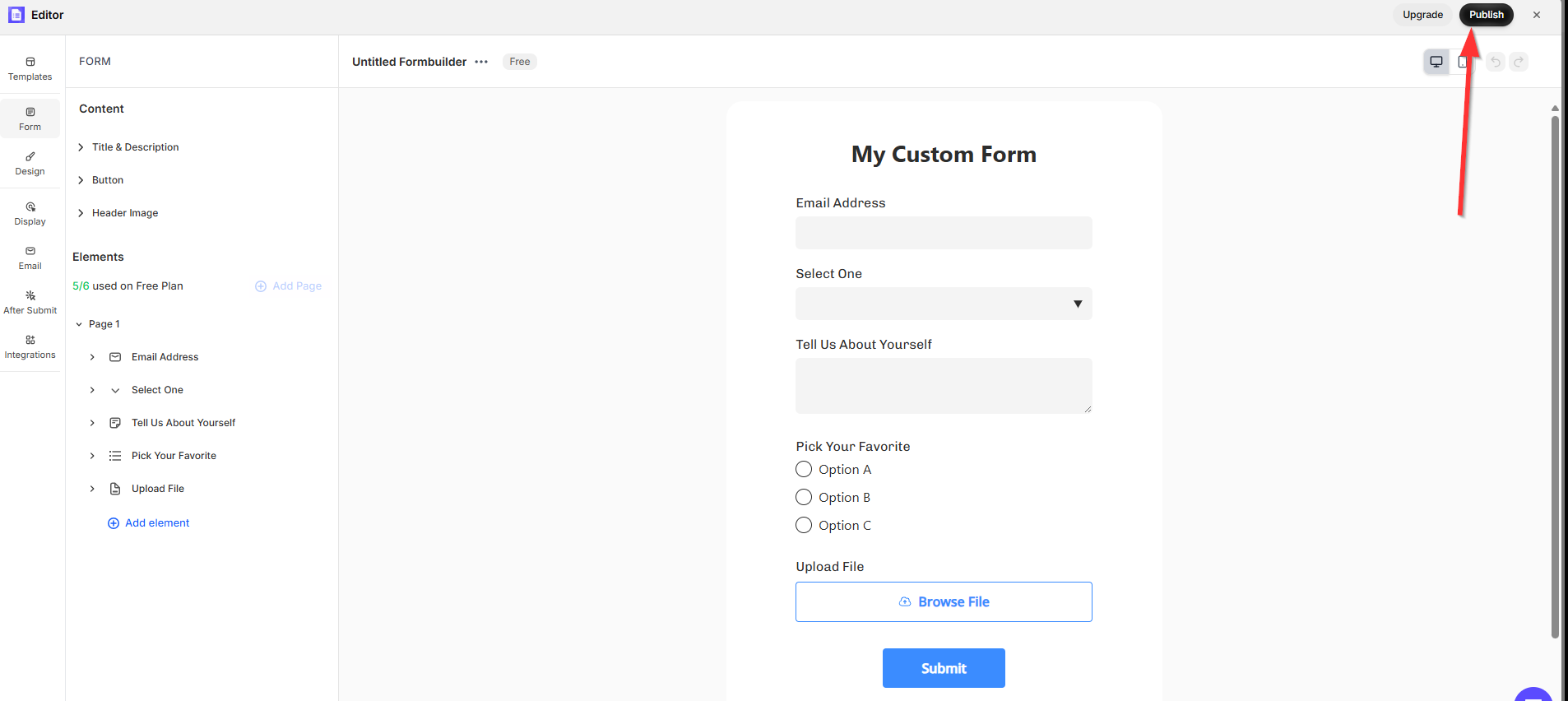
4. Name Your App and Publish
Before publishing, be sure to name your app in the top left corner. You must click Publish before you can install it on your store.
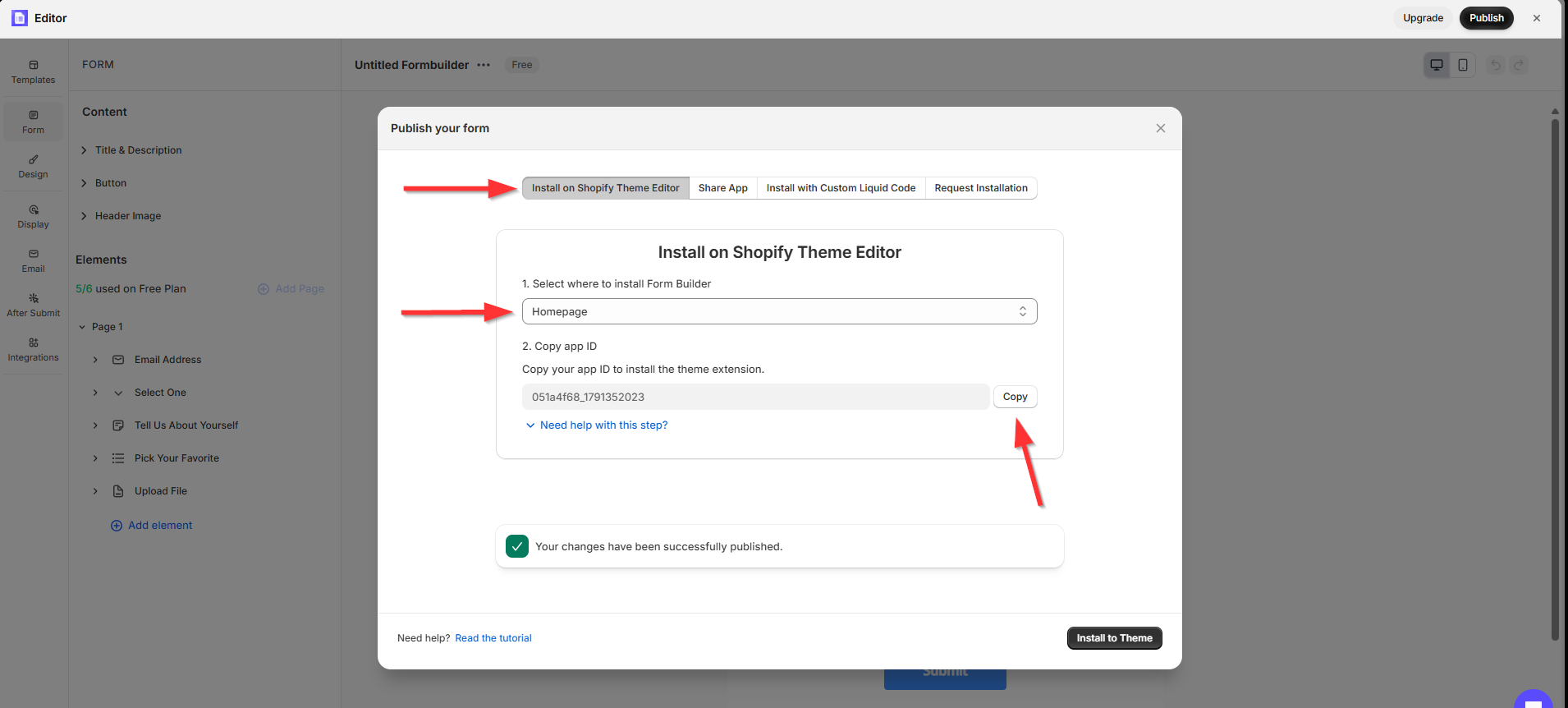
5. Install in Shopify Theme Editor
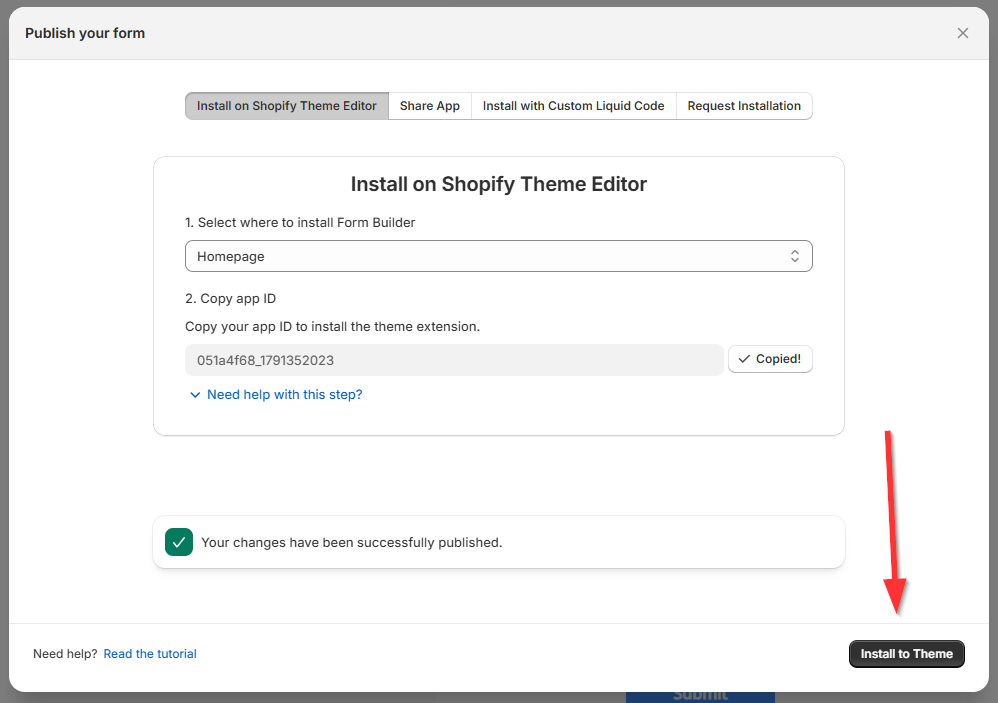
Select the page you want to install your app to (in the example below, I choose to install it on the Homepage)
Click Copy ID
Click on Install Shopify Theme Editor
6. Editing in the Shopify Theme Editor
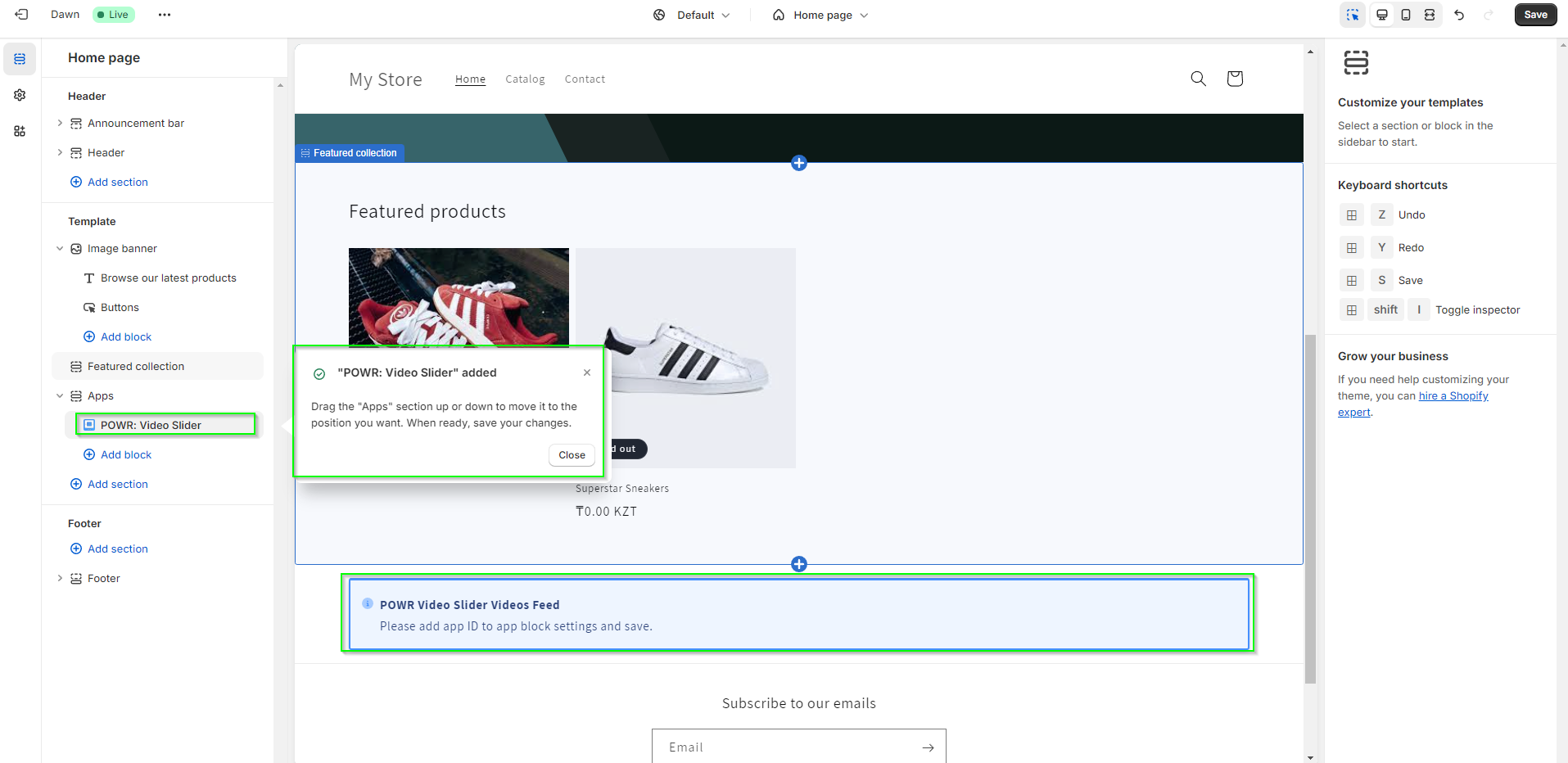
After clicking, a new tab will open, and you will be in the Shopify Theme Editor > Homepage. It will also automatically add a new app block. You can drag the "Apps" section up or down to position it where you like. When ready, click Save in the top right to save your changes.
7. Saving Changes
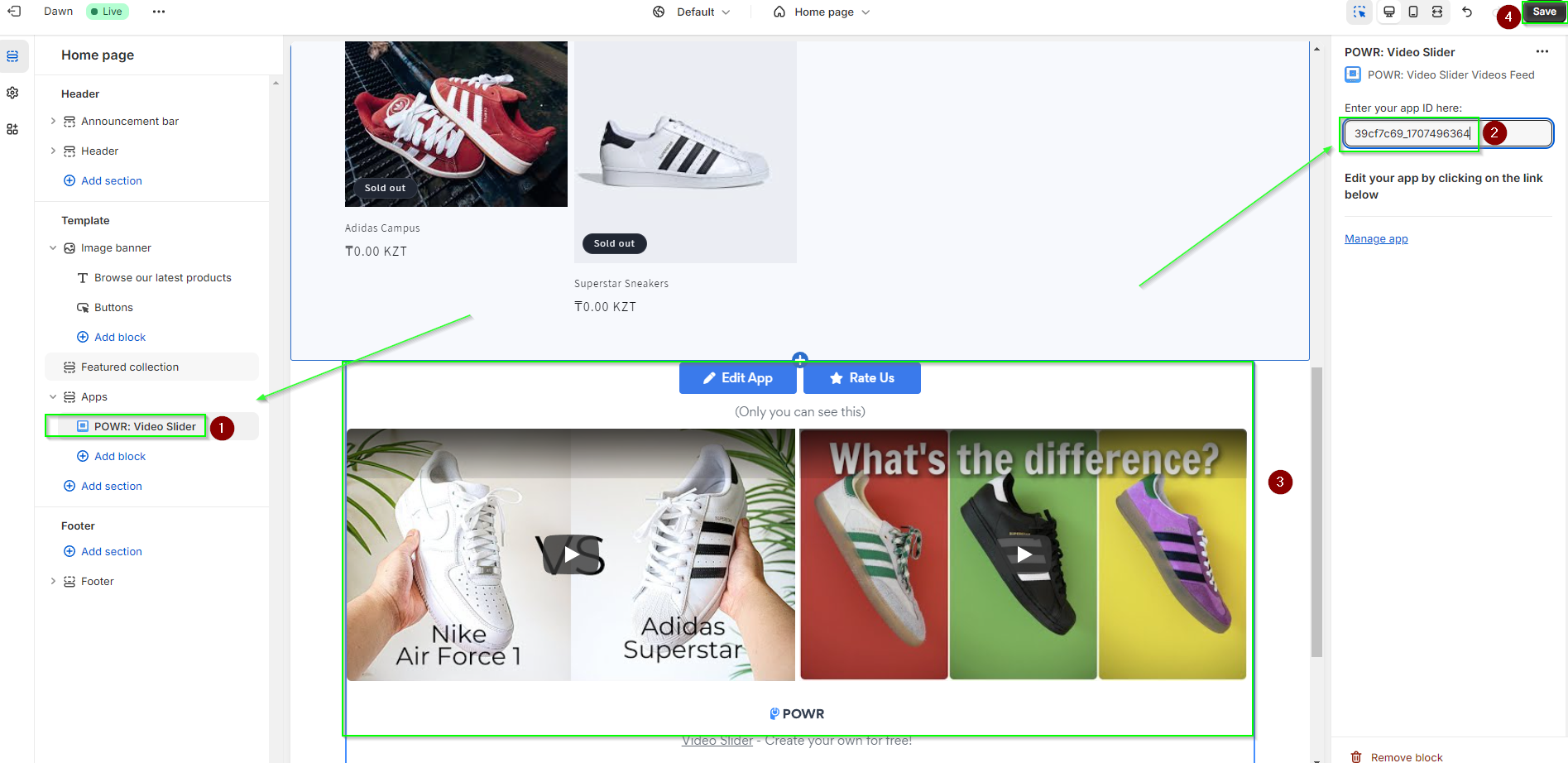
Click on the App Section.
Paste the copied app_ID in the app ID field
The app will automatically appear on your page
Don't forget to click Save again!
Pro tip: Click on the 3 dots in the top left, then click View to see your new app on your live page.
You can always add another app in the same section if you choose to add Block, or you can add another section below and add another app here.
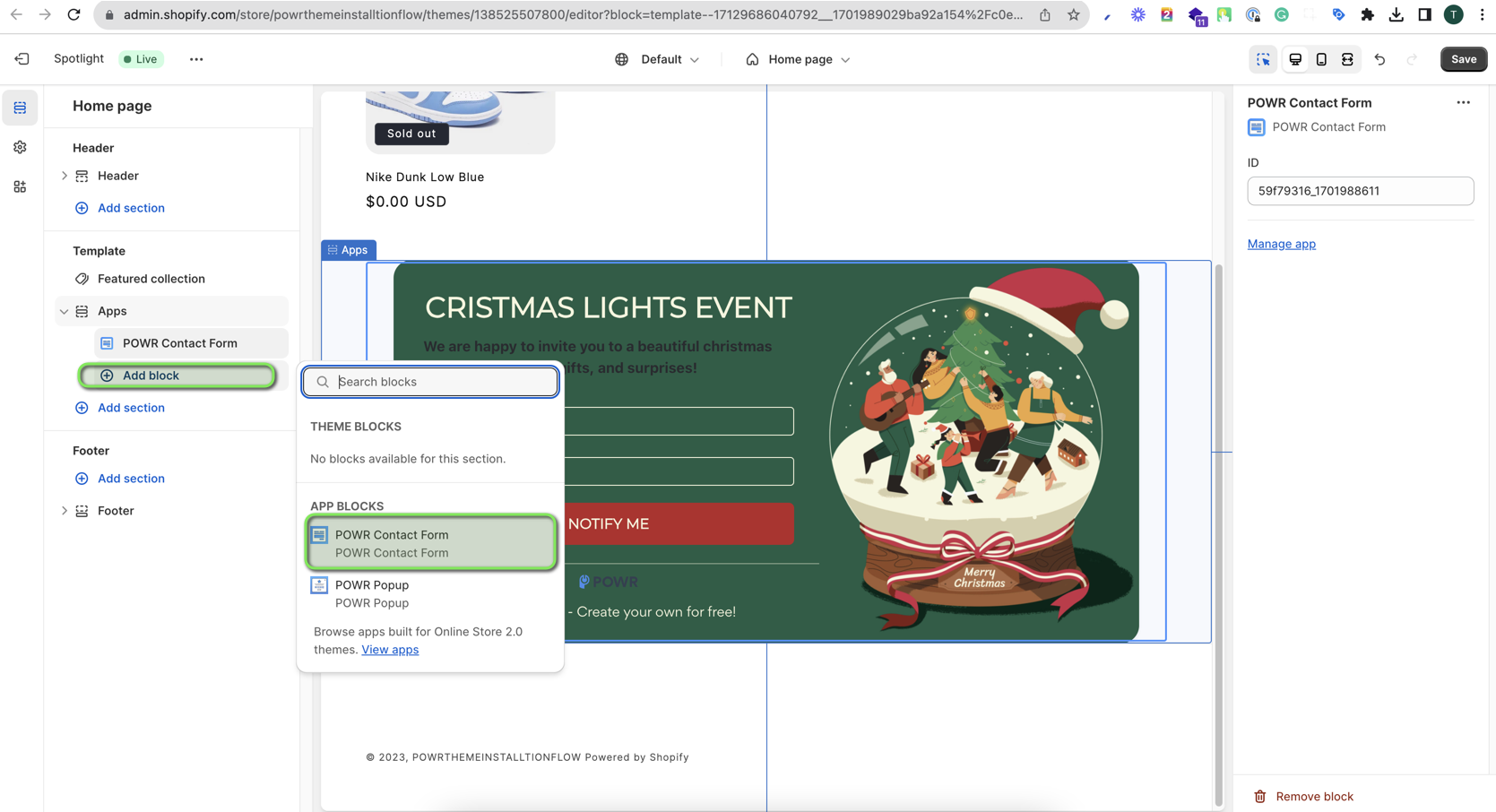
Installing POWR apps using Shopify’s Theme App Extensions is one of the easiest and most flexible ways to get your apps up and running on your store — no code editing required. The ability to add, move, and manage your POWR app blocks directly from the theme editor gives you full control over where and how your apps appear on your pages. If you run into any trouble during the installation or need a hand getting things set up just right, our support team is always here and ready to help — don’t hesitate to reach out!
Need Help?
If you need any help or have any questions about our Form Builder, our support team is happy to help.
👉 Contact our support team
When contacting us, you'll be prompted to authenticate your email by signing in, and a confirmation code will be emailed to you. This helps ensure our support team's reply will be delivered to you with no issues.
For more information about available features, visit our Pricing Page:
https://www.powr.io/pricing