How to format your Form Response export
Having trouble getting your Excel sheet to display your language in the correct format? Try this:
- Download the responses as a CSV file instead of XLS.
- Open Excel and click File > Import, and then select the CSV file you've downloaded.
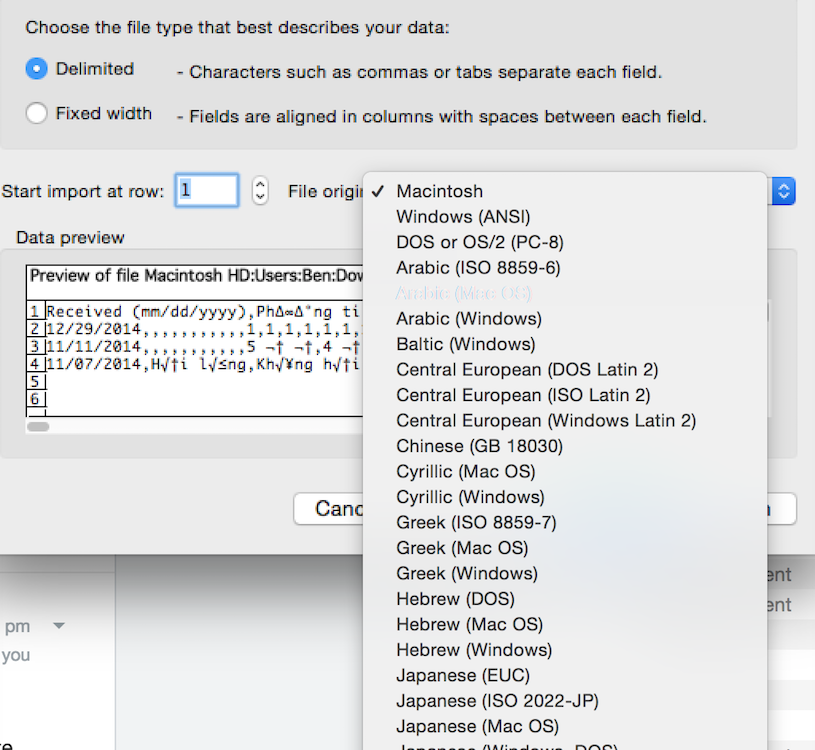
- Select Delimited and select a File Origin that makes the text legible to you (you might have to try a few of these).
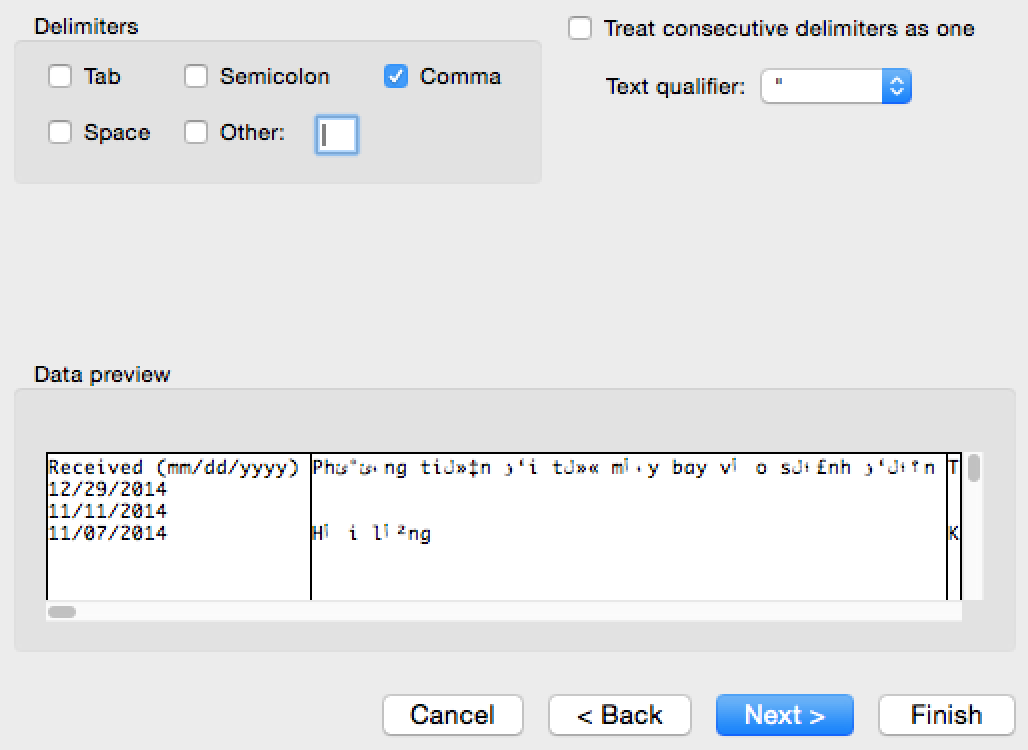
- Click next and click Comma as the separator.
- Finish and add to your sheet.
Note: If the responses to any of your form questions start with a 0, Excel might try to remove the 0 from the data. To prevent this from happening, please follow these steps:
- Open Excel and click File > Import
- Select CSV File in the first panel
- Select Delimited in the next panel
- Make sure Comma is checked in the next panel
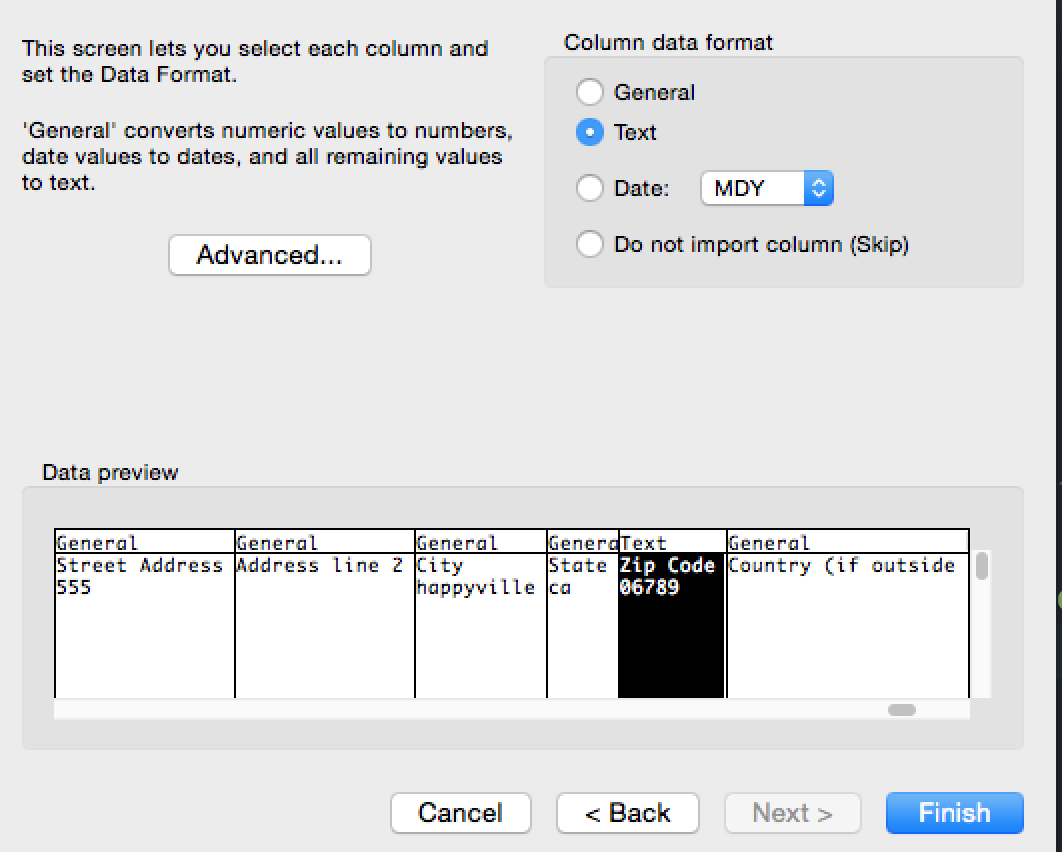
- In the final panel, navigate to the column for which you are having this issue and click it. Then click Text under column data format.
- Click finish and the data should be added correctly.