
How to Customize the Success Message After Your Form is Submitted
*Note - The After Submission Option for displaying a message was updated June 25th 2019. Messages customized before this date will be displayed in the new format below. Only users with an active upgrade can upload custom images or logos.
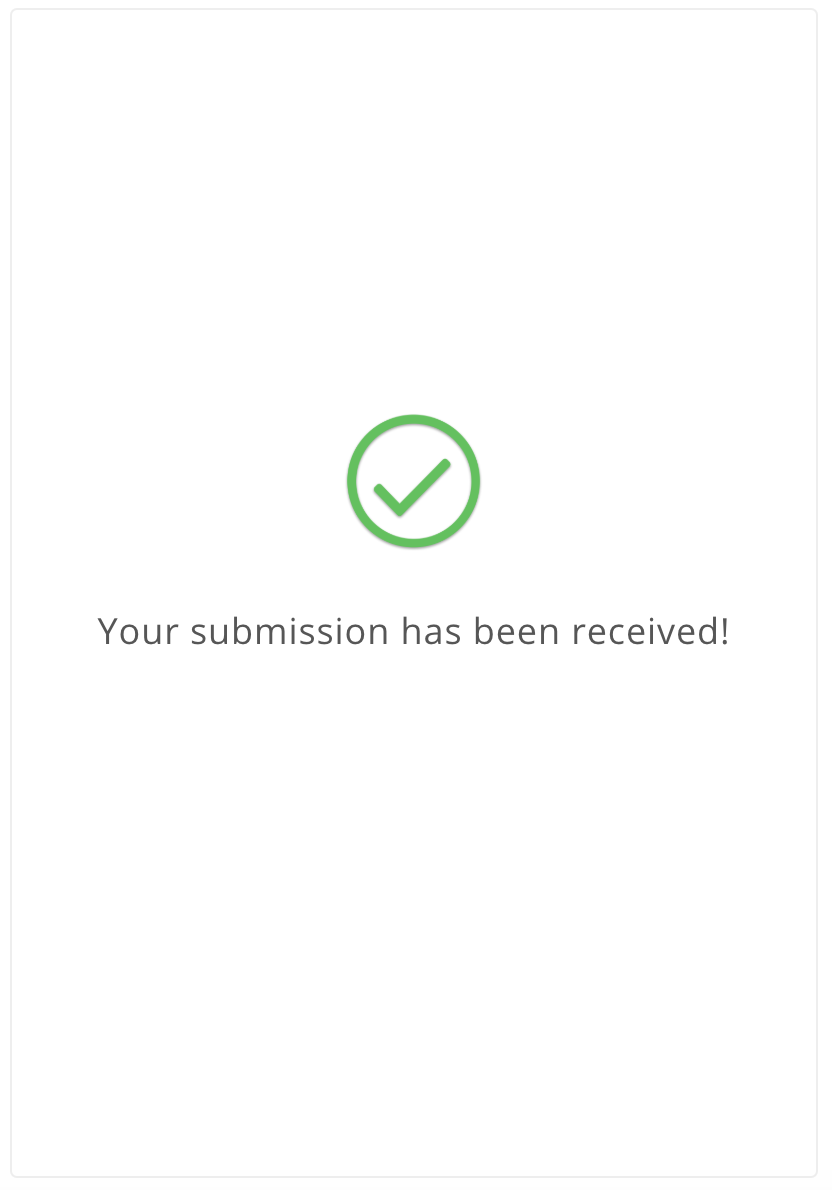
By default, when a customer or website visitor completes your form, a success screen will appear that says 'Your submission has been received!'.
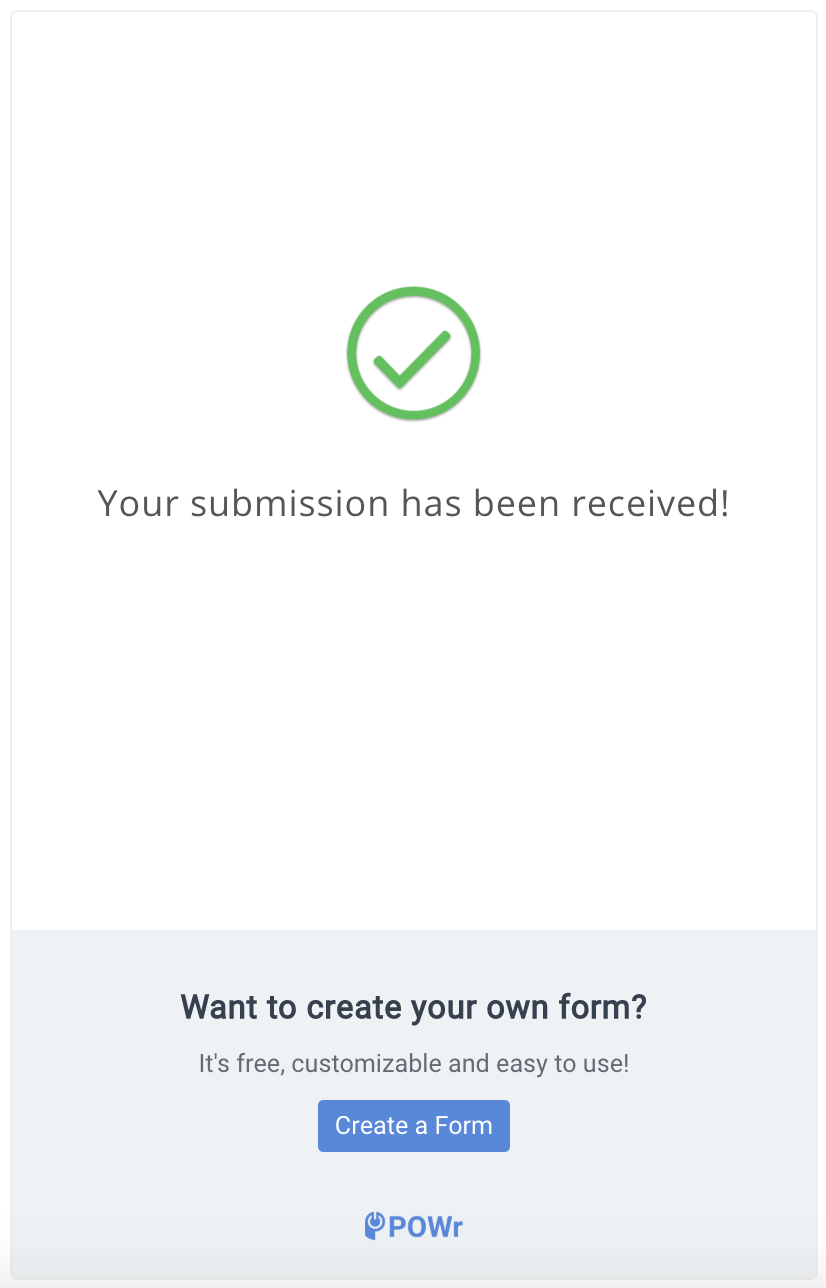
Free users
Upgraded users
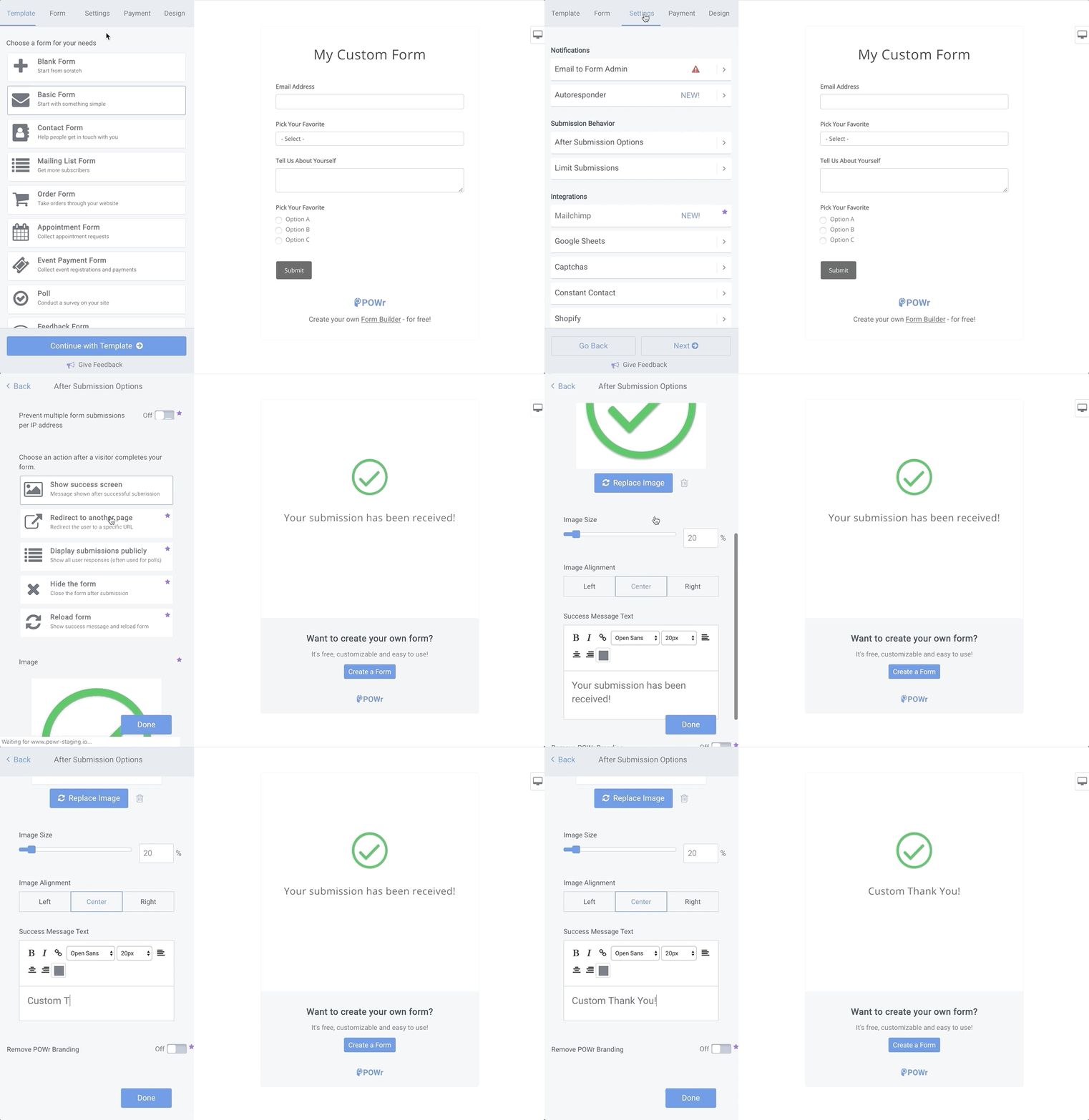
To customize the message shown after a user submits your form, follow these steps:
- Open your form in the POWR Editor (or App Settings in Wix).
- Go to Settings > After Submission Options. While in this drill-down, the success message screen will be previewed on the right hand side.
- Enter your chosen message in the field marked Success Message Text.
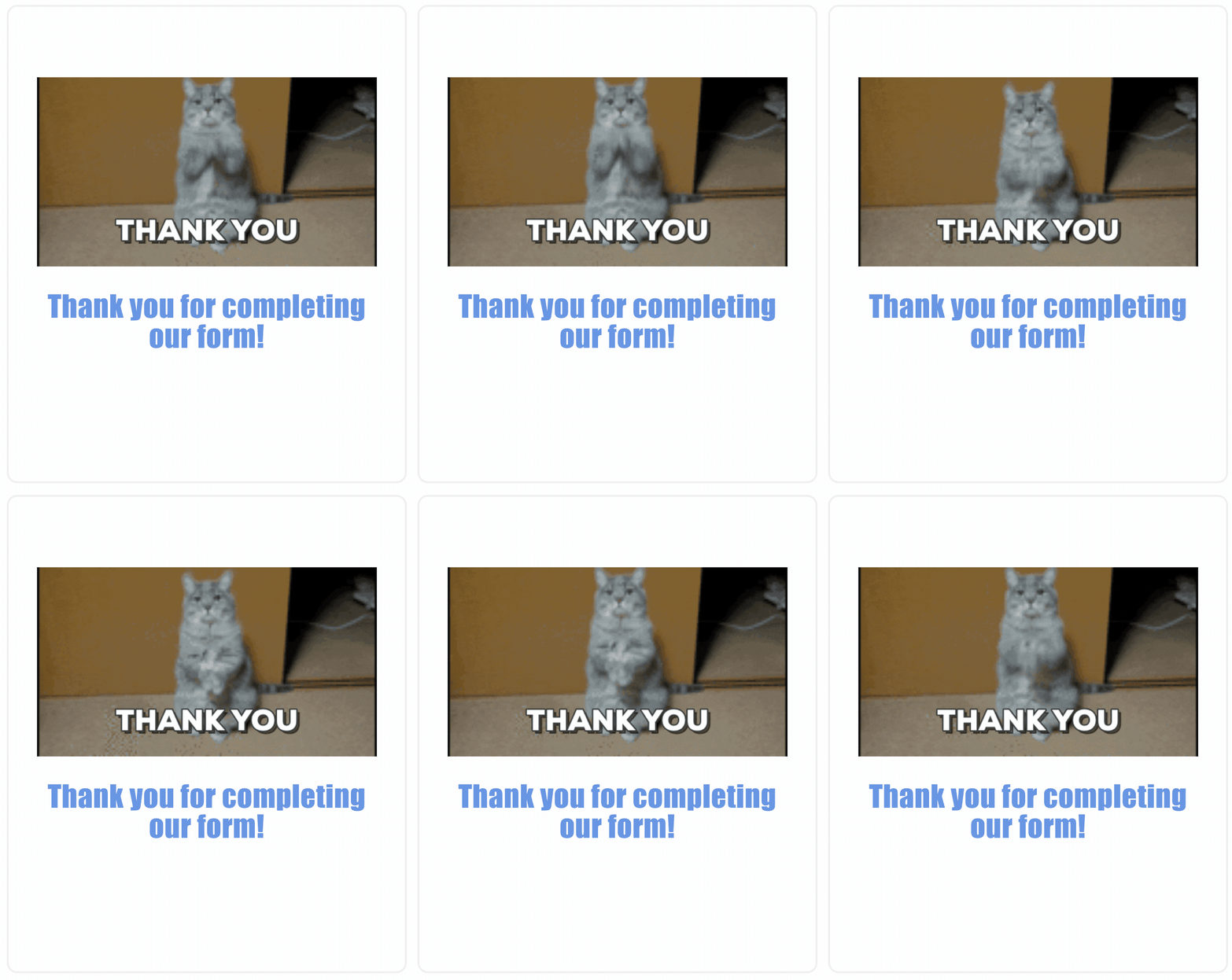
- Upgraded users can upload a custom image, logo, GIF or video via URL.
This message will then be displayed after your site visitor has submitted their form.
To learn about other After Submission Options in POWR forms, read this.
You can also send a confirmation email to after a visitor submits your form. Here's how.