What happens after a visitor completes my form?
You can decide what happens after a visitor completes your website form. This helps to streamline your form by automating actions so you can eliminate manual work. It also helps you provide a customized experience for your visitors.
By default, when a customer or website visitor completes your form, a success screen will appear that says 'Your submission has been received!'.
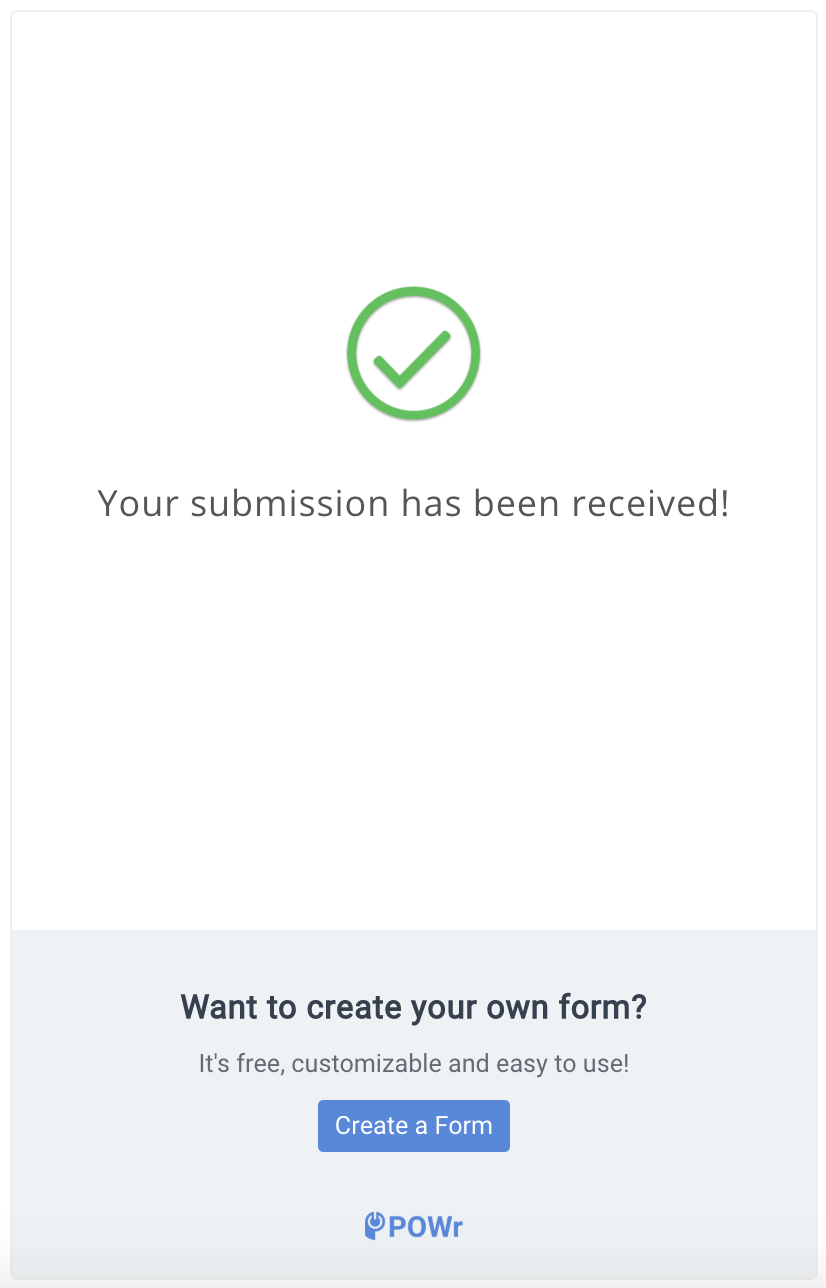

Free users
Upgraded users
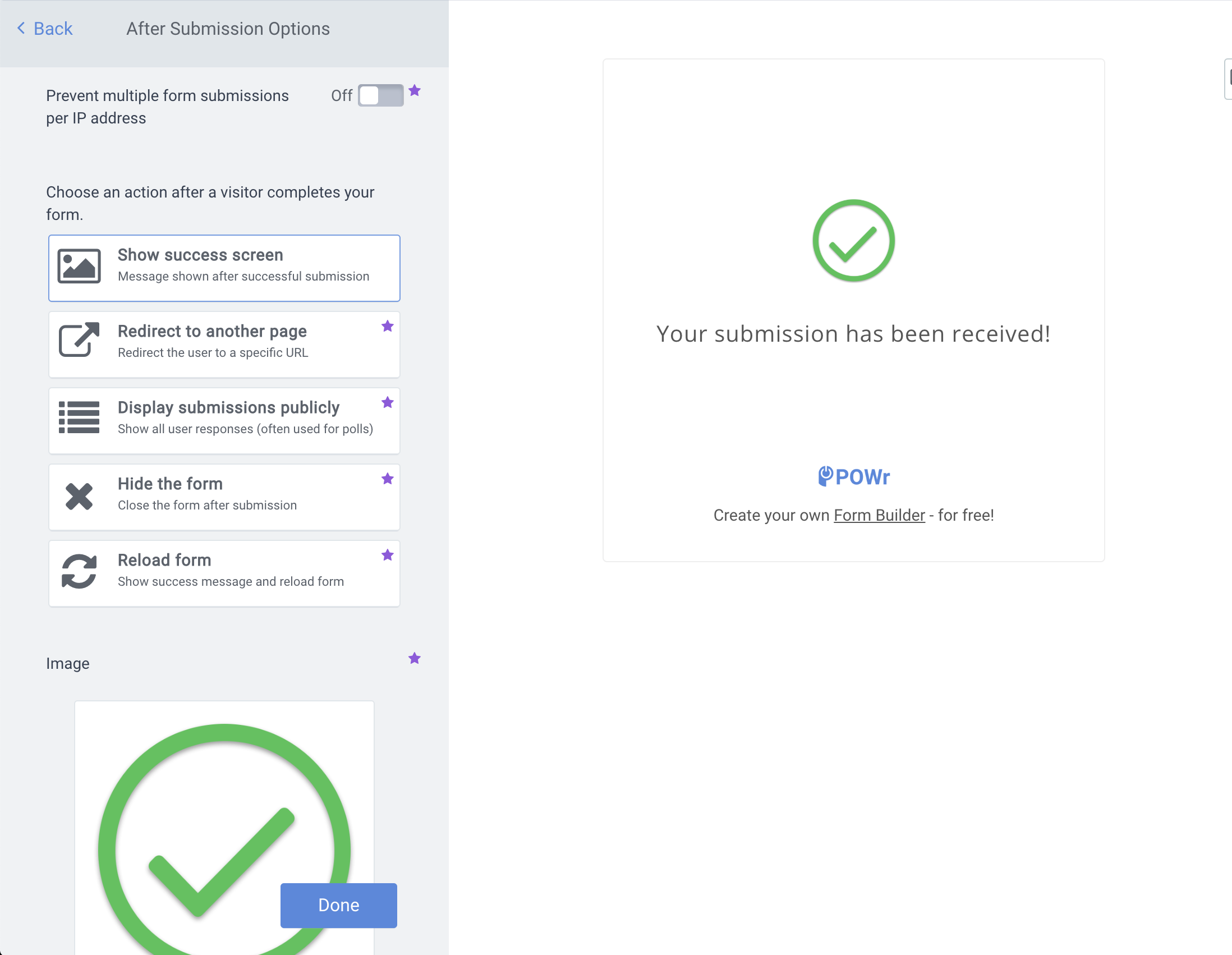
To customize what happens when a visitor completes your form, go to Settings > After Submission Options.
You can configure your form to allow respondents to submit the form every time they navigate to the page, or to block users that are accessing the form from the same IP address. Prevent multiple form submissions per IP address:
- Toggled OFF - Disabled by default, this configuration will allow users to submit to the form multiple times.
- Toggled ON - Enabling this will block a user from submitting to the form from the same IP address. Please note that all devices accessing the internet from the same router will share an IP address. Do not enable this if you plan to have multiple users submit to a form from a shared internet connection.
There are five options for actions available:
- Show success screen - You can use this option to add a custom success message for your form submission. Choose your own text and if you're on the Starter plan (or above) you can upload your own image.
- Redirect to another page - This option allows you to send your form respondents to another web page or website once they submit. This could be a customized 'Thank You' page or another page with a lead magnet that is only available to subscribers, for example.
- Display submissions publicly - This option will show a custom success screen and a button to view the form results, most commonly used for polls or surveys.
- Hide the form - Simply hides the form when submit is clicked.
- Reload form - For forms that allow users to submit multiple times, this option adds a button to the success screen for respondents to reset the form for an additional submission.