
How to Add a Squarespace Extension to a Product Page for Free
We found a really easy way to add extensions in Squarespace and wanted to share it with you. Typically, you would do it with code injection, but it is much simpler.
And the best news? Even free Squarespace users can do it!
Steps to Add a Squarespace Extension
- Login to your Squarespace account
- Click on Edit in the Squarespace Editor
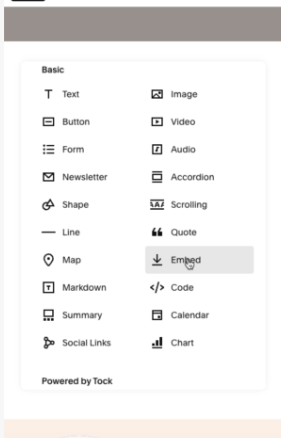
- Find the right section, click on 'Add Block' and select 'Embed'
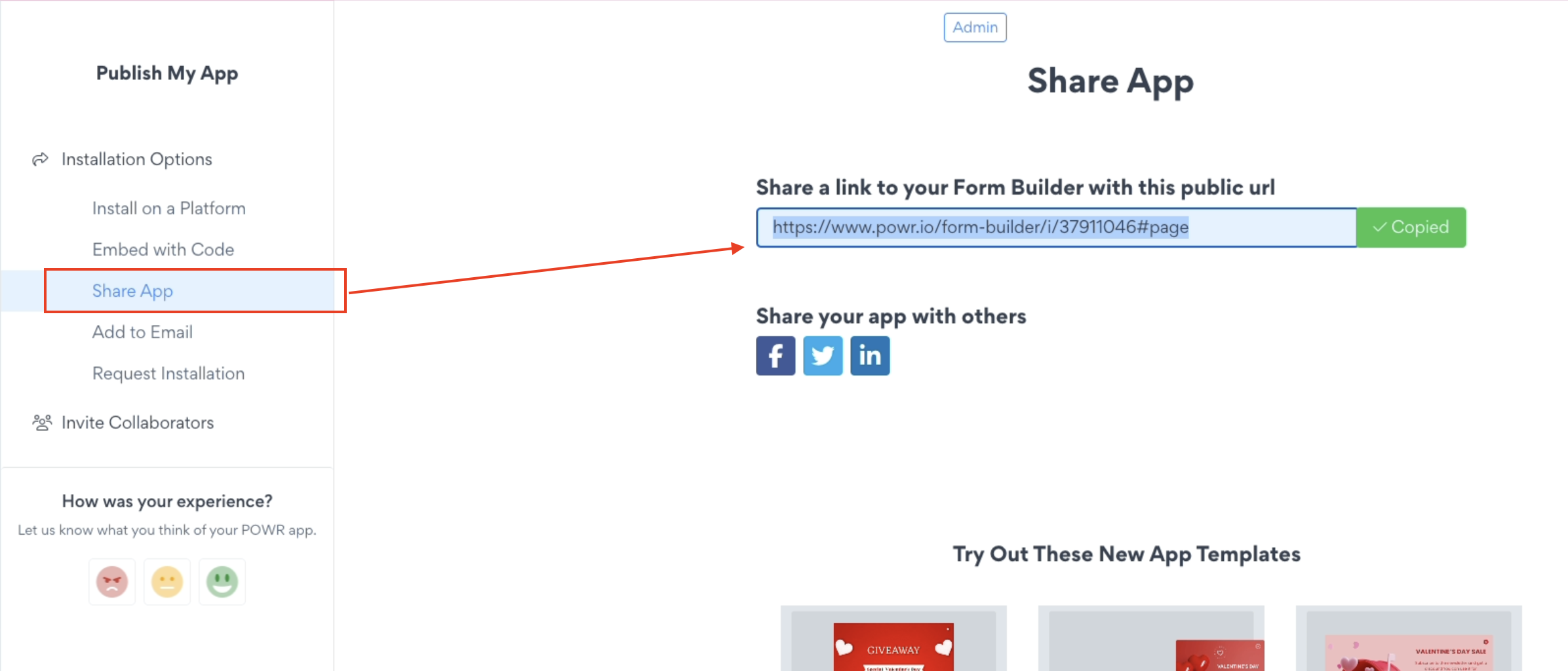
- Copy the auto-generated link from your POWR app.
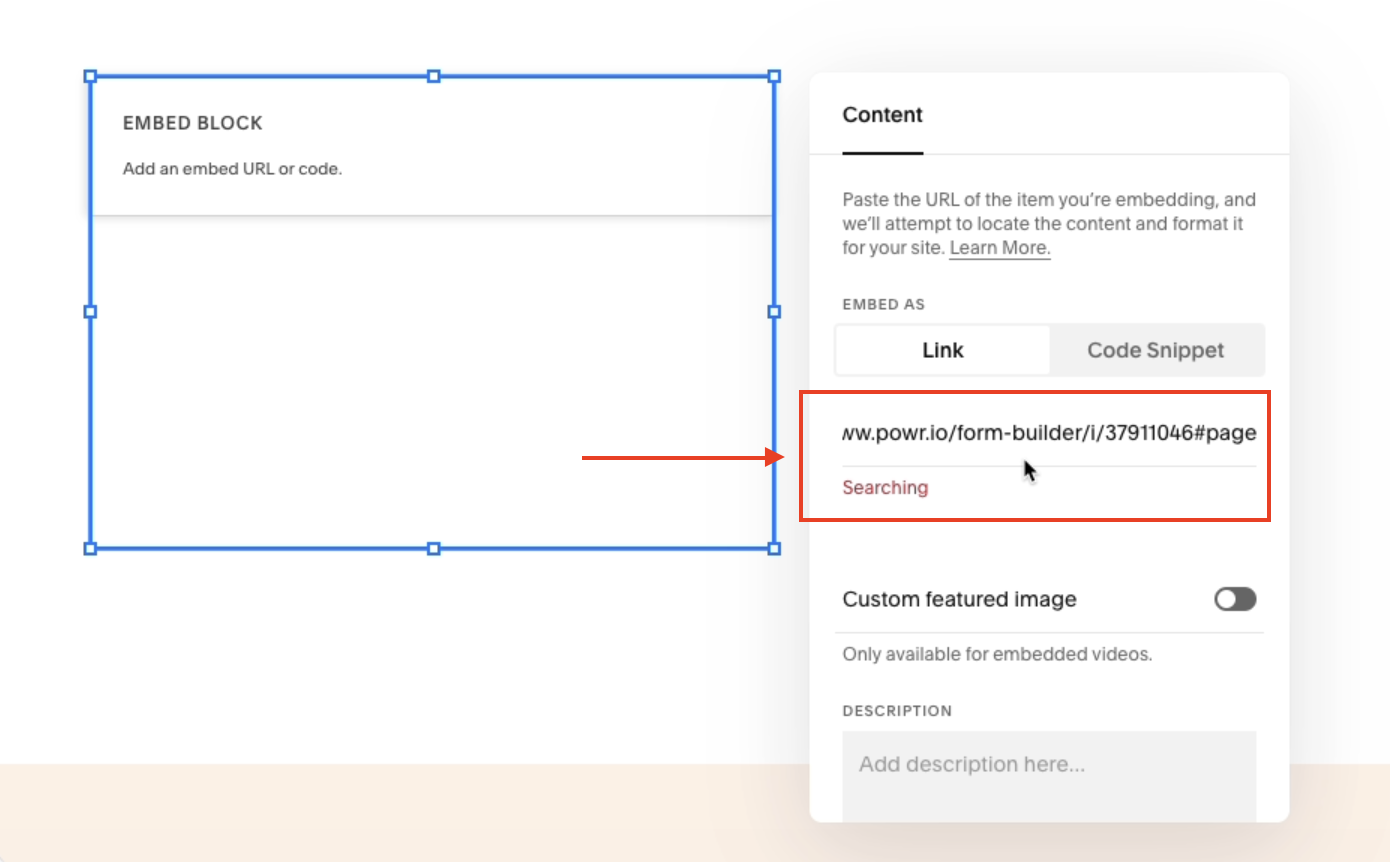
- In the Embed Block, select Link and paste.
- Save changes.
Follow these easy steps, and in just a few minutes, you'll have your app visible on your Squarespace product page. That's it. Below are more details and screenshots to guide you.
1. Log in to Squarespace
Log in to your Squarespace account and navigate to the website where you wish to embed the POWR app.
2. Click on Edit in the Squarespace Editor
Click on "Edit" to access the Squarespace Editor.
3. Add Embed Block
In the Squarespace Editor, find the section on your product page where you would like to add the POWR app.
Click on 'Add Block' and select 'Embed' from the options provided.
4. Get the POWR app link
Go back to the POWR Editor and click 'Publish.' Then, on the left sidebar menu, click 'Share App.' Copy the auto-generated link.
5. Paste the link
Return to the Squarespace Editor, and in the Embed Block, choose Link, and paste the copied POWR app link.
6. Save changes
Once you've added the POWR app link, click "Save" to update your Squarespace product page.
The POWR app is now live and visible on your Squarespace product page, allowing you to engage your visitors with its interactive features without the need for Squarespace code injection.
For more on using Squarespace more efficiently, here are a couple of short articles for you to check out: