
How do I customize confirmation emails?
Quick steps
Open the POWR Editor for your Form Builder app
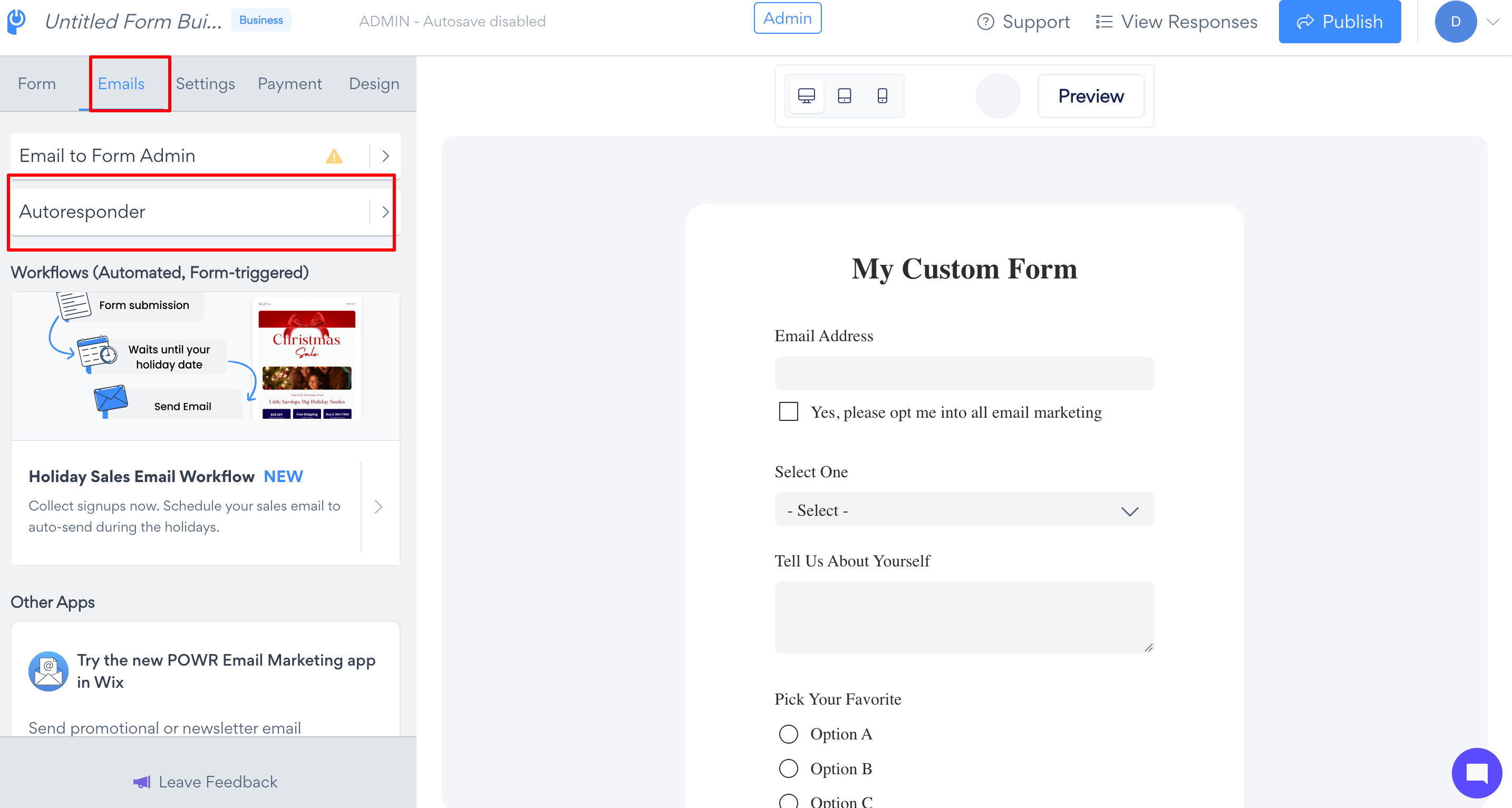
Navigate to Email and click on the Email section
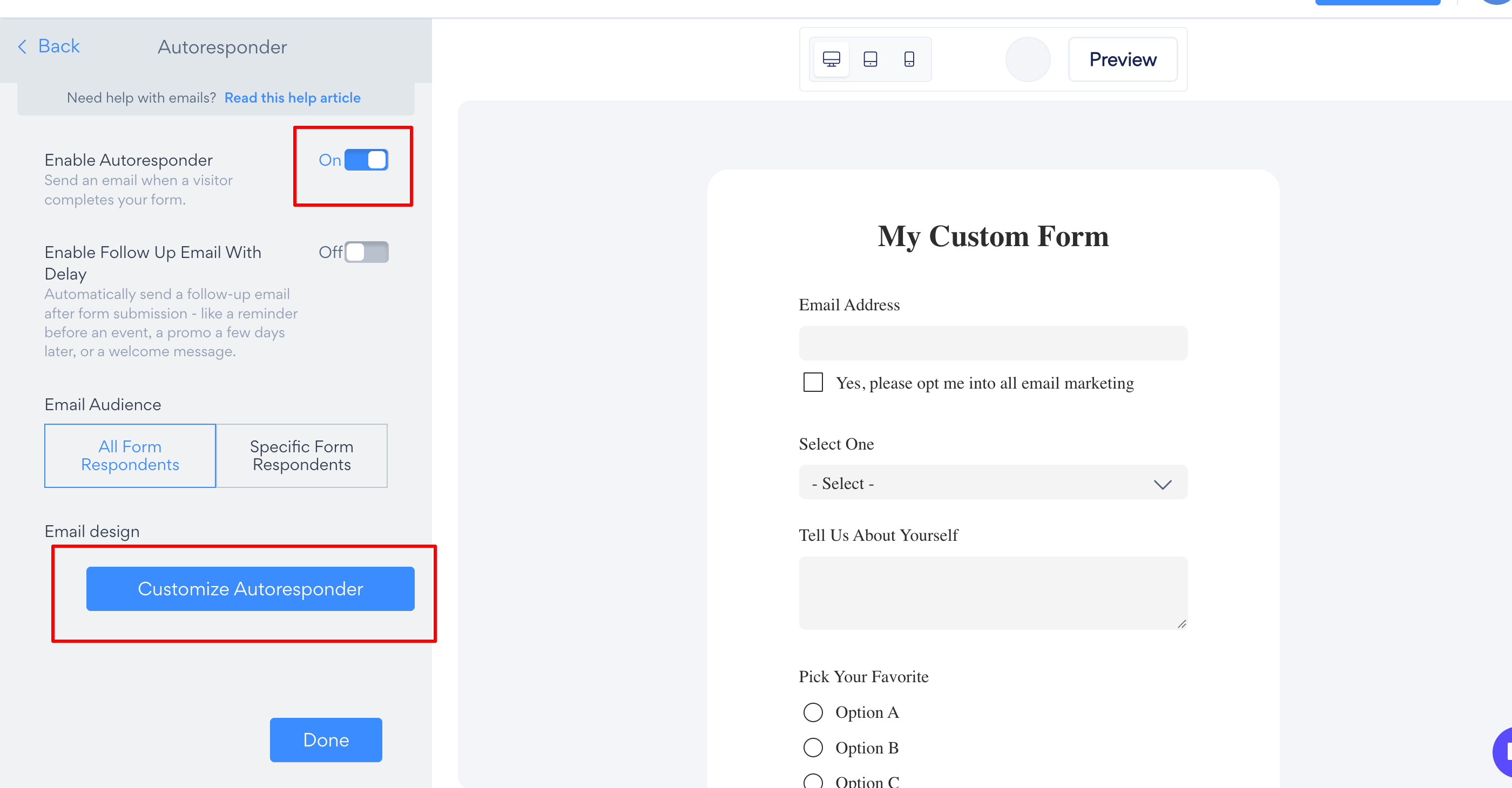
Select Autoresponder and enable it
Click on Customise Autoresponder to edit the subject line, sender name, and email body
You will then be redirected to our Email Editor, where you can drag and drop and design the email to your liking!
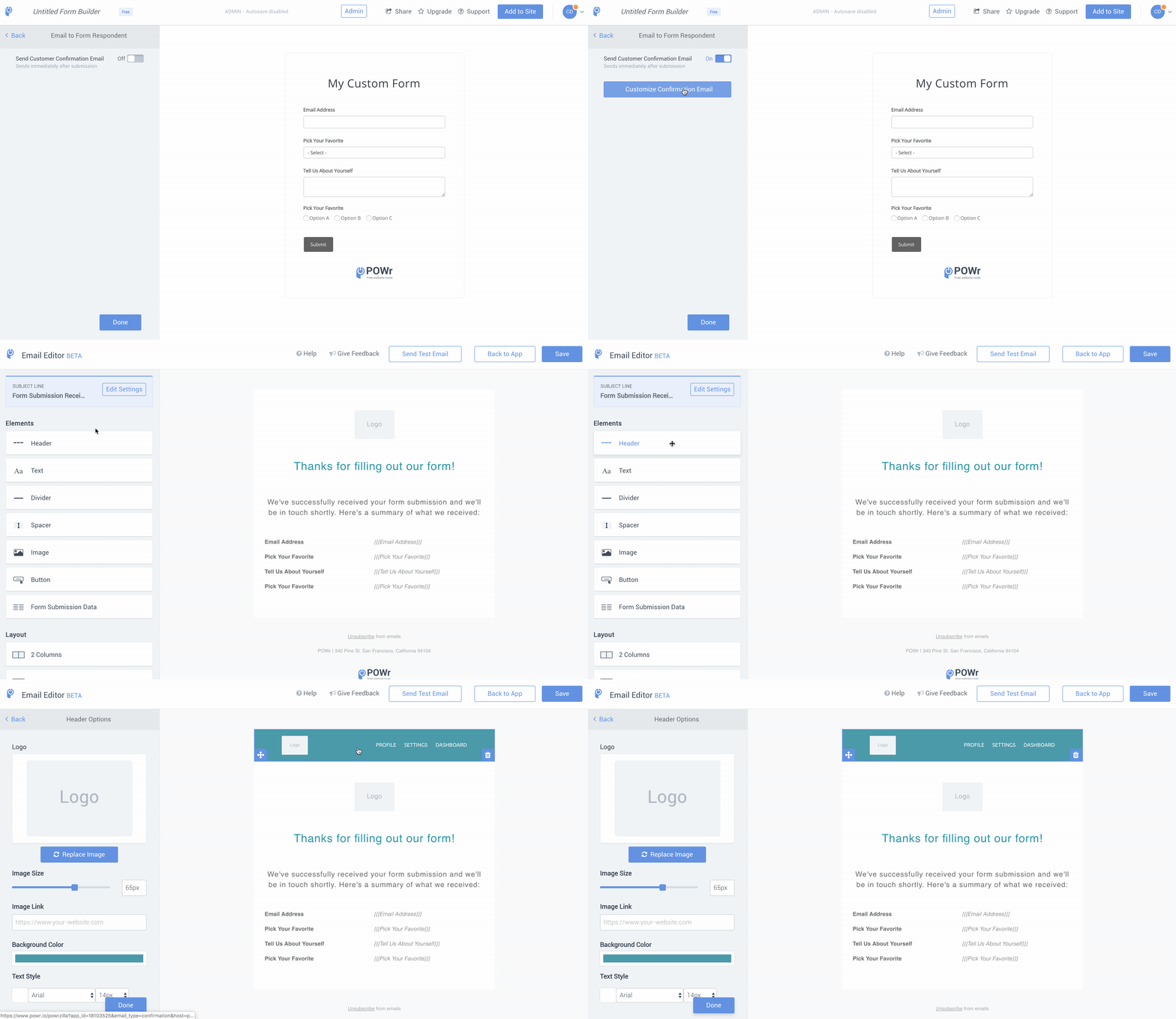
What you can customise
From name: who the email appears to come from (your business name, team member, etc.)
Reply-to address: where responses to the confirmation go
Subject line: the first thing users see in their inbox
Email body: your welcome message, next steps, or any information you want to share
Design
Related articles
Intro to POWR Forms: Learn how to use POWR Forms
Sync Your POWR Form with Shopify Customers: automatically turn submissions into Shopify customers
Need Help?
If you need help or have questions about our apps, our support team is happy to assist.
Contact our support team
When you contact us, you'll be prompted to authenticate your email by signing in, and we'll email you a confirmation code. This helps ensure our support team's reply reaches you without issues.
For more information about available features, visit our Pricing Page:
https://www.powr.io/pricing