
Accepting File Attachments and File Uploads with POWR Forms
With POWR forms, users can send you files directly through your form.
Note ⚠️: This is currently an upgraded feature in Form Builder.
To let a user add attachments to their submission, follow these steps:
Open your Form Builder Editor (or Form Builder Plus+ App Settings in Wix)
In your Form section, click + Add Element
Find and click on the File Upload in the Elements panel.
In the File Upload element, enter a button text, specify which file types you'd like to allow, and what the maximum file size of your attachments should be.
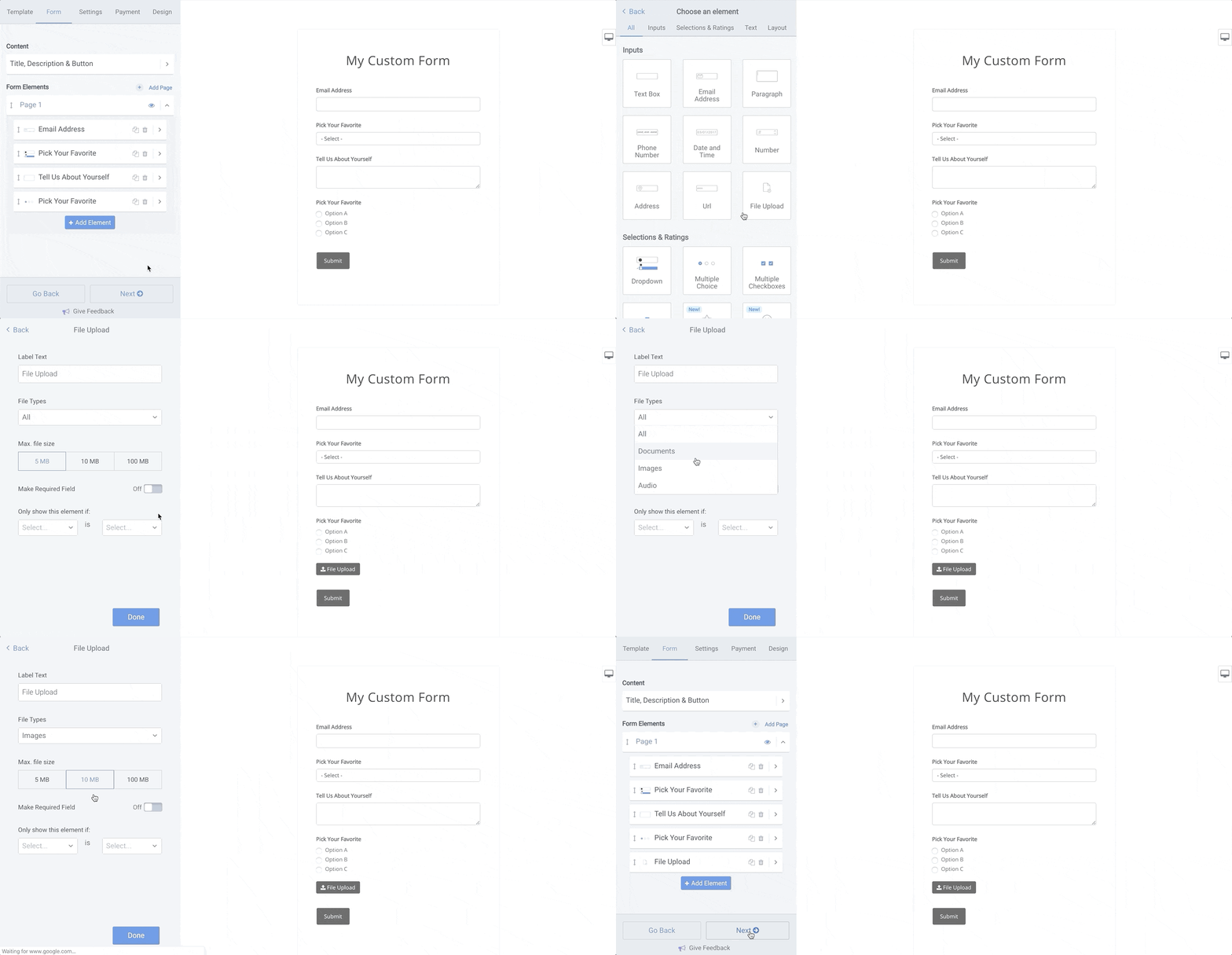
Files that users upload to their submission will then be sent to you as a link in the Form Email Alert and on your Form Response Dashboard.
File Upload FAQ:
What kind of files can users send me?
All common document, image, and audio file formats. For security reasons, users cannot send you .exe files or other files that could compromise your computer.
How big can the files that a user sends?
The maximum file size limits depend on your plan. Check out the current limits here.
How many files can the user send per form submission?
A user can upload one file per File Upload button. There is no limit to how many file upload buttons you add to your form (as long as you stay within your number of form element limit).
Most likely, this is a simple caching issue. Clearing the browser cache and refreshing the page will probably do it. Pro tip: Add the File Upload element(s) to the top of your Survey. That way, your users won't have to re-enter information when re-loading the page. Plus, you avoid issues where the file doesn't come through because the file wasn't fully uploaded before the user hit "Submit".
Where did the "View File" link go in admin emails?
The "View File" links and corresponding web pages were removed as part of the January 2020 security update. Please use the "Download File" links to download the file from our secure servers.
Why don't the filenames match what users uploaded to my form?
Uploaded files are stored with encrypted filenames to ensure they remain private and secure.
January 2020 security update:
Beginning in January of 2020, all form uploads will be stored with encrypted file names.
Downloaded form response files will have hashed filenames. These names are different from the original names used for the uploaded files.
At POWR, security for our users and our users' users is paramount. This update helps ensure that private and personal data remain that way.
Need Help?
If you need any help or have any questions about our Form Builder, our support team is happy to help.
Contact our support team
Note: You need to sign up with your email to contact us.
For more information about available features, visit our Pricing Page