
Setting up Payment Button in Wix
Setting up a Payment button in Wix takes just a few clicks.
Add to Site
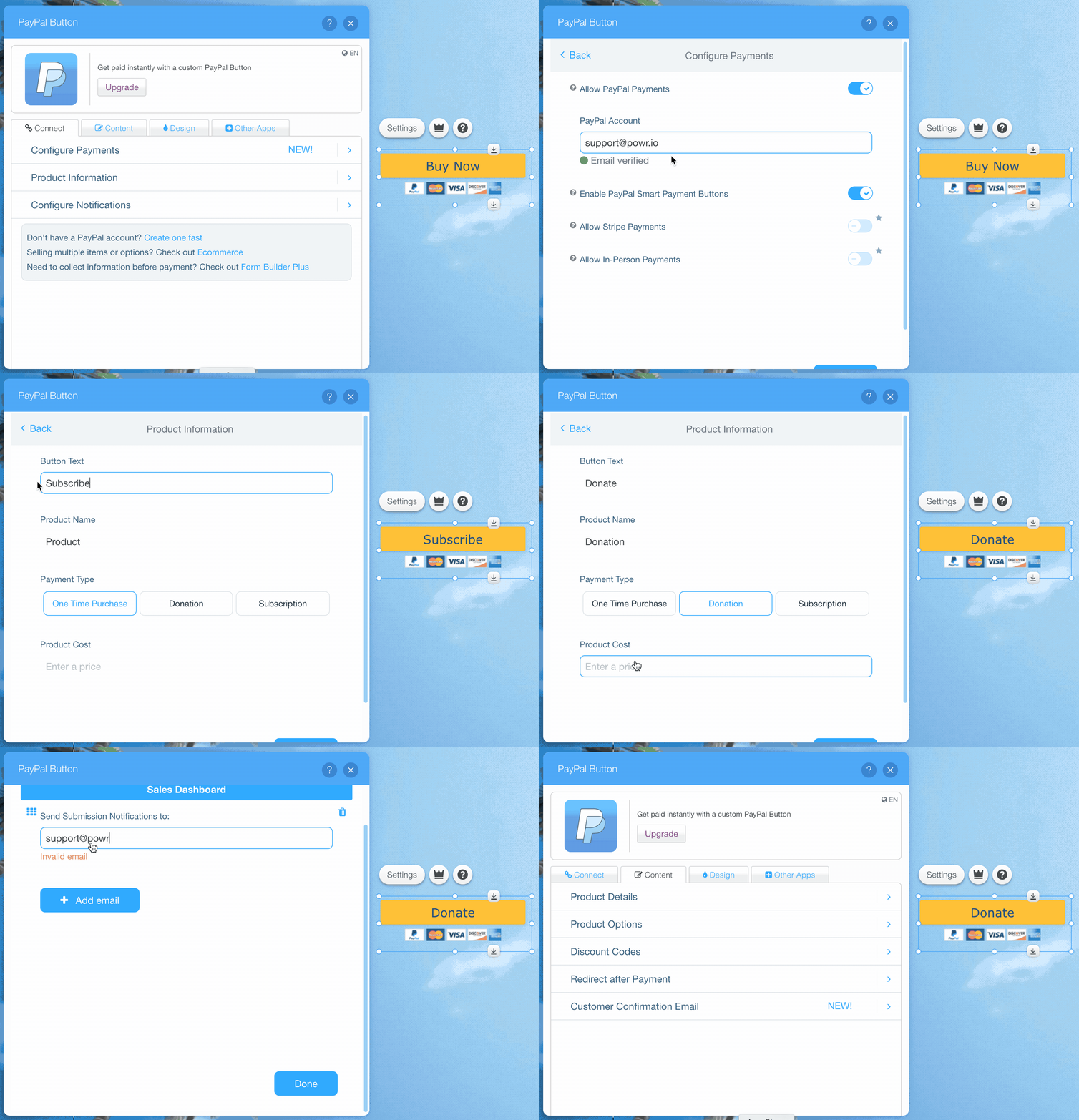
Use the Wix App Market to add POWR Payment Button to your Wix site. Double click the button to open the App Settings panel. You can change the design and styling of the button. But first, make sure to fill in the key information:
Add Important Info:
- PayPal Account - the email address you use for your PayPal Account.
- Button Text - what your button will say.
- Product Name - what customers will see when they checkout through PayPal.
- Payment Type - can be One Time Purchase, Donation or Subscription.
- Product Cost - how much you want to charge your customers. Note: Leave this blank to let customers choose their own amount.
- Configure Notifications - add an email address to get a notification each time somebody submits payments.
Finishing up
Once you've filled in this information, publish your Wix site, and your Payment Button will be ready to collect payments.
You can also set up Shipping and Tax, choose a different currency, or adjust the design and styling of your button in the App Settings.