
Send Form Submissions to Constant Contact with Zapier
Zapier enables you to automate tasks between POWR Form Builder and other online apps (i.e. Mailchimp, Constant Contact, Shopify, etc.).
This article will show you how to create a Zap which will add a new form submission to your Constant Contact list automatically.
1. Add form fields to Constant Contact
Before you begin make sure that the POWR form fields you want to send to Constant Contact exist as contact fields in your email list. For example, if your form has fields First Name, Last Name and Email Address then you need to make sure those fields exist in your Constant Contact List.
2. Navigate to the Constant Contact drilldown
Navigate to Settings > Constant Contact
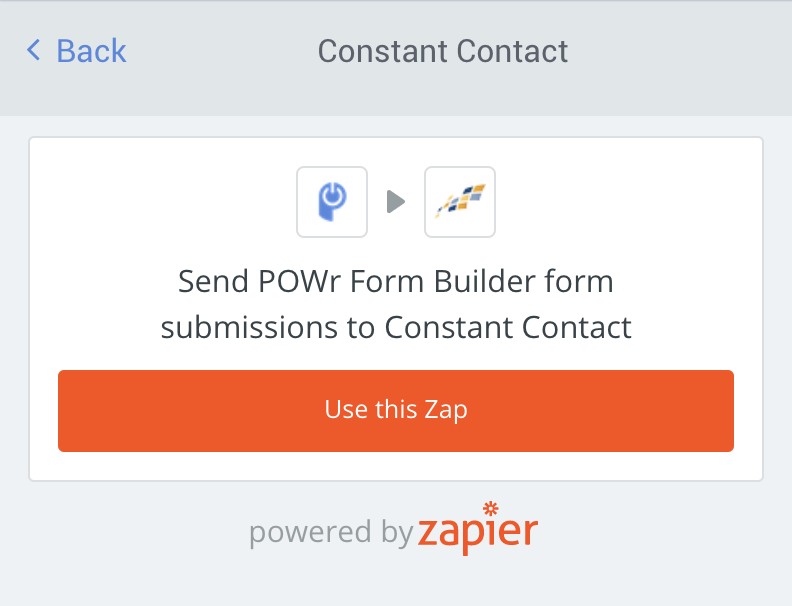
Click on Use This Zap
Create a Zapier account
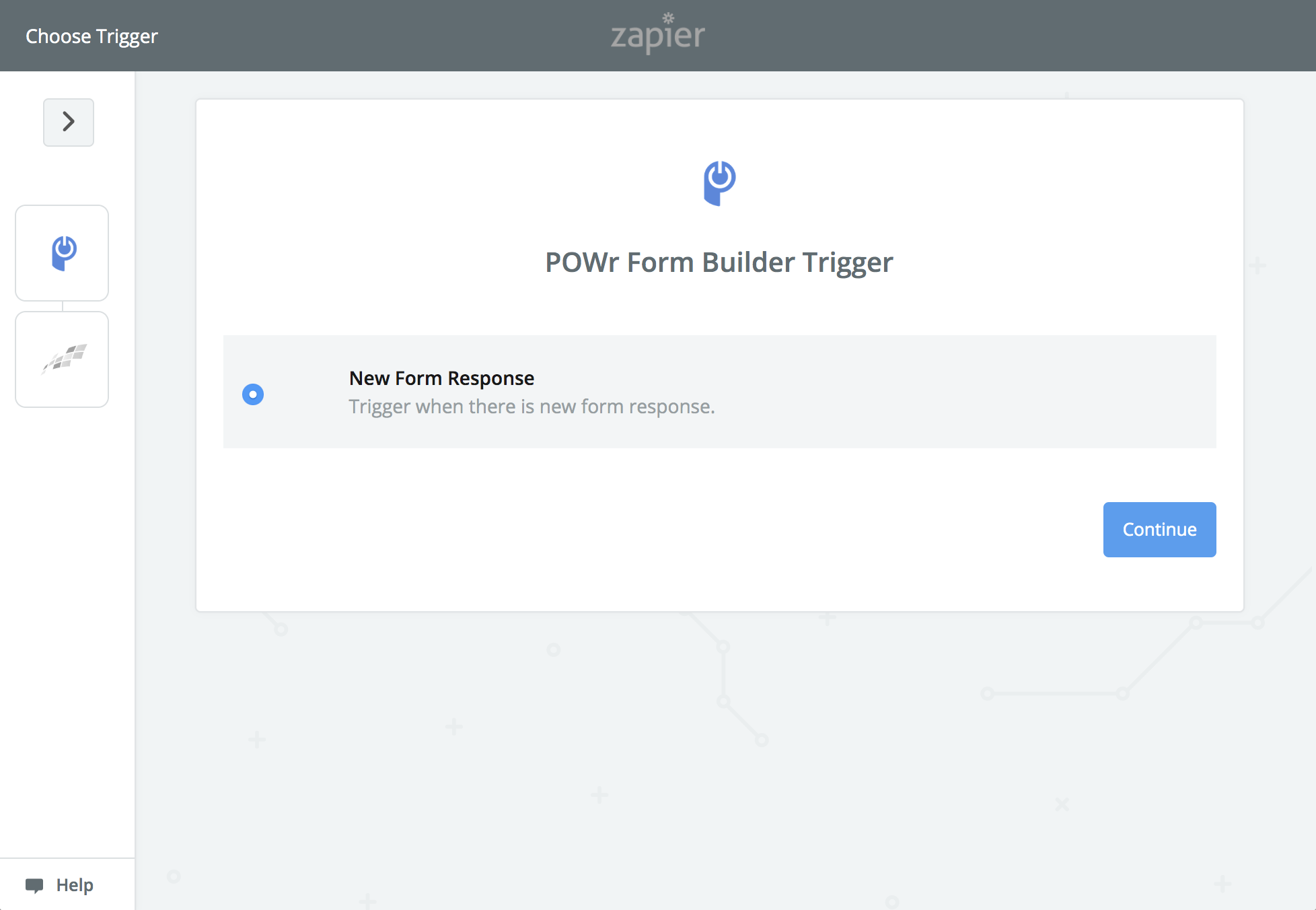
3. Choose Trigger
Select New Form Response
Click Continue
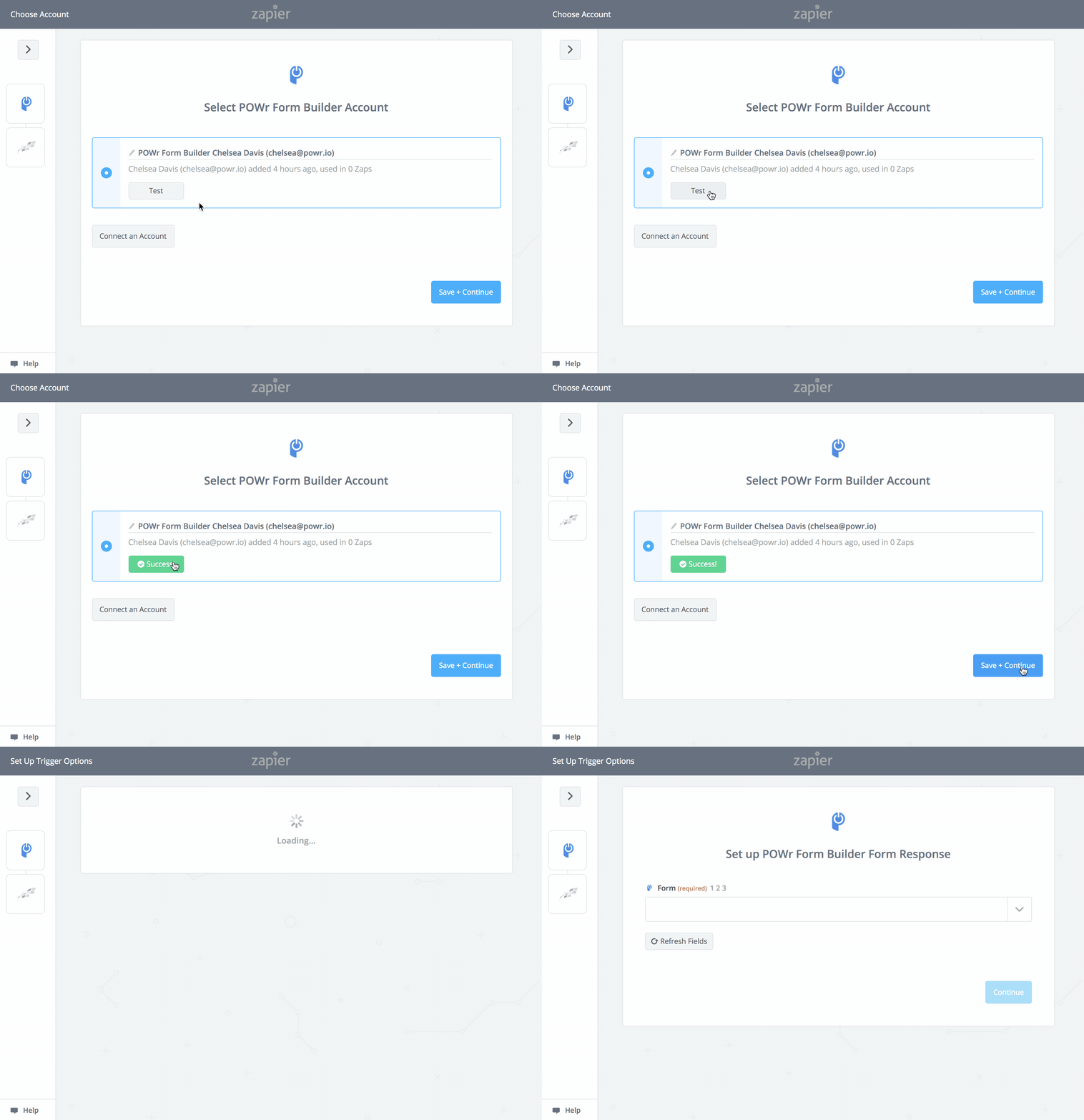
4. Choose Zapier account
Make sure the correct POWR account is connected
Click Test
Click Save & Continue
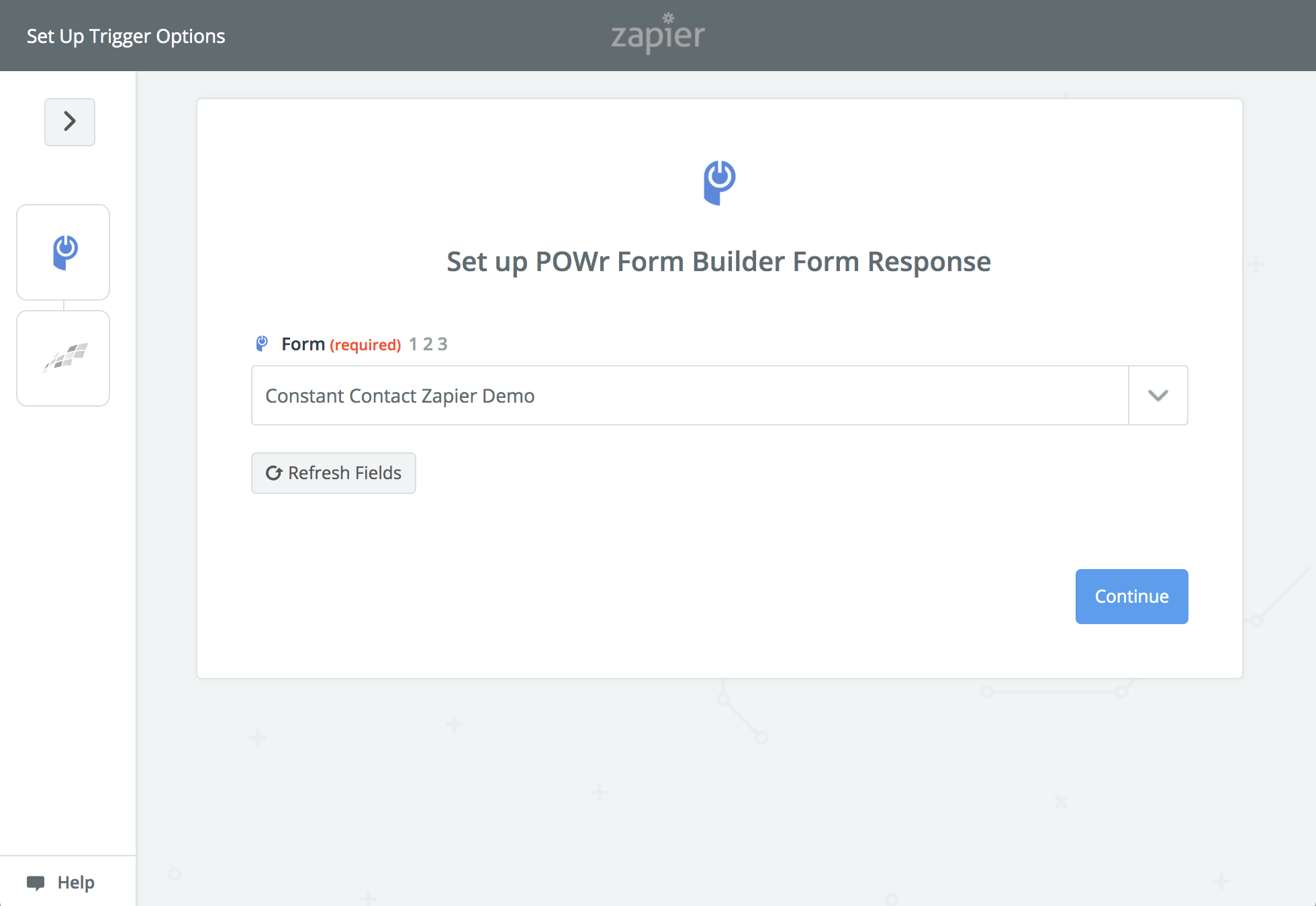
5. Select POWR form
From the dropdown, select the POWR form you want to connect to Constant Contact
Click Continue
6. Test your form
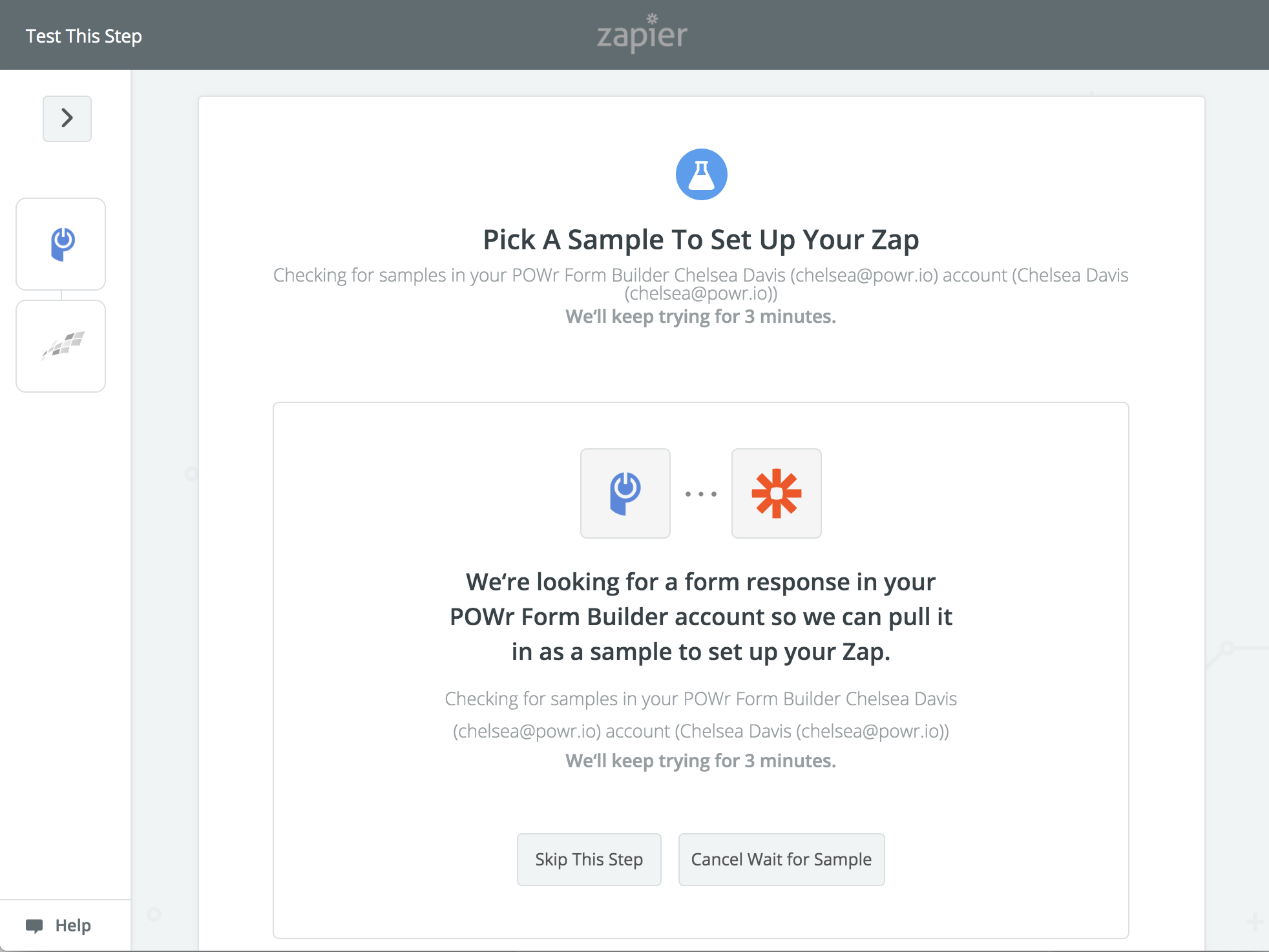
If you haven't already received a submission to your form, the "Pick A Sample" screen will say it is looking for a form response. If it continues looking for a response, make a test submission to your POWR Form.
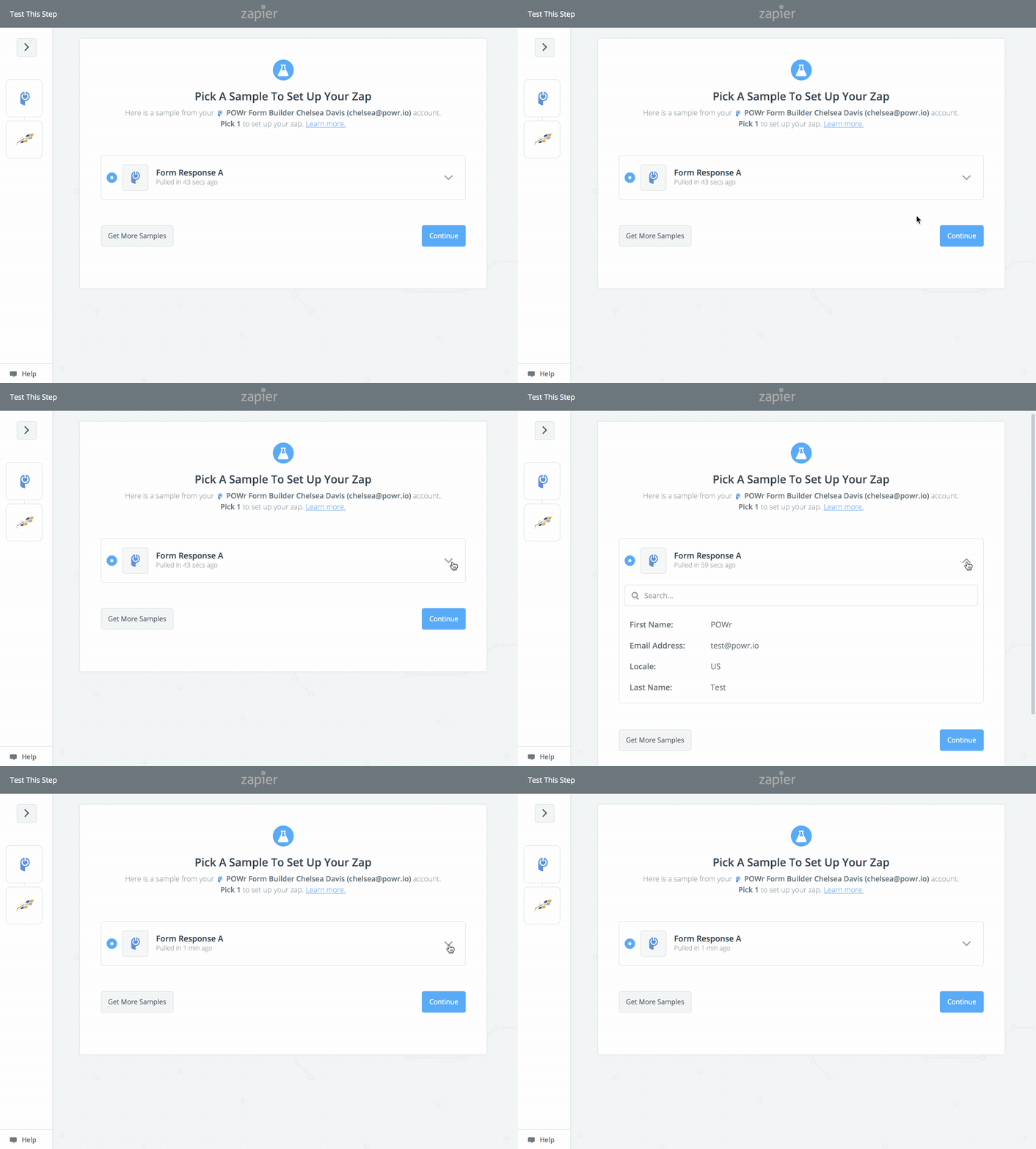
Once you make a test submission, click Pull Samples. You should then see the details of your test submission when clicking the down arrow
Click Continue
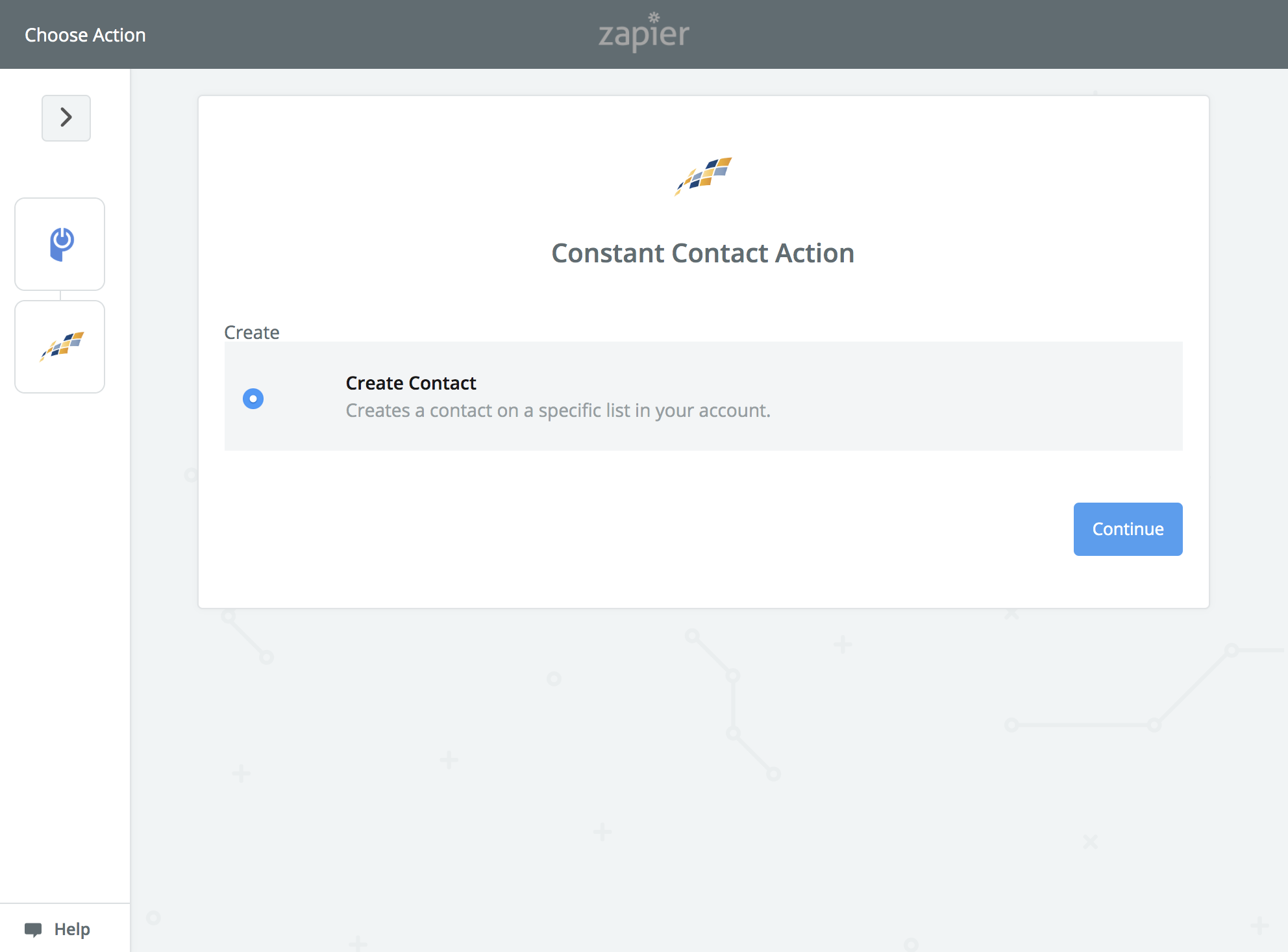
7. Connect to Constant Contact
Choose action of Create Contact and click Continue
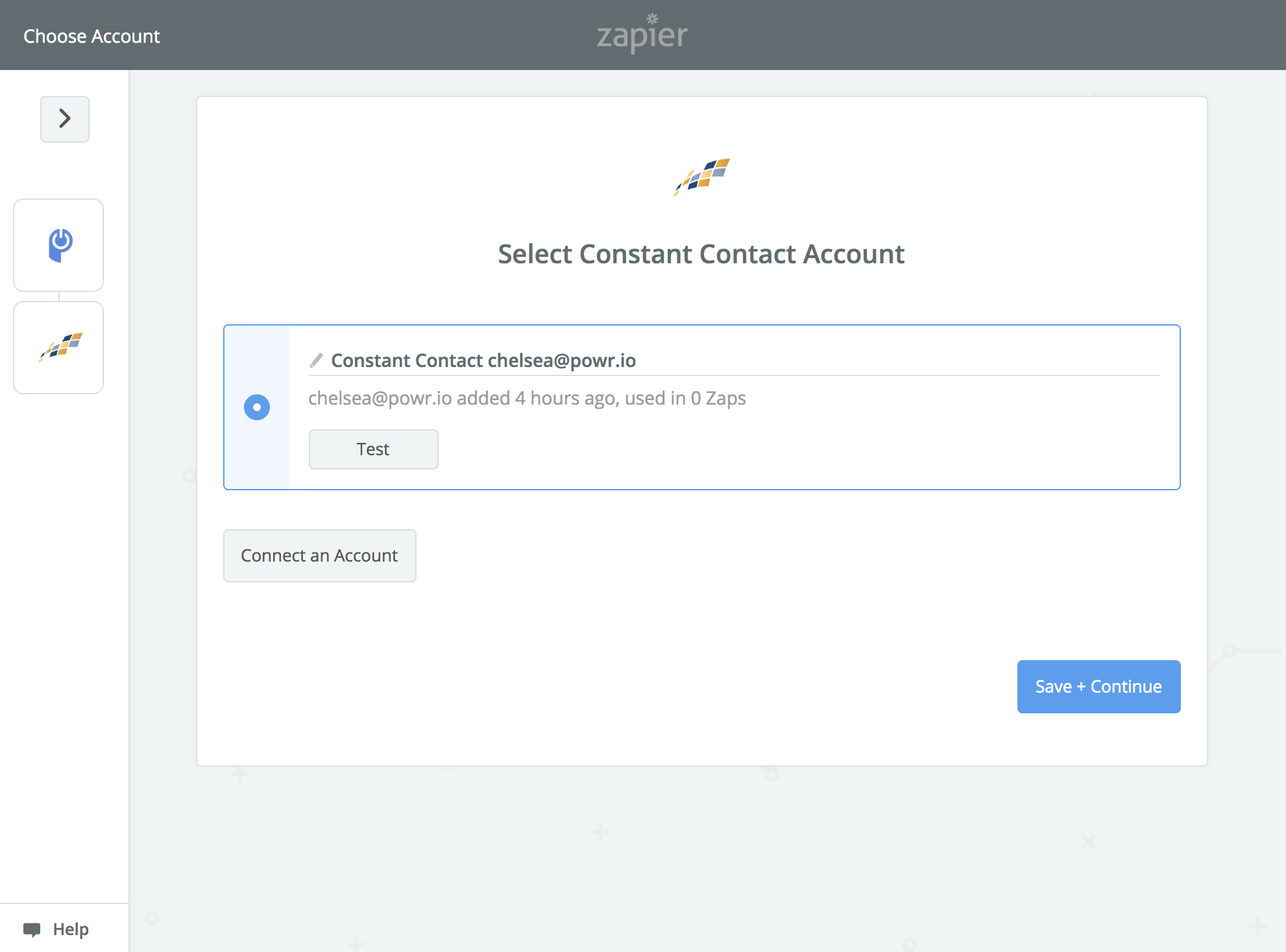
Confirm the correct Constant Contact account is selected and click Save & Continue
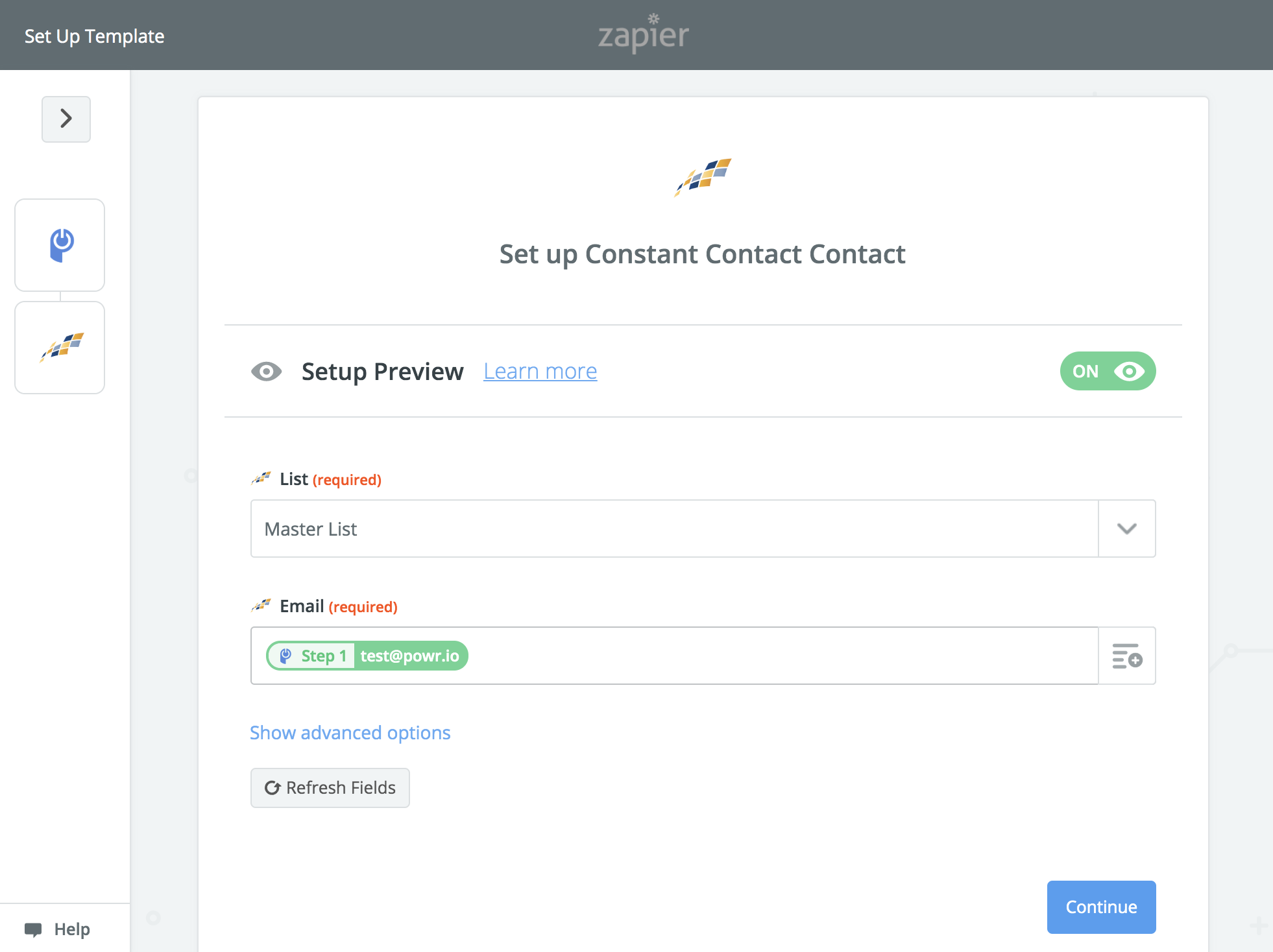
From here choose the Constant Contact list you want your form submissions to sync to and using the

Note: If you'd like to sync more than just the email field then click on Show advanced options - map additional form fields to Constant Contact fields as you did with the email
Click Continue
8. Test the Zap
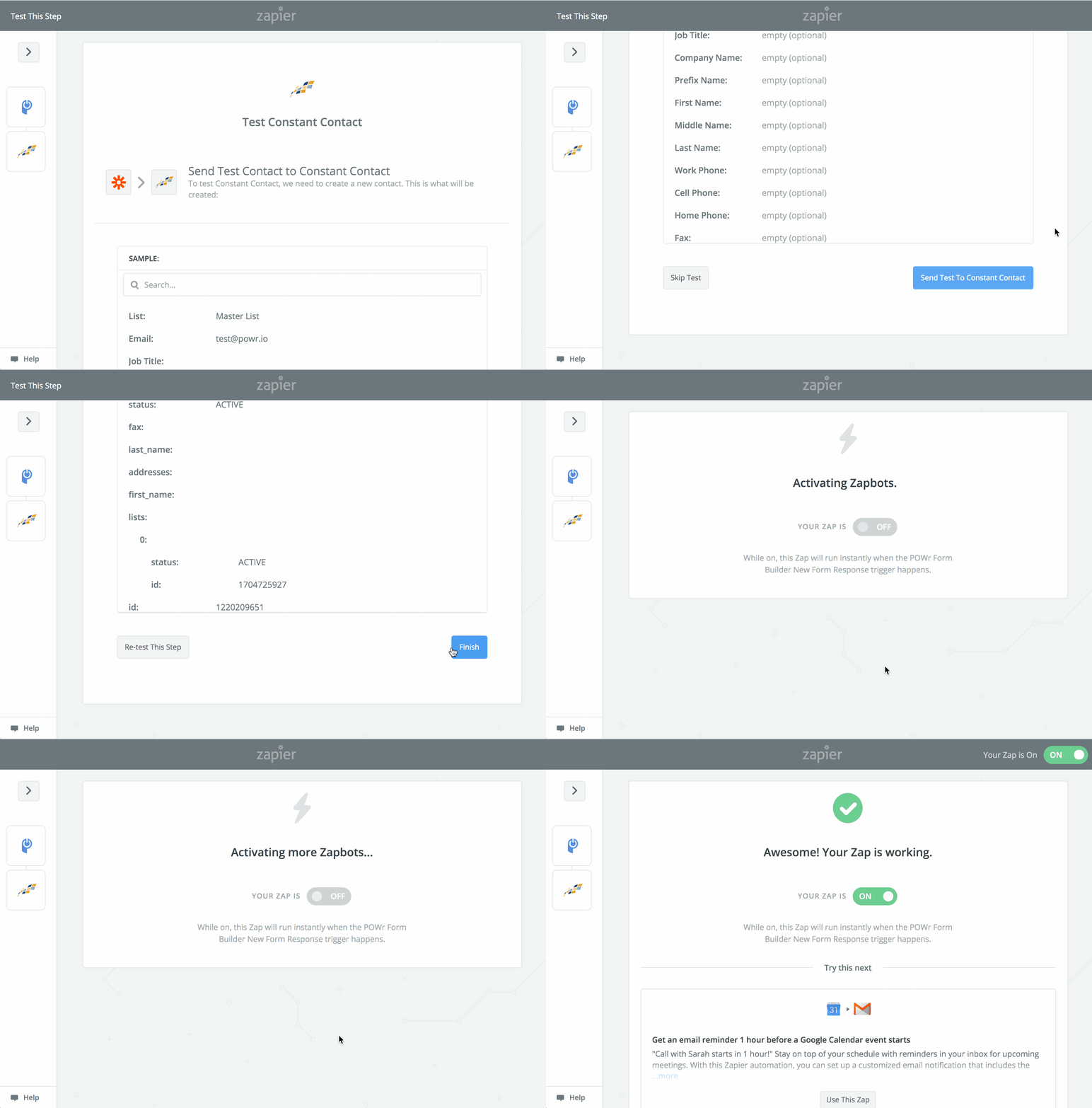
Click Send Test to Constant Contact
Then click Finish
Your Zap is connected now! Check that your test form submission is now in your Constant Contact list.
Important: To manage your Zap moving forward, you will need to do so through Zapier.com and NOT through your POWR Form.