Intro to Ecommerce (Wix)
Getting Started
POWR Ecommerce is a simple but powerful app that lets you sell almost anything online - products, services, subscriptions, and even digital files. You can sell just one product or several and receive payments directly in your Stripe or PayPal accounts.
To create a new Ecommerce app, go to the Wix App Market and search for Ecommerce by POWR. Then, click + Add to Site and Add App. Or, just click here. The Ecommerce app will then appear in your Wix editor.
Basic Setup
Receiving Payments
To customize your Ecommerce app, double-click on the app in the Wix editor. This will open the Settings panel.
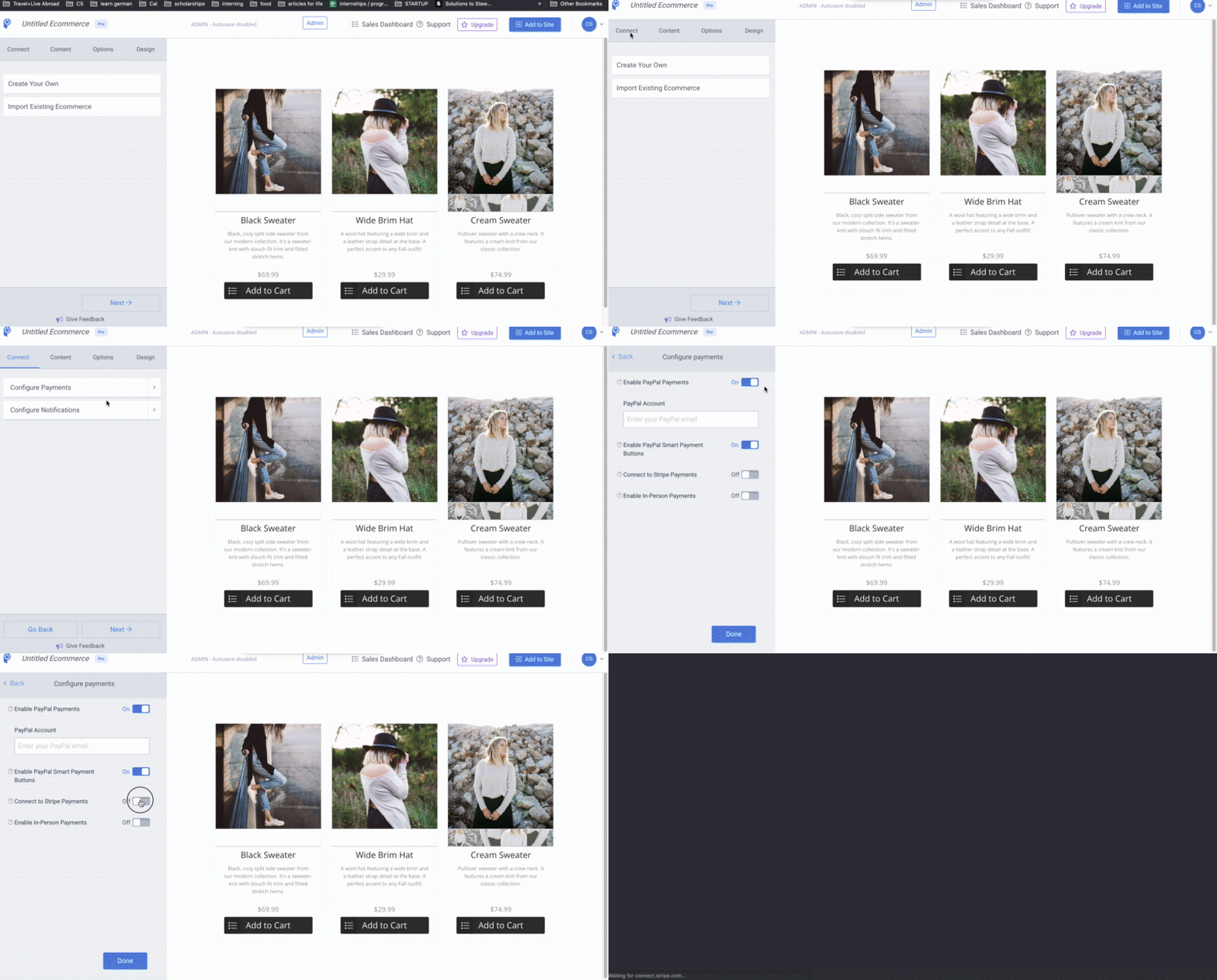
To receive payments online through your POWR Ecommerce app, you need to connect the app to your Stripe and/or PayPal account. In the Connect menu, select Configure Payments and enter your PayPal account email address in the field provided. Or, toggle on Credit Card Payments to create or log into your Stripe account.
Common Questions:
Adding Products
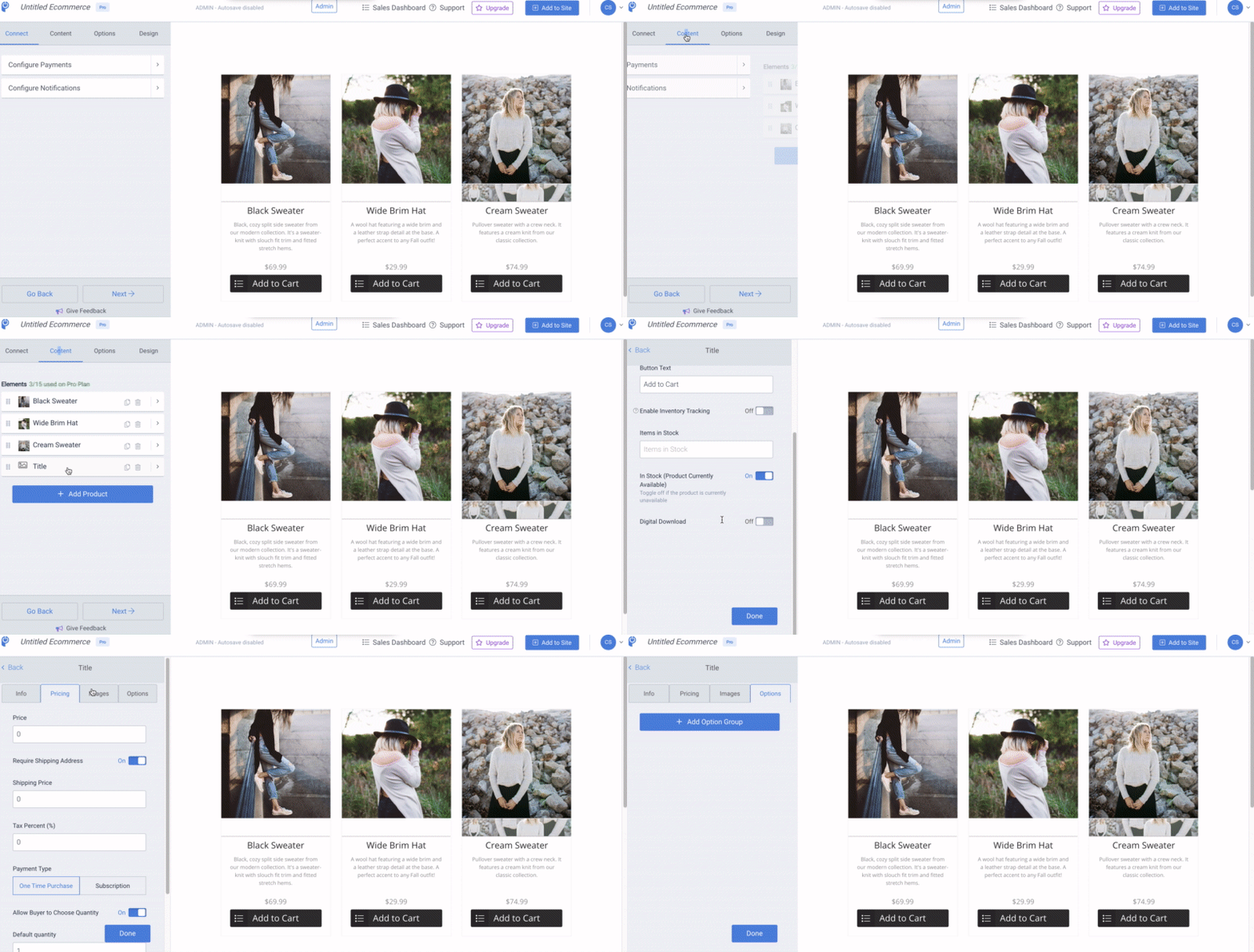
To add a new product to Ecommerce, open the Content tab. In the window that appears, select the Add Product button.
A new product entry will appear with tabs for you to enter the product's Info, Pricing, Images, and Options.
Common Questions:
Different Types of Products
POWR Ecommerce lets you sell physical and digital products, like songs, digital art, or other files that your customers can download.
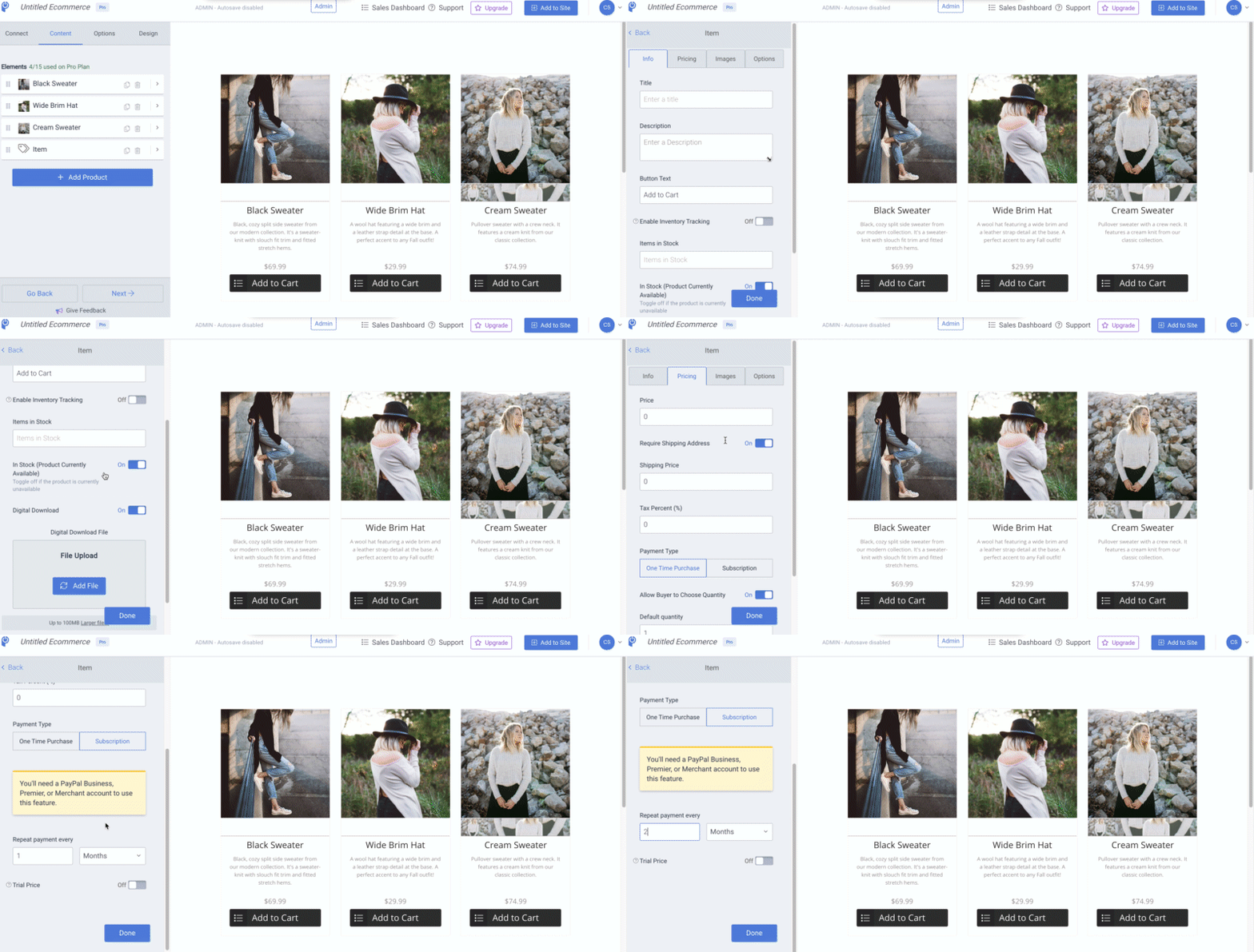
To sell a digital file, open the Info tab for the product and toggle Digital Download > On. Then upload the file you would like to sell.
You can also create subscriptions for things like memberships or service agreements. To set up a subscription, open the Pricing tab for a product, and set Payment Type to Subscription. You can then select how often and how much a customer will be charged and create an optional trial period.
Redirecting customers after a purchase to another webpage
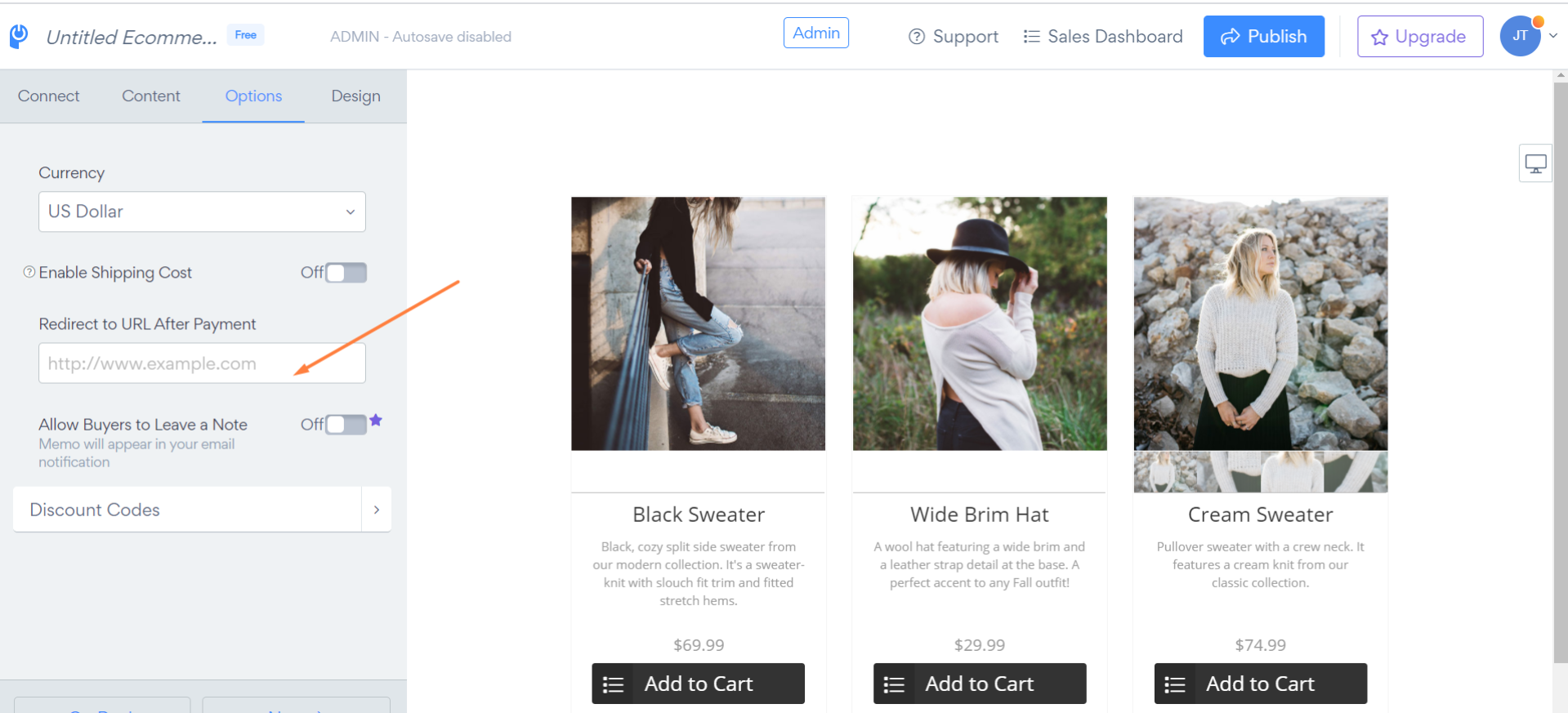
You want your customers to be redirected to a new page once they submit a payment, in this case kindly open the eCommerce app setting and follow the steps below:
- Click on the "Options" tab
- Paste a URL in the "Redirect to URL after payment" field
- Click on the "Publish" button to save the changes
Kindly refer to the image below.