
How to track inventory in POWR eCommerce
Note: Inventory tracking is a Pro feature.
Tracking Inventory
You can set and track inventory for products in POWR eCommerce. Here is now to turn on/off this feature:
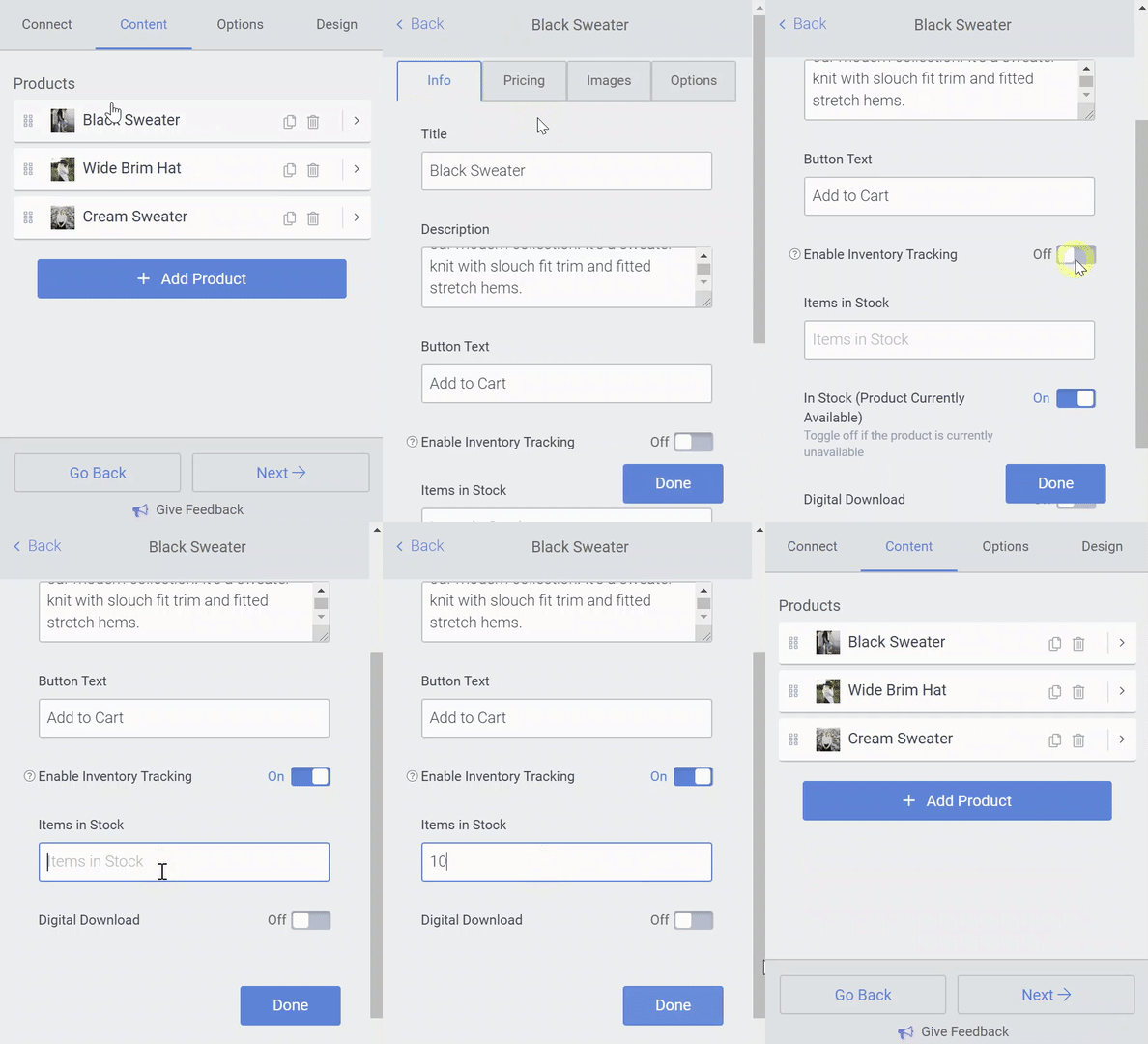
- In the POWR Editor, go to Content section
- Open the product you would like to turn on inventory for
- Scroll down and toggle On the Track Inventory option found in the Info section.
- You can then enter a number of Items in stock. This number will decrease each time someone orders the product.
Email Alerts
You will be alerted when:
- The number of Items in stock falls below 5, you will receive an email alert from POWR. This alert will be automatically sent to your PayPal account email.
- Someone orders your product.
- The number of Items in stock reaches zero.
Automatic Out of Stock
When the number of Items in stock reaches zero, the product will automatically be marked as Out of Stock. Customers will not be able to purchase the item until you reset the number of Items in stock in the POWR Editor.
Remember to do this to ensure that you do not miss any sales.