
How to sell subscriptions in eCommerce (Stripe/PayPal)
If you want to sell subscriptions or memberships, POWR eCommerce is a great tool. You can create recurring subscriptions for any amount, regularly charged on any timeframe. Best of all, POWR takes 0% of your payments. Only standard PayPal and/or Stripe fees apply.
Note: If you're using PayPal, you must have a PayPal Business account to sell subscriptions.
Setting Up Subscriptions
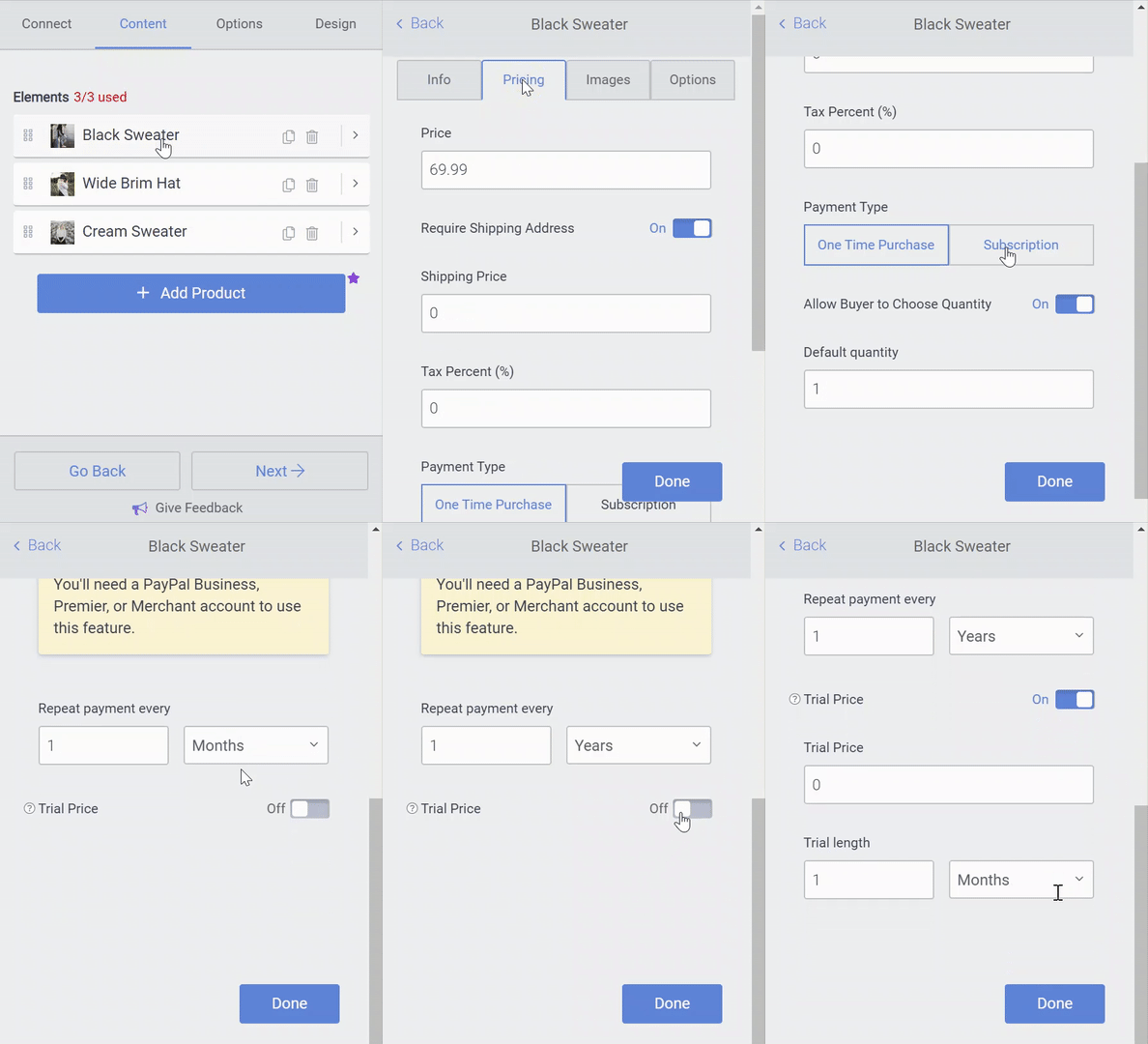
To set up subscription payments with POWR eCommerce (or other apps), open the Pricing menu. Enter a price to be charged per payment. Then set a time frame to determine how often your customers will be charged. You can also set up a trial period, during which the price can be less, or more, than the regular price.
If a free trial period is enabled, you will receive a confirmation email from PayPal as soon as someone signs up, even though no payment has been made yet.
Note: Discounts, shipping fee, and taxes are applied to each renewal payment the end-user makes.
Canceling Subscriptions in PayPal
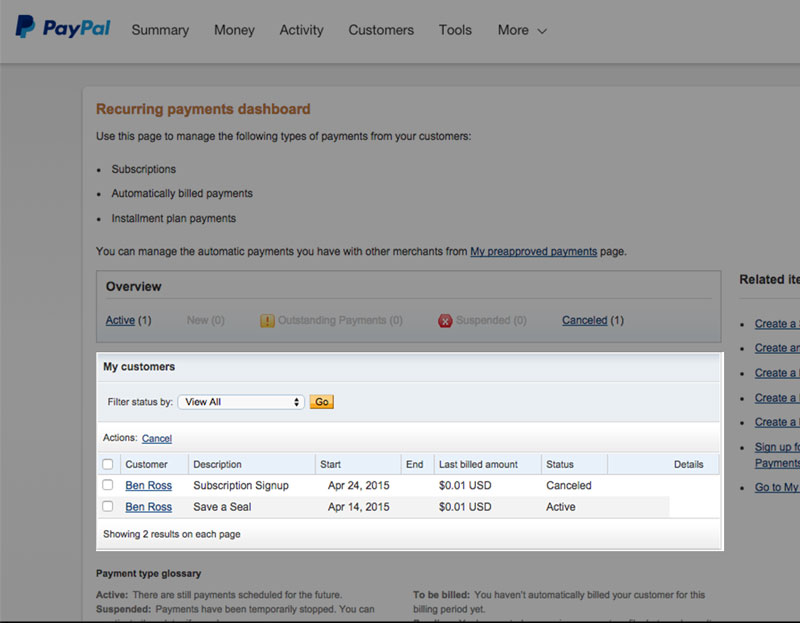
Subscriptions can be cancelled by you or your customers through PayPal.
Canceling Subscriptions in Stripe
If a billing agreement for a recurring charge was made via Stripe, the end-user does not have a way to cancel themselves. They will need to contact you and request that you cancel their subscription.
To cancel a user's subscription, log in to your Stripe Dashboard and go to the Subscriptions tab to manage a user's recurring charges.
Please Note: If Stripe payments is enabled, current Trial Lengths are limited to months and year.