
How to Install the POWR App on Your Hostinger Website
Want to embed your POWR app on a Hostinger site? Whether you're capturing leads, showcasing content, or adding interactive tools, this guide walks you through how to install your POWR app on Hostinger step-by-step. No coding knowledge needed!
In this Article:
Step 1: Add a Custom Code Element in Hostinger
🔗 Step 2: Add the POWR App Embed Code
Installing Floating Apps via Hostinger’s Custom Code
Step 1: Add a Custom Code Element in Hostinger
Open your Hostinger Website Builder.
Click the + button to add a new element.
Find and drag the Custom Code block onto your page.
*
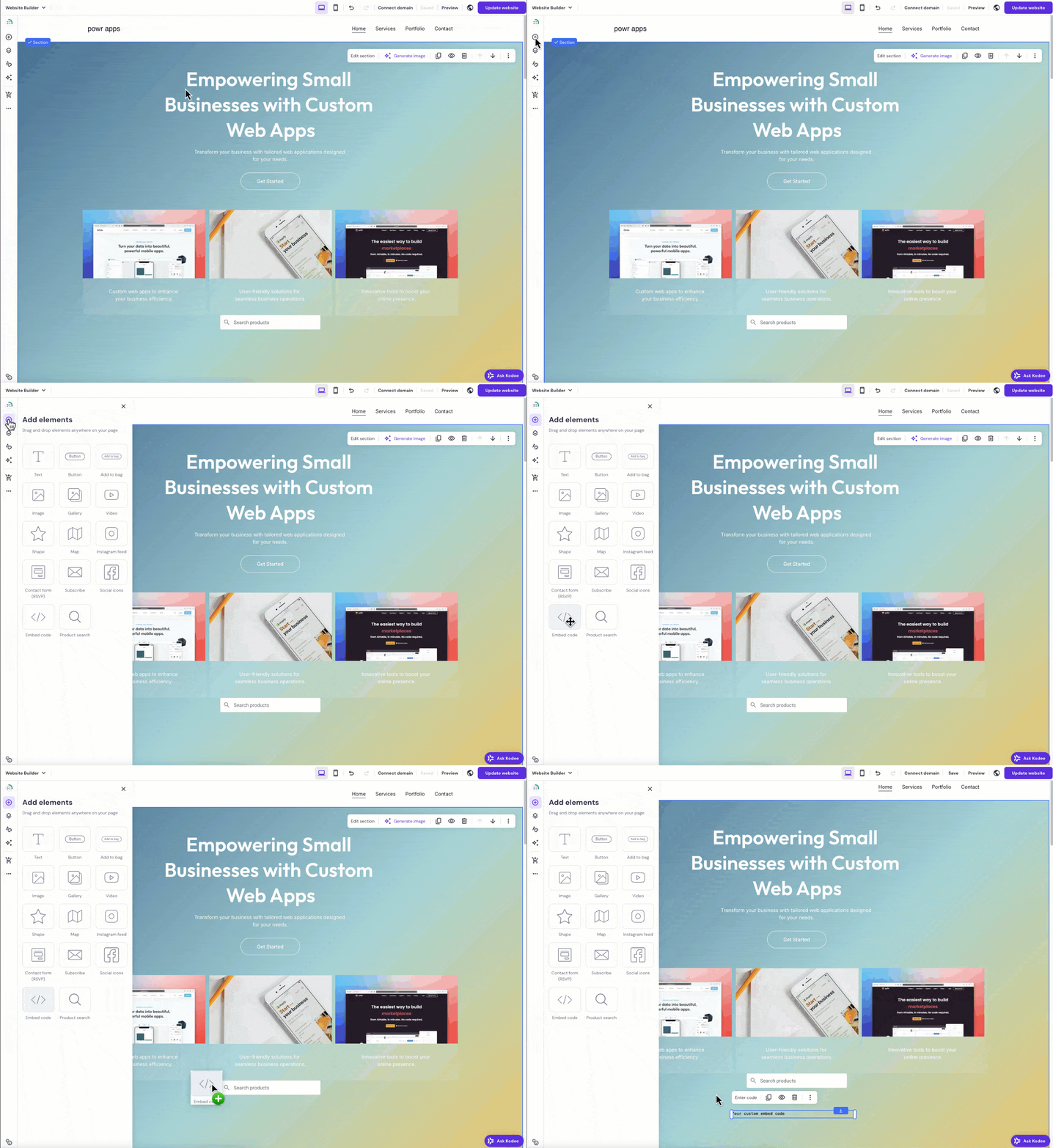
💡 Tip: Not sure where to find the Custom Code element? You can use the search bar or check under the “Advanced” section.
Step 2: Add the POWR App Embed Code
Click the Custom Code element you just added.
Press Enter to open the code editor.
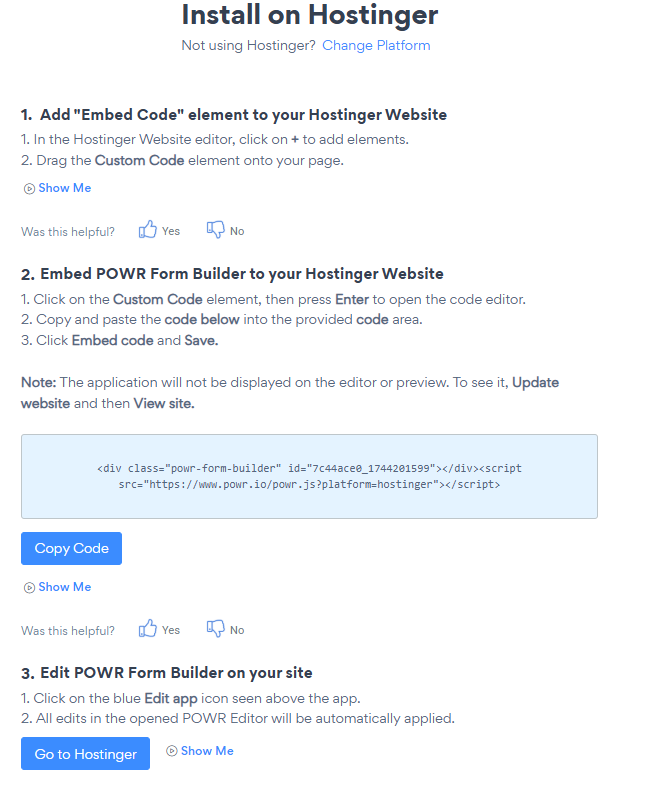
Copy and paste POWR app code into the code area:
Example:
<div class="powr-form-builder" id="51e83556_1742459835"></div>
<script src="https://www.powr.io/powr.js?platform=hostinger"></script>
- Click Embed Code and then Save.
⚠️ Note: Your app won’t be visible in the Hostinger editor or preview. To see it live, click Update Website and then View Site.
Step 3: Edit Your POWR App
Once your app is embedded on your page, you can customize it easily:
Hover over your live app.
Click the blue Edit App icon that appears.
The POWR Editor will open in a new tab.
Make your changes — everything saves automatically and updates on your site.
Installing Floating Apps via Hostinger’s Custom Code
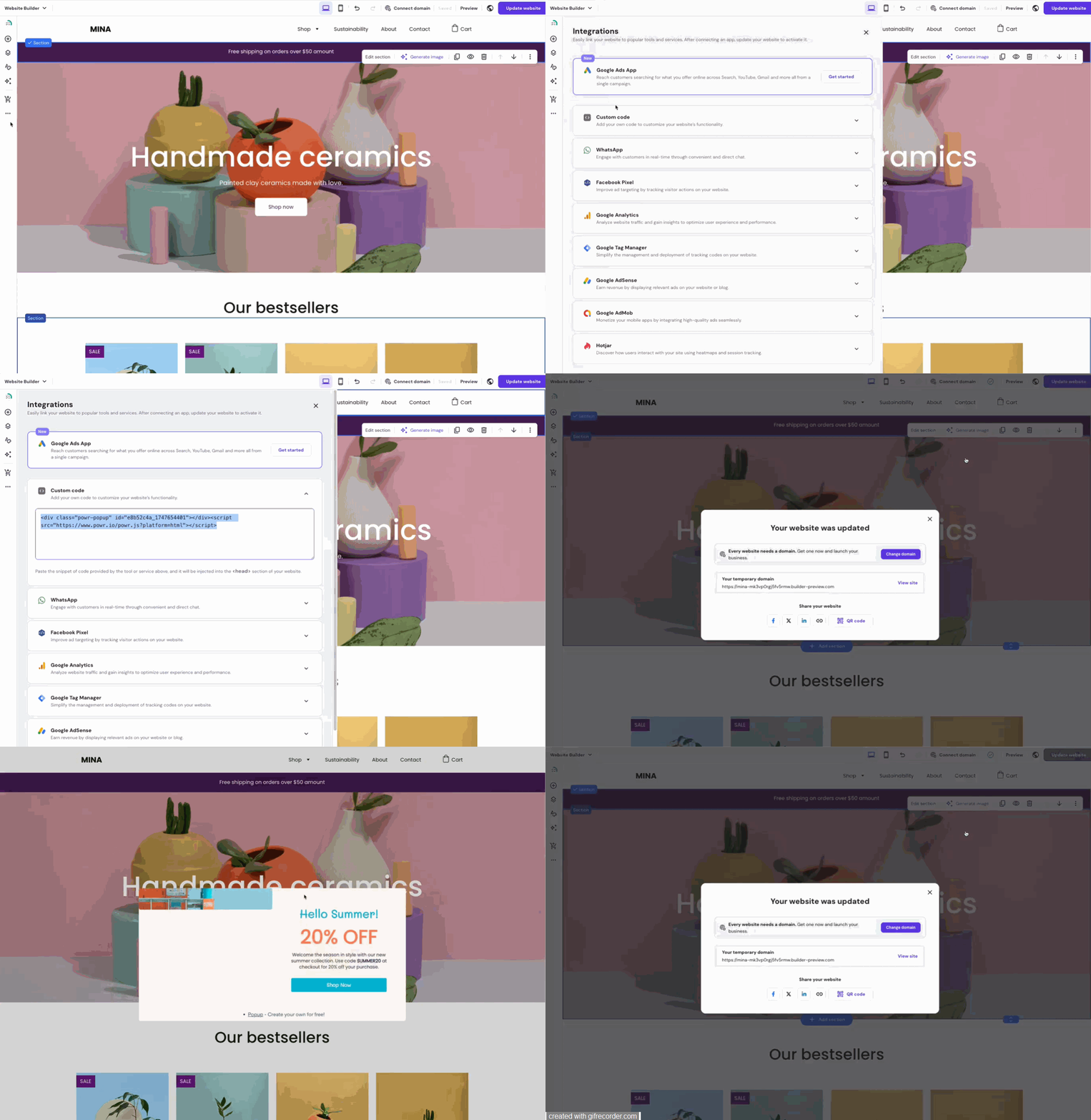
For floating apps like popups, chat widgets, or floating buttons, use Hostinger’s Custom Code integration:
Go to the Website Editor.
Click on the three dots (...) to open More Settings.
Select Integrations > Custom Code.
Paste your POWR app code into the provided field.
Click Update to save your changes.
💡 Tip: This method ensures that floating apps appear consistently across your site.
❓FAQs
Why isn’t my app showing up in the editor?
This is normal — embedded apps don’t show in the Hostinger preview. Click Update Website and View Site to see the live version.
Can I install more than one POWR app?
Yes! You can embed multiple POWR apps on the same or different pages. Just repeat the steps above for each app.
How do I update or replace the app?
Edit the content using the POWR Editor, or remove the embed code and add a new one.
Summary
That’s it! You’ve successfully installed and customized your POWR app on Hostinger. Now you can enjoy interactive, customizable features right on your site — no code required.
Still need help? Contact Support