
How to Install POWR Apps on Wix
POWR offers 32 apps you can easily install on your Wix site to boost engagement, capture leads, drive sales, and more — all without code.
There are two ways to add POWR apps to Wix:
Directly from the Wix App Market
This article will focus on the App Market method, which gives you the smoothest integration and fastest setup.:
The following topics are included:
Where to Find POWR apps on Wix
You can browse all 32+ POWR apps directly in the Wix App Market here.
If you're new to POWR or unsure which app to use, this is a great place to explore available options like: Form Builder, Popup, Instagram Feed, PayPal Button, Countdown Timer, Store Location Map, and many more.
How to Install a POWR App for the First Time
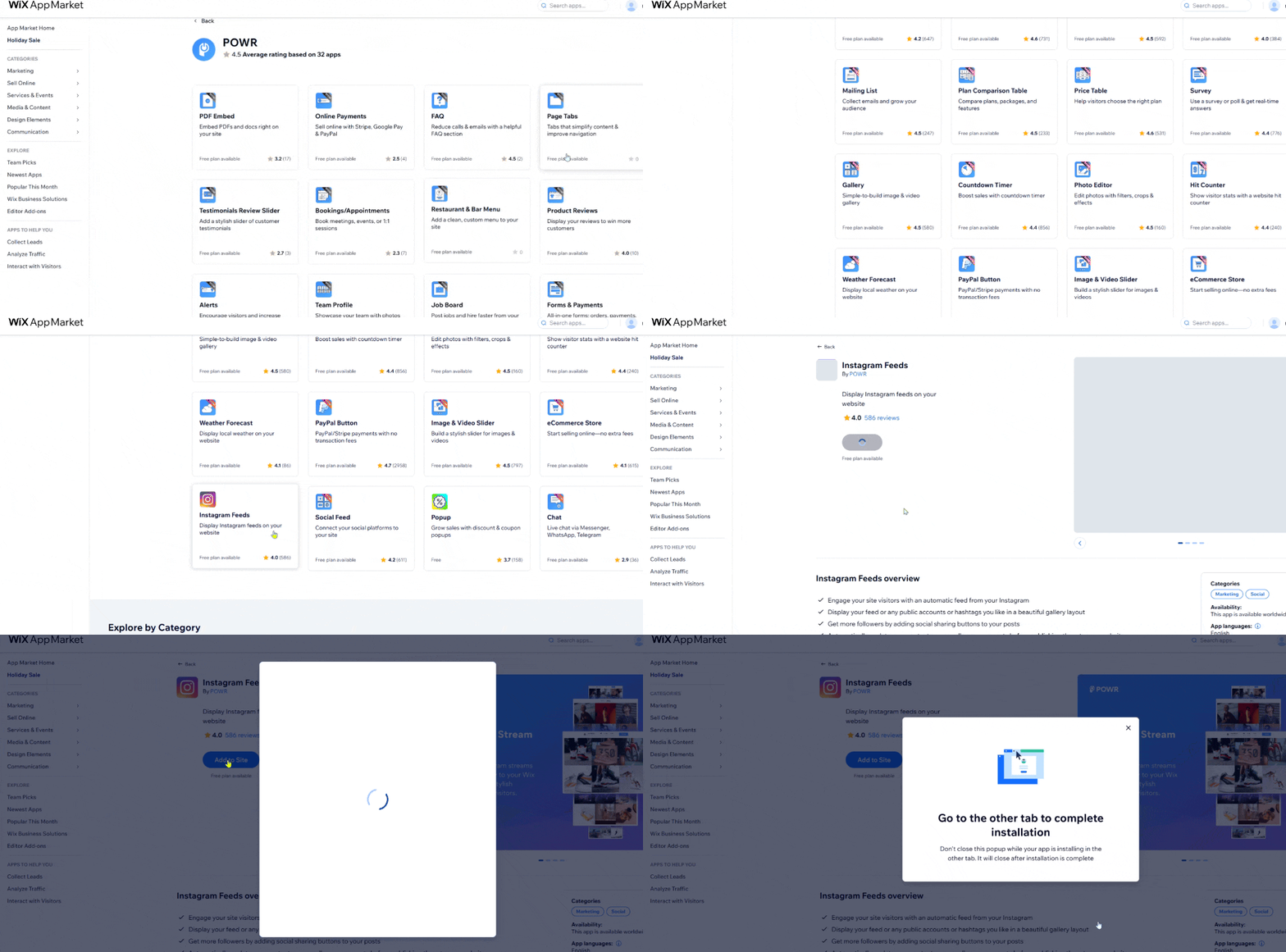
Go to the POWR page on Wix App Market (or type the POWR app name manually in Wix app store's search bar)
Click the app you'd like to install
Click Add to Site > Agree & Add
You’ll be redirected to your Wix Editor, where the app will be added (usually on your homepage).
How to Move the app to a Different Page
If the app appears on your homepage but you want it on a different page, you can move it using copy-paste.
Option 1: Use your keyboard
Click on the app
Press
Ctrl+C(PC) orCmd+C(Mac) to copy, orCtrl+X/Cmd+Xto cutNavigate to your desired page
Press
Ctrl+V/Cmd+Vto paste
Option 2: Use your mouse
Right-click on the app
Choose Copy or Cut
Go to your desired page
Right-click and select Paste
How to Create Other Instances of the Same App
Already have the app installed and want to create a second version or more? No problem, here’s how:
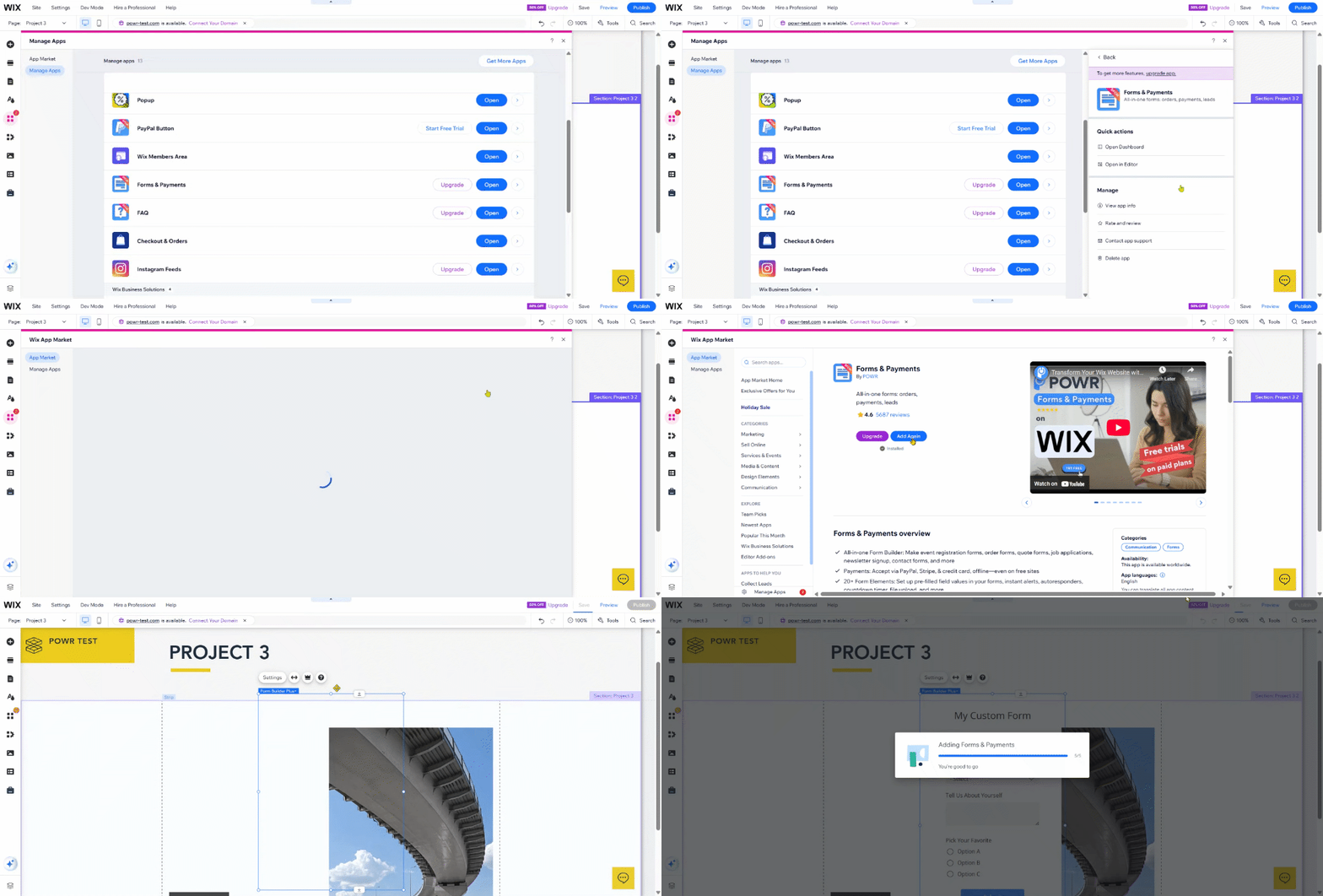
Open the Wix Editor and go to the page where you want to add the app
Click Apps > Manage Apps
Find the POWR app in the list and click the small arrow next to it
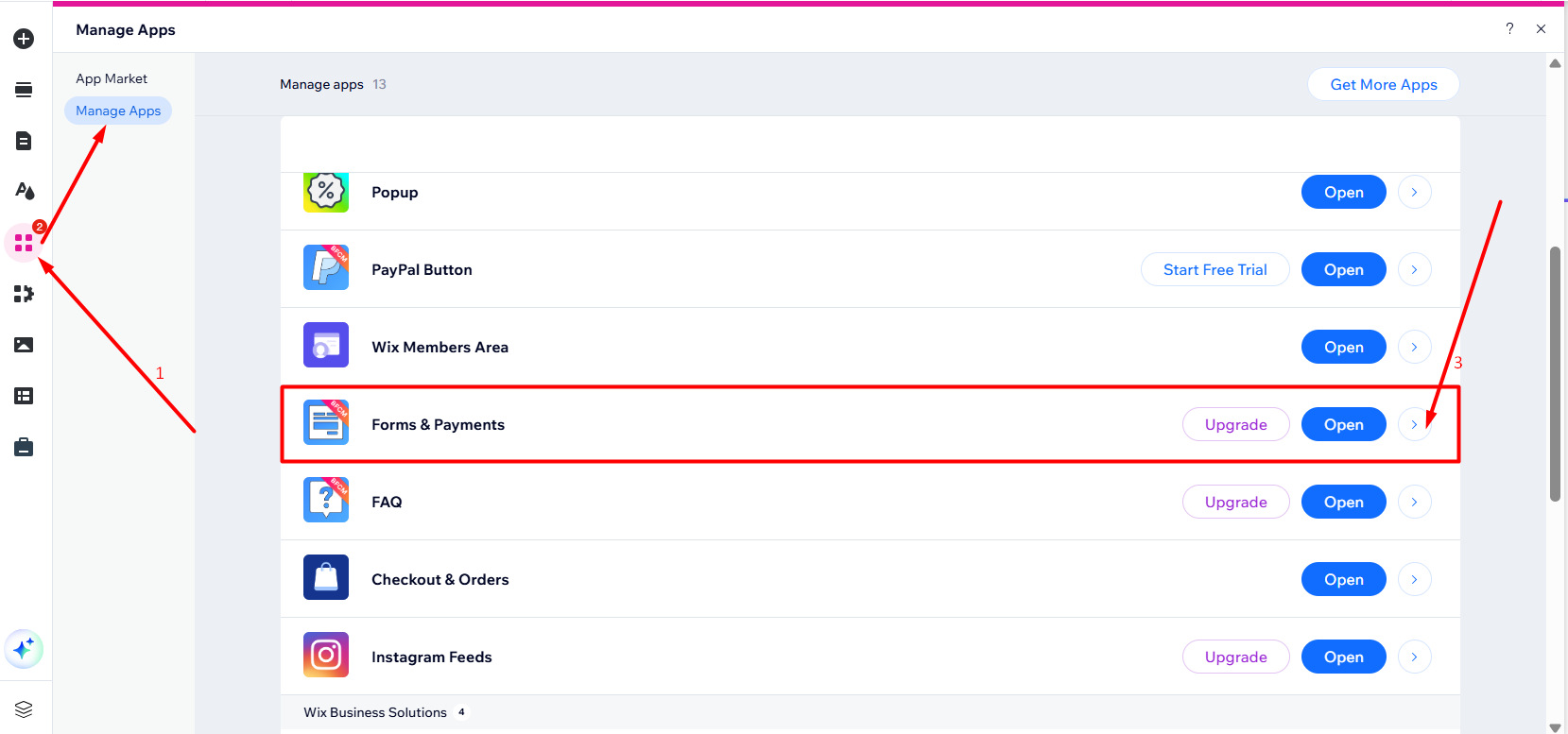
In the side panel that appears on the right, click the app name
Click Add Again to create a new version of the app
You’ll be redirected to your editor to customize it
How to Edit/Customize the App?
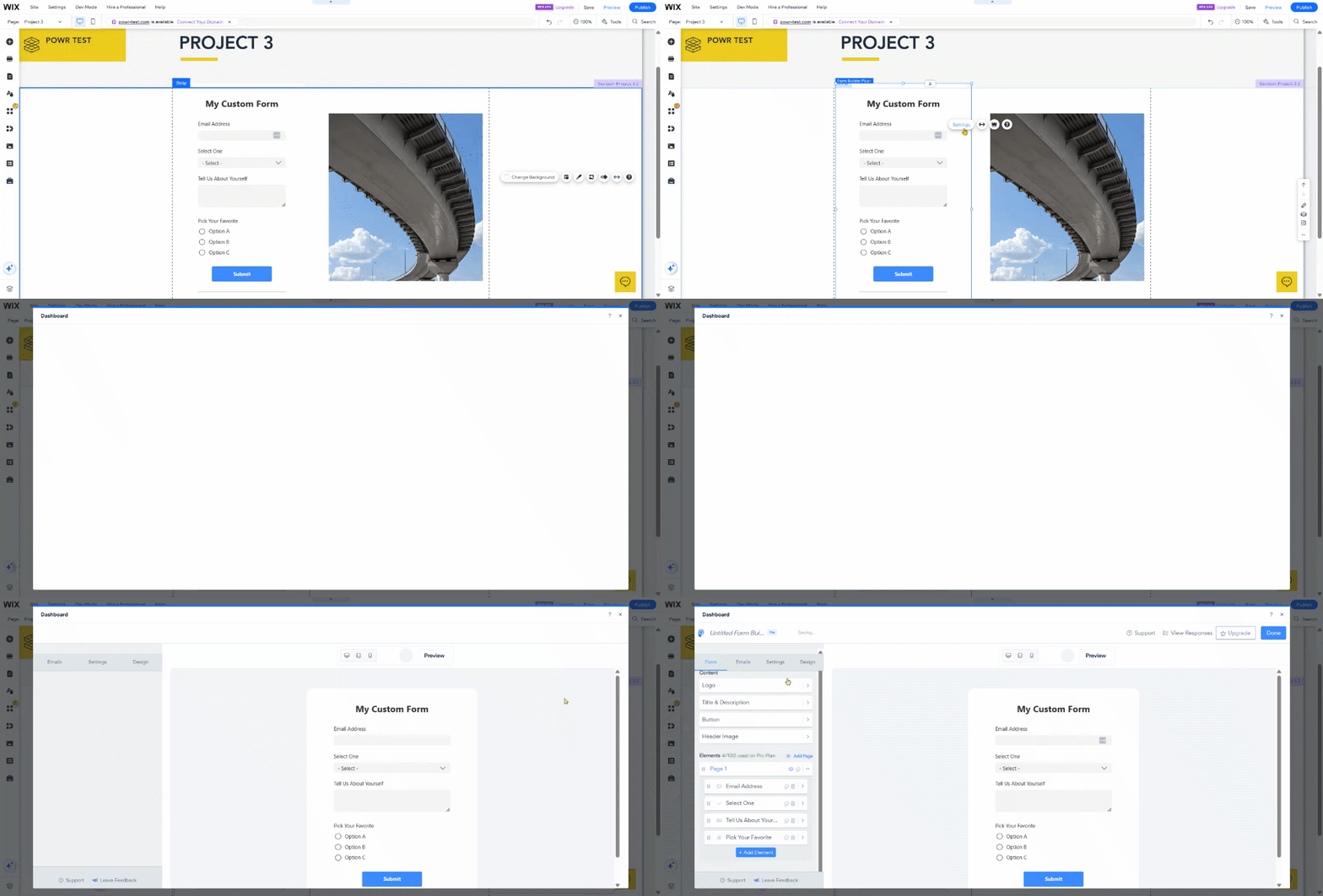
In your Wix Editor, click the POWR app on the page
Click Settings
This opens an expanded view where you can customize design, content, layout, integrations, and more
For more editing tips, check out the following article: How to Edit or Customize a POWR App
Need Help?
If you need any help or have any questions about our Form Builder, our support team is happy to help.
👉 Contact our support team
When contacting us, you'll be prompted to authenticate your email by signing in, and a confirmation code will be emailed to you. This helps ensure our support team's reply will be delivered to you with no issues.
For more information about available features, visit our Pricing Page:
https://www.powr.io/pricing