
Adding POWR app into Wix through embed code
While most POWR apps can be added to your Wix site directly through the Wix App Market, there may be times when you need to install a POWR app using an embed code instead — for example, when adding a specific app instance that was created directly at powr.io, or when you need more control over exactly where the app appears on your page. Wix makes this possible through its built-in HTML embed element, which allows you to paste your POWR app’s embed code directly onto any page of your site. In this article, we’ll walk you through the steps to get your POWR app embedded on your Wix site quickly and easily.
Follow the instructions below to successfully add a POWR app via an embed code.
1. Create or Open Your POWR App
Go to POWR.io and log into your account (feel free to contact support for assistance if needed)
From the dashboard, select the app you want to embed or create a new app.
Customize the app to your liking and click Publish.
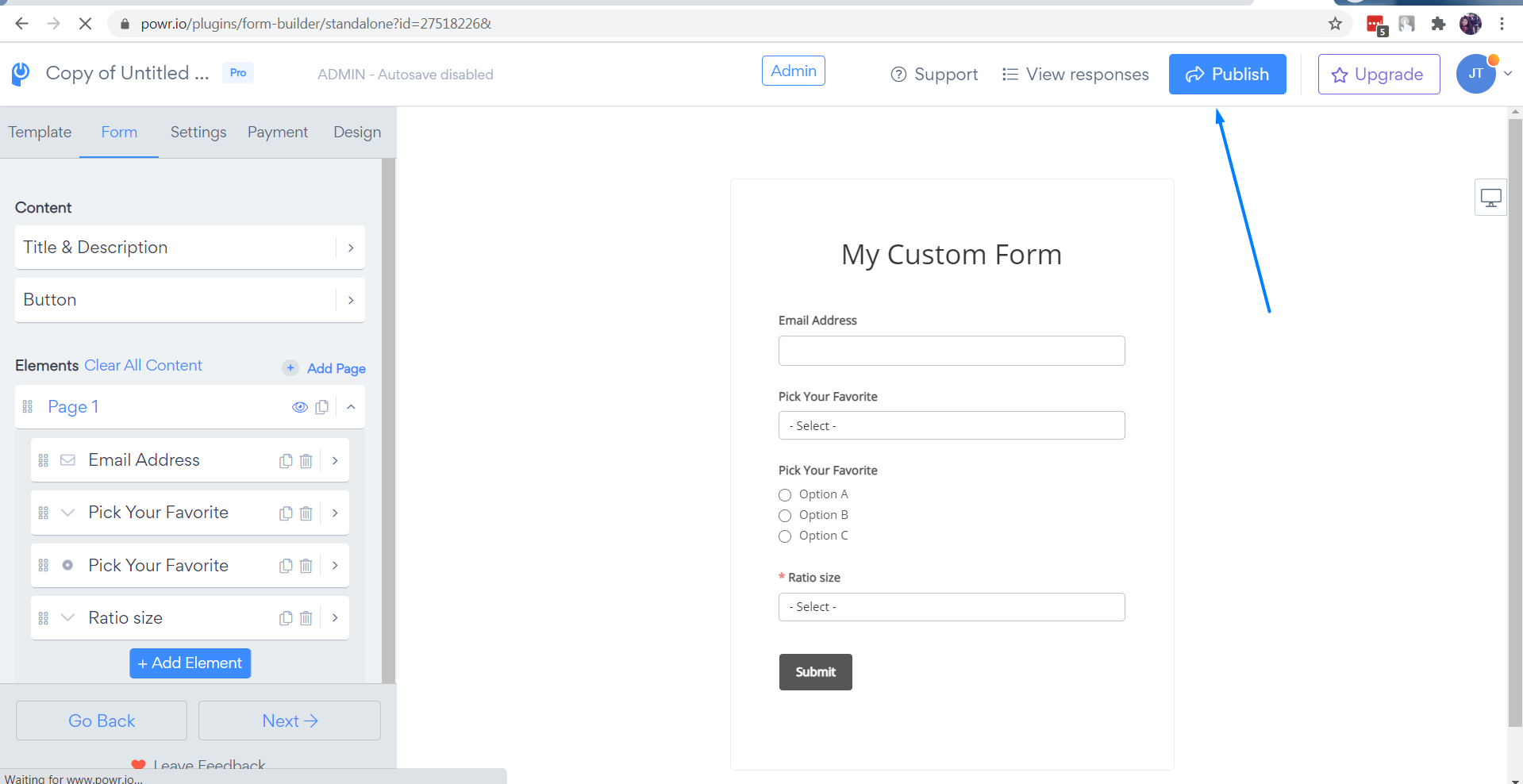
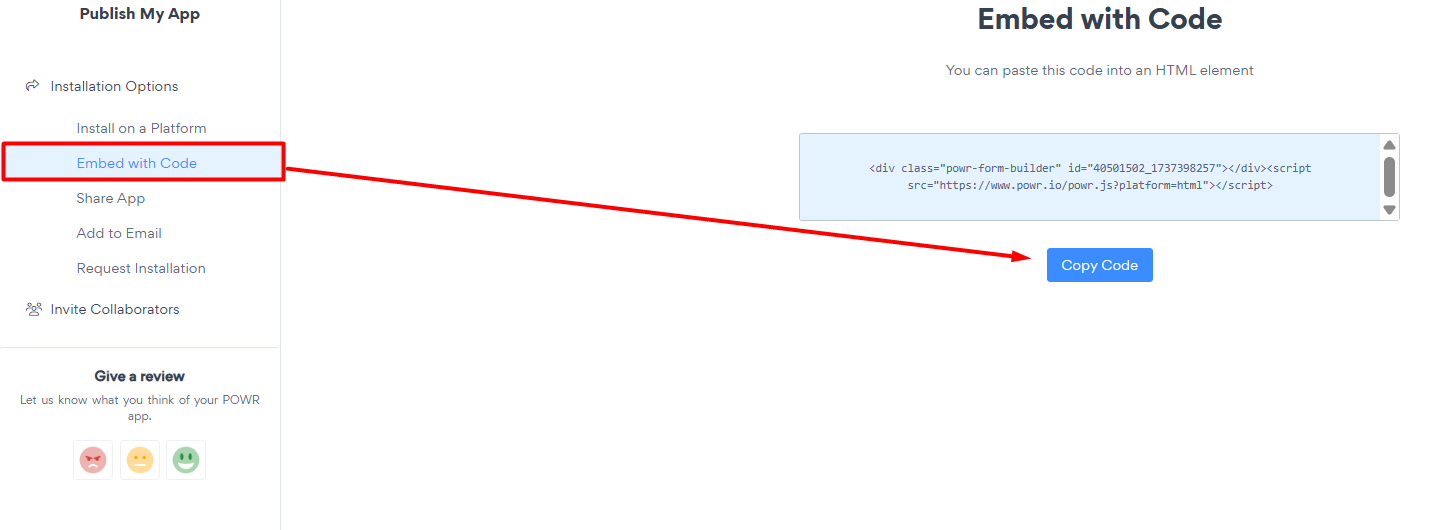
2. Copy the app's embed code
After publishing, locate the Embed with Code section.
Copy the provided HTML Embed Code.
3. Add an Embed element to your Wix editor
Log in to your Wix Dashboard.
Head to the page editor where you want to add the app.
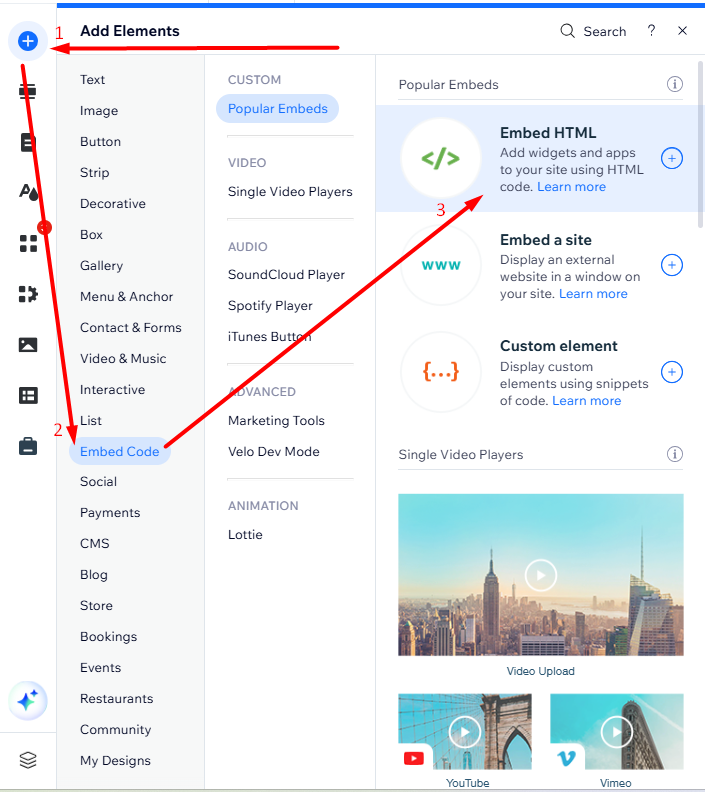
In the left-hand menu, click Add (the + button).
Choose Embed Code → Embed HTML
4. Insert the POWR embed code
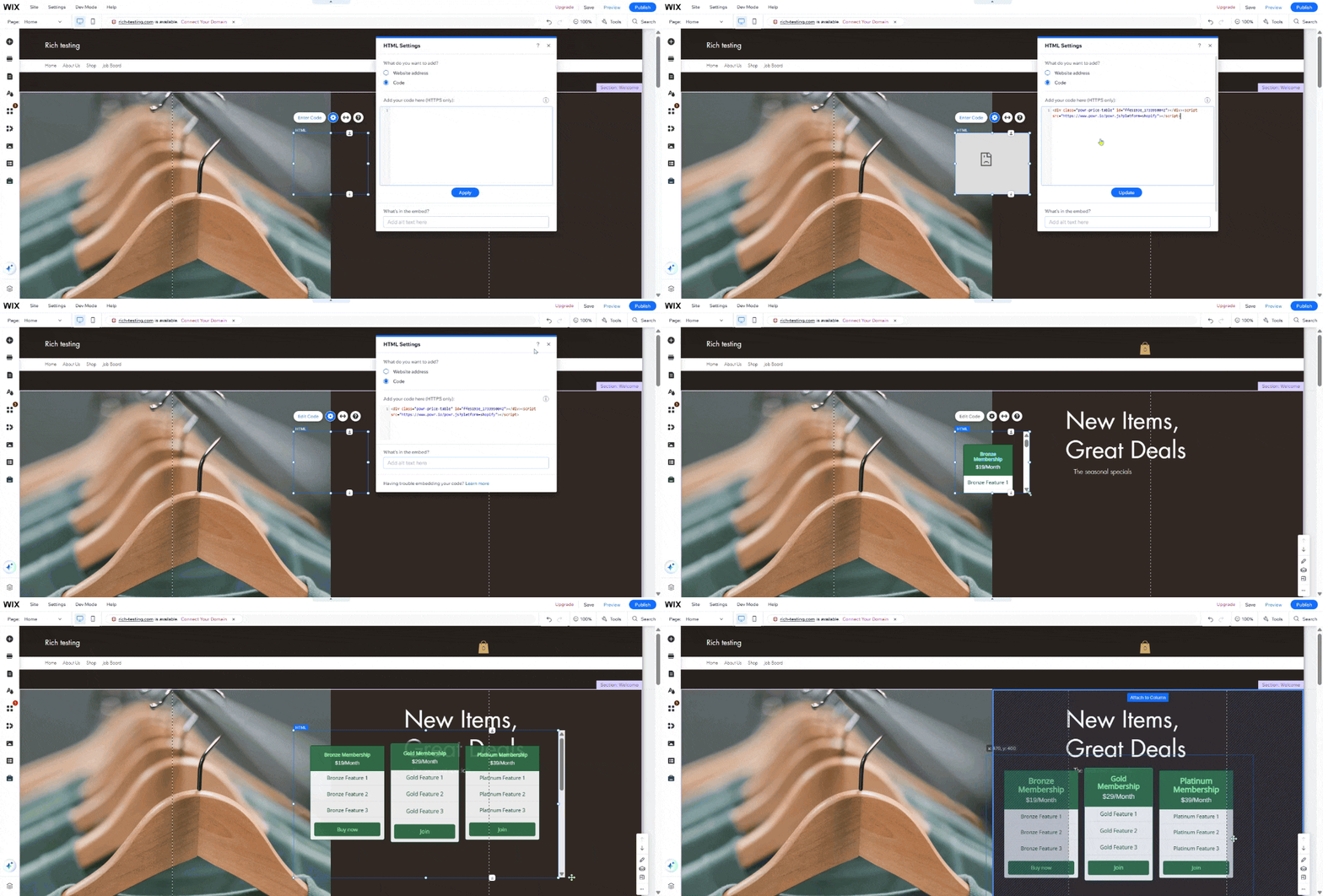
Click and drag the HTML Embed element onto your desired page.
Ensure the Code option is selected.
Paste the POWR embed code you copied earlier, and click Update.
Close the additional window and adjust the size of the element to make sure it fully dispays the app content.
5. Publish the changes
After embedding, preview your page to ensure the POWR app appears properly.
Once everything looks good, click Publish to make it live.
Please note that our fixed-position apps (Popup, WhatsApp Chat) can be added through Wix App Market only and not through embed code.
FAQ
Can I add multiple POWR apps on the same page?
Yes! You can embed multiple apps by adding additional HTML Embed elements and inserting different POWR codes.
Will the app automatically update if I make changes to POWR?
Yes! Any changes you publish in the POWR Editor will automatically update on your Wix site without needing to re-embed the code; vice versa if you make changes from the Wix editor directly.
Is this method mobile-friendly?
POWR apps are responsive by default. However, ensure that your embed element on Wix is appropriately sized for the best mobile experience.
Why isn't my app showing after embedding?
If your app isn't showing:
Double-check that you pasted the full embed code.
Make sure you published both the POWR app and the Wix page.
Ensure there are no overlapping elements blocking the embed element on Wix.
Embedding a POWR app on your Wix site using an embed code is a straightforward process that gives you full flexibility over where and how your app appears on your pages. Once embedded, your app will display and function exactly as expected — and any changes you make in the POWR editor and publish will automatically be reflected on your live Wix site without needing to update the embed code. If you run into any trouble during the installation or need a hand getting things set up, our support team is always here to help — don’t hesitate to reach out!
Need Help?
If you need any help or have any questions about our Form Builder, our support team is happy to help.
👉 Contact our support team
When contacting us, you'll be prompted to authenticate your email by signing in, and a confirmation code will be emailed to you. This helps ensure our support team's reply will be delivered to you with no issues.
For more information about available features, visit our Pricing Page:
https://www.powr.io/pricing