
How to Find Your POWR App ID to Install on Shopify
When installing a POWR app on your Shopify store, you may be asked to provide your App ID — a unique identifier that connects your specific app instance to your Shopify theme. Knowing where to find your App ID is an essential part of the manual installation process, and without it your app won’t display correctly on your store. The good news is that locating your App ID is quick and straightforward once you know where to look. In this article we’ll show you exactly where to find it so you can get your POWR app up and running on your Shopify store without any hassle.
Finding Your POWR App ID in the POWR Editor
When you are installing a POWR app on your Shopify store, the App ID is usually generated automatically when you click the Publish button in the upper right corner of the POWR Editor. If it’s not generated automatically, you can easily find it manually by following the steps below.
⭐️ Publish Your POWR App and Copy the app id
Open the POWR Editor and make sure your app is ready to be installed.
Once everything looks good, click the Publish button in the upper right corner.
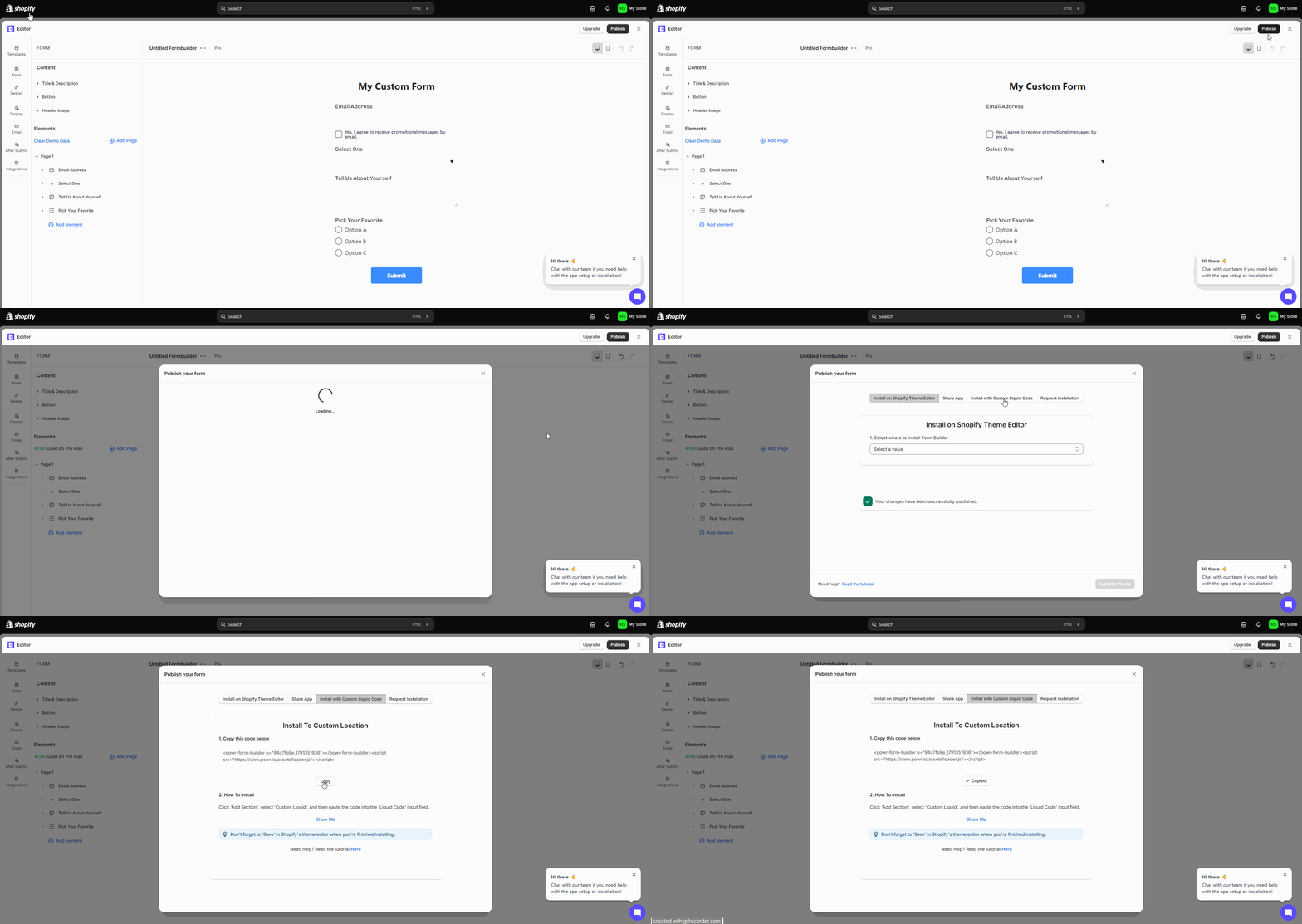
Click on "Install with Custom Liquid Code"
The POWR system will automatically generate the App ID for you.
Copy the code/app id
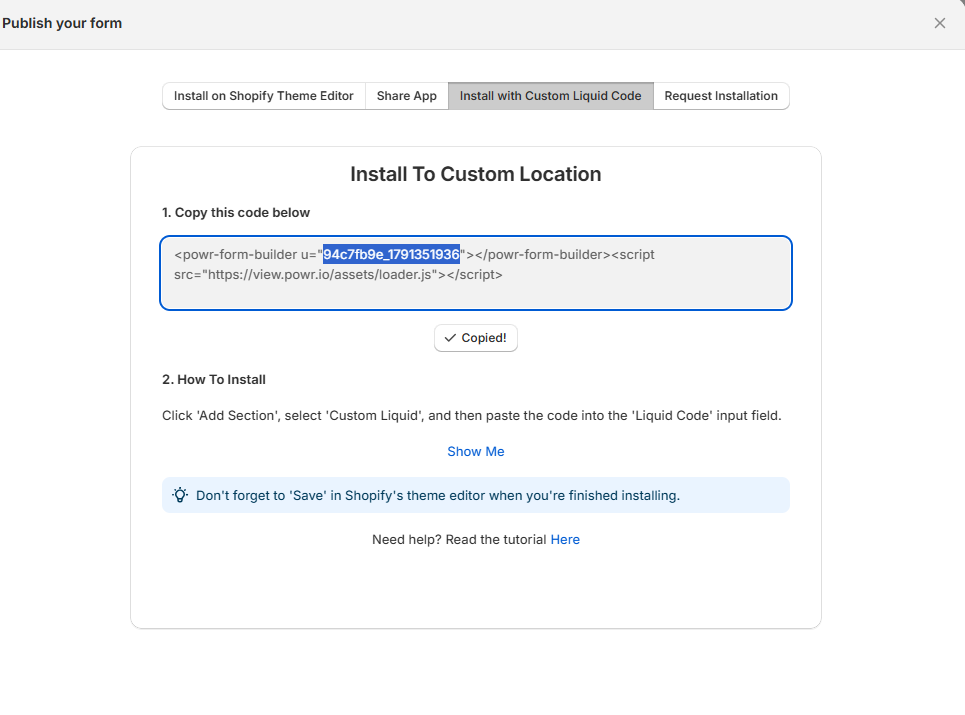
If the App ID is not generated automatically, you can manually generate the App ID by following these steps:
⭐️ Paste the App ID in Your Shopify Store
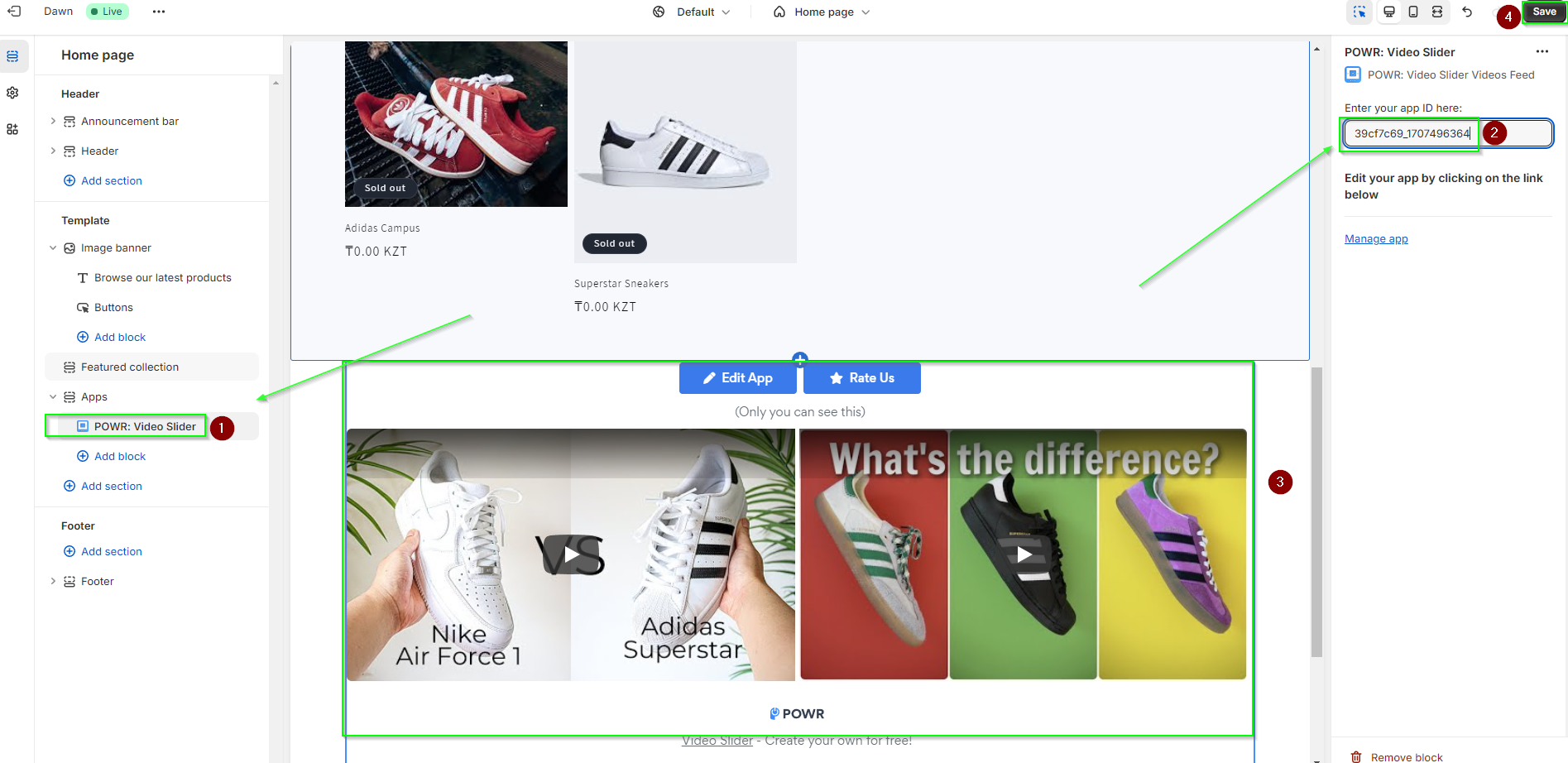
After copying the App ID, go to the page where you were redirected when selecting the page in automatic installation.
Paste the App ID in the appropriate location on your Shopify store.
FAQs
❓ What if my POWR App ID is not automatically generated?
If the POWR App ID is not automatically generated after clicking the Publish button, simply click on the "Install with custom Liquid" button as described above. This will manually generate the App ID for you.
❓ Can I use the same App ID for multiple POWR apps?
No, each POWR app installation will have a unique App ID. Be sure to copy the correct App ID for each app installation to ensure everything works correctly.
Conclusion
Finding and using your POWR App ID for Shopify installation is a straightforward process. By following the steps outlined above, you can easily install your POWR apps on your Shopify store in any location. If you need more help, check out related articles in the POWR Help Center or reach out to our support team for further assistance.
Need Help?
If you need any help or have any questions about our Form Builder, our support team is happy to help.
👉 Contact our support team
When contacting us, you'll be prompted to authenticate your email by signing in, and a confirmation code will be emailed to you. This helps ensure our support team's reply will be delivered to you with no issues.
For more information about available features, visit our Pricing Page:
https://www.powr.io/pricing