
How to add images to Forms
There are two ways to add images to POWR Forms:
The Image Element
The Picture Choice element
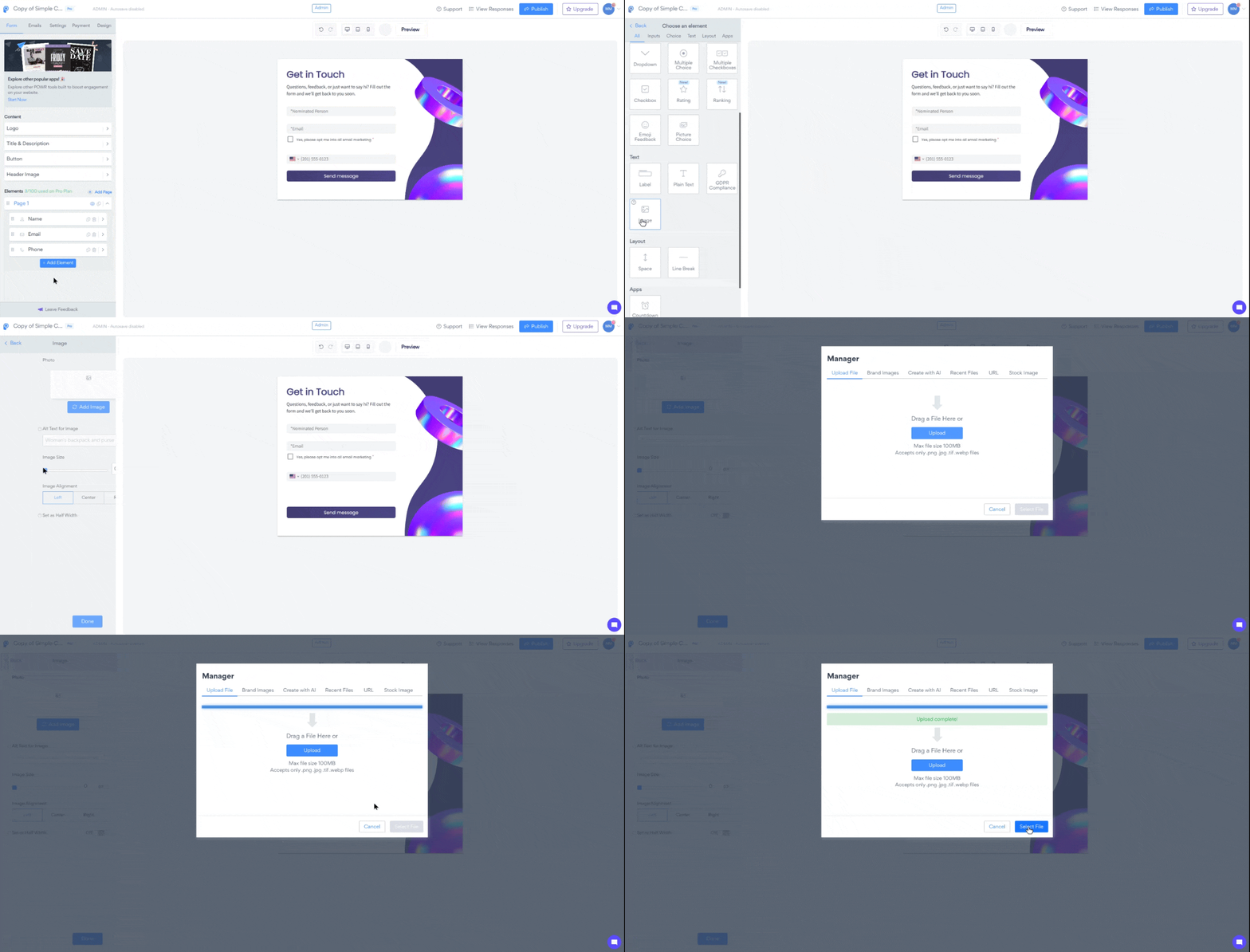
Using the Image Element
Open the POWR Editor (or App Settings in Wix)
Go to the Form section
Click + Add Element
Select Replace Image from the element panel. You can upload an image from your computer, select a free stock image or enter a URL for a hosted image.
Click the "select app" button at the bottom right (it's grayed out by default but will turn blue once the app is uploaded)
Click the Publish button to save the changes
Using the Picture choice element
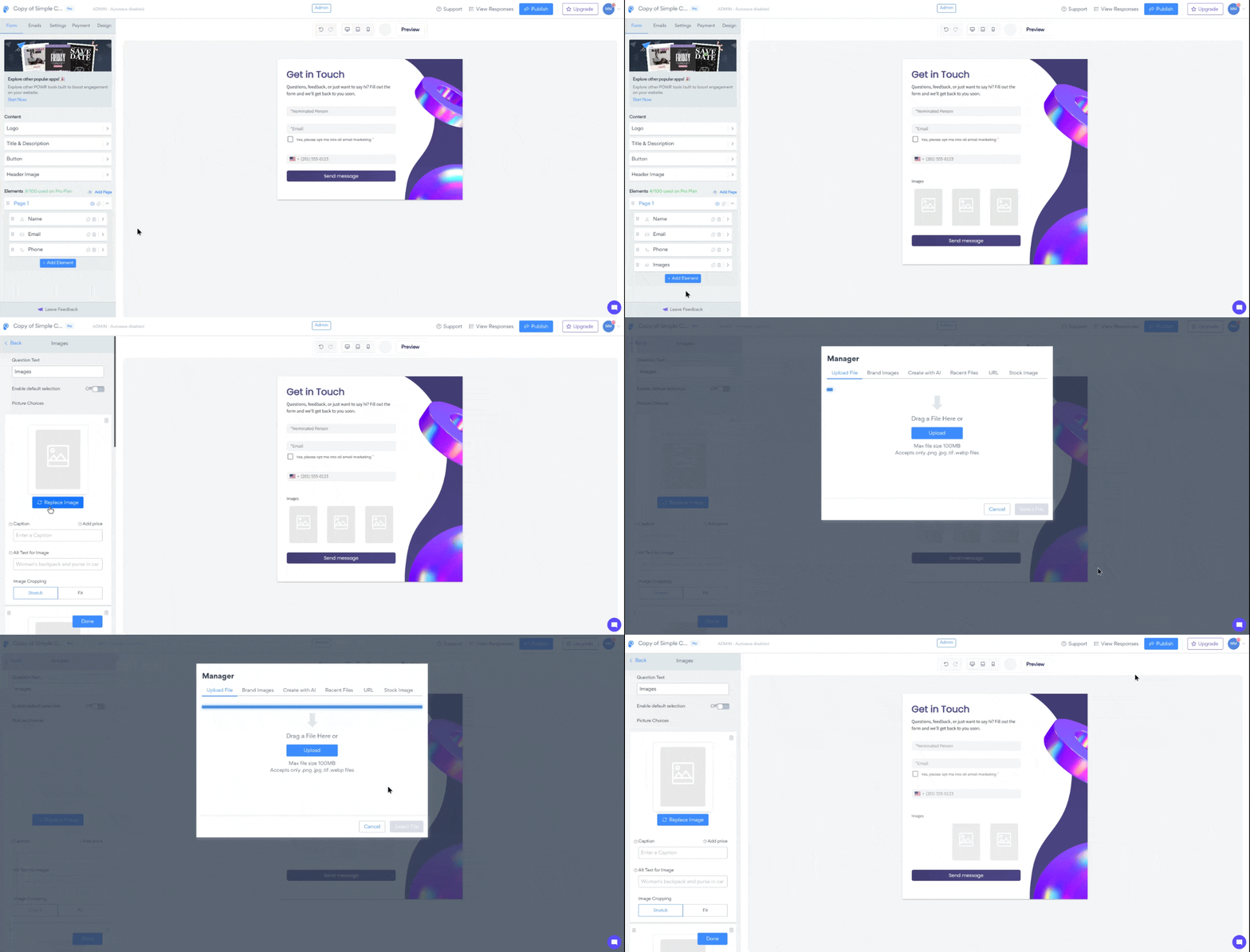
Open the POWR Editor (or App Settings in Wix)
Go to the Form section
Click + Add Element
Select Picture Choice from the options.
Select Replace Image from the element panel. You can upload an image from your computer, select a free stock image or enter a URL for a hosted image.
Click the "select app" button at the bottom right (it's grayed out by default but will turn blue once the app is uploaded)
Click the Publish button to save the changes
Picture choice element for mobile view
The picture choice element is the same as a multiple choice question, but with images.
The picture Choice element is optimized for mobile in that it enlarges the options so they are easy to see on smaller screens. It means, one row will be displayed when viewed through a mobile device.
You can find the setting to adjust the image size by clicking the image/picture choice element you added.
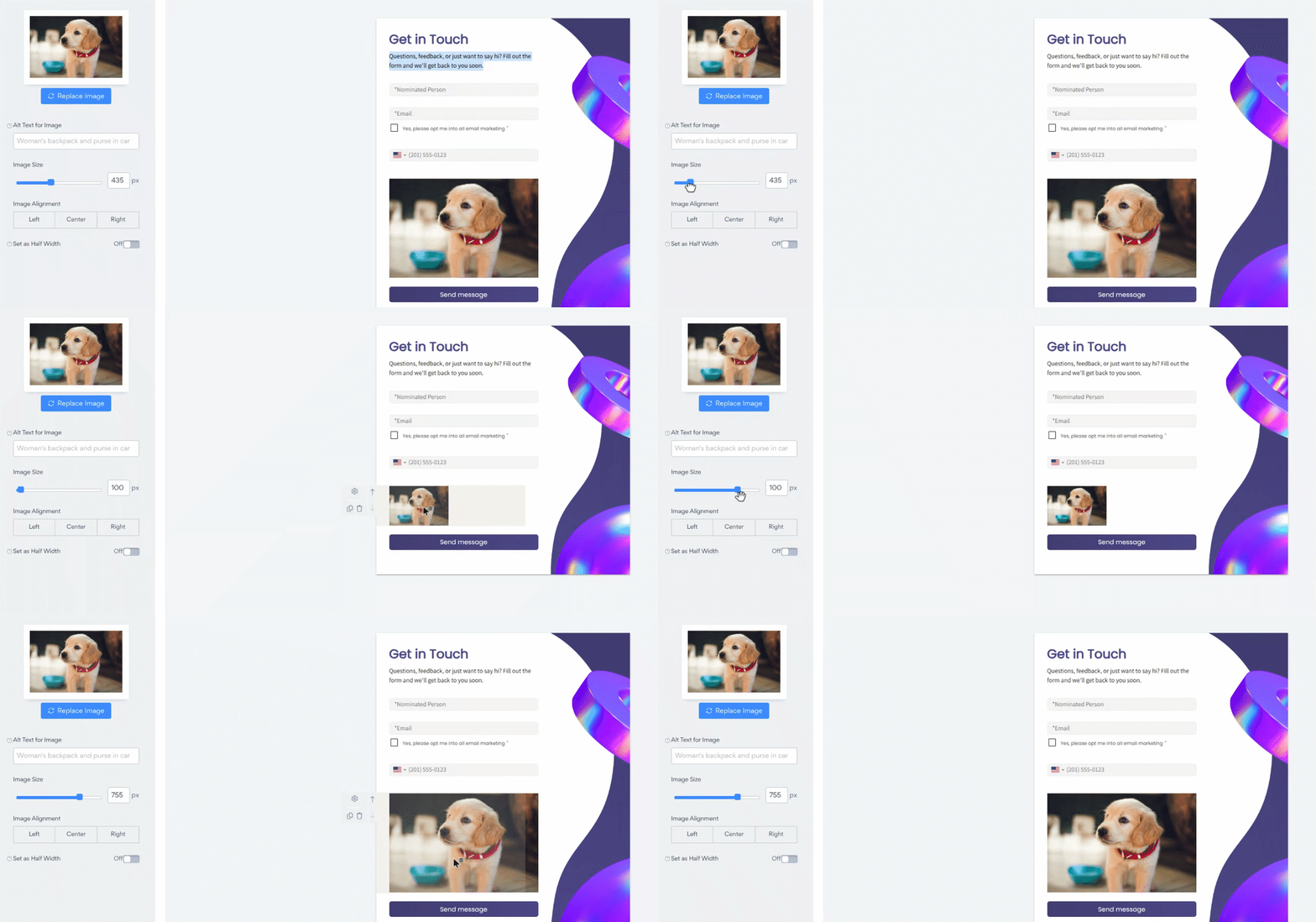
You can also adjust the image size by adding some custom code the form.
The Custom CSS/JS option is great for adding additional styling to your Apps that isn't possible via the regular Design settings. By adding your own CSS or JS to a POWr App, you can change anything from fonts to display options and padding to text alignment.
Check out this article for more information on how to use custom CSS or Javascript in our apps.
Please note that we can only offer limited support for custom code. Unfortunately, we do not have the resources to help you customize your Apps at this time.
⚠️ As of October 2021 for security reasons, POWR editor doesn't support the Custom JS field. If you would like to add any JS customization, kindly contact the Support Team at support@powr.io. As security is a top concern at POWR, JS scripts will be added to your app only after verification.
Need More Help?
If you need any help or have any questions about our Form Builder, our support team is happy to help.
Contact our support team
When contacting us, you'll be prompted to authenticate your email by signing in, and a confirmation code will be emailed to you. This helps ensure our support team's reply will be delivered to you with no issue.
For more information about available features, visit our Pricing page