
Using custom CSS and Javascript in POWR Apps
How to customize a POWR App with CSS and Javascript
POWR Pro and Business customers can add custom code to any POWR App. You can add CSS in Design > Advanced > Custom CSS. You can add Javascript in Design > Advanced > Custom JS.
In POWR Formbuilder app:
Go to "Settings" > scroll down > you will see "Custom CSS & JS"
POWR does not currently offer support for custom code. We recommend being cautious with adding custom Javascript to your Apps as they might break. We cannot provide custom code or troubleshoot custom code issues at this time.
We recommend the w3 Schools tutorials if you're just getting started with writing CSS code.
⚠️ As of October 2021 for security reasons, POWR editor doesn't support the Custom JS field. If you would like to add any JS customization, kindly contact the Support Team at support@powr.io. As security is a top concern at POWR, JS scripts will be added to your app only after verification.
What kind of customizations are possible?
The Custom CSS option is great for adding additional styling to your Apps that isn't possible via the regular Design settings. By adding your own CSS to a POWR App, you can change anything from fonts to display options and padding to text-alignment.
The Custom JS option is ideal for adding tracking links, such as Google Analytics codes. Only use this option if you have advanced Javascript skills.
You can also use custom HTML in any text field inside the POWR Editor. This lets you add links, new CSS classes, images, etc. right into a POWR App.
Dos and Don'ts of using custom code in POWR Apps
- In the Custom CSS box, don't include script tags.
- Do add selectors and properties directly into the Custom CSS box.
- In the Custom JS box, don't include script tags or text that isn't part of the actual JS code.
- Do feel free to use jQuery code in the Custom JS box.
Quick guide: How to select elements and style them with custom CSS
In your browser, use the Inspect Element option to look up an element's class or id.
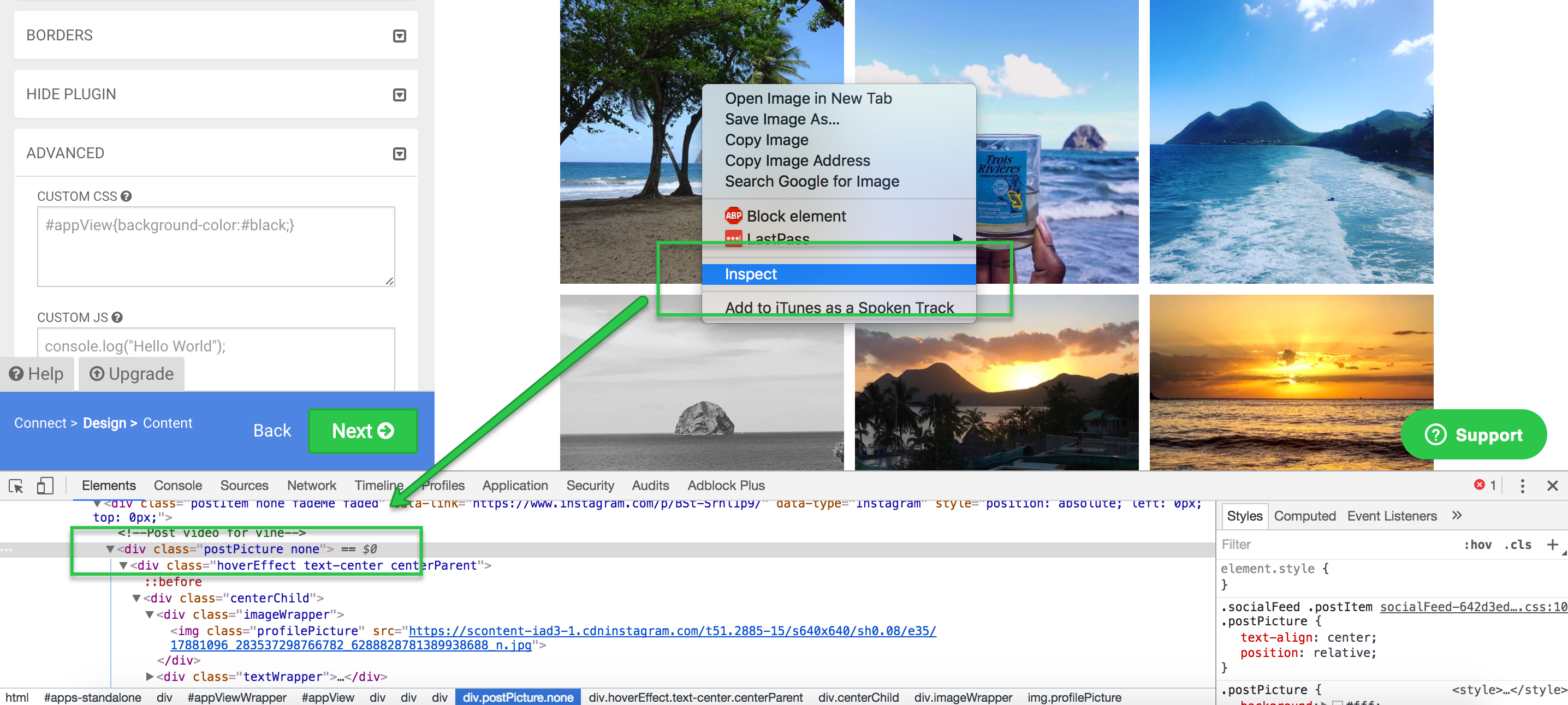
Once you have determined which class or id you need to select to style a specific element in your App, go to Design > Advanced and add the class or id to the Custom CSS Box.
For classes, use the . symbol to select an element using the class. For id's, use the # symbol to select the element.
For example, if your element's code looks like this:
You can select the element using #spam-warning { } or select all elements using the alert class, like this: .alert { }.
Sometimes, an element will have existing style rules already defined. In that case, you can add !important to the end of a style rule to override the existing rule, like this: #spam-warning { width: 100% !important; }
Common CSS hacks
Custom CSS lets you do some cool things with your Apps for which a control in the Design settings does not (yet) exist. Here are examples of custom CSS hacks that POWR users like to add to their Apps:
Issue
CSS Code
All Apps:
Add scrollbar
#appView {height: 500px; overflow-y: scroll;}
Align App on page
#appView {float: left !important;}
Disable all links in a App
#appView {pointer-events: none; cursor: default;}
Form Builder:
Right-align text (block labels)
#appView {text-align: right}
Right-align text (inline labels)
input {text-align: right}
Put File Upload buttons side-by-side
.fileUploadParent {width: 49% !important;}
Gallery / Microblog:
Remove individual Share Buttons
.fa-twitter, .fa-facebook, .fa-google-plus, .fa-linkedin, .fa-pinterest, .fa-reddit, .fa-delicious, .fa-tumblr {display: none;}
Make lightbox bigger
@media screen and (min-width: 768px) { .modal-dialog {width: 90% !important; left: 0% !important;} }
#appView {min-height: 600px !important;}
(Set the min-height to something bigger than the highest image in the Gallery. Choose a width that is less wide than the full App width.)
Slider:
Make images width: 100%
#appView {margin: 0px;} .nodeImageParent img {width: 100%;}
Remove Previous/Next buttons
.next, .prev {display: none;}
Slow down transition between slides
.animated {animation-duration: 3s !important;}
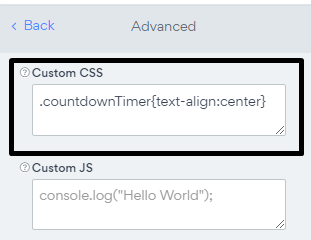
How to center the countdown timer in my cart?
Please use the following code.
.countdownTimer{text-align:center}
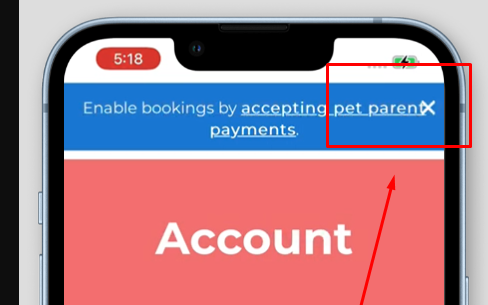
How to adjust the X button in Notification bar app for mobile phone?
The following CSS will help:
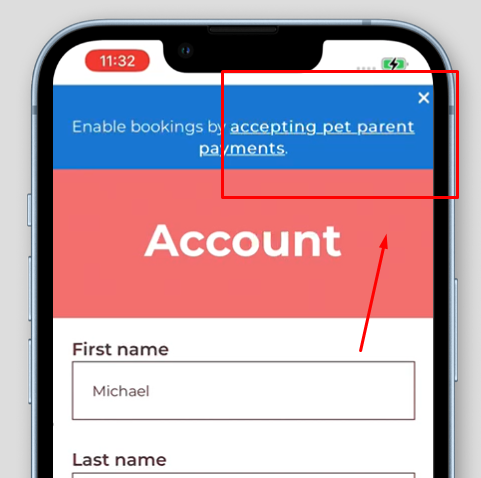
#appView .powrNotificationBar .close { position: unset; font-size: 17px; opacity: 1; top: 10px; }
Before: Text and X button are overlapping
After: The overlay disappeared
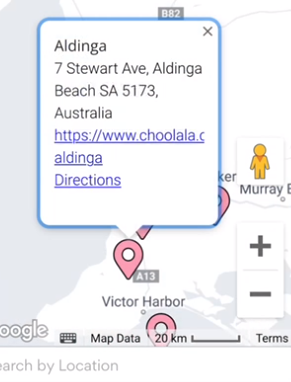
How to add more space into location information on mobile?
The following CSS will help:
.gm-style-iw-d { height: 150px; }
Before: No space to display links
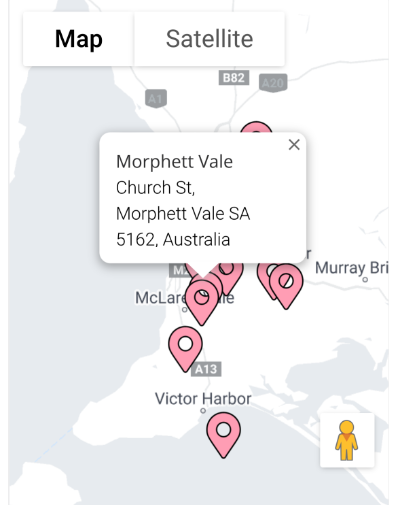
After: The text is rendering fine on mobile
More articles on JS and CSS:
Capture Page URL in Hidden Form Field