How to Add A Cart Countdown Timer to Shopify
Step 1: Install POWR Countdown Timer from the Shopify App Store
Go to your Shopify Dashboard.
Click Apps > Shop for apps.
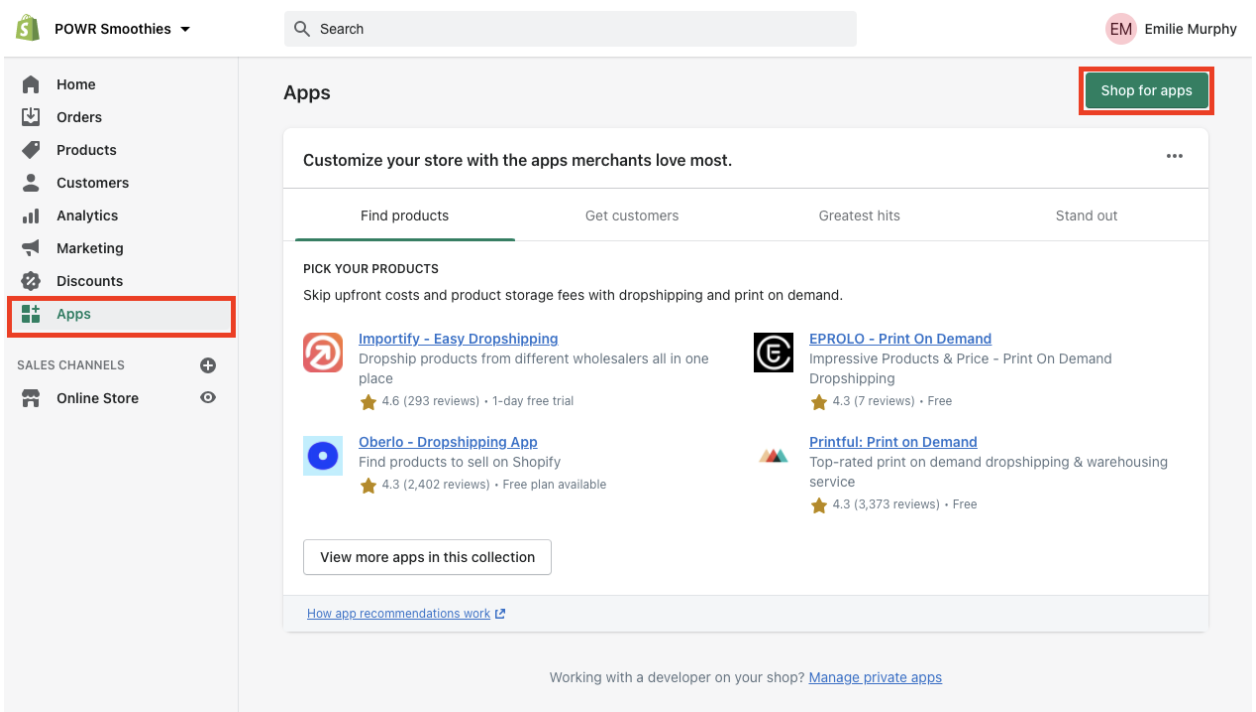
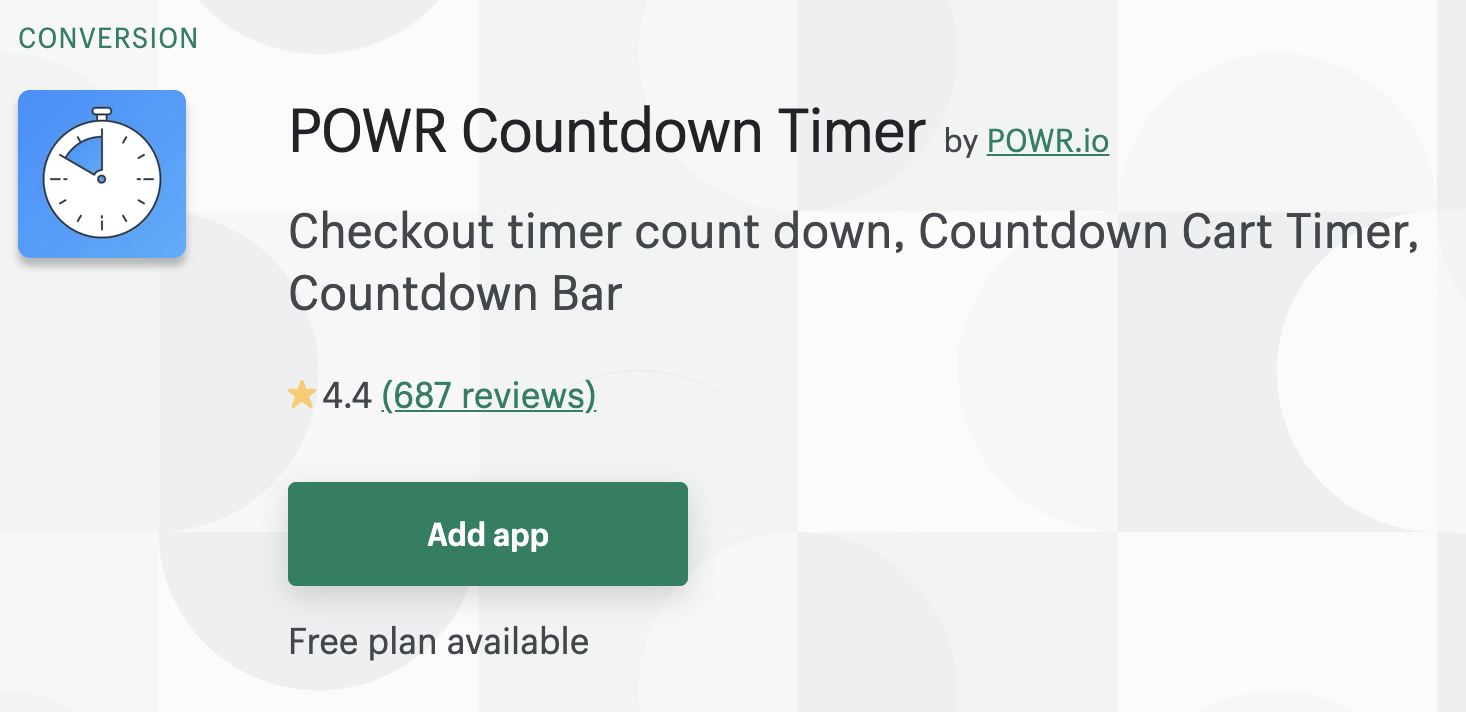
Search POWR Countdown Timer.
Click the app > Add app > Install app.
Step 2: Customize Your Cart Countdown Timer
In the POWR Editor, select ‘Cart’ on the left hand side.
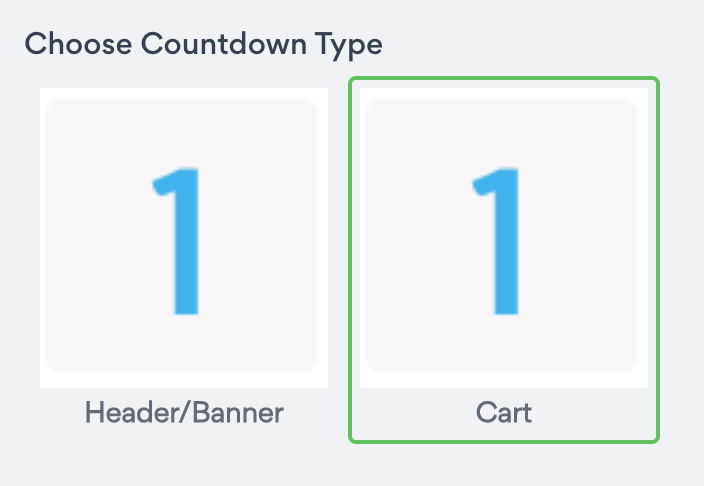
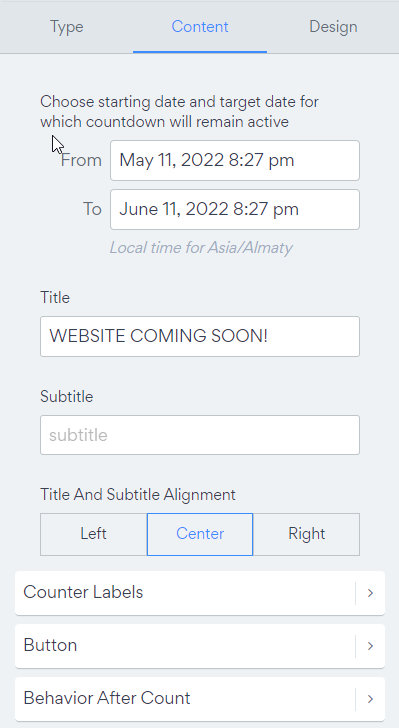
In the Content tab you can set your cart countdown to display between a date range.
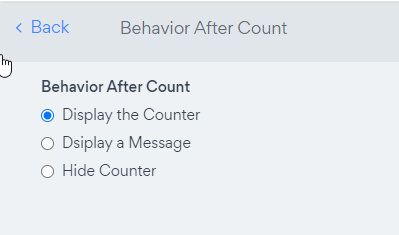
Decide what happens after the countdown. You can keep the counter at 0, display a message and hide the countdown.
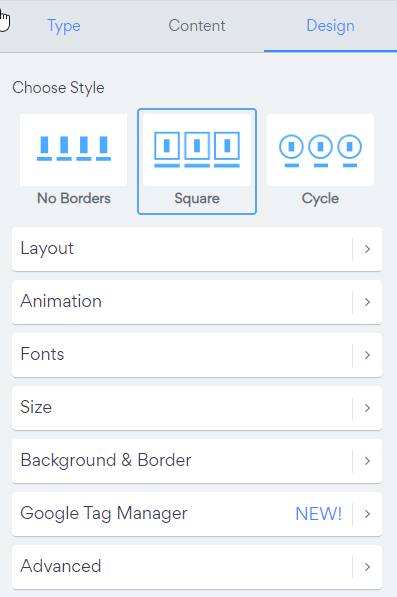
Then, in the Design tab you can customize the colors, fonts, size and animation style for your countdown.
Step 3: Publish Your Cart Countdown Timer
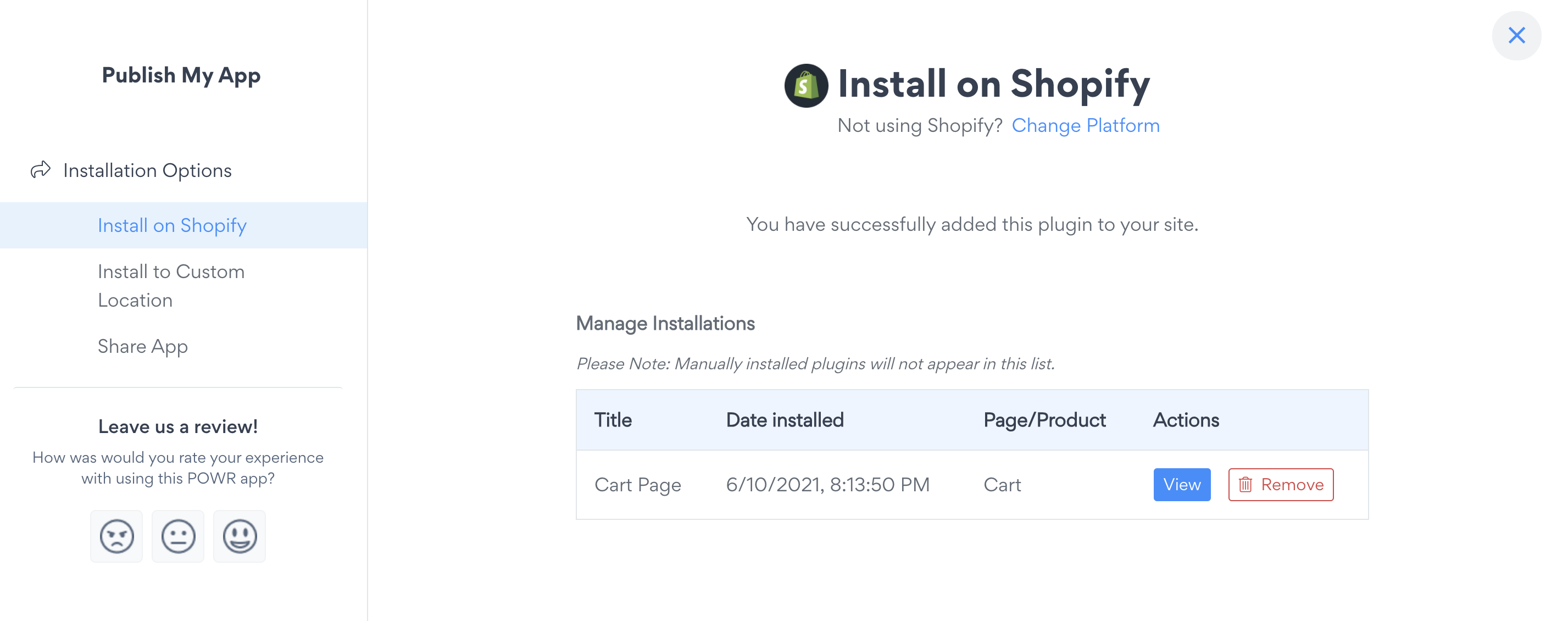
Click Publish in the top right corner.
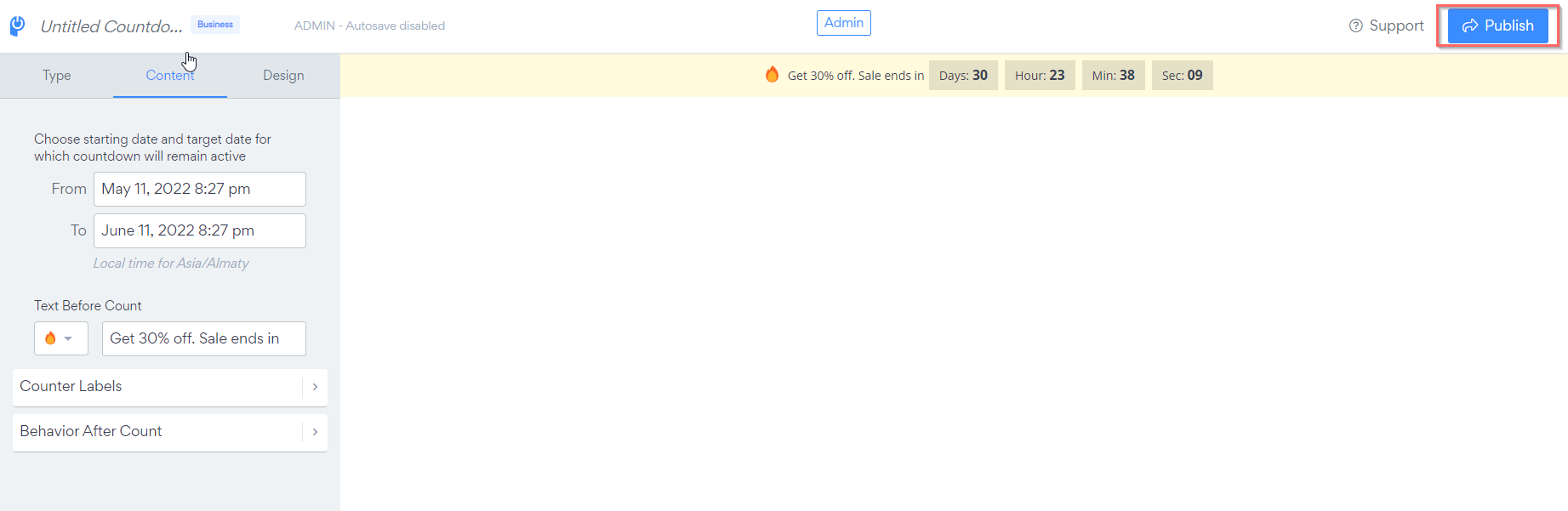
Your cart countdown timer will automatically be added to your cart page in Shopify.
Then click View to check it on your site.
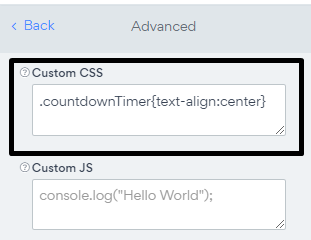
How to center the countdown timer in my cart?
Please use the following code.
.countdownTimer{text-align:center}