
Form Submission Data Element
The Form Submission Data element in the Email Editor automatically displays the content in your form. When someone fills out your form, then you can automatically show them a summary of the information that they filled out.
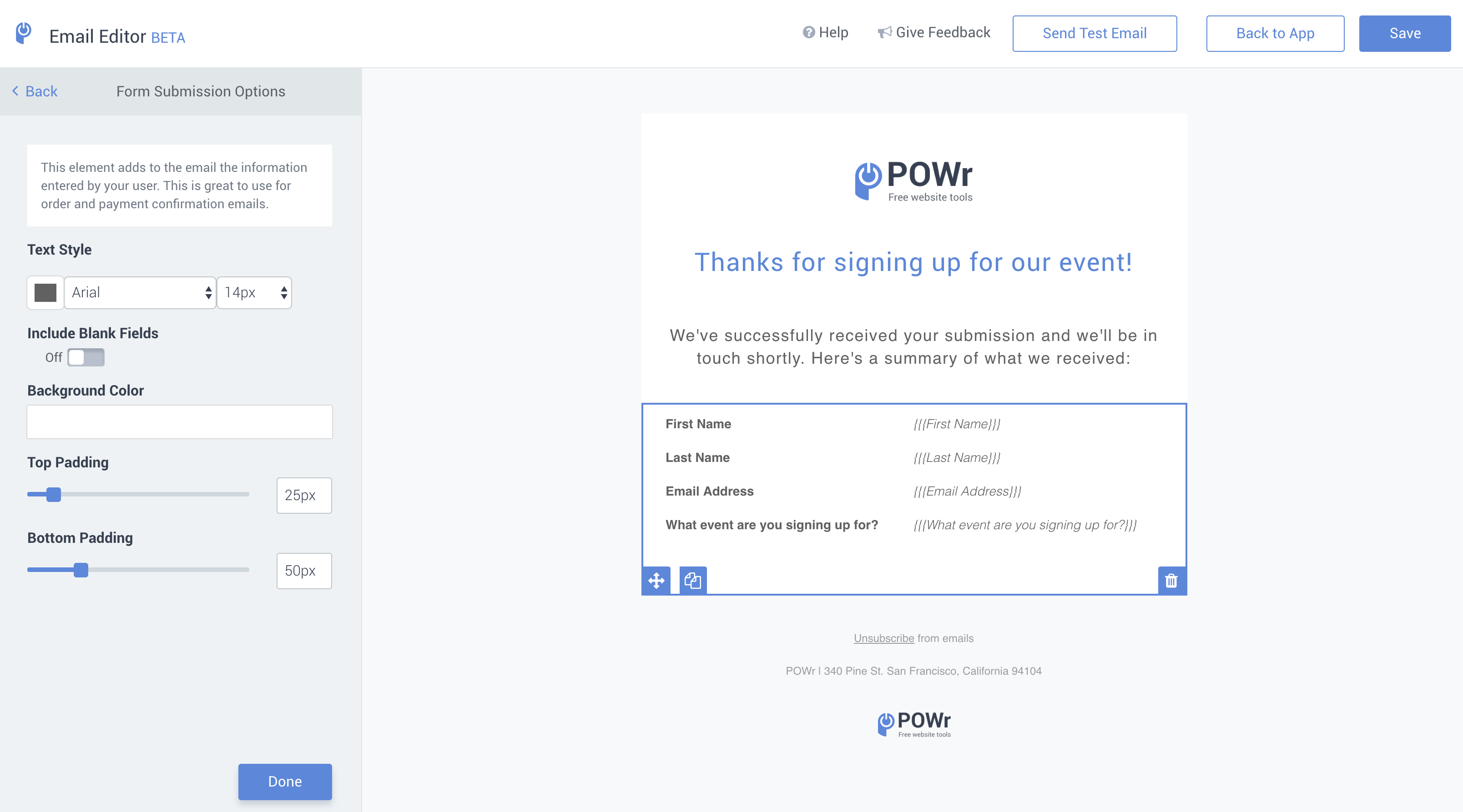
Below is an example of a form, the draft email,
Need Help?
If you need any help or have any questions about our Form Builder, our support team is happy to help.
👉 Contact our support team
When contacting us, you'll be prompted to authenticate your email by signing in, and a confirmation code will be emailed to you. This helps ensure our support team's reply will be delivered to you with no issues.
For more information about available features, visit our Pricing Page:
https://www.powr.io/pricing
and the live email a user would get in their inbox.
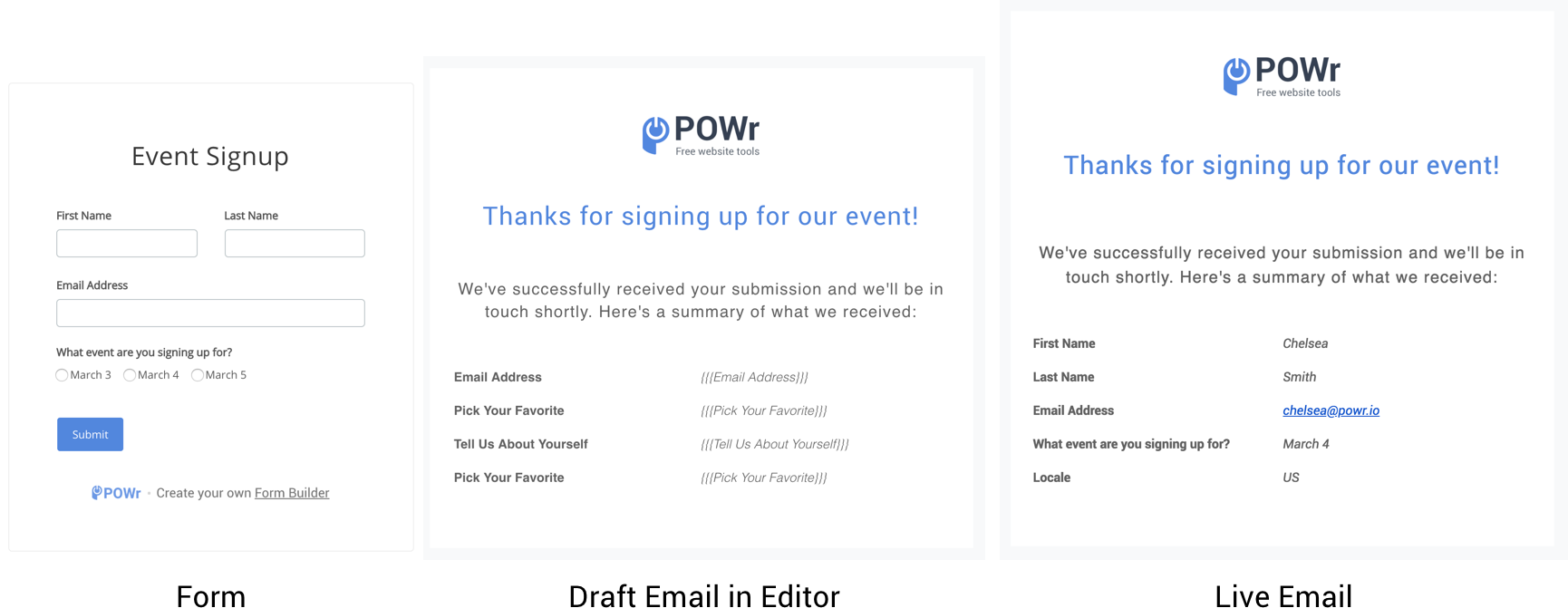
In the email editor, we use the characters {{{name}}} to symbolize what will dynamically populate in the live email so it’s clear where the text will populate. For example, {{{Email Address}}} symbolizes the email field in your form.
Adding and Removing
You can either delete the entire element if you do not want it, or drag it back in if you change your mind.
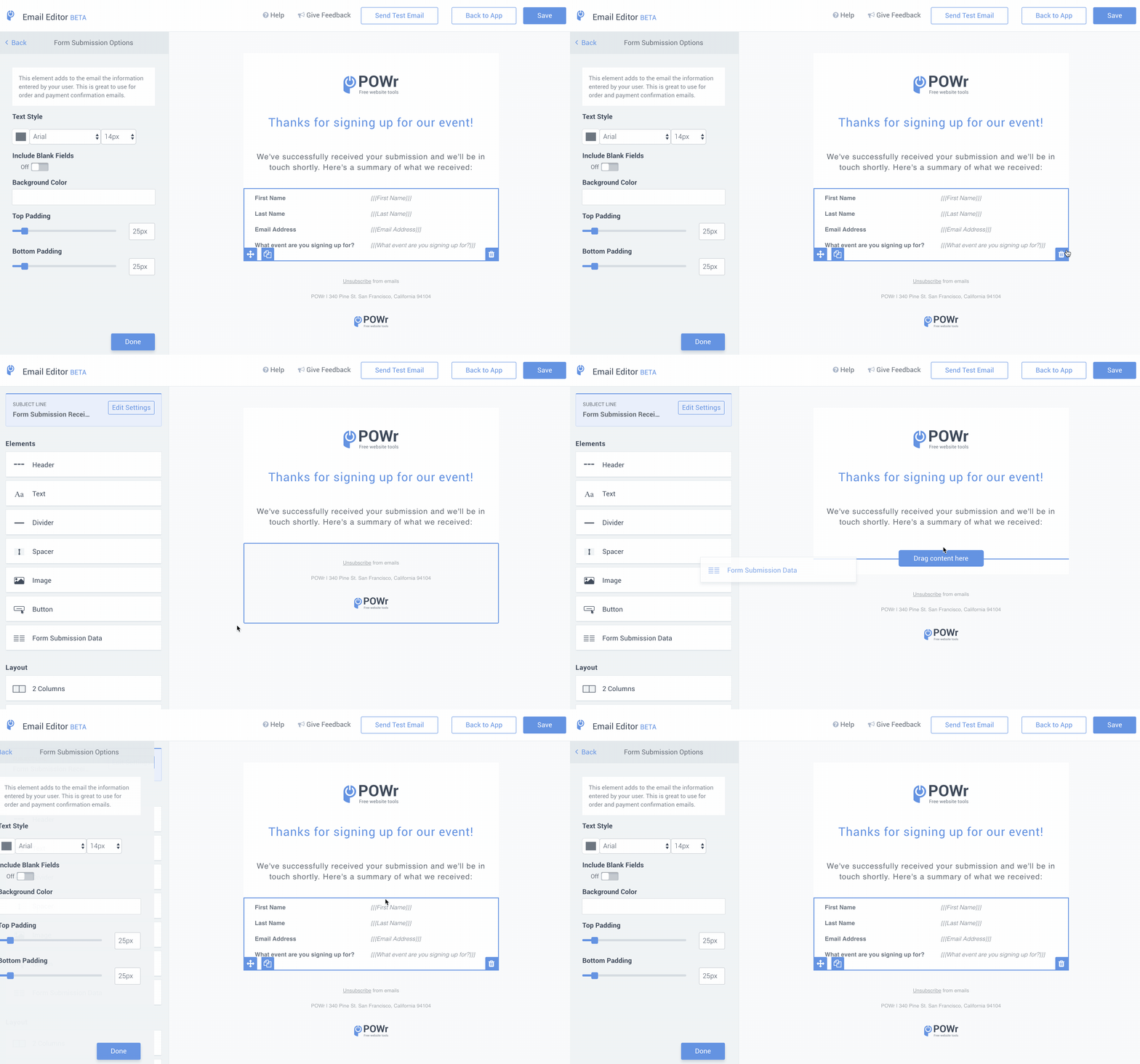
Unfortunately, right now you cannot delete specific fields in the element, and you can only include all fields from your form.
Include Blank Fields
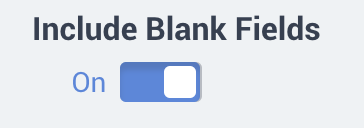
If you would like to include fields that were left unanswered when a user submits a form, then you will need to toggle this ON in the Form Submission Options.
.
Learn more about personalizing your emails in our article about using dynamic content.
Adding URL (links) in Autoresponder email
To add the link in the Autoresponder email, please follow these steps:
1. Open app settings
2. Open Autoresponder email
3. Click on the "Edit Email" button:
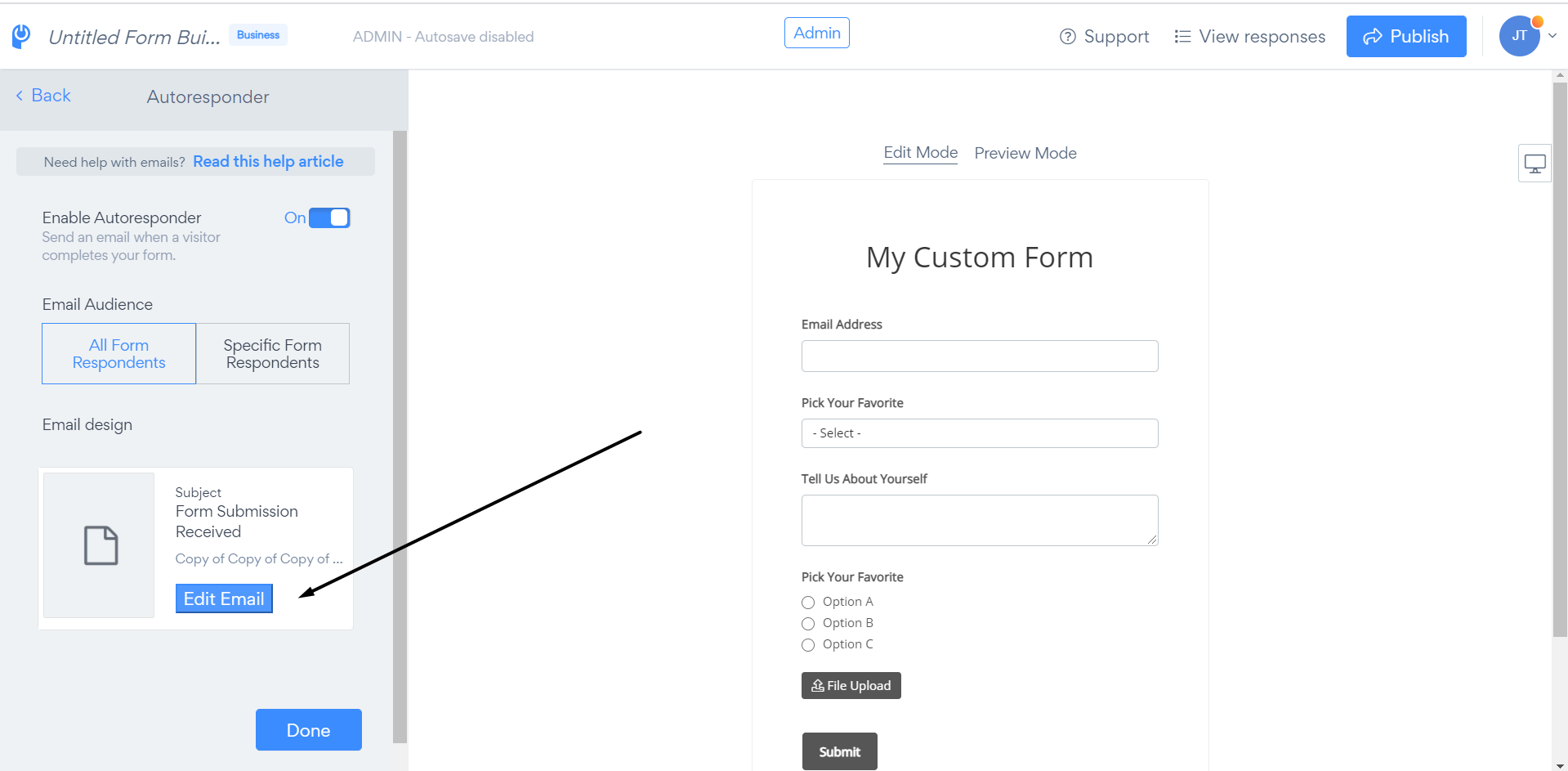
3.1 The email editor will open
4. Select a text element:
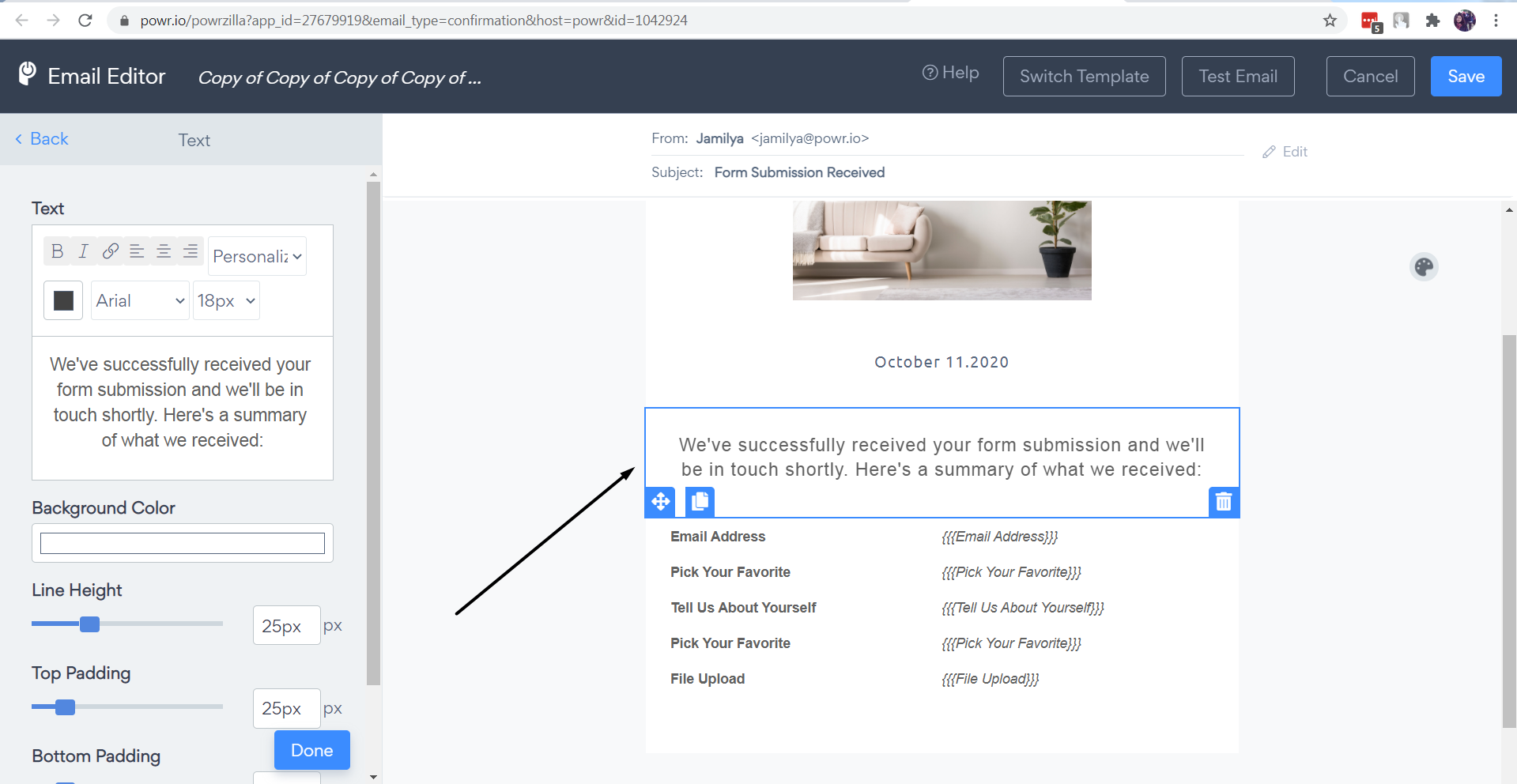
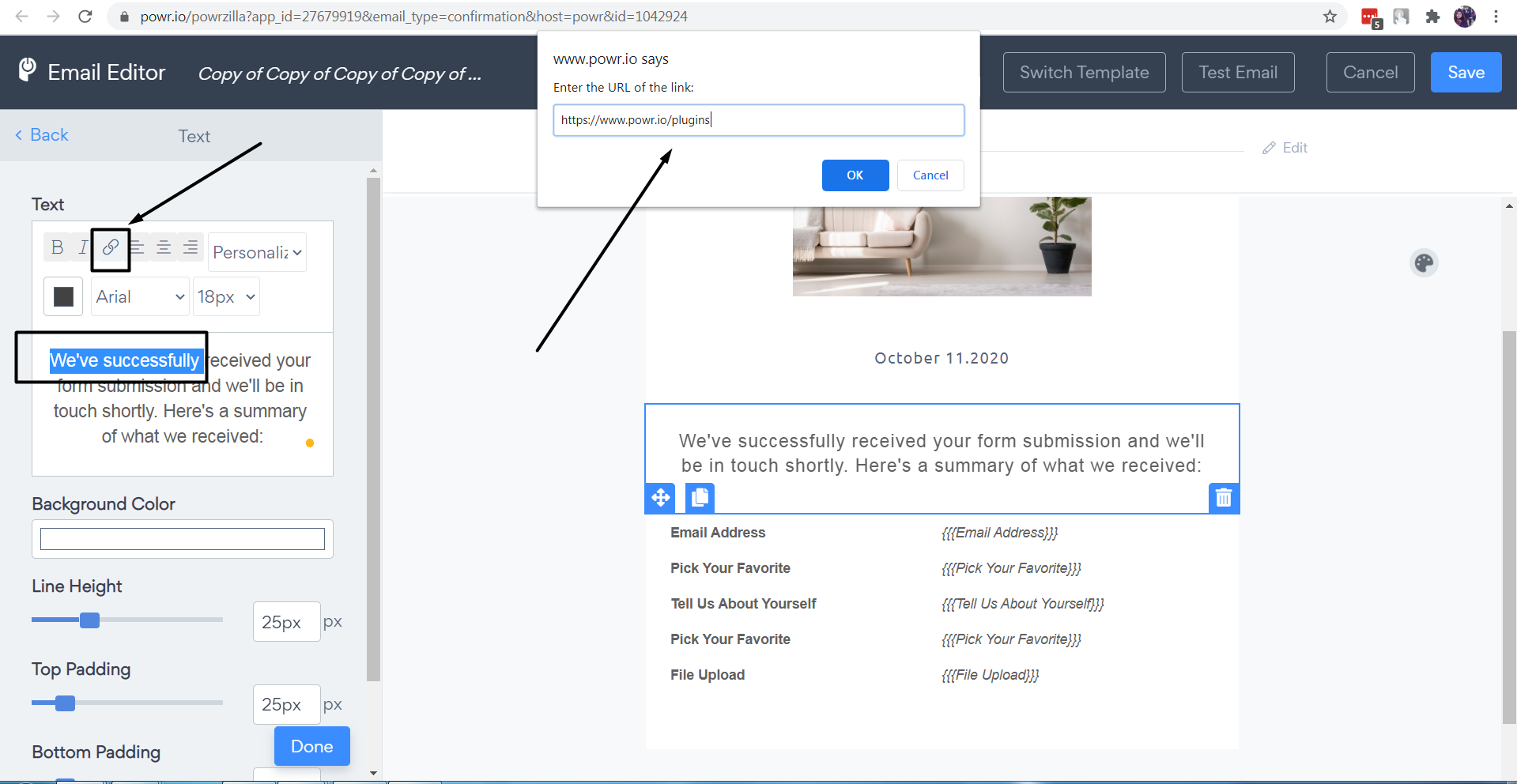
5. Highlight the text and click on the hyperlink button

. 5.1 Then insert the link (for example, https://www.powr.io/)
5.2 Click on the "OK" button:
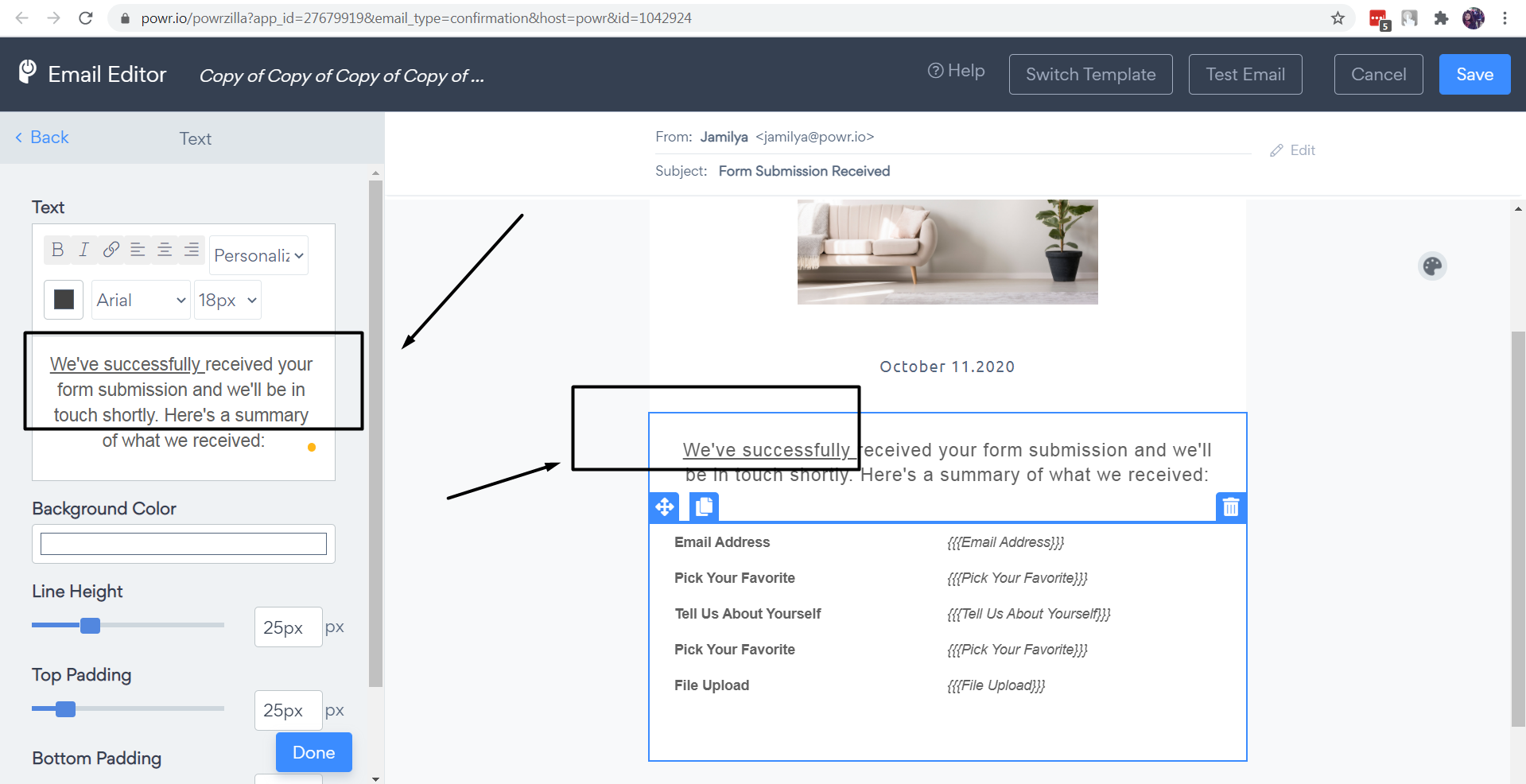
6. The text with the URL link will be underlined now:
7. Click "Save" to save email editor
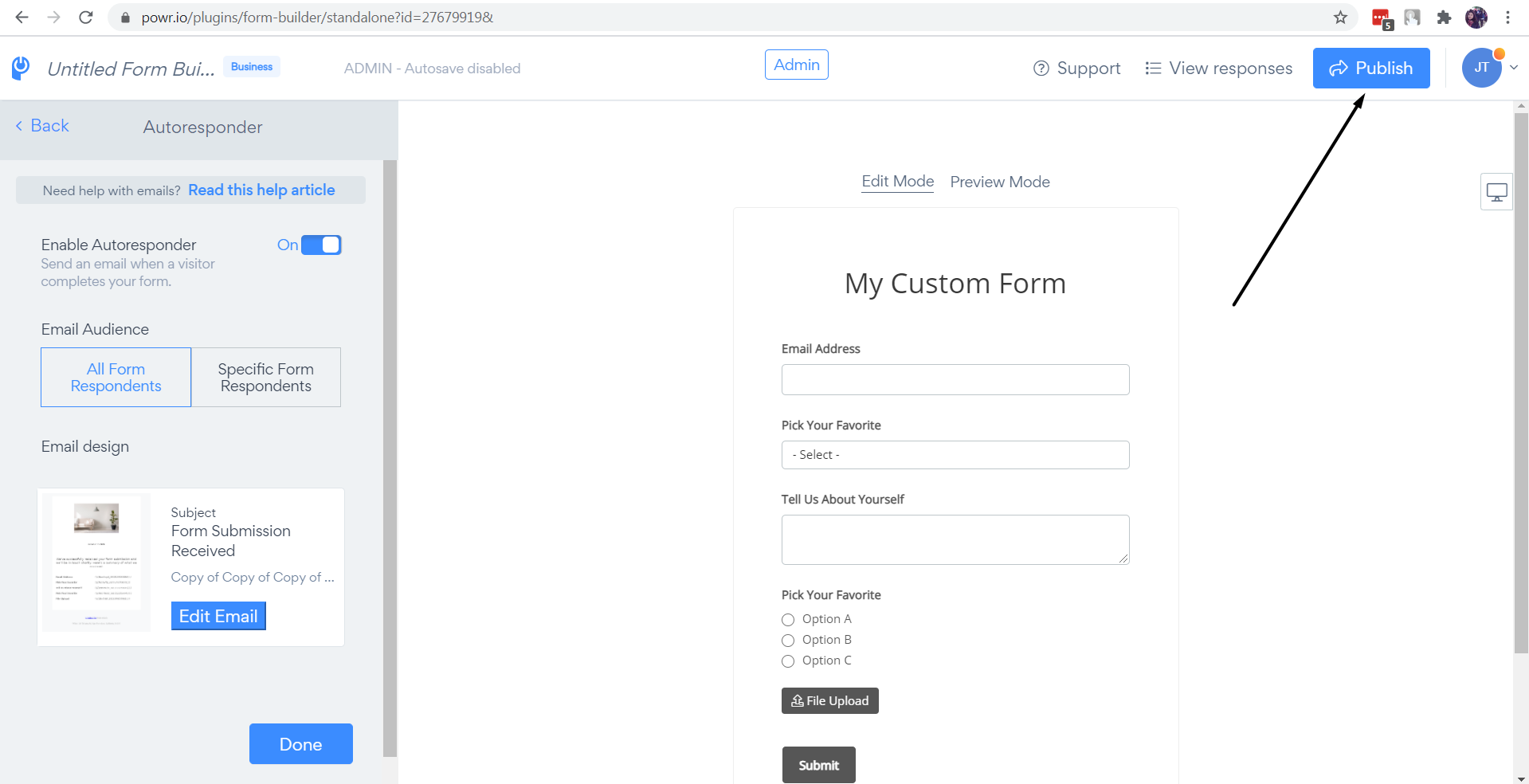
8. Press the "Publish" button to save changes in the app:
Need Help?
If you need any help or have any questions about our Form Builder, our support team is happy to help.
👉 Contact our support team
When contacting us, you'll be prompted to authenticate your email by signing in, and a confirmation code will be emailed to you. This helps ensure our support team's reply will be delivered to you with no issues.
For more information about available features, visit our Pricing Page:
https://www.powr.io/pricing