Connecting Google Sheets to Form Builder
You can connect your forms to a Google Sheet. Exporting your form data to Google Sheets in real-time is powerful for many reasons:
- Your form data is automatically backed up to an additional server.
- From your Google spreadsheet, you can easily forward your form information to a CRM, an email marketing list, or any other third-party tool that you use for managing your customer data. (We recommend Zapier for additional automations).
To get started, follow these steps:
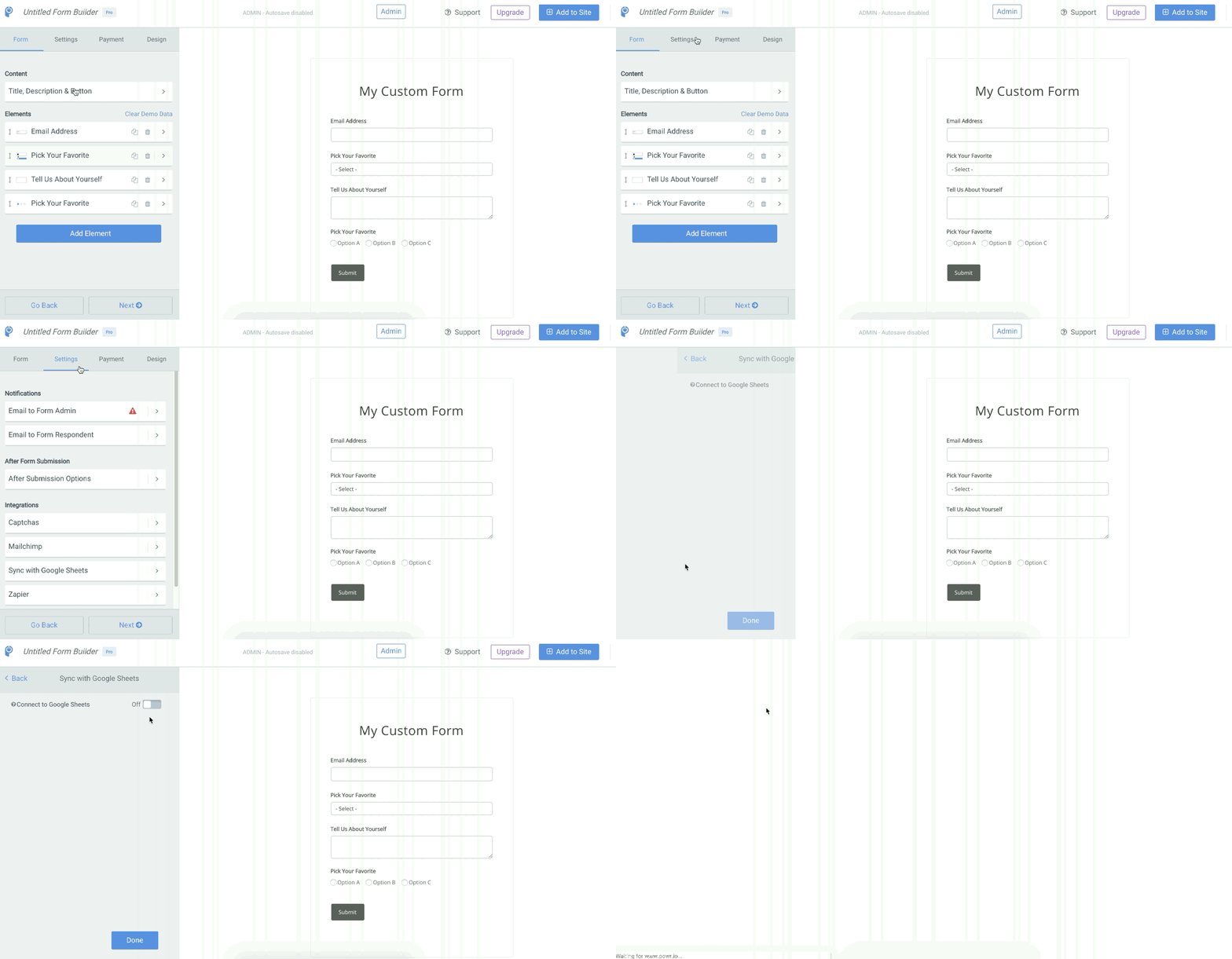
- Open your Form Editor.
- Go to Settings
- Under Integrations, click on Google Sheets
- Toggle on Connect to Google Sheets. You will be redirected to a Google page.
- Log into your Google account, or select an account you are already logged into.
- Authorize POWR to send form data to your Google Drive.
- You will then have a new spreadsheet in your Google Drive that collects your form data in real-time. You can also access your connected spreadsheet via the View Google Sheet button in your connected form.
Note: As of Jan 10, 2019 images are no longer displayed in cells in a connected Google Sheet. Please visit your form response dashboard to get an updated link for your file.
Can I download the file directly from Google Sheet?
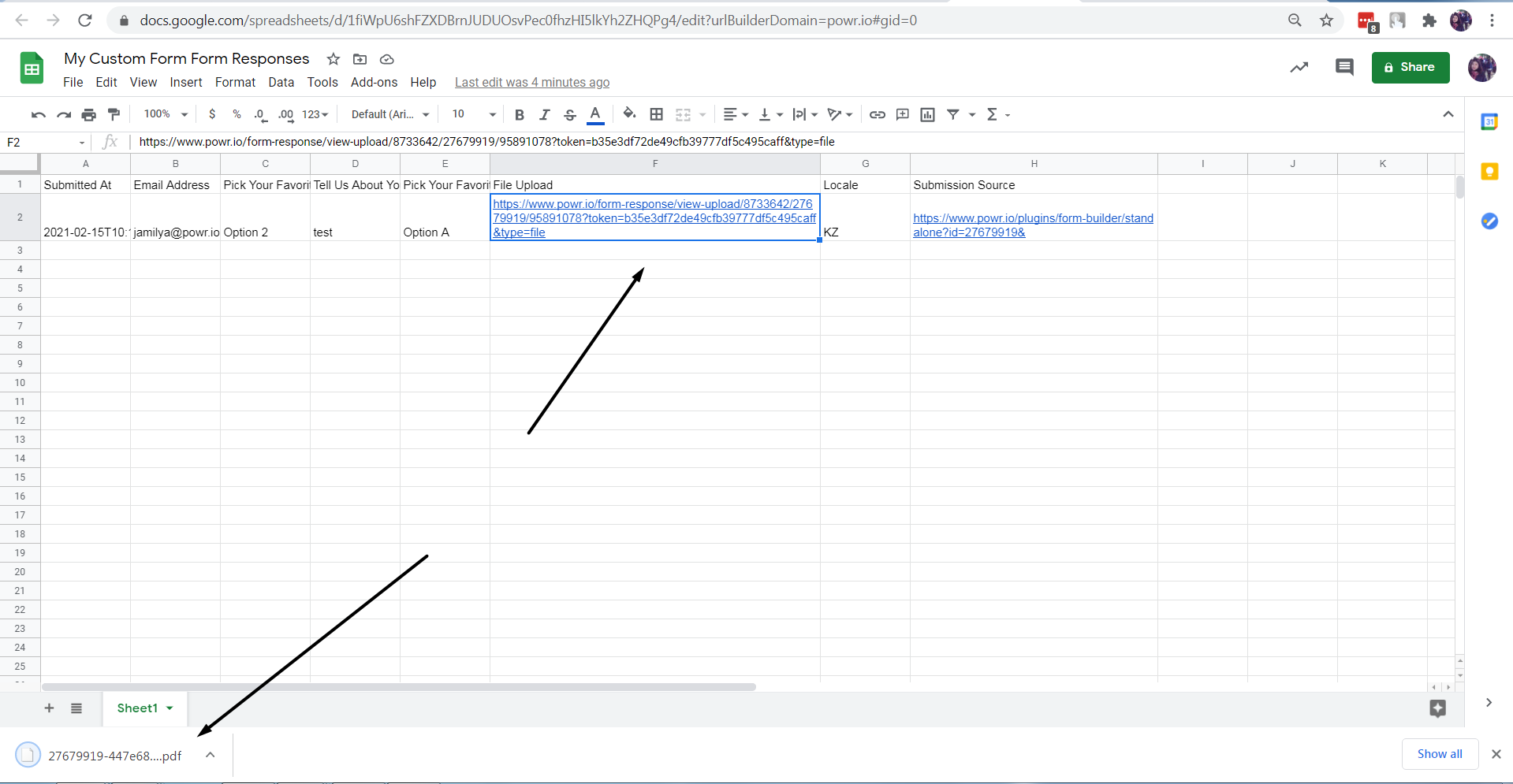
Yes, it is possible to download the file from Google Sheet that was connected to POWR FormBuilder app. Please follow these steps:
1. Open Google Sheet
2. Click on the file download link