
Adding POWR apps to a Shopify Theme with Custom liquid
While most POWR apps install directly to your Shopify store through the Shopify App Store with just a few clicks, there are times when you may want to add a POWR app to a specific location on your theme using custom HTML. This gives you precise control over where the app appears on your site.
When would you use HTML to add a POWR app?
Adding your POWR app via custom HTML is useful when you want to:
Place the app in a specific location that the standard installation doesn't reach (e.g., inside a particular section of your homepage, within a product description, or alongside other content)
Add the same app to multiple pages without duplicating the installation
Combine the app with other theme elements like text, images, or custom layouts
Use a POWR app from your powr.io account that wasn't installed through the Shopify App Store
Step 1: Get your app's embed code
Log in to your POWR account at powr.io
Open the app you want to embed (Form Builder, Popup, Social Feed, etc.)
Click Publish and copy the embed code
The embed code will look something like this:
<div class="powr-[app-name]" id="YOUR_UNIQUE_ID"></div>
<script src="https://www.powr.io/powr.js?platform=shopify"></script>
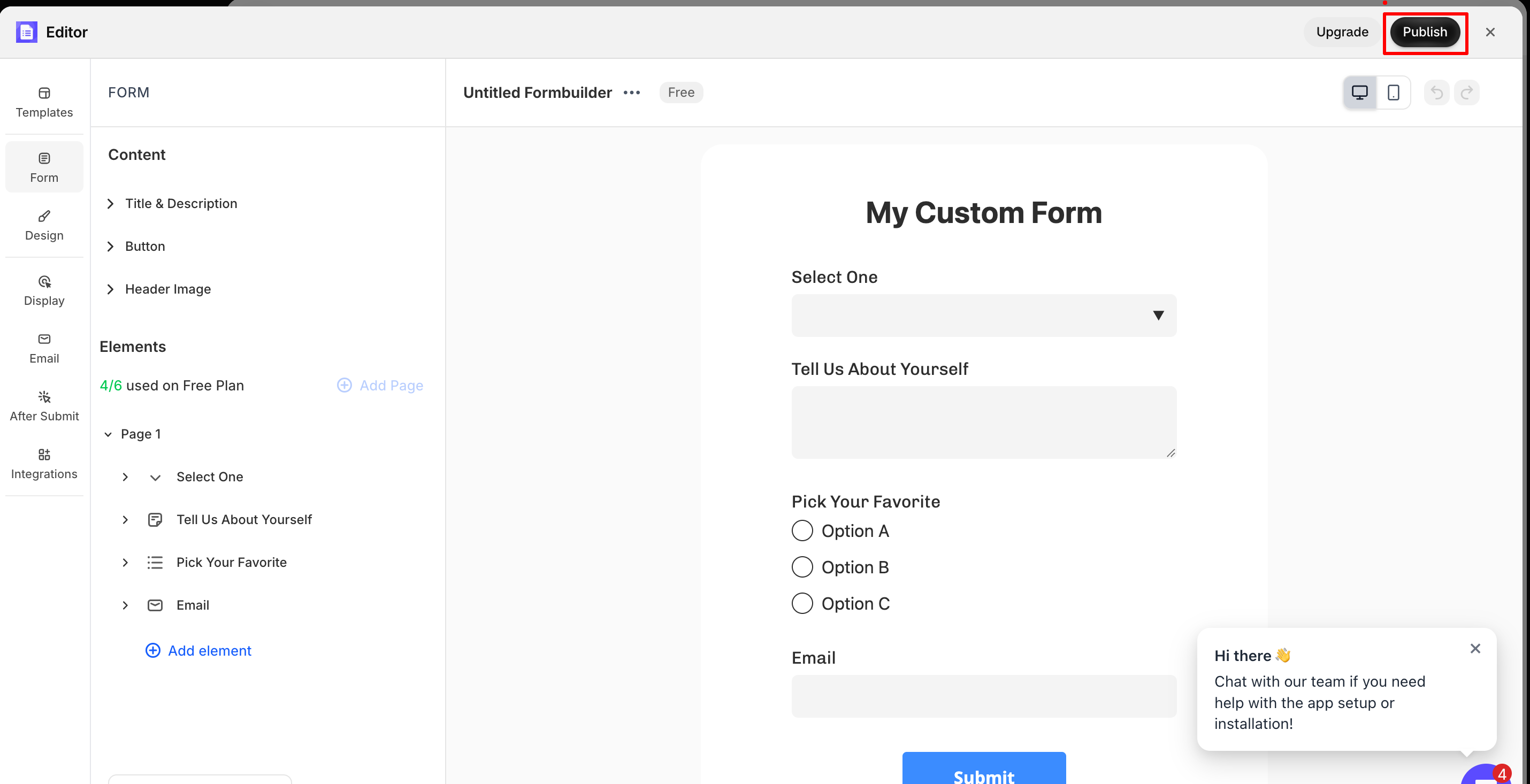
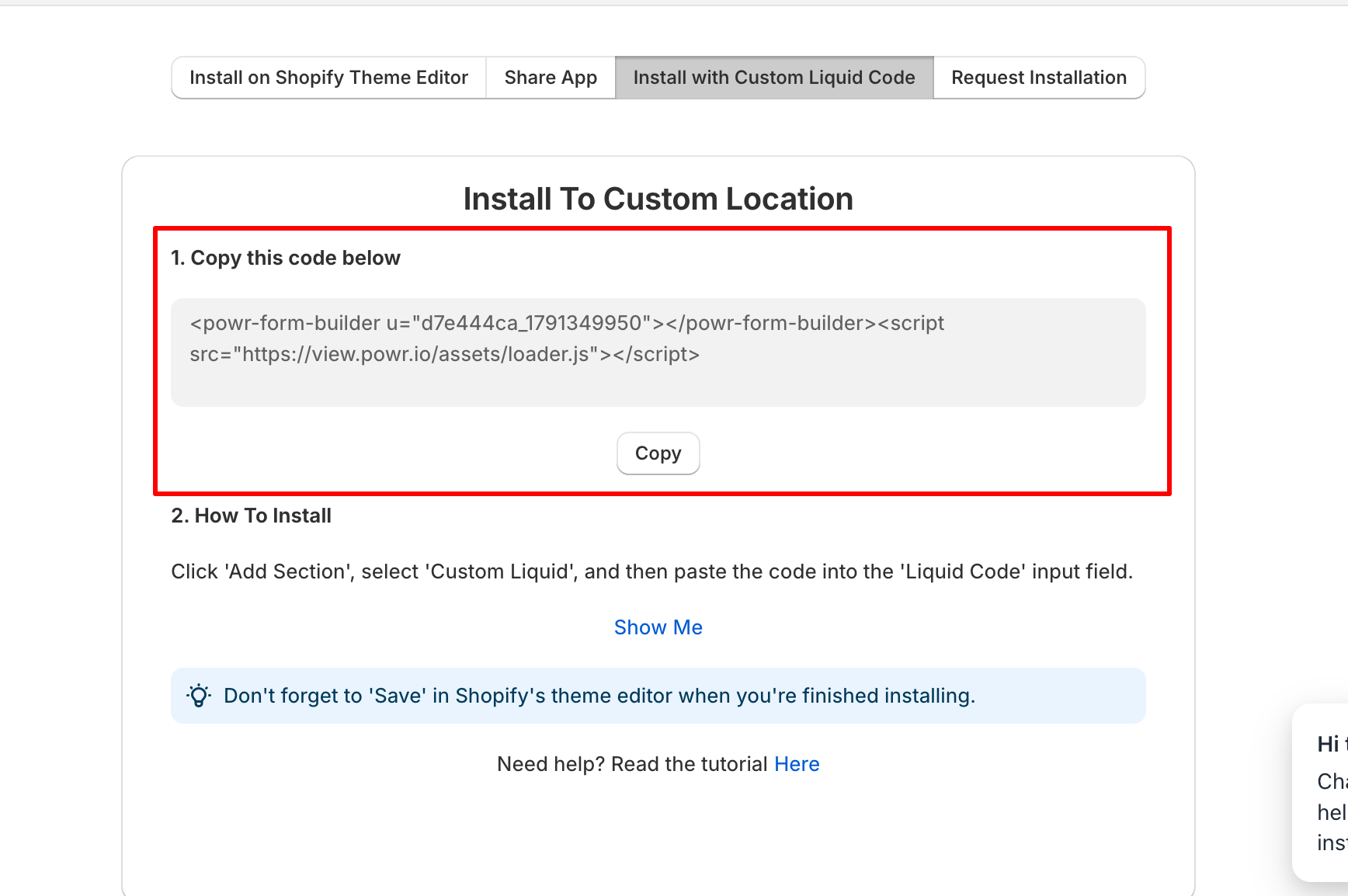
Step 2: Choose where to add it on your Shopify store
You have three options depending on how comfortable you are with code and where you want the app to appear.
Option 1: Custom Liquid block in the theme editor (easiest, no code)
If your theme supports Shopify's Online Store 2.0 architecture (most modern themes do), you can drop a Custom Liquid block anywhere in your theme without touching code files:
In your Shopify Admin, go to Online Store > Themes
On your active theme, click Customize
Navigate to the page or section where you want to add the POWR app
Click Add block or Add section and choose Custom Liquid
Paste your POWR embed code into the Custom Liquid block
Click Save
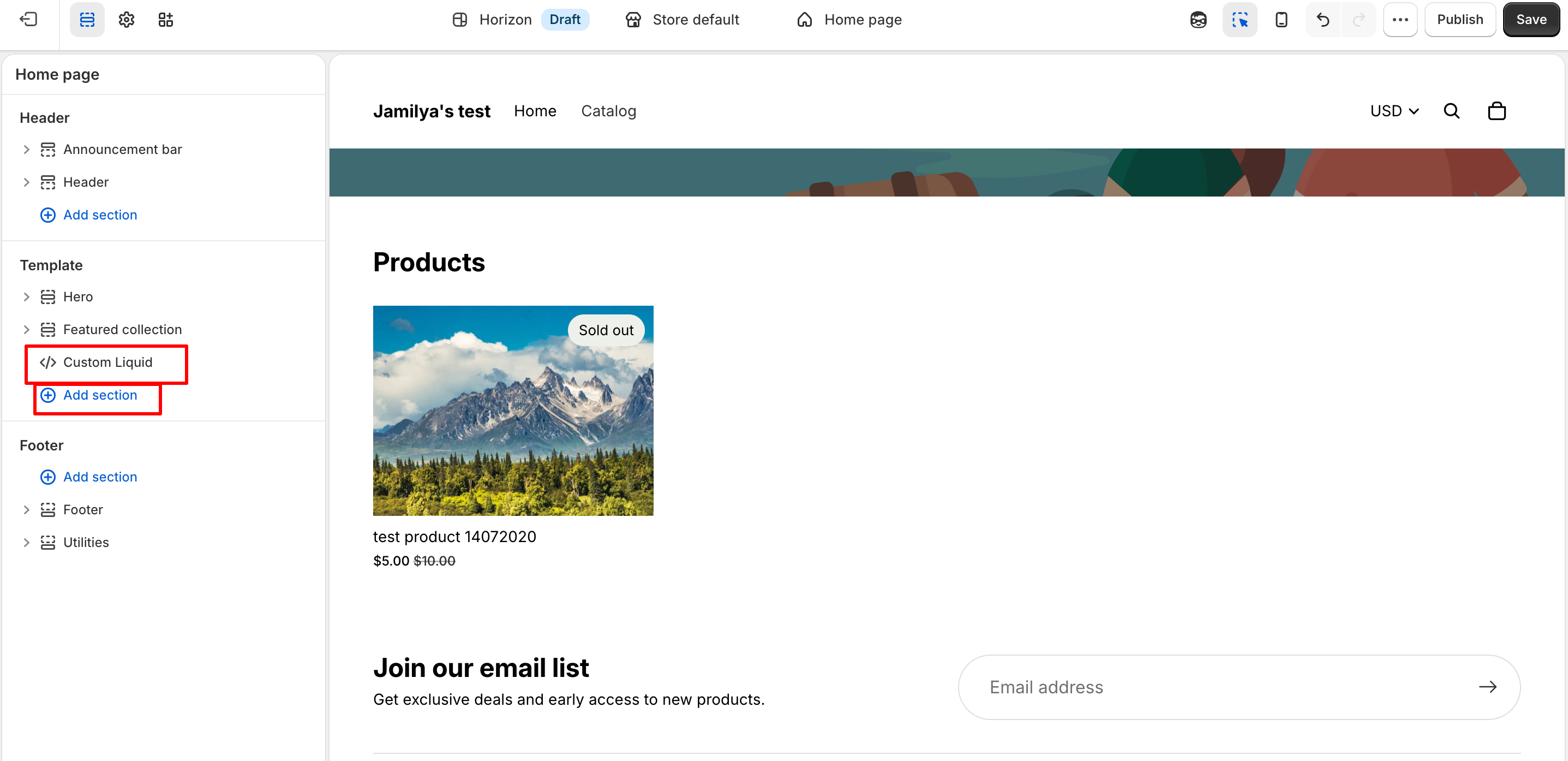
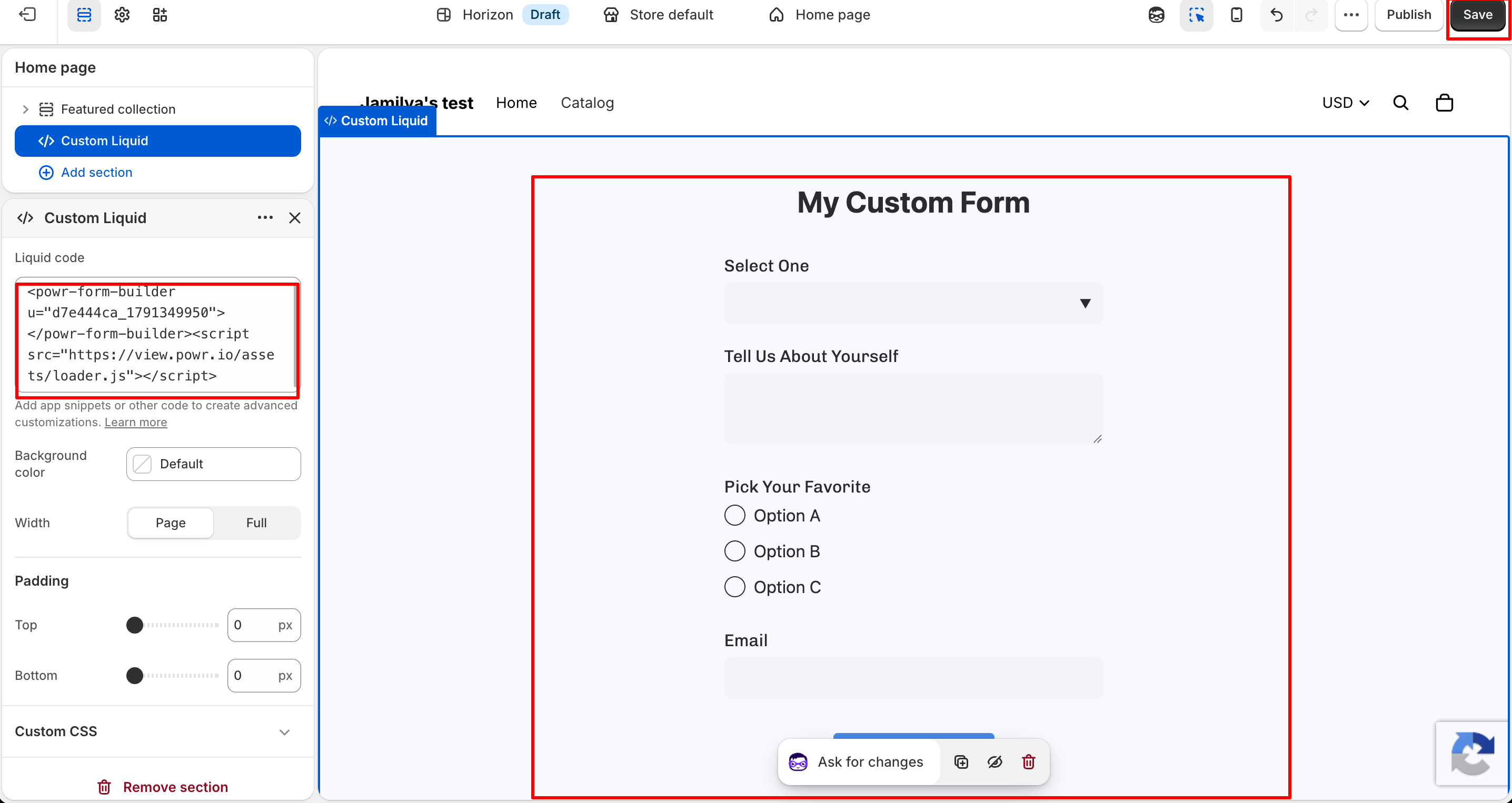
The app will now appear in exactly the location you placed the Custom Liquid block, visible immediately in the theme preview and on your live site.
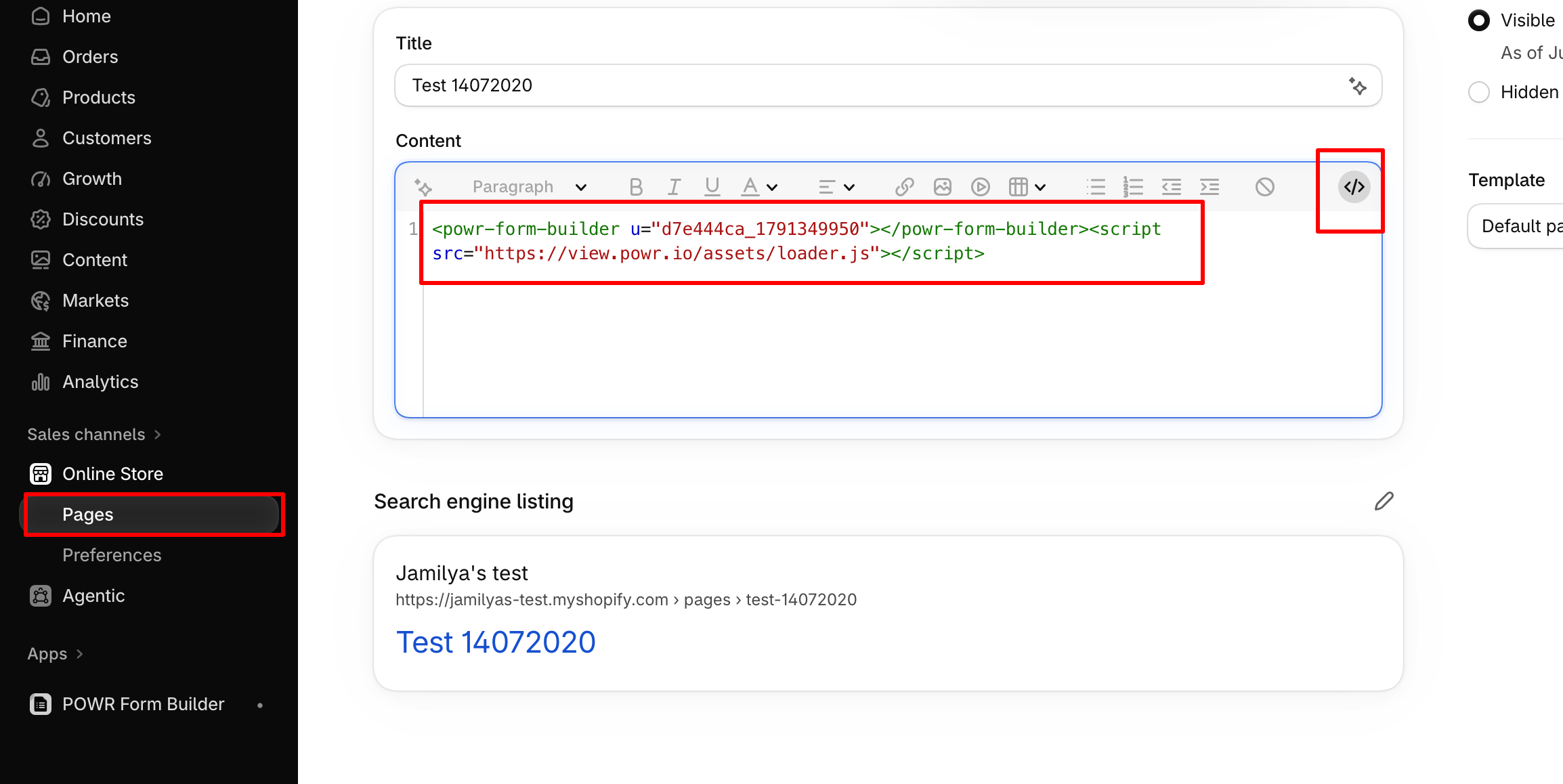
Option 2: Add it to a specific page via the page editor
If you want the app on an individual page (not sitewide), you can add the embed code directly to that page:
In your Shopify Admin, go to Online Store > Pages
Open the page where you want the app to appear (or create a new one)
In the page editor, click the
<>HTML view icon in the toolbarPaste your POWR embed code into the HTML
Click Save
Option 3: Edit theme code directly (advanced)
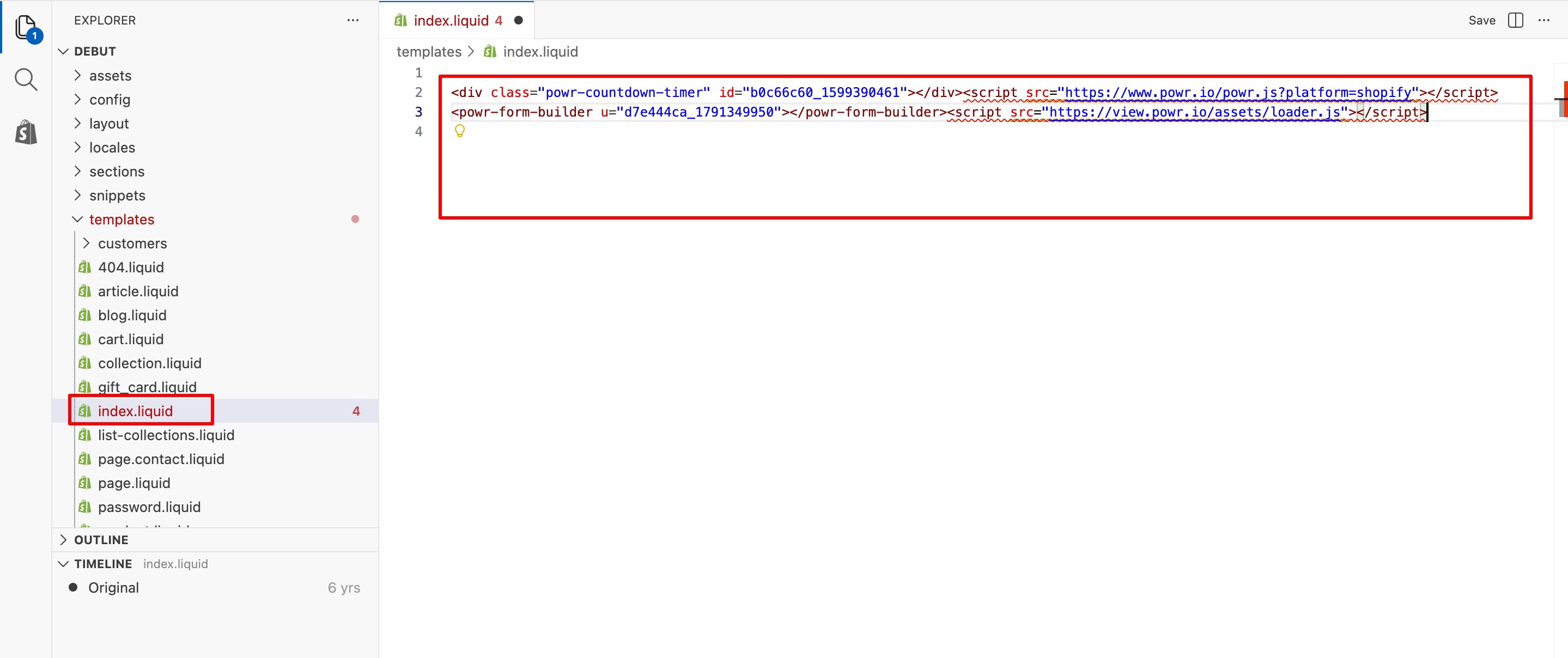
If you need the app to appear in a specific location that neither of the above options reach, you can edit your theme code directly:
In your Shopify Admin, go to Online Store > Themes
On your active theme, click Actions > Edit code
Open the template or section file where you want the app to appear (e.g.,
index.liquidfor Vintage themes, or a specific section file insections/)Paste the embed code into the location where you want the app to render
Click Save
Need help?
If you need any help or have any questions about our apps, our support team is happy to help.
Contact our support team
When contacting us, you'll be prompted to authenticate your email by signing in, and a confirmation code will be emailed to you. This helps ensure our support team's reply will be delivered to you with no issue.
For more information about available features, visit our Pricing Page:
https://www.powr.io/pricing