
Troubleshooting Missing Form Email Alerts
If you're not receiving email notifications from your POWR forms, follow the steps below to identify and resolve the issue.
In This Article:
Verify Email Settings in POWR Editor
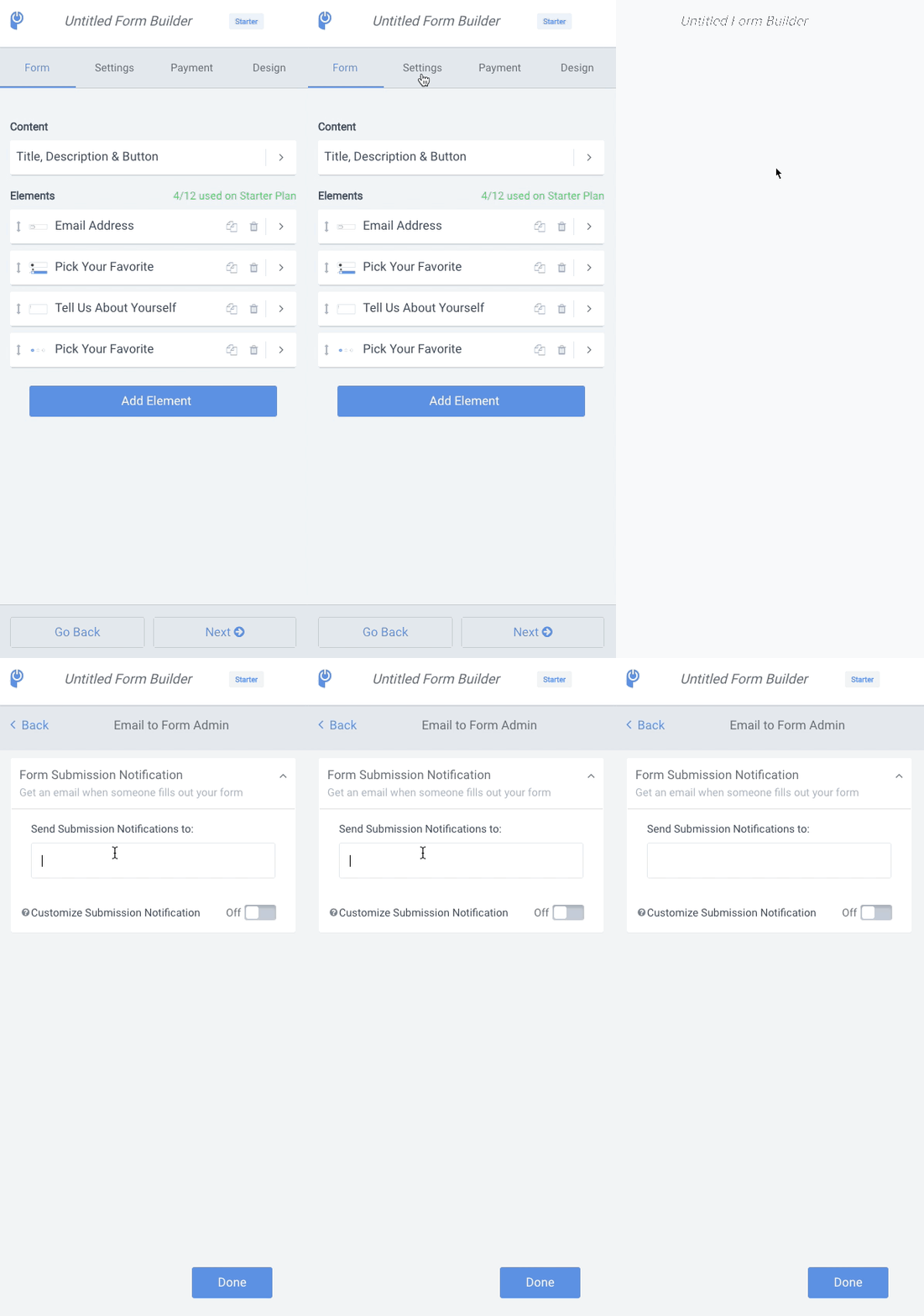
Open your form in the POWR Editor.
Navigate to the Settings section.
Select Email to Form Admin.
Ensure your email address is correctly entered under Send Submission Notification to.
Click on Publish button and test your form in Preview.
⚠️ Note: Enter your email address in all lowercase characters to avoid potential issues.
Check Your Spam or Junk Folder
Sometimes, email notifications may be filtered into your spam or junk folder.
Look for emails from no-reply@powr.io.
If found, mark them as "Not Spam" to ensure future emails arrive in your inbox.
Whitelist POWR Email Addresses
To prevent email notifications from being blocked:
Add no-reply@powr.io to your email contacts.
If your email provider offers a whitelist or safe senders list, add no-reply@powr.io to it.
Consider Payment Settings
If your form requires payment:
Email notifications are sent only after the payment is successfully completed.
To receive alerts for incomplete payments, enable Abandoned Payment Email Notifications in the Email to Form Admin settings.
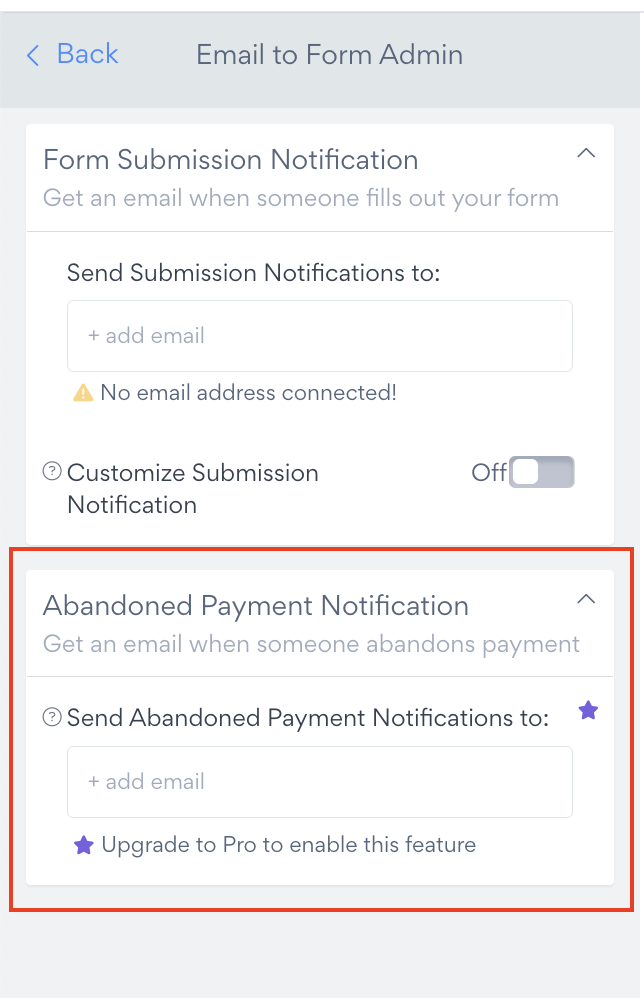
Following feature is available starting from Pro plan. Compare and check prices here. Or ask Support Team about available discounts.
FAQs
Q: Why am I not receiving email alerts after form submissions? A: Ensure your email is correctly entered in the POWR Editor, check your spam folder, and whitelist POWR email addresses.
Q: Do I receive email notifications for incomplete payments? A: By default, notifications are sent only after successful payments. To receive alerts for incomplete payments, enable the Abandoned Payment Email Notifications feature.
Q: Can I customize the subject line of my email alerts? A: Yes, you can customize the subject line and sender name in the Email to Form Admin settings > Customize Submission Notifications. Customize Admin Form Email Alerts
⚠️ Check how to change spam filters:
How to change spam filters in Gmail
How to change spam filters in Outlook
How to change spam filters in Yahoo!
Need Further Assistance?
If you're still experiencing issues with form email alerts, please contact POWR Support for personalized help.