Sync your POWR Popup or Form with BigCommerce Customers
This integration will allow you to collect contacts from POWR Form and Popup and sync them with BigCommerce Customers.
⚠️ Please note that this integration is available only for BigCommerce users who installed our app through the BigCommerce app store. In order to see My Contacts in POWR, you must be logged in your BigCommerce store.
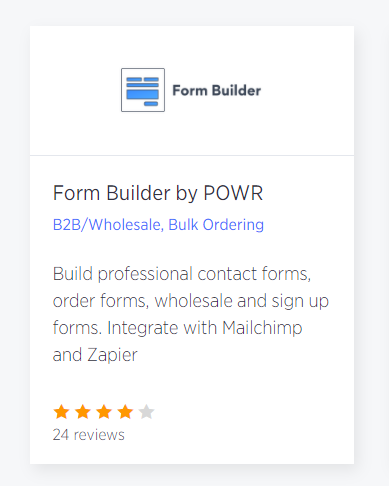
In order to activate this integration please follow these steps: 1. Install POWR Form or Popup on your BigCommerce store.
Go to the BigCommerce App Store. Search for POWR Popup or POWR Form Builder.
In the app listing, click on 'Add app'.
2. Customize the app and add an email field
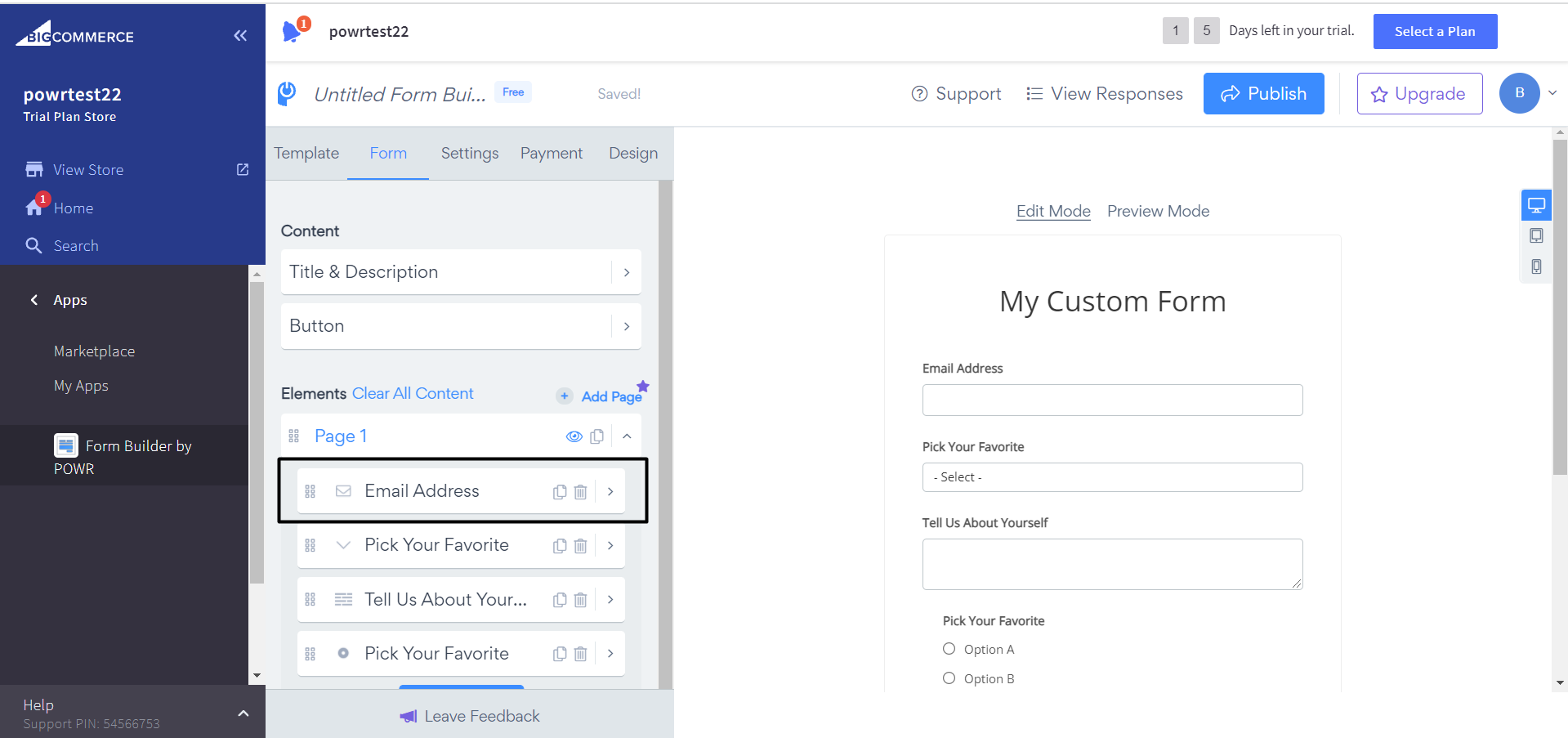
In order to add contacts to My Contacts in POWR, you will need an email field in your form or Popup.
3. Accessing My Contacts through BigCommerce
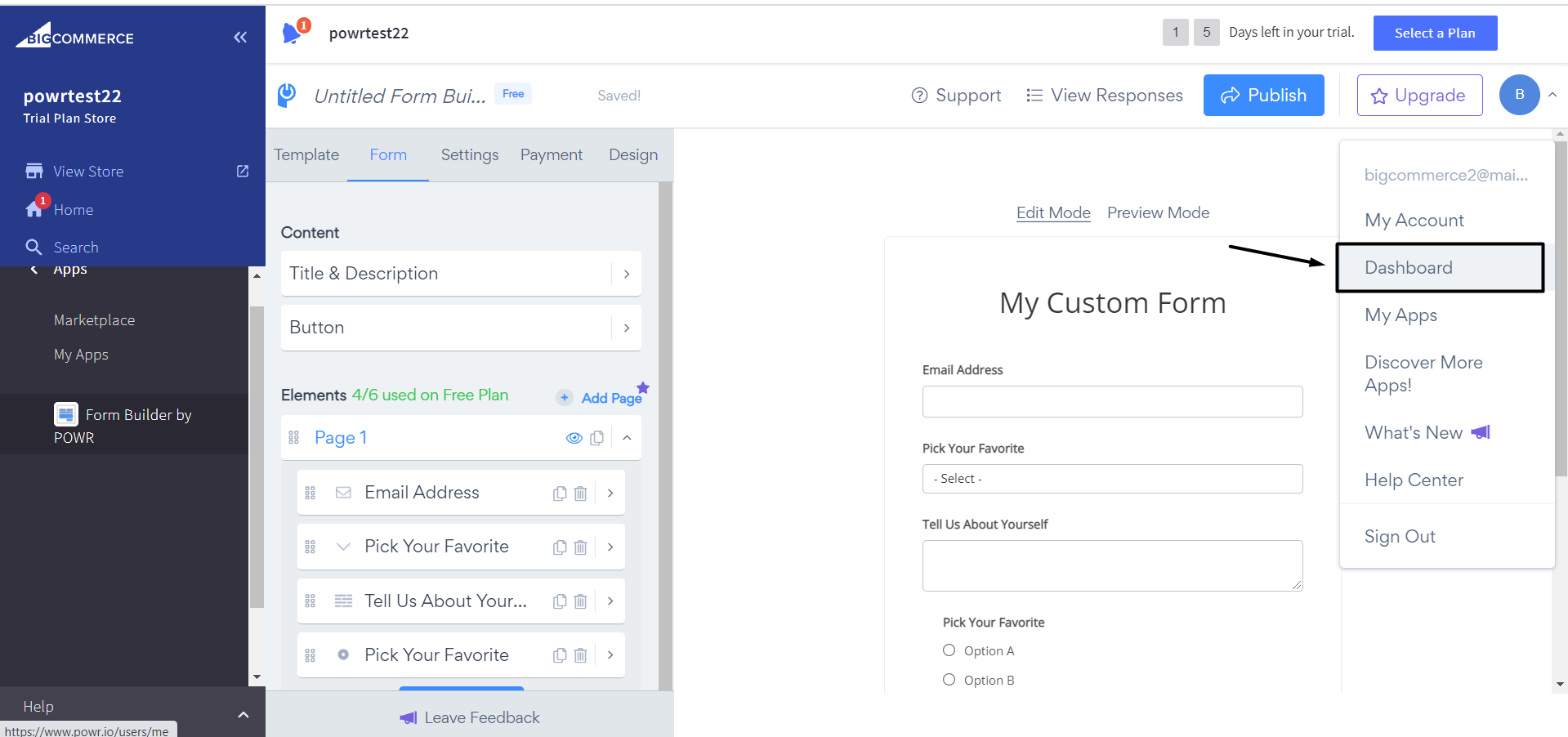
You can access your POWR contacts in the "My Collected Contacts" dashboard by clicking on your app under Apps in your BigCommerce Dashboard.
Click on "Dashboard" > "View all My Contacts" in the top navigation.
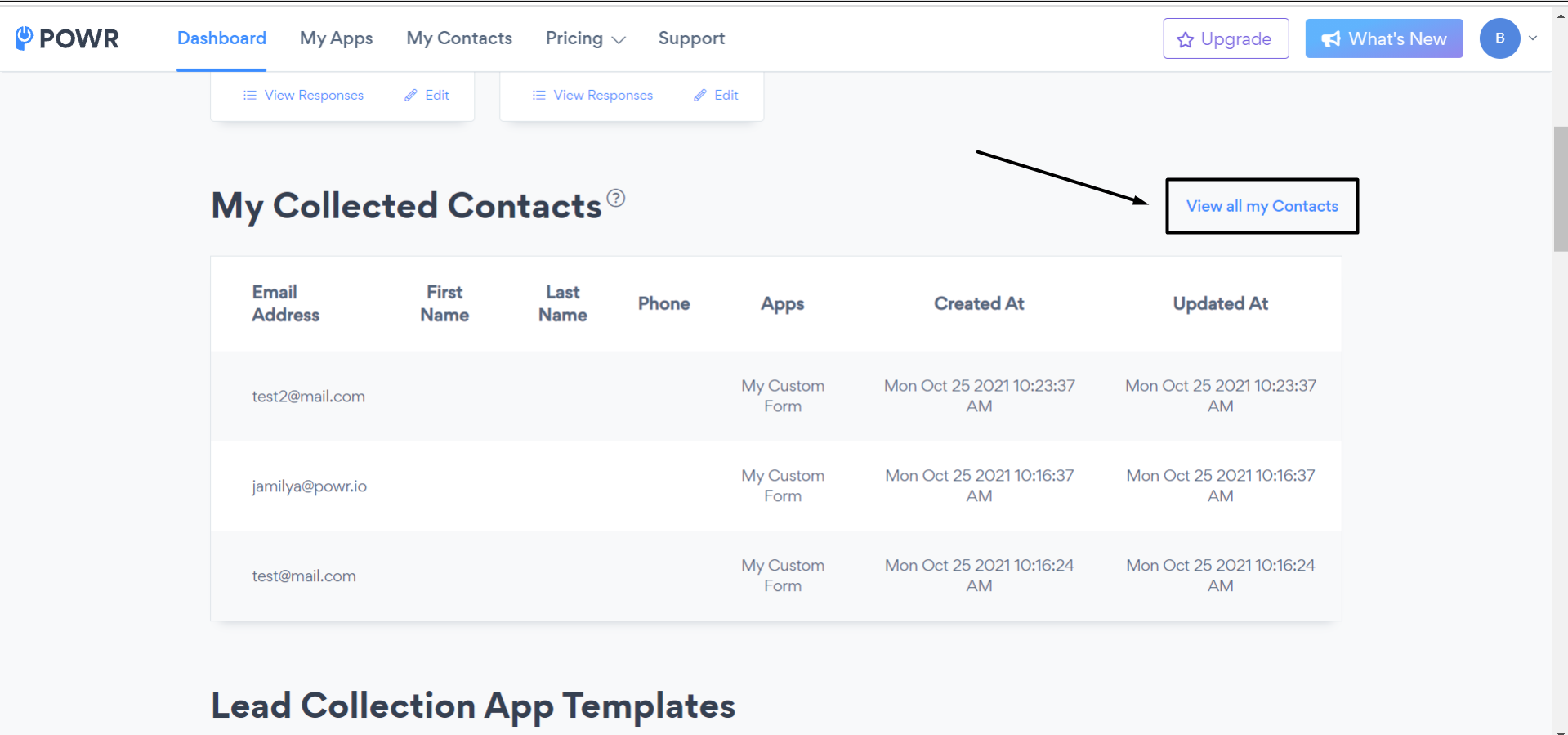
You can also directly access it by clicking here (please note you will need to be logged in to BigCommerce).
4. Complete integration
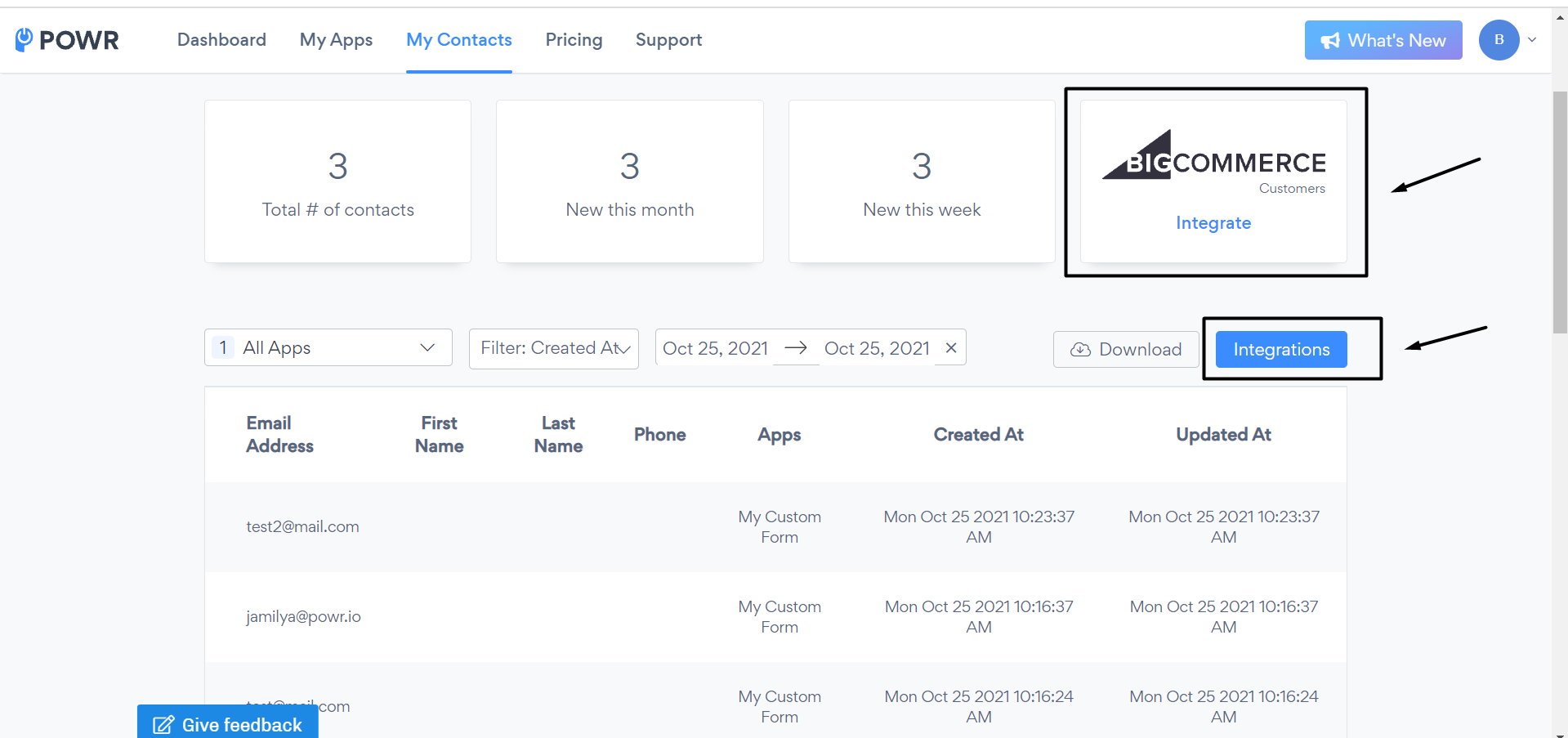
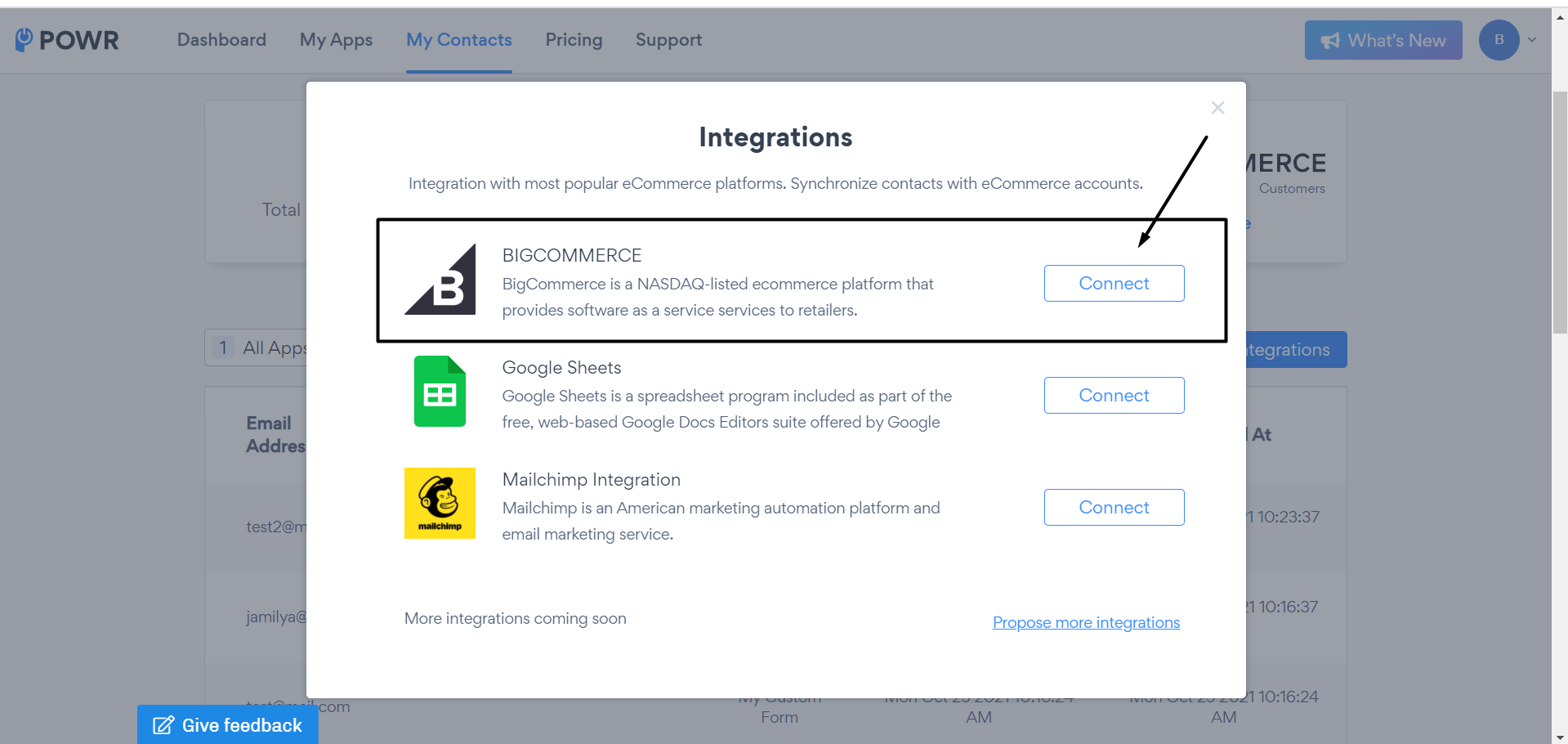
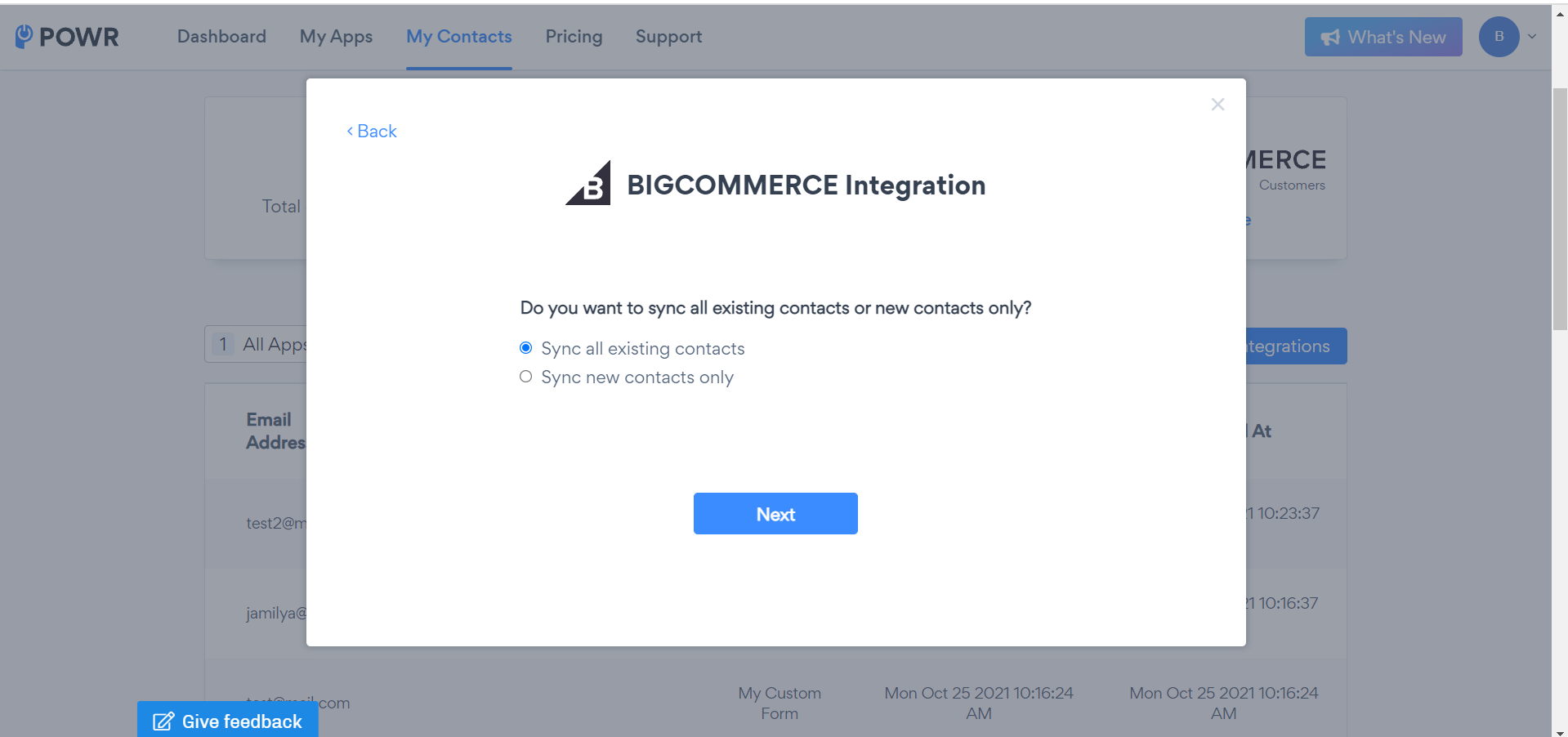
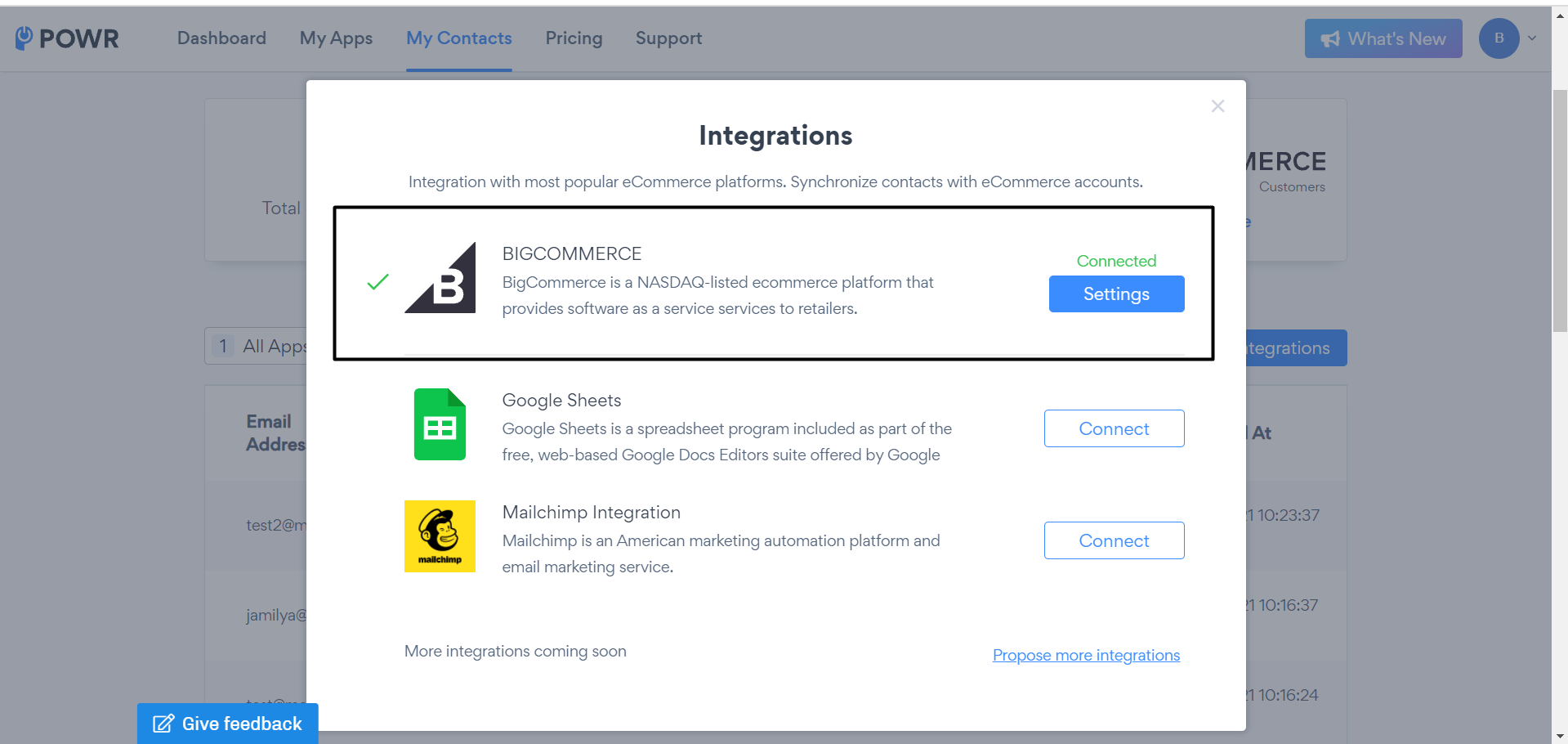
In My Contacts, click on Integrations and proceed with the "BigCommerce customers" integration. You will be able to sync all contacts existing contacts or only new ones.
*Kindly note that "BigCommerce" contacts integrations are only available on the paid plan: About POWR Usage-Based Pricing
Check your synced contacts in BigCommerce Customers
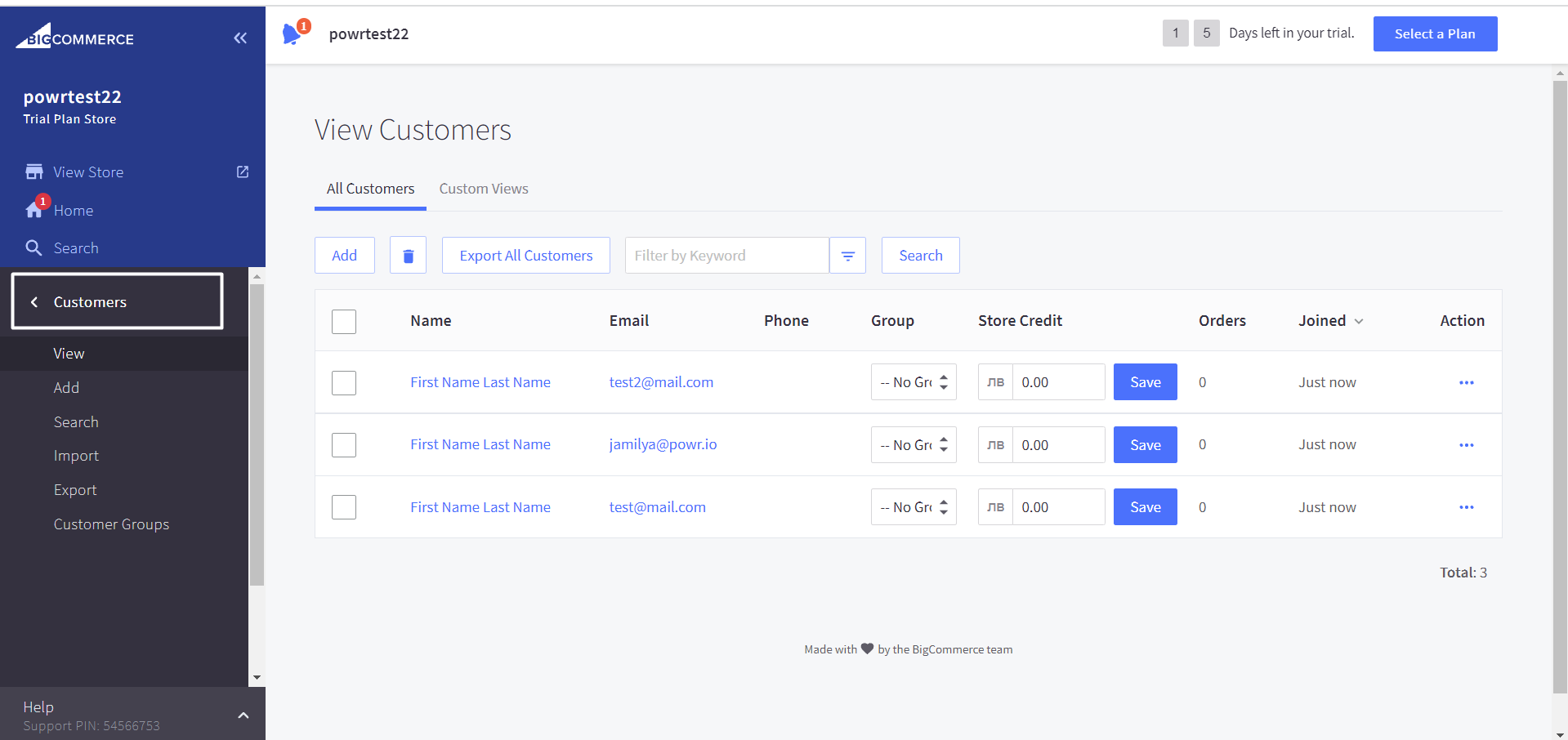
To view BigCommerce Customers please log in to your BigCommerce store > Click on "Customers" section > View Customers: