
Phishing users and "Settings not loading" error in Wix
Phishing users: What to do
When someone is collecting a password in a form, they are most likely using the form for phishing information. This is against our Terms of Service. Follow these steps to destroy the user's forms:
- Find the phisher's Tech Support Helper page.
- Click the "de-phish" button. This will destroy all of the user's Apps and inactivate the account.
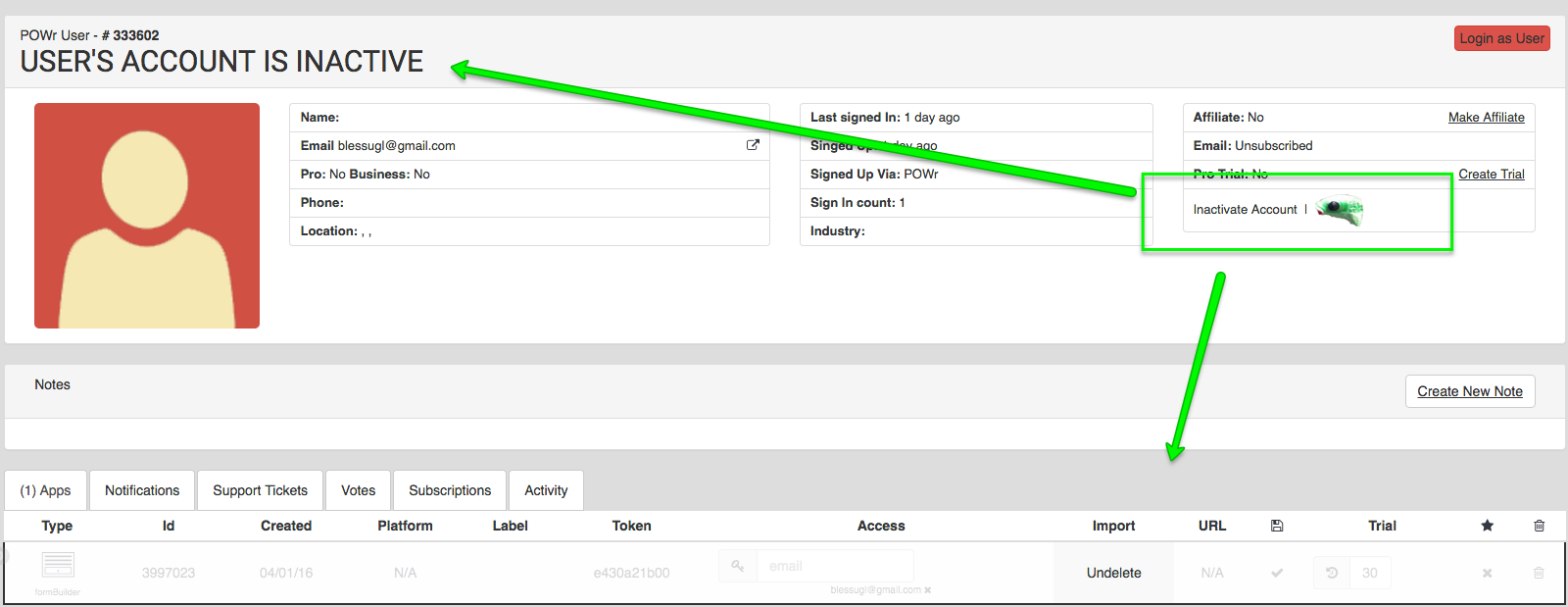
- Respond to the email that alerted you about this user and thank the person who reported the phishing form.
"Form settings not loading"
When a user says their form settings aren't loading in Wix, the first thing you check should ALWAYS be their TSH's "Notes" tab:
https://www.powr.io/admin/tech_support_helper?search_by_user=grockmeister@gmail.com#notes
When a user has "password" anywhere in a form label, the following happens:
- We delete the form
- We deactivate the user's account
- We add a note to the "Notes" tab with details
For a regular user on powr.io, this means they can't log in and are asked to contact POWr support.
Because a user on Wix logs in through the Wix editor, they simply see an error in their app settings with no details about their account status.
Here's what you'll need to do:
- Check the form and make sure it's not an actual phishing form
- If it's a phishing form, re-activate the account but keep that form deleted. Let the user know if they get caught again, we'll ban them for good.
- If it's NOT a phishing form, re-activate their account, click the red button in the notes to remove the form from the phishing list, and undelete the form. Tell the user what happened and explain how they can prevent this from happening again (use the macro "Phishing user with upgrade - no permanent ban" and modify it based on situation).