
Pay for your POWR subscription with Shopify
In this article group
- How to Approve a POWR Collaborator Request on Shopify
- How to Install POWR Apps on Shopify Using the PageFly Theme Editor
- How to Find Your POWR App ID to Install on Shopify
- Automatic Installation of POWR Apps on Shopify
- How to Install POWR Apps Manually to Custom Locations on Shopify
- How to Install POWR Apps Using Theme App Extensions in Shopify
- How to Remove Old POWR App Code from Your Shopify Theme (Post-December 2023 Update)
- How to collect customers' country (location) in Shopify customers?
- How can I enable Payments in Forms purchased via Shopify
- How to Install POWR apps on Shopify (Automatic and Manual methods)
- How to disconnect integration with Omnisend
- How to sync My Contacts with Omnisend for Shopify Users.
- How to disconnect Shopify customer integration
- My users are not getting tagged as 'subscribed' on Shopify Customer List
- How To Install POWR on PageFly
- Sync My Contacts with Google Sheets
- Sync your POWR Popup or Form with Shopify Customers
- Advanced Shopify install: Add apps to your Products
- How to use POWR on Shopify
- How to uninstall POWR from Shopify
- App still appears after uninstalling from Shopify
- White space on Homepage after uninstalling POWR from Shopify
- Adding POWR apps to a Shopify Theme with Custom liquid
- Adding POWR to a Shopify Homepage Section
- Countdown Timer Compatibility with Shopify Debut Theme
- App too small on Shopify page with width=100%
- Using POWR Popup in Shopify
Pay with Shopify
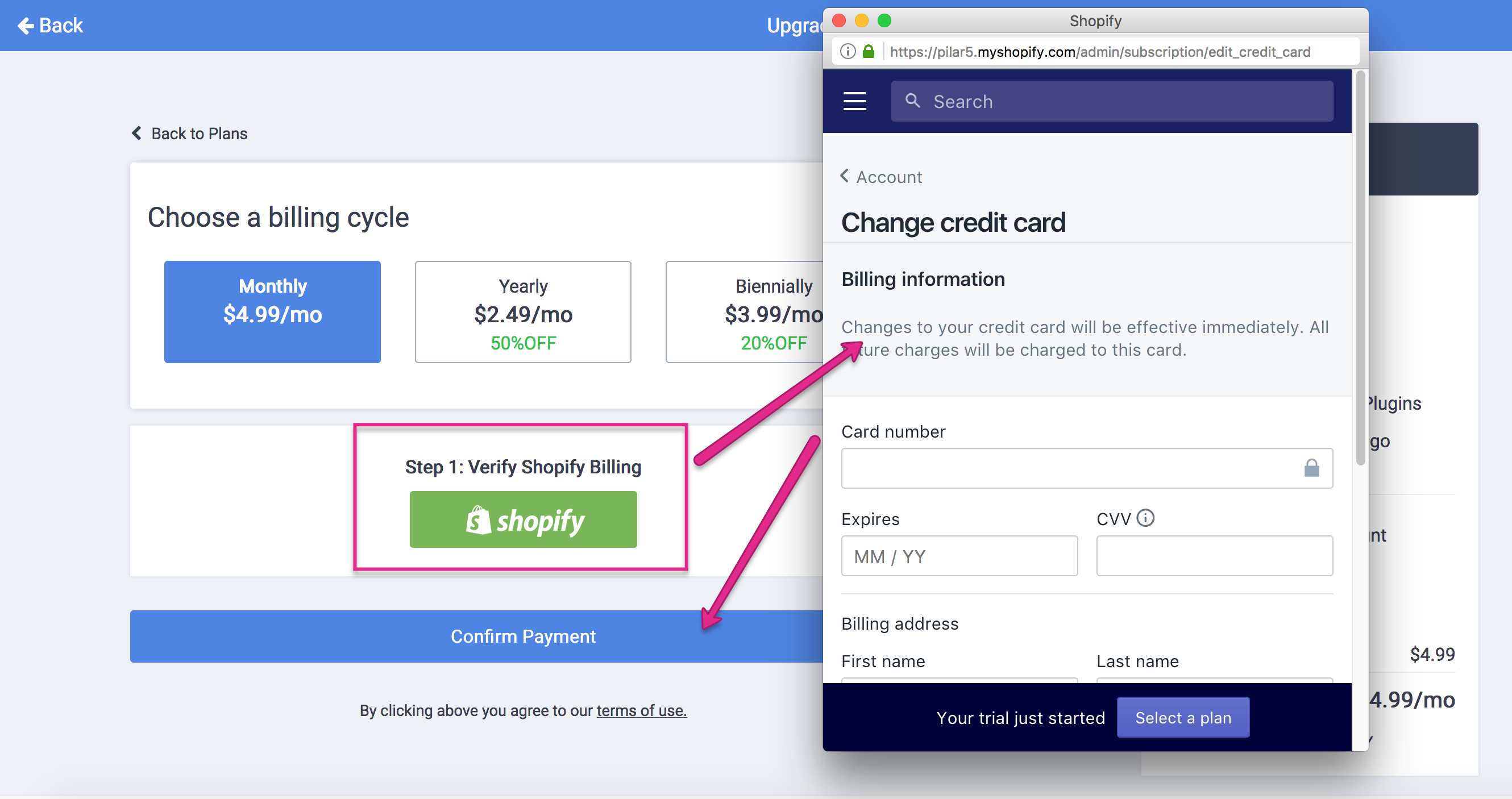
To create your POWR subscription using Shopify billing, follow these steps:
- Verify your Shopify billing
- Enter your payment information (or choose one of your cards on file for your Shopify account)
- Click Confirm in the Shopify payment modal.
- Click Confirm Payment in the POWR checkout panel.
Subscription confirmed in Shopify but not appearing on POWR
If you purchased an upgrade using Pay with Shopify but you do not have access to upgraded features yet, you might not have completed all steps of confirming the payment with POWR.
You must click the blue Confirm Payment button at the bottom to send the payment details to POWR. Otherwise, the subscription does not get created, you do not get charged, and you do not get the upgraded features.
Not seeing the option to pay with Shopify?
The option to pay with Shopify will only appear when you are logged into your POWR account that is tied to your Shopify account. You will also need to be logged into Shopify at the same time.