
How to Receive Applications in the POWR Job Board App
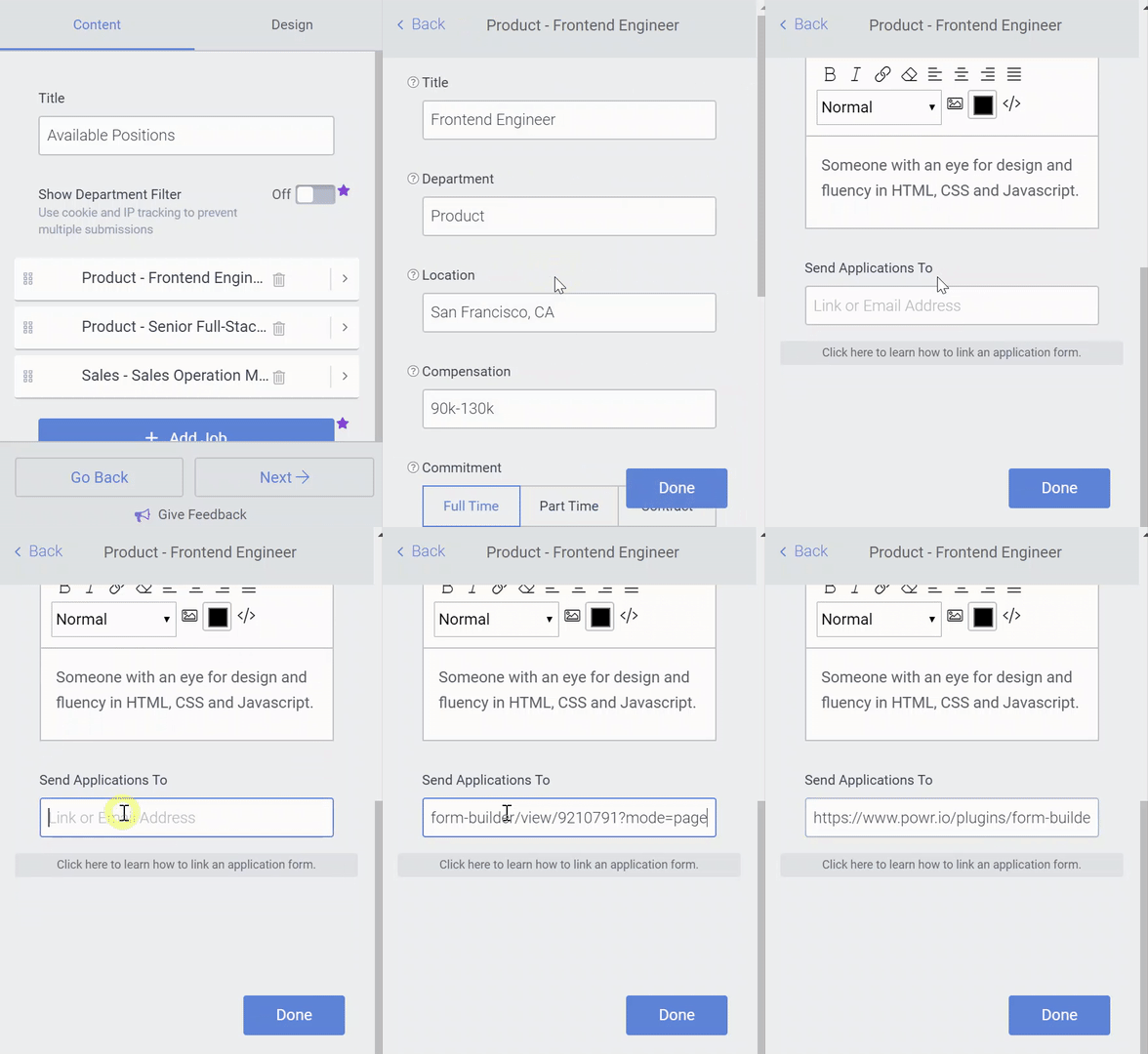
When setting up POWR Job Board there are two ways to receive applications. The options are set up in the Content section of the POWR editor. Locate the Send Applicants To field found in each individual job details section.
Option 1: Email Address
Entering an email address into the field will allow applicants to email you directly.
Option 2: Link
If you have a page on your site where users can go to apply for the job, you can add the URL to the page here.
Alternatively, you can create an application using POWR Form Builder and use the shareable view link to send applicants directly to the form.
To create an application using POWR Form Builder, head over to this link: Form Builder
NOTE: If you are using Wix, we recommend adding our Form to a page on your Wix site and linking to that page. You can add POWR Form Builder to your Wix site using this link: https://www.wix.com/app-market/form-builder-payments
To get the share link for the form, check out this article: How to share an App
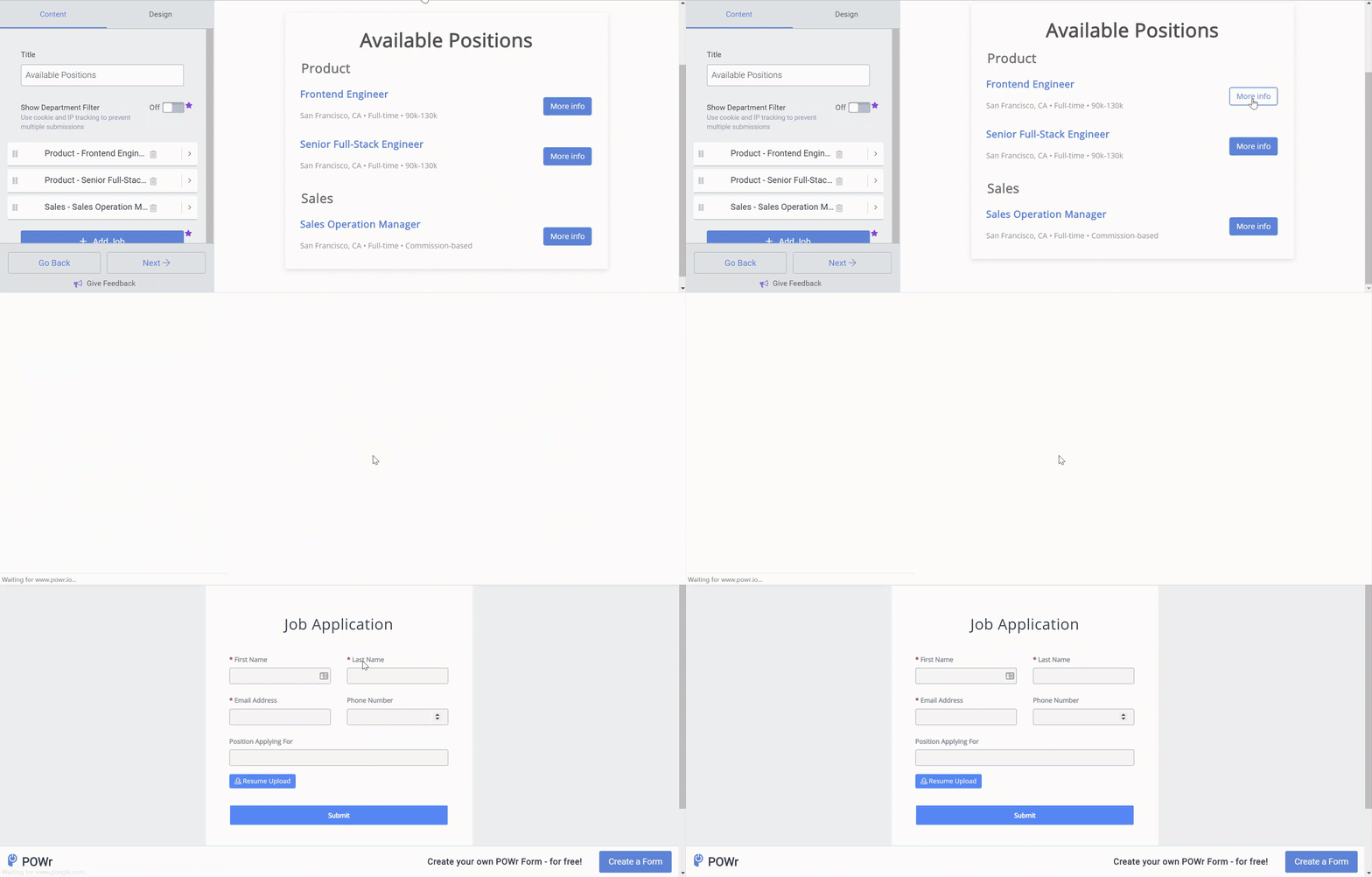
This example shows how the redirect to a POWR form works:
FAQs
Q: Is it possible to put a Location Filter to a Job Board app? A: Unfortunately, there isn't a way to add a new Location Filter at this time. The only filter currently available within the Job Board app is the Department Filter. Apologies for the inconvenience. If you want to see this feature in our Job Board app in the future, you can always Submit A Feature Request.