
How do I create side-by-side elements in forms?
A well-designed form isn’t just about functionality — it’s also about presentation. By default, form elements in POWR Form Builder stack vertically one on top of the other, but sometimes a side-by-side layout can make your form look cleaner, more compact and more professional. Whether you’re trying to place a first name and last name field next to each other, or align two related fields on the same row, POWR Form Builder gives you the flexibility to create side-by-side elements without any coding required. In this article we’ll walk you through exactly how to set this up in just a few simple steps.
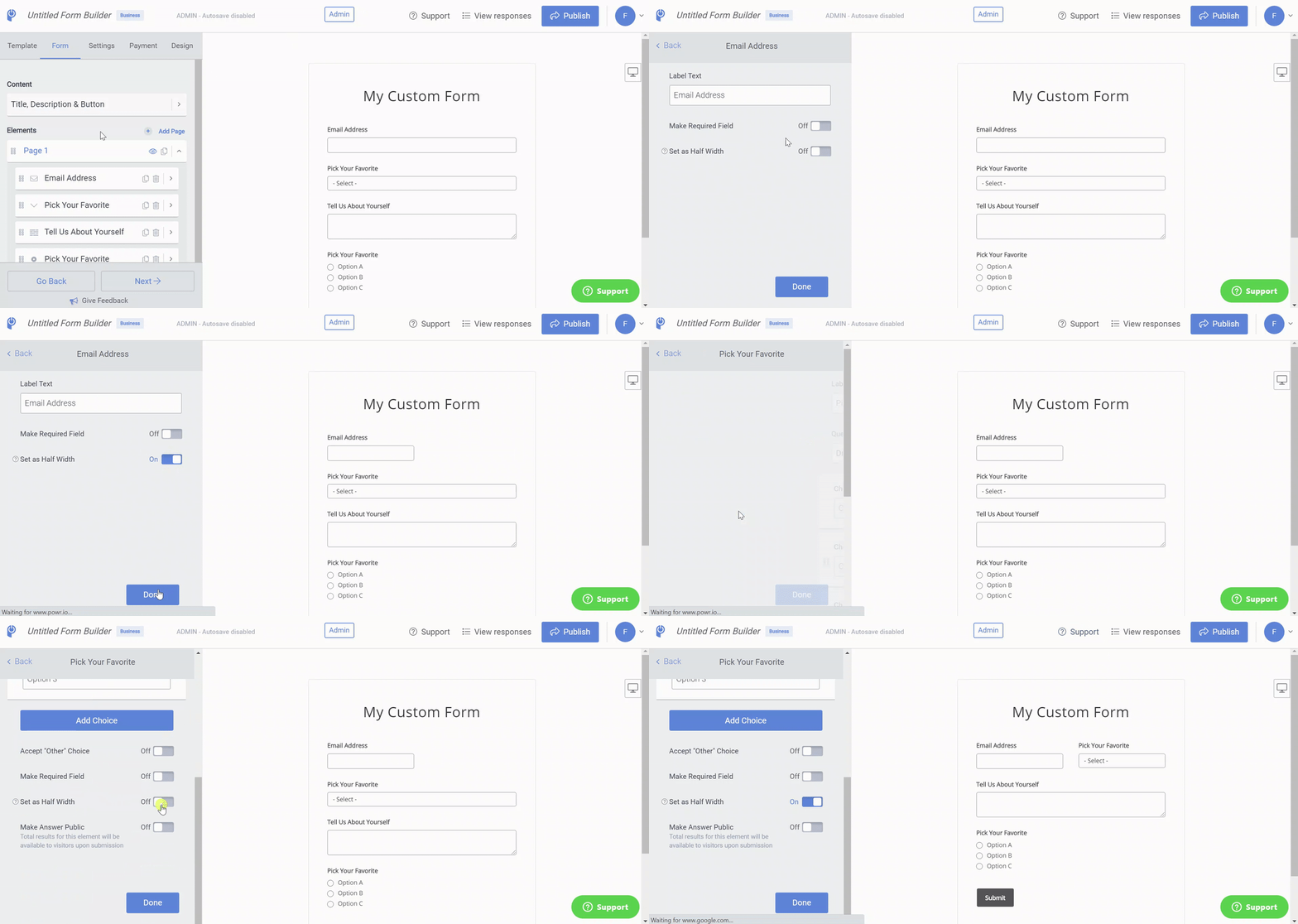
You can create side-by-side elements on any Form by toggling the Half Width option to On.
Open the POWR Editor (App Settings in Wix)
In the Form section, click on the element you want to make half width
In the element toggle on Set as Half Width
Set two consecutive Form Elements to Half Width, and they will appear next to one another. Like this:
Creating side-by-side elements in your POWR form is a simple but effective way to improve the overall look and feel of your form and make it easier for visitors to fill out. A more organized layout not only looks more professional but can also help reduce form abandonment by making the experience feel less overwhelming. If you have any questions about customizing your form layout or run into any trouble along the way, our support team is always here to help — don’t hesitate to reach out!
Need Help?
If you need any help or have any questions about our Form Builder, our support team is happy to help.
👉 Contact our support team
When contacting us, you'll be prompted to authenticate your email by signing in, and a confirmation code will be emailed to you. This helps ensure our support team's reply will be delivered to you with no issues.
For more information about available features, visit our Pricing Page:
https://www.powr.io/pricing