
How to collect donations with Forms
POWR Forms are an easy way to solicit and collect donations for your nonprofit, charity, or cause. Donations work much the same way as regular payments.
Quick Steps to Accept Donations
Open the POWR Editor (or App Settings in Wix)
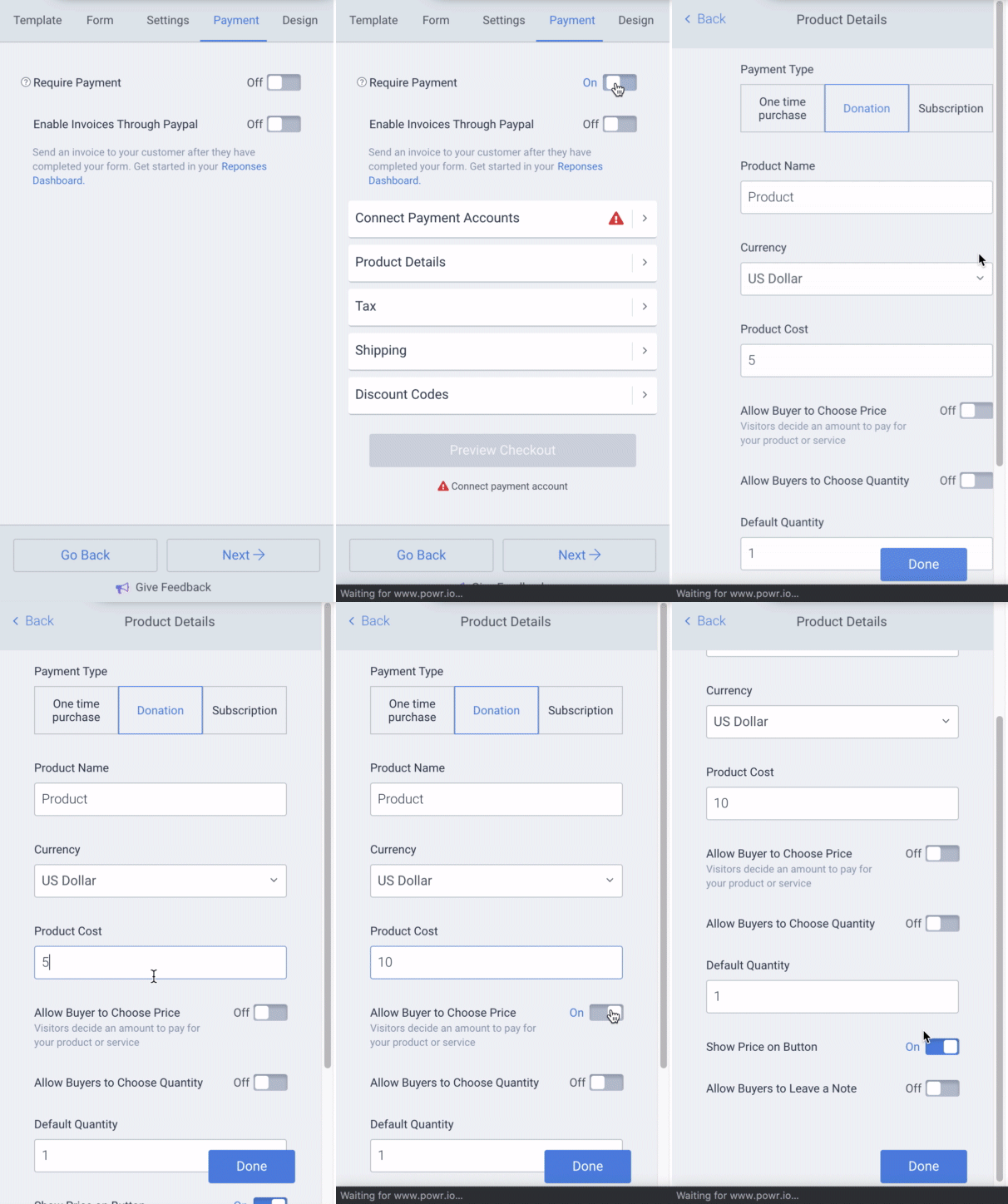
Go to the Payment section
Toggle on Require Payment
Enter your PayPal email address
Choose Donation as the Payment Type
You can allow the buyer to enter their own donation amount, or set a donation amount yourself. It is also recommended that you add a Product Name so the buyer sees details about the purchase in their confirmation email.
Customizing the Donation Amount
You have two options when setting up the donation amount:
Let the donor decide: allow the buyer to enter their own donation amount. This is the most flexible option and often leads to higher average donations, since donors can give what feels meaningful to them
Set a fixed donation amount: if you’d prefer to set a specific amount (e.g., for a sponsored donation campaign or a tiered giving level), you can enter the amount yourself
Tips for Donation Forms
Test the form first: send yourself a small test donation (e.g., $1) to confirm the PayPal flow works end-to-end before promoting the form publicly
Add a thank-you message: customize the confirmation page or autoresponder email to thank donors for their contribution, it makes a real difference in building repeat support
Consider offering suggested amounts: you can use a dropdown or multiple-choice field to offer suggested donation tiers ($10, $25, $50, $100) while still letting donors enter a custom amount
Include a brief description: add text above or near your form explaining what the donation supports, so donors know exactly where their money is going
Related Articles
Need Help?
If you need any help or have any questions about our Form Builder, our support team is happy to help.
👉 Contact our support team
When contacting us, you'll be prompted to authenticate your email by signing in, and a confirmation code will be emailed to you. This helps ensure our support team's reply will be delivered to you with no issues.
For more information about available features, visit our Pricing Page:
https://www.powr.io/pricing