Discount Codes in Forms
Promo codes can be added to any POWR form that requires a payment.
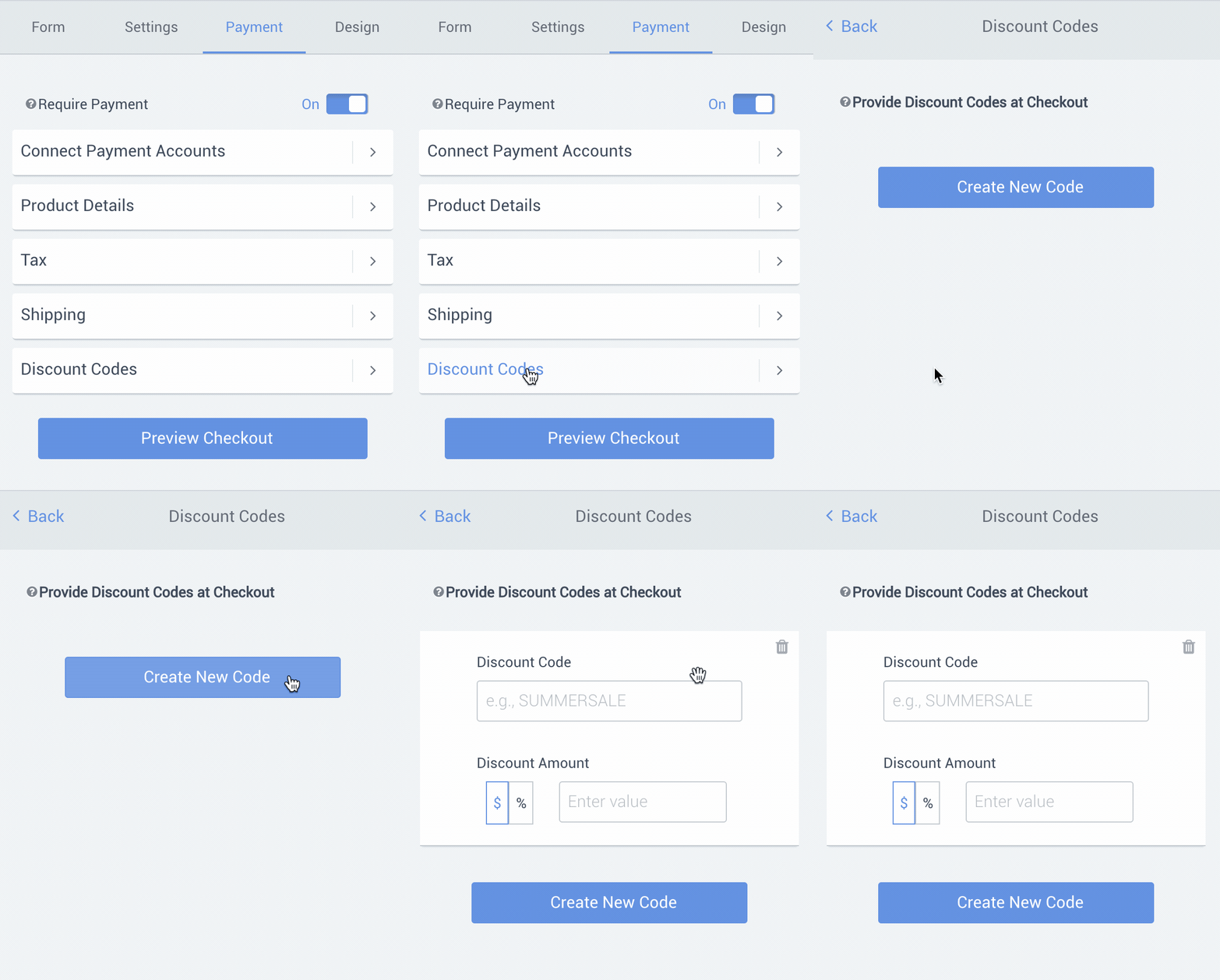
Once you enable payments on your form, the Discount Codes section will appear in the POWR Editor. To set up a code, follow these steps:
- Go to the Payment section
- Click on Discount Codes (Require Payment must be toggled on to see Discount Codes)
- Click +Create New Code
- Enter a word or phrase that will trigger the discount code, choose percent or flat rate, and set a value (ex. $5 or 10%).
- You can create multiple discount codes on a single form.
When a visitor enters a valid discount code in your form, a green checkmark will appear next to it in the checkout modal.
Note: The discount code is case-sensitive. That means, if you create a code that is 15OFF, the discount will not be accepted if the user enters it as 15off or 15Off.
If you are selling Subscriptions the discount will apply to every payment you receive. For example, a $5 discount on a $20/month subscription means your customer will be charged $15 each month.
If your discount is greater than or equal to the total value charged to the customer, you will NOT receive an email confirmation after the form is submitted. Remember to check your Form Response Dashboard to stay up to date.